
MECHDESK · USER MANUAL
MECHDESK manual
Every image is a real MECHDESK screen. Device names, IDs, IP addresses and personal data are blurred.
01
Getting started
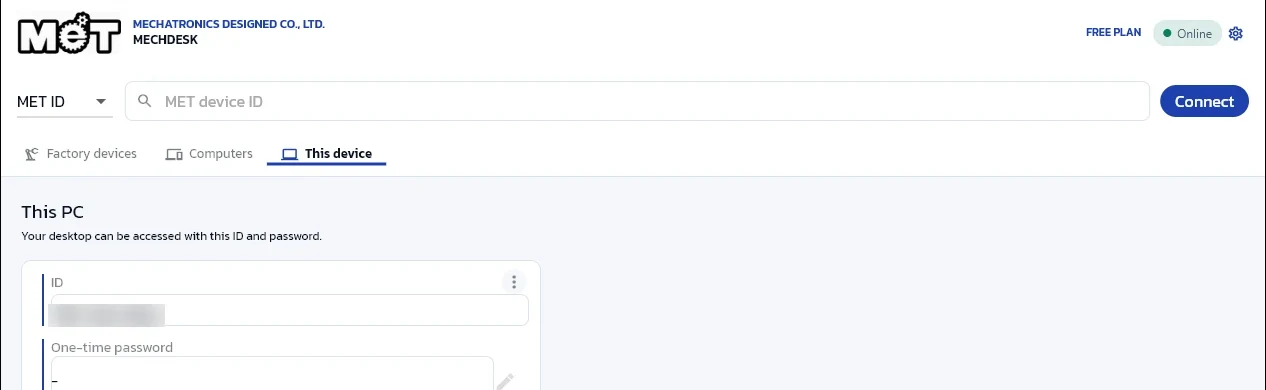
This device’s MET ID
After installing from the Microsoft Store, open This device to see the MET ID and one-time password. Give both to whoever should connect to this PC. The status at the top right must read Online.
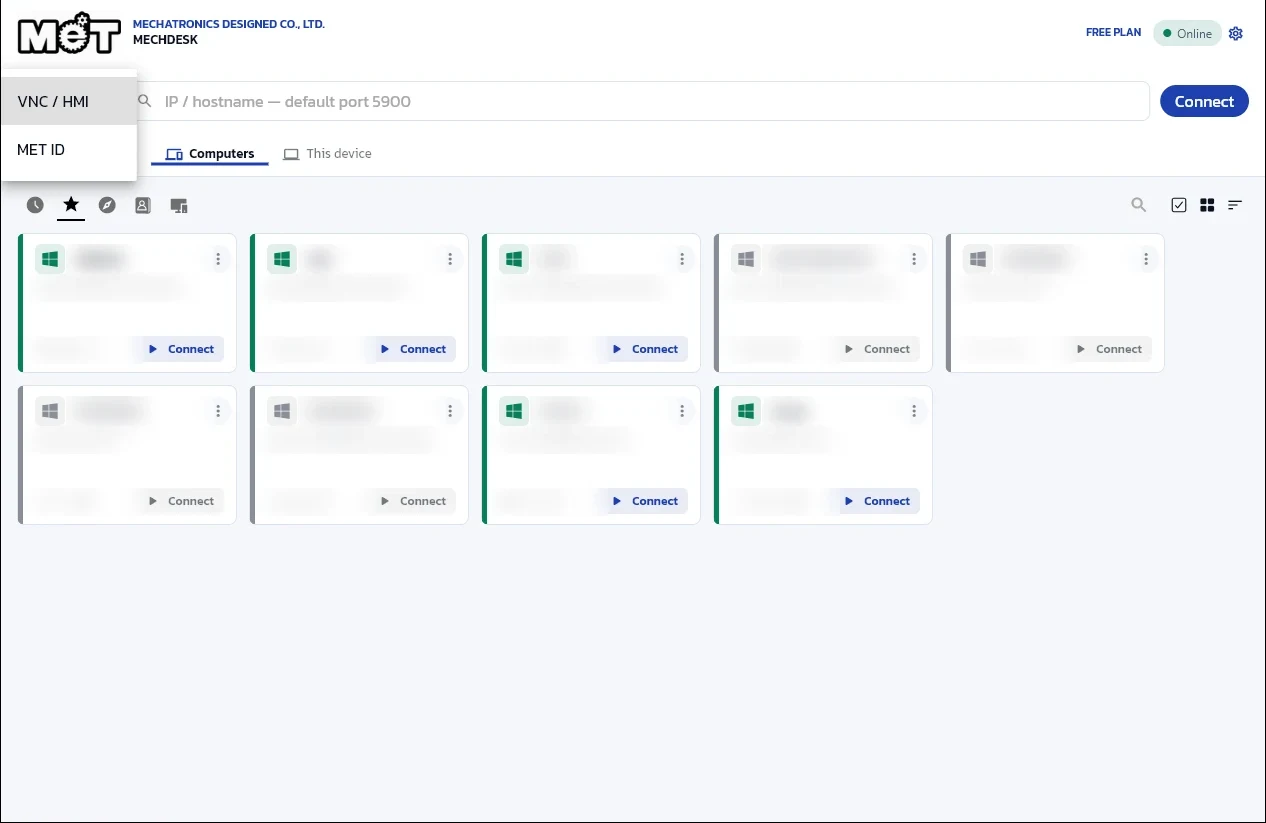
Choose the connection mode
The selector left of the search box switches between MET ID (computers running MECHDESK) and VNC / HMI (HMIs and other standard VNC devices).
02
Remote computers
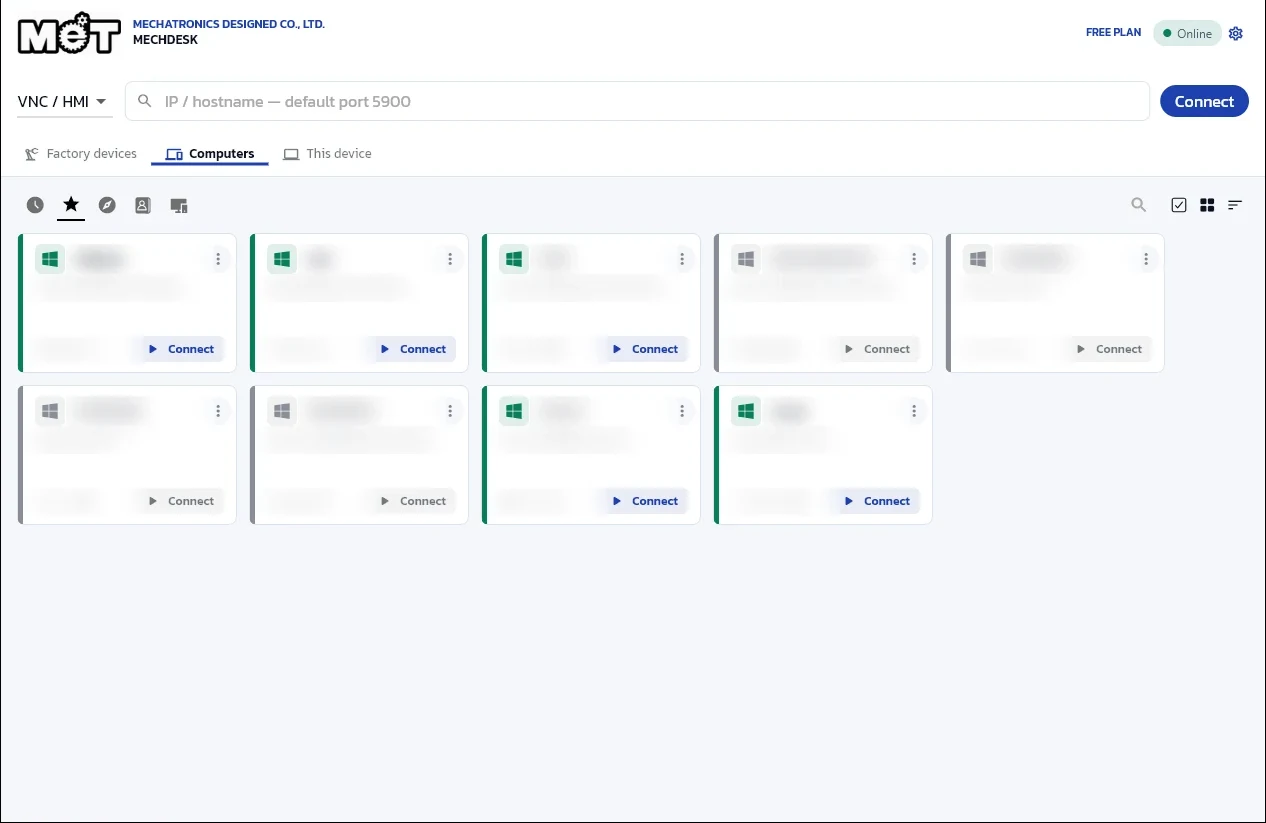
Computer list
Computers keeps the machines you have used. The icons switch between recent, favourites, LAN discovery and address book. A green edge means the device is online. Click Connect, or type a MET ID in the search box and press Connect.
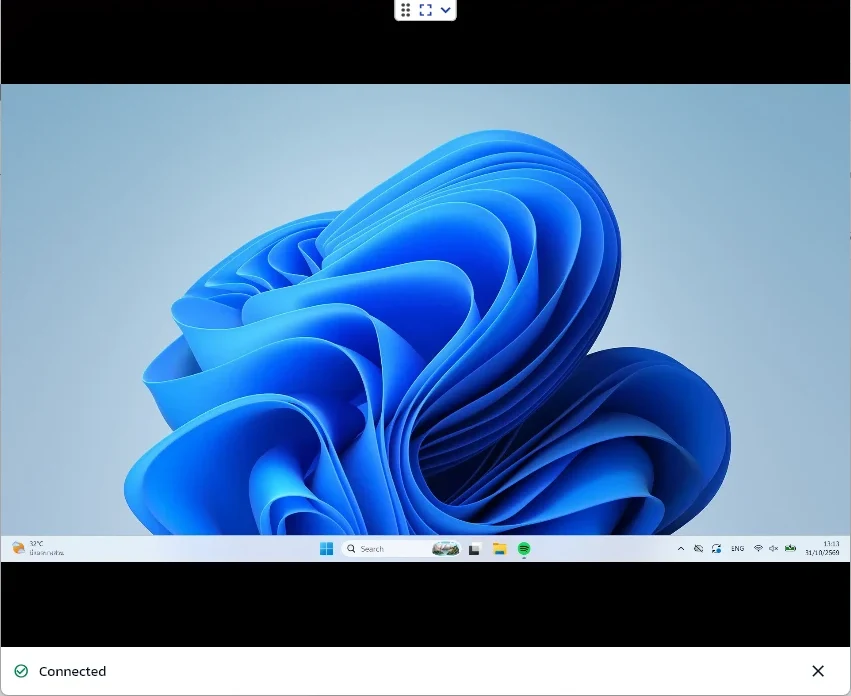
Remote session window
A new window shows the remote screen. The small bar at the top opens the menu, toggles full screen and ends the session; the bottom bar shows Connected.
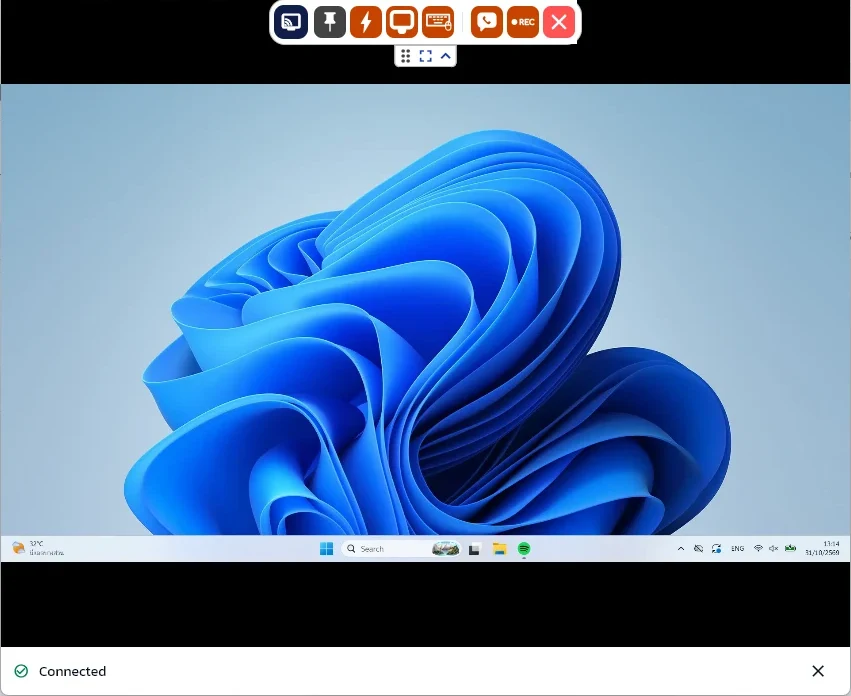
Session toolbar
Click the arrow on the small bar to expand the toolbar: monitor, pin, actions, display, keyboard, chat, session recording (REC) and the red button to disconnect.
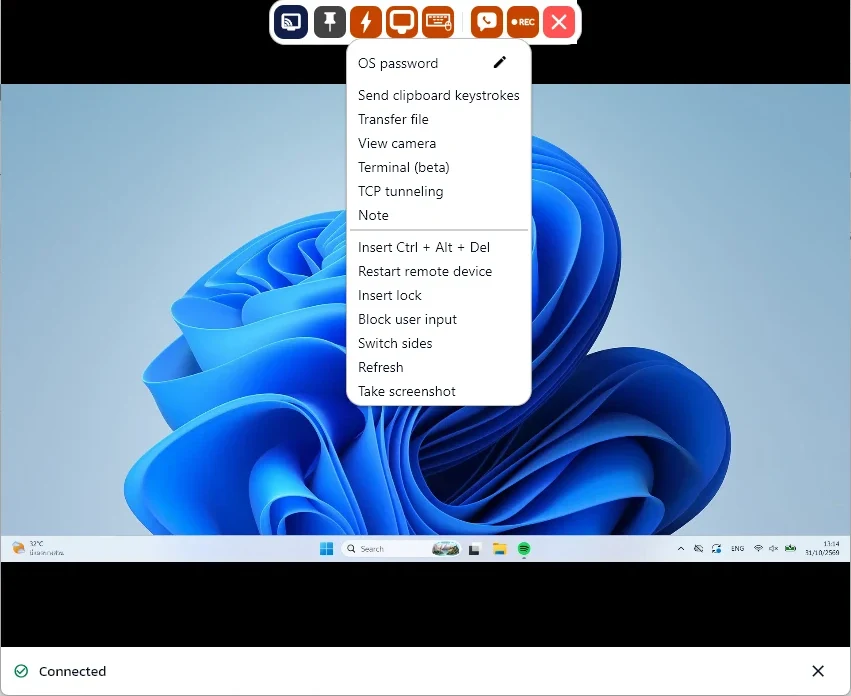
Actions menu (lightning icon)
Transfer files, view camera, terminal, TCP tunnelling, send Ctrl + Alt + Del, restart the remote device, lock it, block user input, switch sides and take a screenshot.
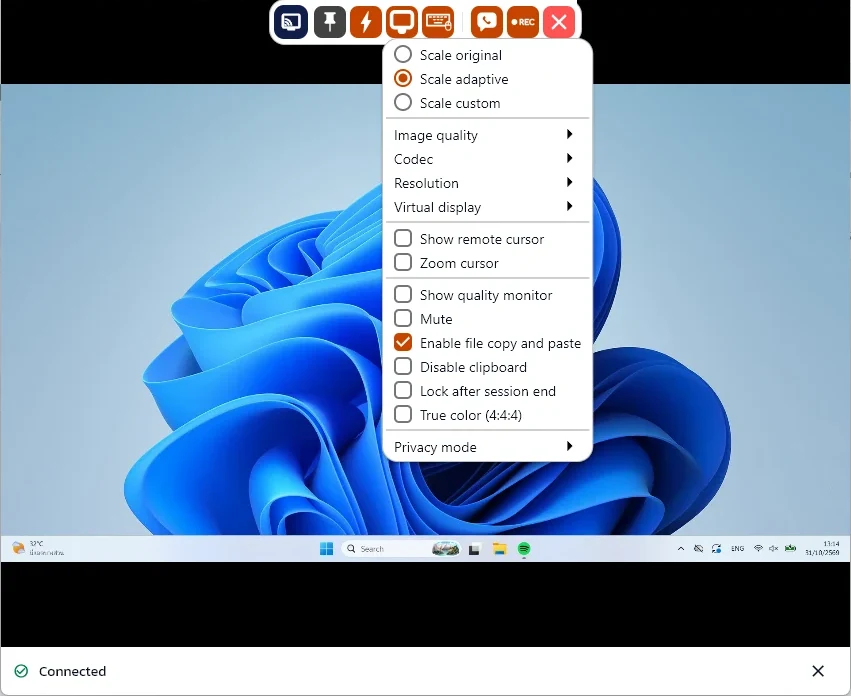
Display settings
Scaling, image quality, codec, resolution, virtual display, remote cursor, mute, file copy and paste through the clipboard, and privacy mode.
03
HMIs and VNC
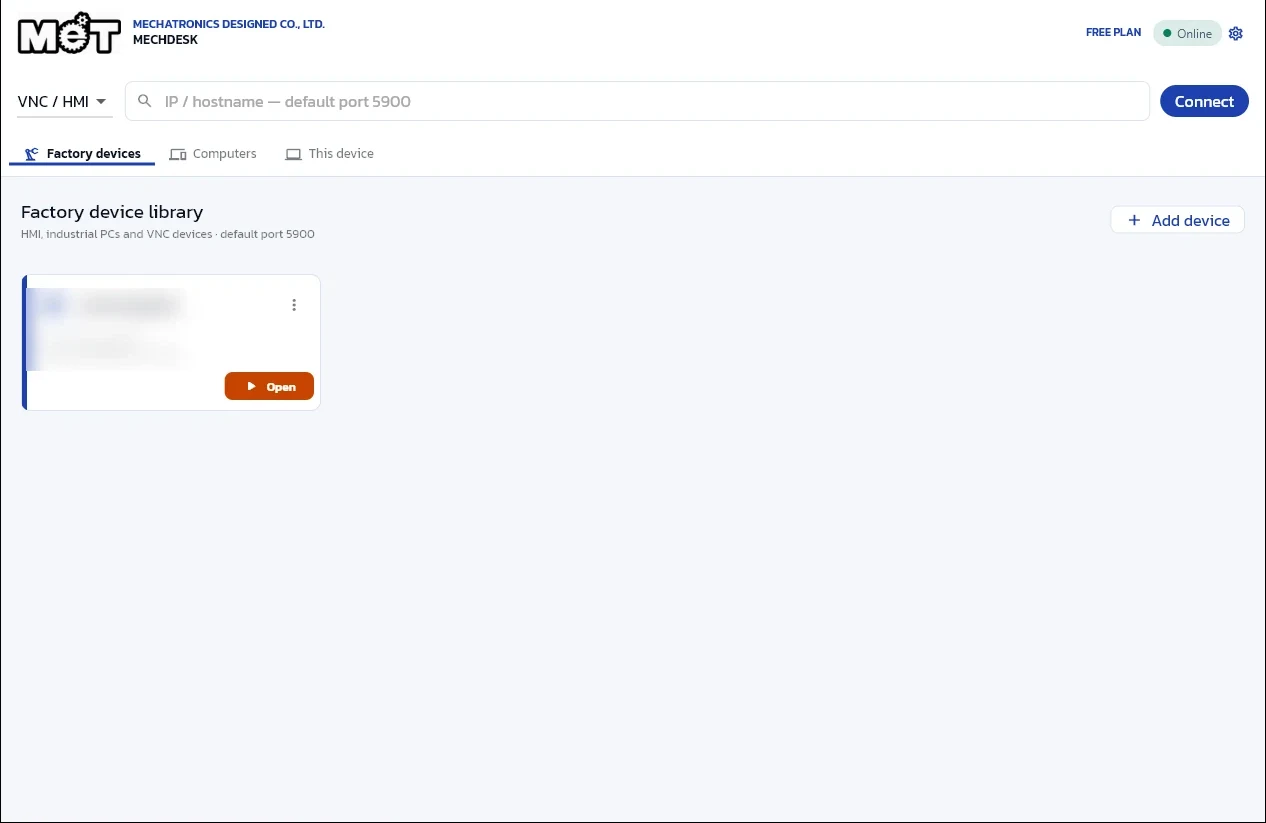
Factory device library
Factory devices keeps HMIs and industrial PCs that speak VNC (default port 5900). Click Open, or type an IP in the search box and press Connect for a one-off session.
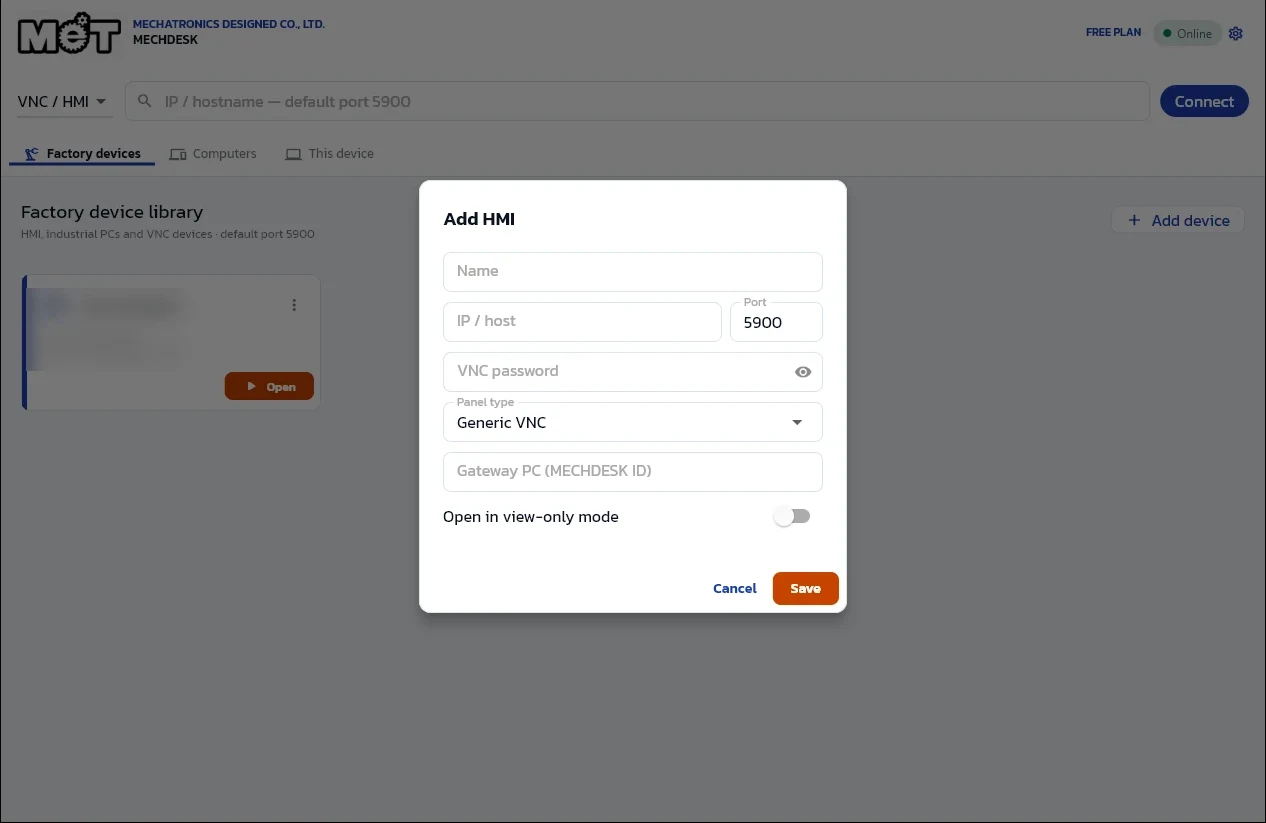
Add an HMI
Click Add device and enter a name, IP, port and VNC password. If the HMI sits behind another PC on site, enter that PC’s MET ID as Gateway PC. Turn on view-only mode to watch without control.
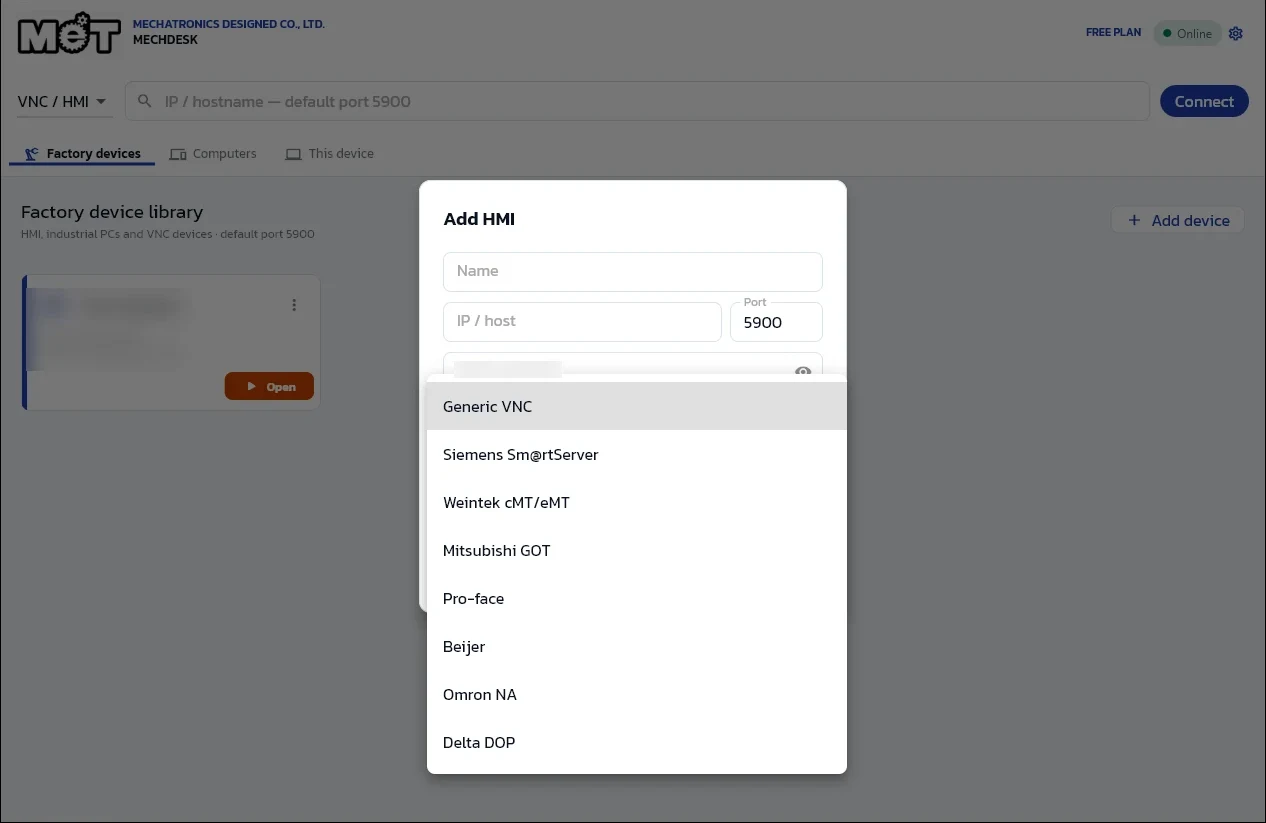
Pick the panel type
Panel type has presets for Generic VNC, Siemens Sm@rtServer, Weintek, Mitsubishi GOT, Pro-face, Beijer, Omron NA and Delta DOP.
04
Control center (settings)
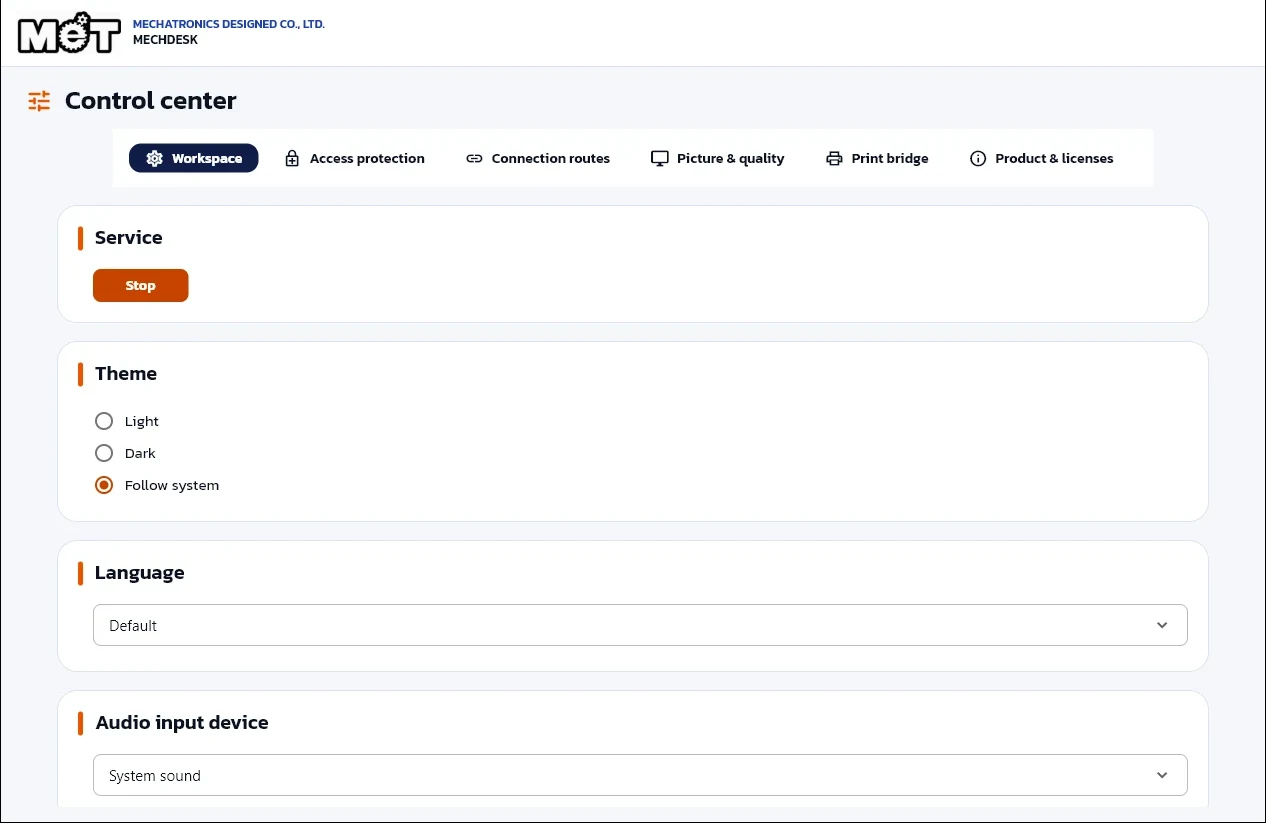
Workspace
Click the gear at the top right to open Control center. Workspace starts or stops the service and sets theme, language and audio input.
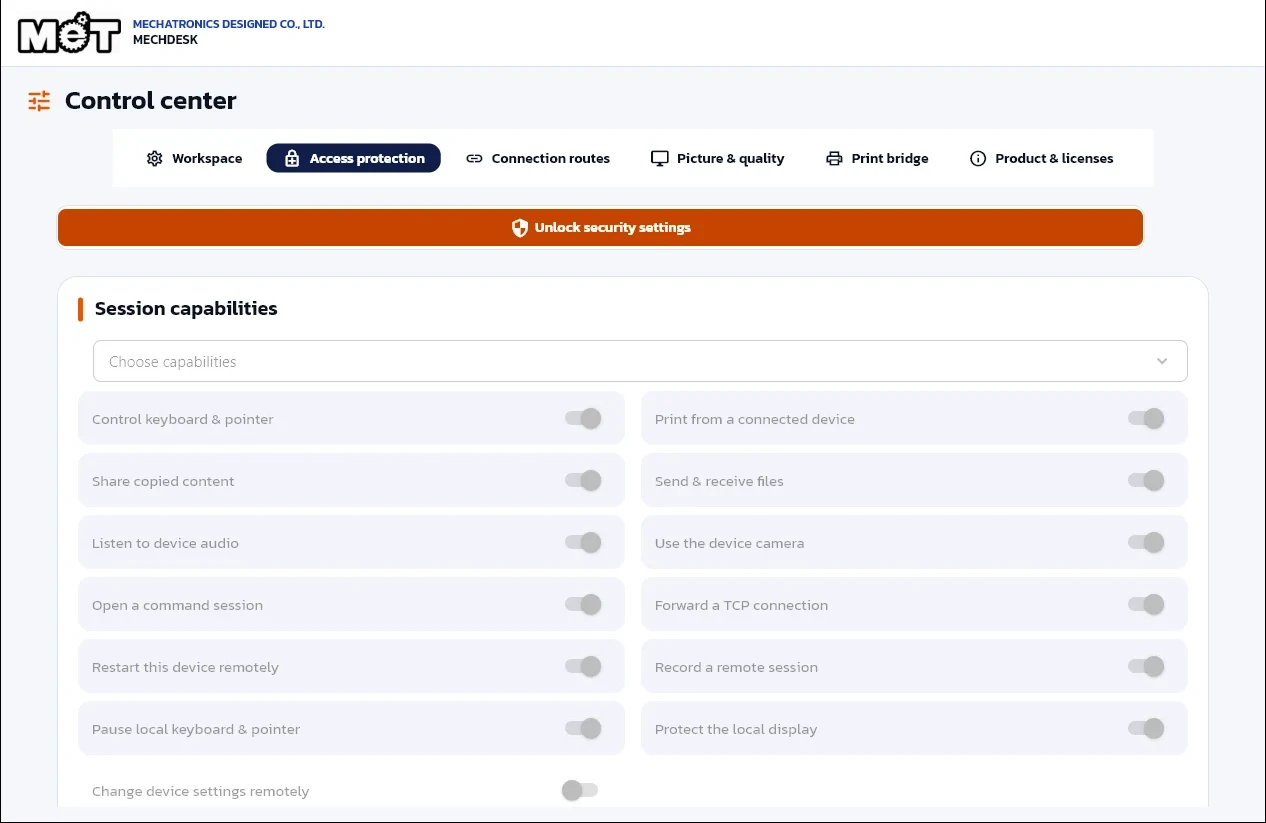
Access protection
Choose what a remote user may do: keyboard and mouse, clipboard, file transfer, session recording and more. Click Unlock security settings (administrator) before editing.
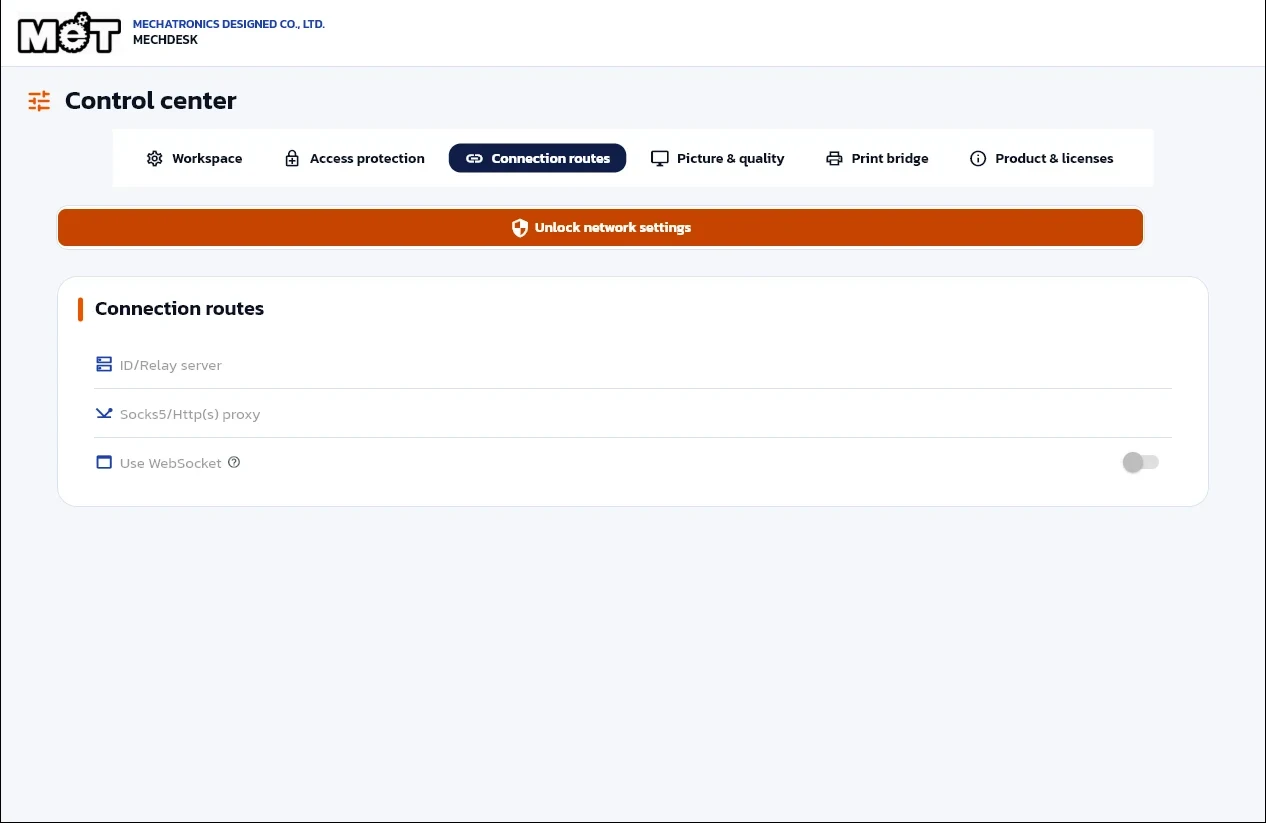
Connection routes
ID/relay server and proxy settings for managed networks. Most users never change these; by default MECHDESK connects through its own servers.
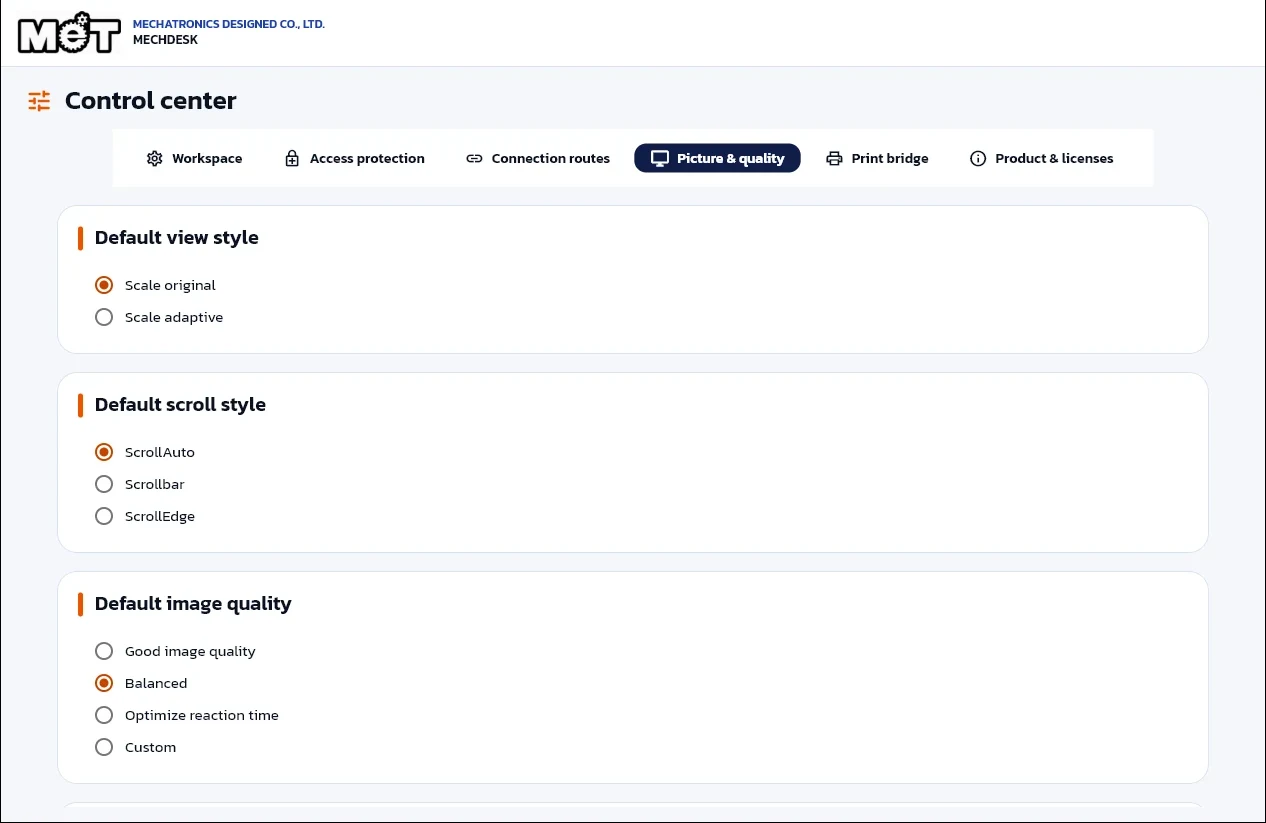
Picture & quality
Defaults for view style, scrolling, image quality and codec. Choose Optimize reaction time on slow links, Good image quality for sharp detail.
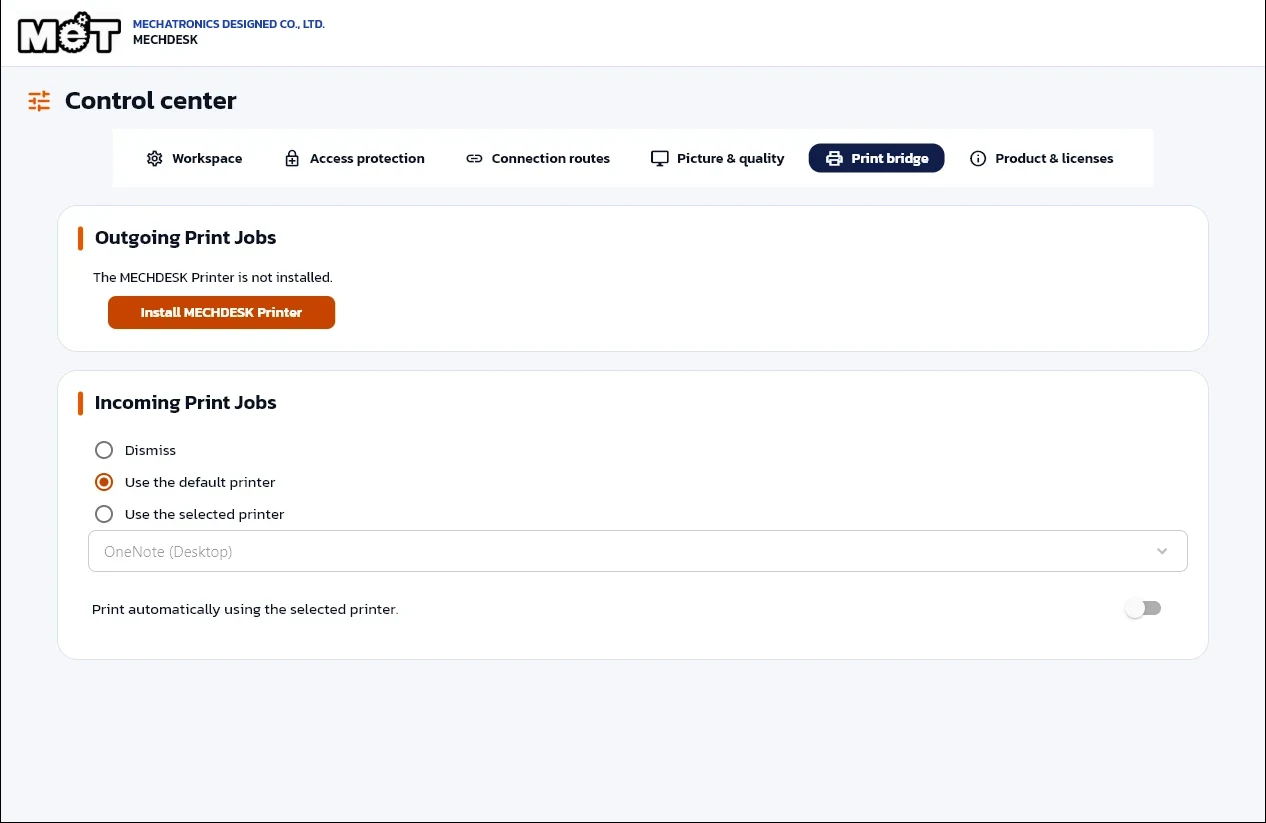
Print bridge
Print from the remote PC to the printer next to you, and choose how incoming print jobs are handled.
05
Licence and 30-day trial
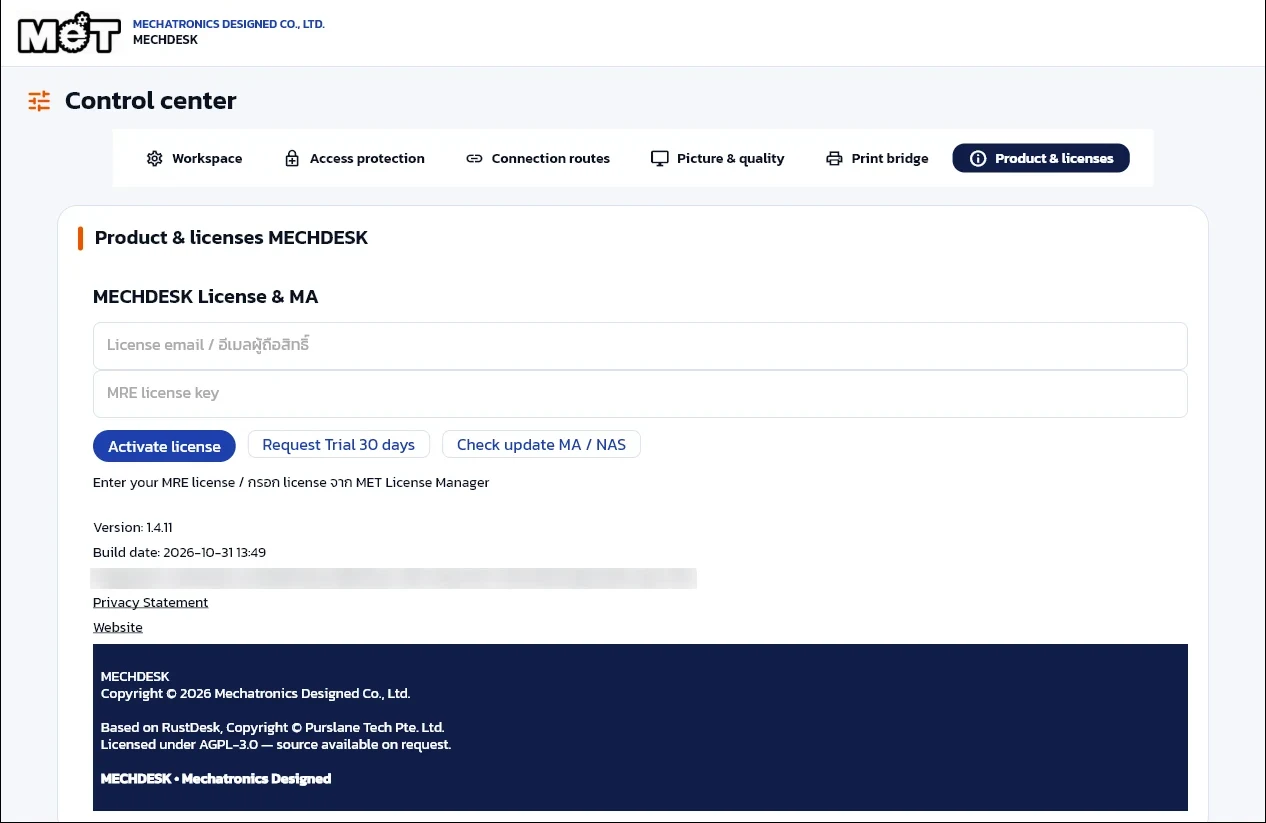
Product & licenses
Enter your e-mail and licence key (starting MRE-), then Activate license. Check update MA verifies update rights; version and privacy links are shown below.
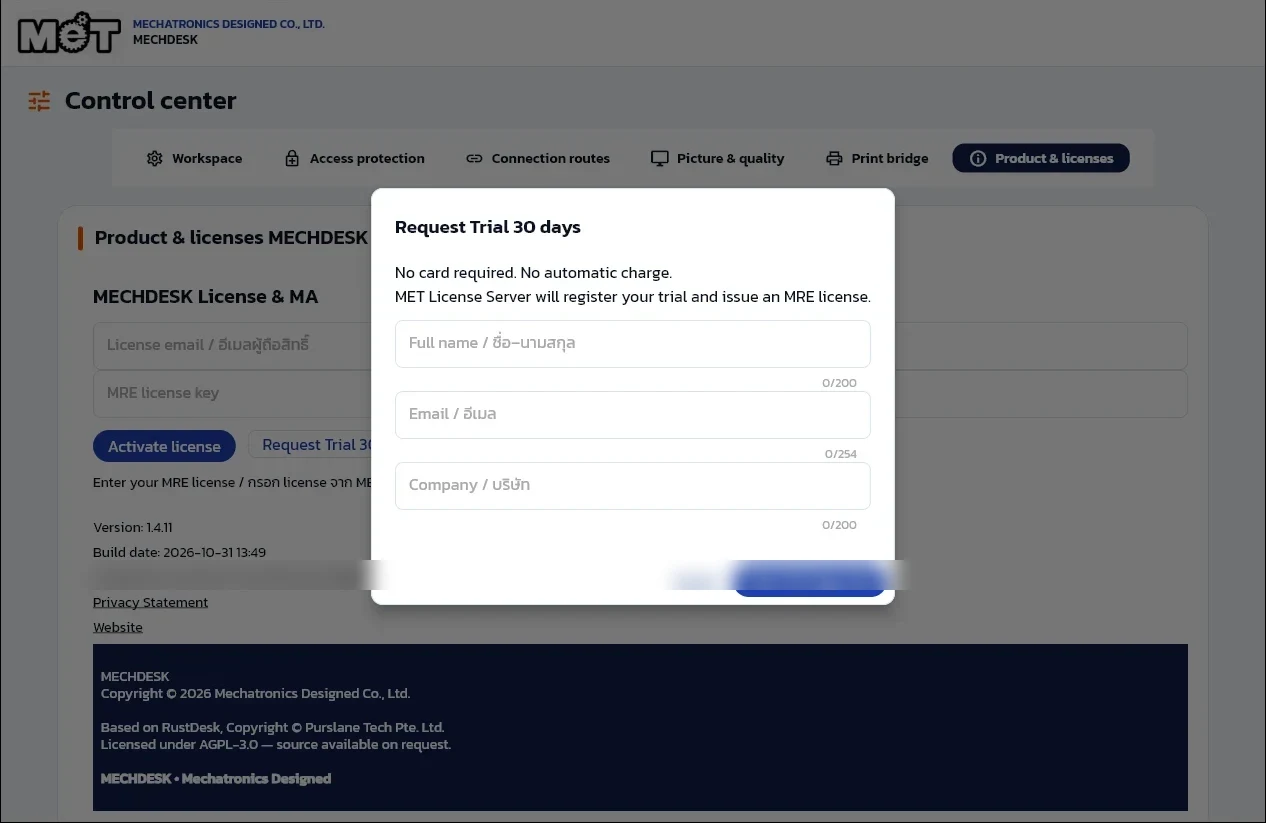
Request a 30-day trial
Click Request Trial 30 days and enter name, e-mail and company. No card and no automatic charge; when the trial ends a plan is needed to connect out (machines being controlled keep working).