
What it does
An annotative object is displayed only when the current annotation scale matches a scale assigned to it. Use this when you plot a drawing at several scales.
| Command | Alias | Syntax | Meaning |
|---|---|---|---|
| OBJECTSCALE | ANNOOBJECTSCALE |
OBJECTSCALE <Add|Delete|List> [scale] |
Add, delete or list the scales of the selected annotative objects. If you give no scale, the current DIMSCALE is used. |
| ANNOALLVISIBLE | – | ANNOALLVISIBLE <ON|OFF> |
ON = show annotative objects at all scales. |
Where to find it
- Status bar: the Annotation scale box (1:1, 1:2, 1:5, 1:10, 1:20, 1:50, 1:100, 1:200, 1:500, 1:1000, 2:1, 5:1)
- Ribbon: Annotate › Styles › Add Object Scale

Steps
- Choose an annotation scale on the Status bar, for example
1:10. - Select the text or dimensions.
- Click Add Object Scale (or type
OBJECTSCALE ADD). - Check the result with
OBJECTSCALE LIST.
Try it: Workshop floor plan at two scales
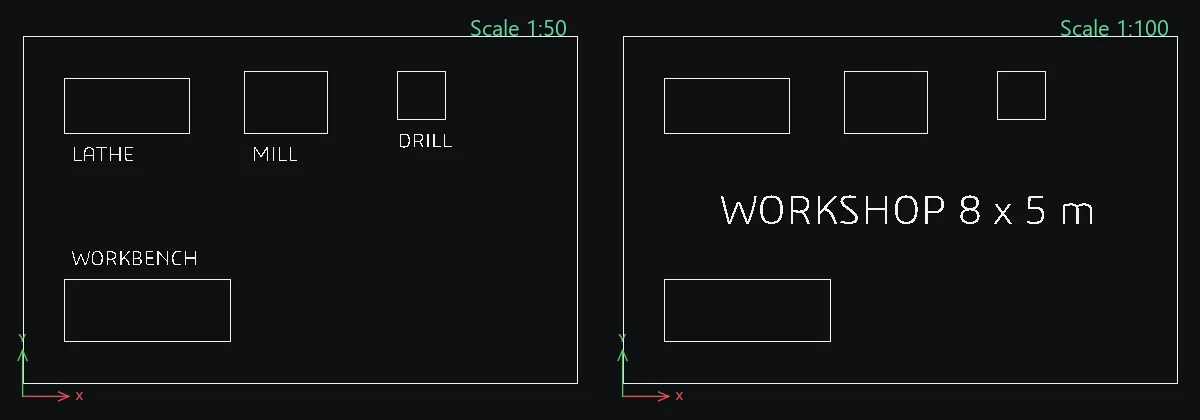
One 8 x 5 m workshop plan, two printouts. At 1:50 you want every machine named; at 1:100 only the room title fits. Annotative text shows the right labels at each scale on its own.
- Walls:
REC0,0, then8000Tab5000Enter. Machine footprints, also withREC: lathe600,3600→1800Tab800, mill3200,3600→1200Tab900, drill5400,3800→700Tab700, workbench600,600→2400Tab900. - Machine labels:
DTwith Text height200. TypeLATHEat about700,3200,MILLat3300,3200,DRILLat5400,3400andWORKBENCHat700,1700. - Room title:
DTwith Text height400,WORKSHOP 8 x 5 mat about1400,2300. - Set the Annotation scale box on the Status bar to
1:50. Select the four machine labels and typeOBJECTSCALE ADD. With no number it uses the current scale, so they now belong to 1:50. - Select the room title and type
OBJECTSCALE ADD 100. - Switch the Status bar between
1:50and1:100. The machine labels appear only at 1:50 and the title only at 1:100.OBJECTSCALE LISTconfirms the scales of the selected text.
Challenge: Type ANNOALLVISIBLE ON to see every label at once while you edit, then ANNOALLVISIBLE OFF to go back.