
What it does
Most Modify commands work in two ways: select first, then run the command (Pickfirst), or run the command first, then select (the program asks select objects - Enter to continue, Esc to cancel; select, then press Enter).
Selecting with the mouse
| Method | Result |
|---|---|
| Click an object | Selects it. A click on another object replaces the selection; Ctrl+click adds or removes objects |
| Drag a box from left to right (Window, blue) | Selects only objects that are completely inside the box |
| Drag a box from right to left (Crossing) | Selects objects that cross or are inside the box |
| Click again at the same spot (SELCYCLE on) | Cycles through overlapping objects |
Esc |
Cancels the selection |
Ctrl+A or right-click empty space › Select All |
Selects everything |
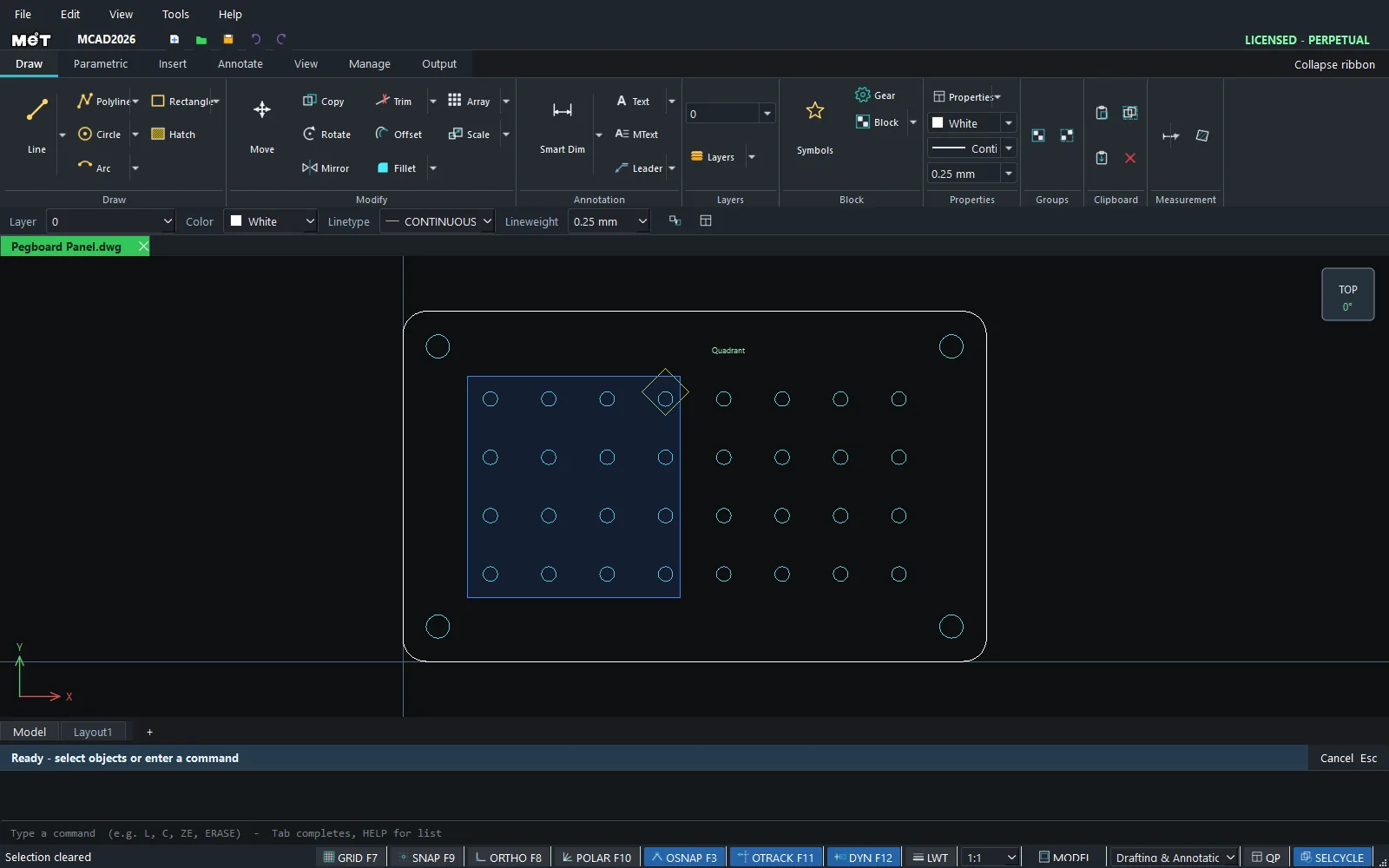
Selection commands
| Command | Alias | Format | Meaning |
|---|---|---|---|
| SELECT | SE |
– | Returns to selection mode |
| QSELECT | QSE |
QSELECT <type> [layer] / QSELECT ? |
Selects every object of one type (for example circle, line, text). You can limit it to a Layer |
| FILTER | FI |
FILTER <prop>=<value> ... / FILTER ? |
Selects by any property, for example FILTER kind=circle r=6.0 (multiple conditions are combined with AND; a value must match exactly as stored, so type 6.0, not 6) |
| SELECTSIMILAR | SELSIM |
– | Extends the selection to all objects of the same type on the same Layer |
| SELECTPREVIOUS | SELP |
– | Recalls the previous selection set |
| SELECTLAST | SELL |
– | Selects the most recently created object |
| ISOLATEOBJECTS | ISOLATE |
– | Hides everything except the selection |
| HIDEOBJECTS | HIDEOBJ |
– | Hides the selected objects |
| UNISOLATEOBJECTS | UNISOLATE |
– | Shows objects hidden by the two commands above |
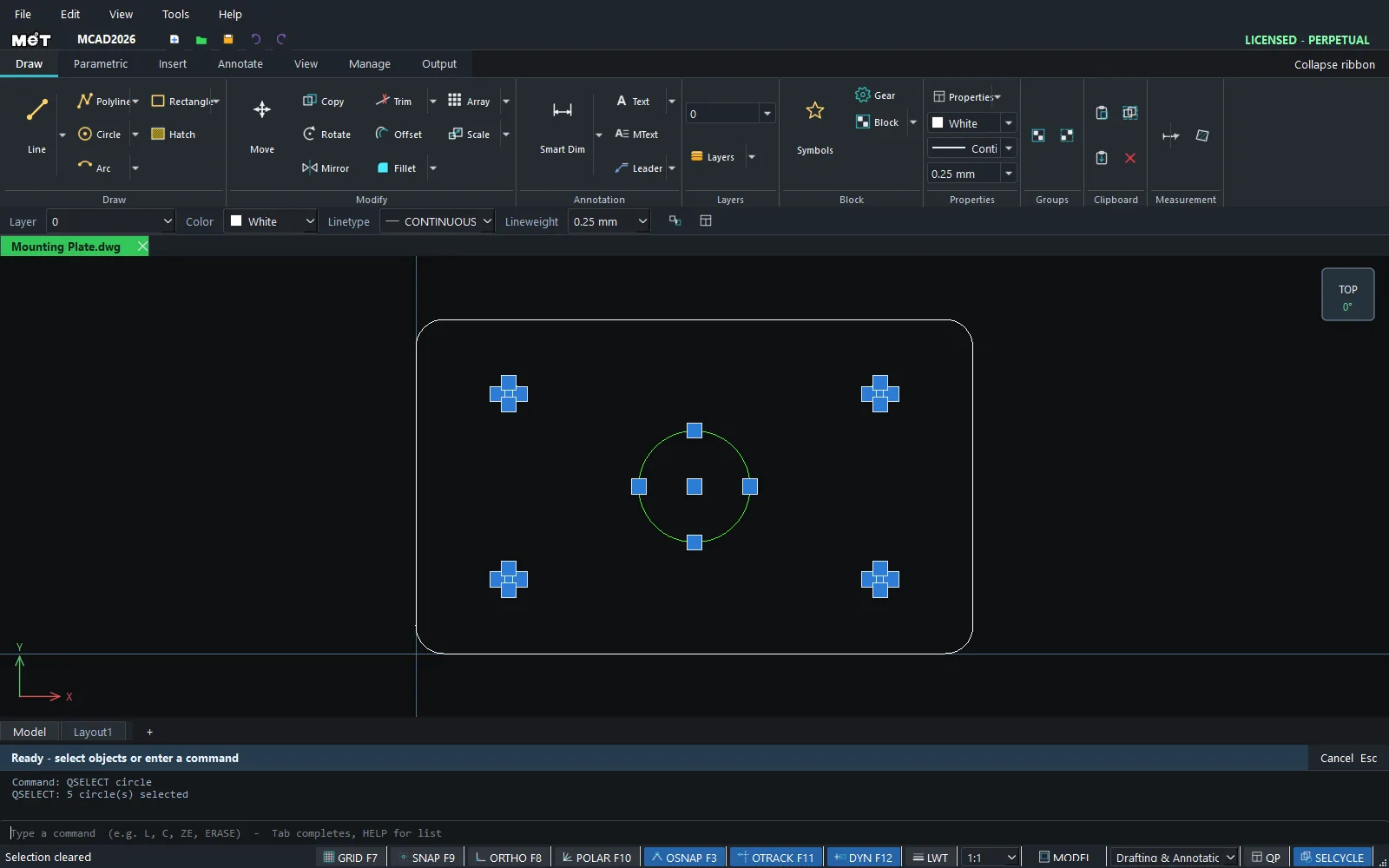
Example: select all circles
- Type
QSELECT circleand press Enter. - The result is
QSELECT: 5 circle(s) selected. You can run a command right away, for exampleCENTERMARK.
Try it: Pegboard panel
A 200 x 120 mm pegboard for tools or craft supplies, with 32 peg holes and 4 mounting holes. You will select only the peg holes and move them to their own layer, even though every hole is a circle.
- Board:
REC,0,0,@200,120, Esc. Peg hole:C,30,30,3, Esc. Mounting holes:C10,104,C190,104,C10,1104,C190,1104. Press Esc after each one. - Click the peg hole and type
ARRAYRECT 8 20 0. Drag a window around the 8 peg holes (from 20,20 to 180,40) and typeARRAYRECT 4 0 20. You now have 32 peg holes. - Type
QSELECT circle. The result readsQSELECT: 36 circle(s) selected, which includes the mounting holes. Ctrl+click each of the 4 mounting holes on its circle line, away from the blue grips. That removes them, so 32 objects stay selected.- Type
CHPROP layer=PEGS color=#00C8FF. The peg holes turn cyan on the new PEGS layer.
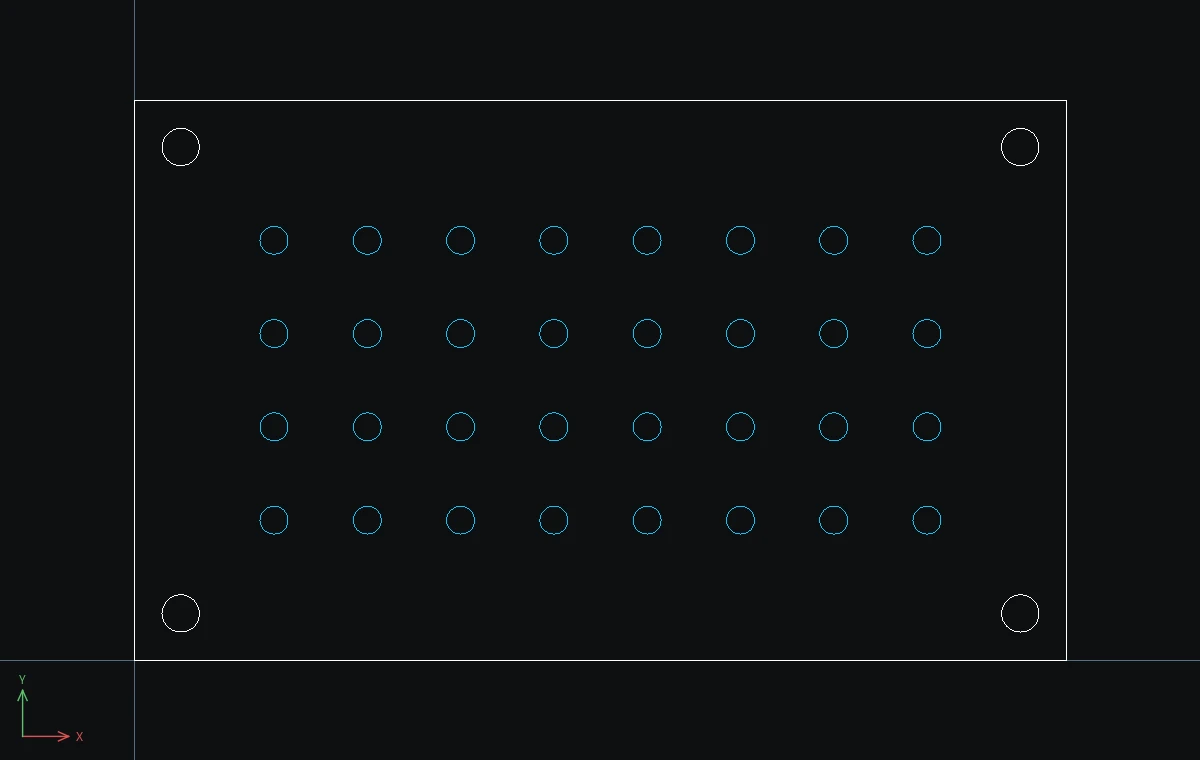
Challenge: Click one mounting hole and type SELSIM. Exactly the 4 mounting holes are selected, because they are now the only circles left on layer 0.