
What it does
| Command | Alias | Meaning |
|---|---|---|
| BREAK | BR |
Click 2 points on an object. The part between the two points is deleted. |
| JOIN | J |
Click 2 objects that are collinear or touch end to end. They become one object. |
| PEDIT | PE |
Merges the selected lines and polylines whose ends meet into one polyline. |
Where to find it
- Ribbon: Draw › Modify › Trim ▾ › Break / Join
- Command line:
BREAK(aliasBR) - Command line:
JOIN(J),PEDIT(PE)
Steps for BREAK
- Type
BRand press Enter. - Click the first point on the line, then click the second point. The middle part disappears.
Steps for JOIN
- Type
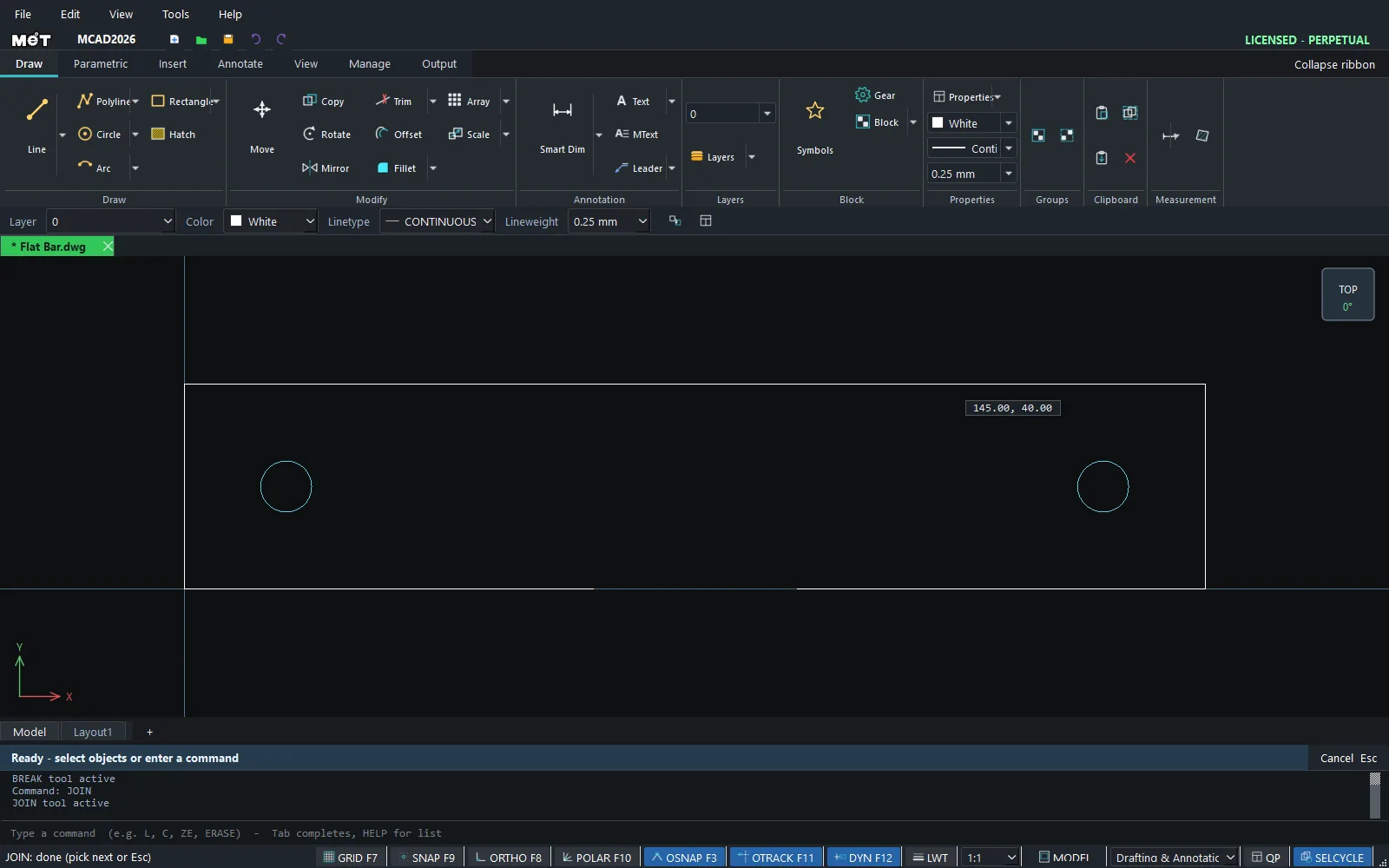
Jand press Enter. - Click the first line, then click the second line.
Steps for PEDIT
- Select all the lines whose ends meet.
- Type
PEand press Enter. The Status bar showsPEDIT: joined N segment(s) into polyline(s).
Try it: Snap-in cable clip
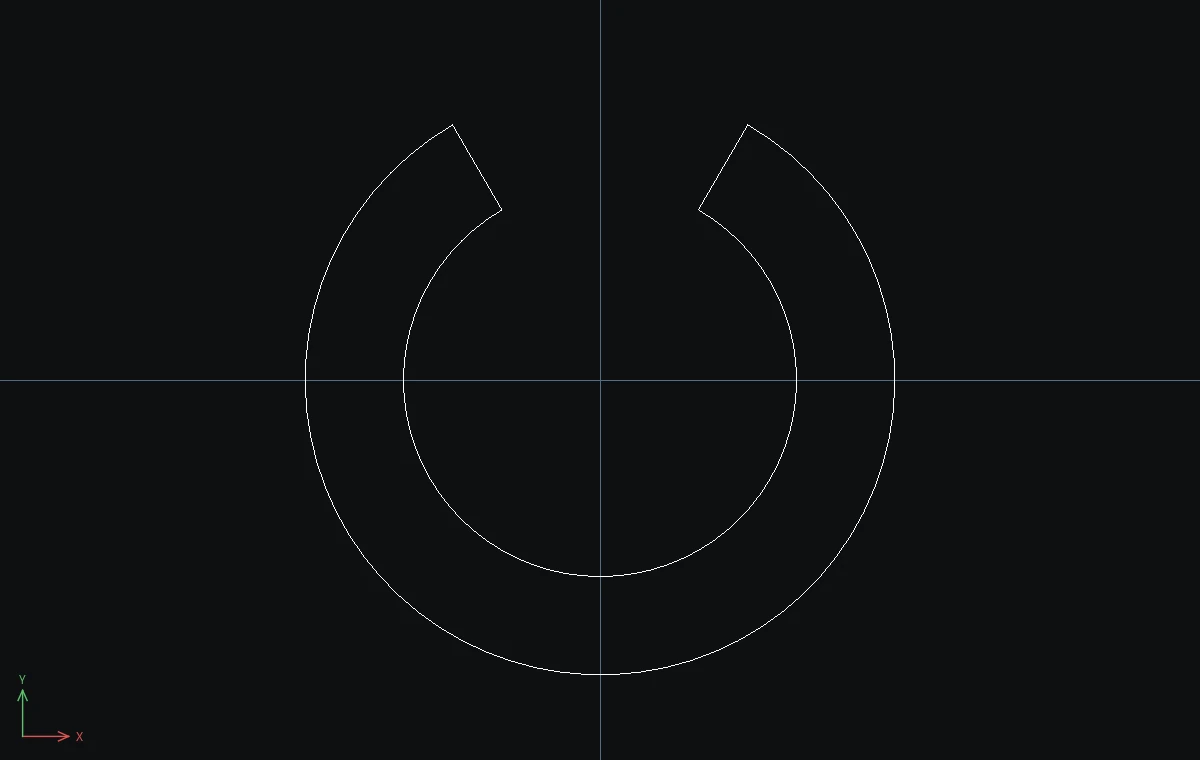
A C-shaped clip cut from 3 mm acrylic. Push a USB cable through the gap and it stays put on your desk. BREAK opens the gap with two clicks.
- Ring:
C,0,0,12, then Esc. ThenC,0,0,8, then Esc. - Type
BRand press Enter. Click the outer circle at about 2 o'clock (upper right), then at about 10 o'clock (upper left). The top piece between the clicks disappears. BREAK removes the part that runs counterclockwise from the first click to the second, so click the right side first. - Do the same on the inner circle: the right point first, then the left one. Press Esc.
- Close the ends: type
L, click the end of the outer arc (the Endpoint snap marker appears), click the end of the inner arc, and press Esc. Repeat on the other side.
You now have one closed C outline, ready to cut.
Challenge: Draw a line with L, 0,-30, @60,0, use BR to break a gap out of the middle, then type J and click the two pieces. JOIN closes the gap again because the pieces are collinear.