
What it does
| Command | Alias | Meaning |
|---|---|---|
| QLEADER | LE |
Multi-point leader, then you type the text |
| LEADER | LEAD |
Same as QLEADER |
| MLEADER | MLD |
MLEADER <text> Arrow, elbow line, and text in three clicks |
| Callout | – | Leader arrow with a text box (on the Ribbon) |
Where to find it
- Ribbon: Draw › Annotation › Leader (submenu: Leader, Multileader, Callout, Ordinate) and Annotate › Leaders
QLEADER steps
- Type
LEand press Enter. - Click the arrow tip, then click each following bend point (
Leader: click more points, Enter to finish.). - Press Enter. The Leader window opens. Type the text and click OK.
MLEADER steps
- Type
MLEADER CHAMFER 1x45and press Enter (without text, a window asks for the Note). MLEADER: click the arrow tipClick the arrow tip.MLEADER: click the elbowClick the elbow point.MLEADER: click where the note sitsClick the text location.
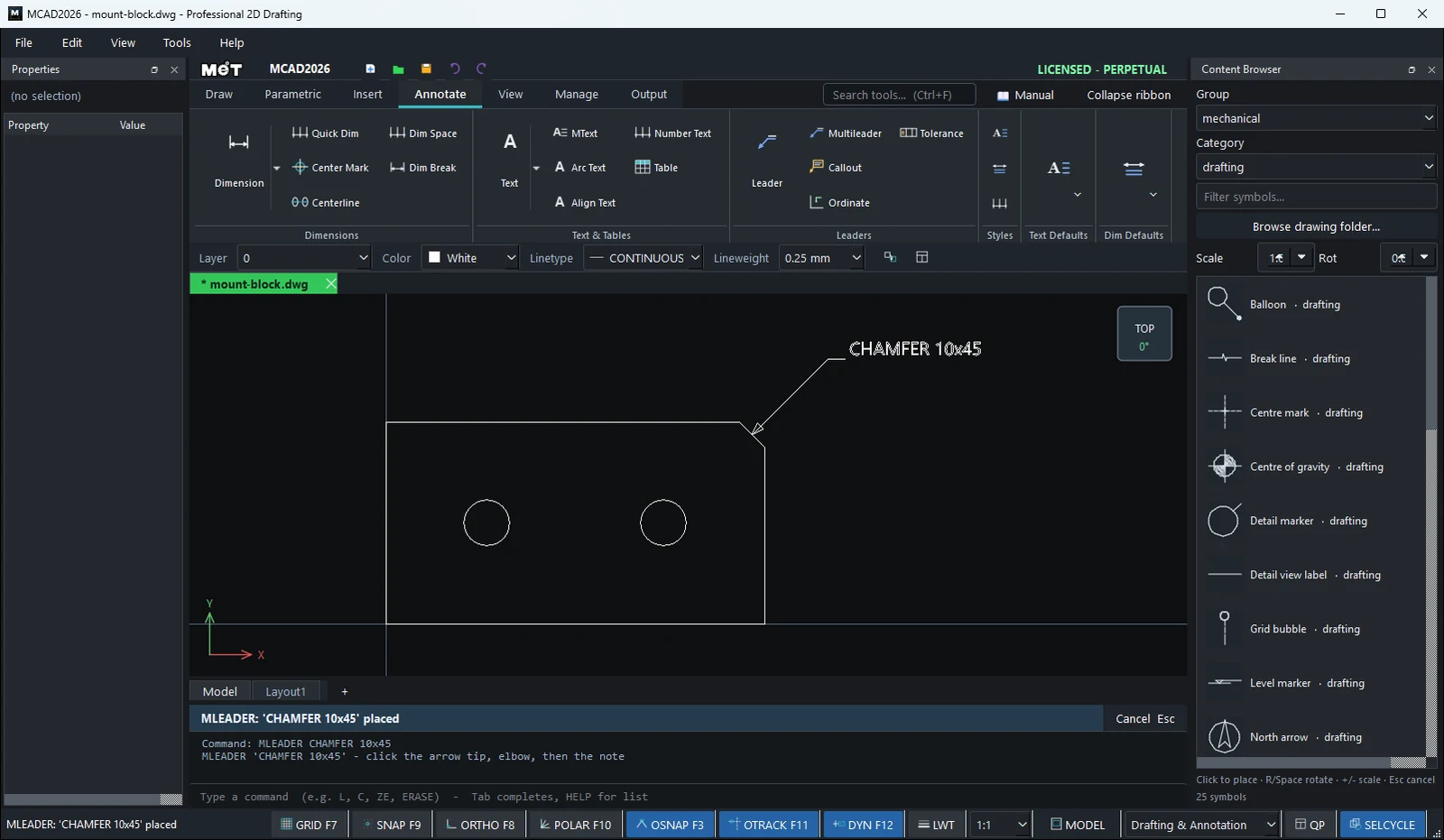
Note: A Multileader is exploded into lines and text when you export to DXF. You can also explode it yourself with
EXPLODE.
Try it: Weld and machining notes on an angle bracket
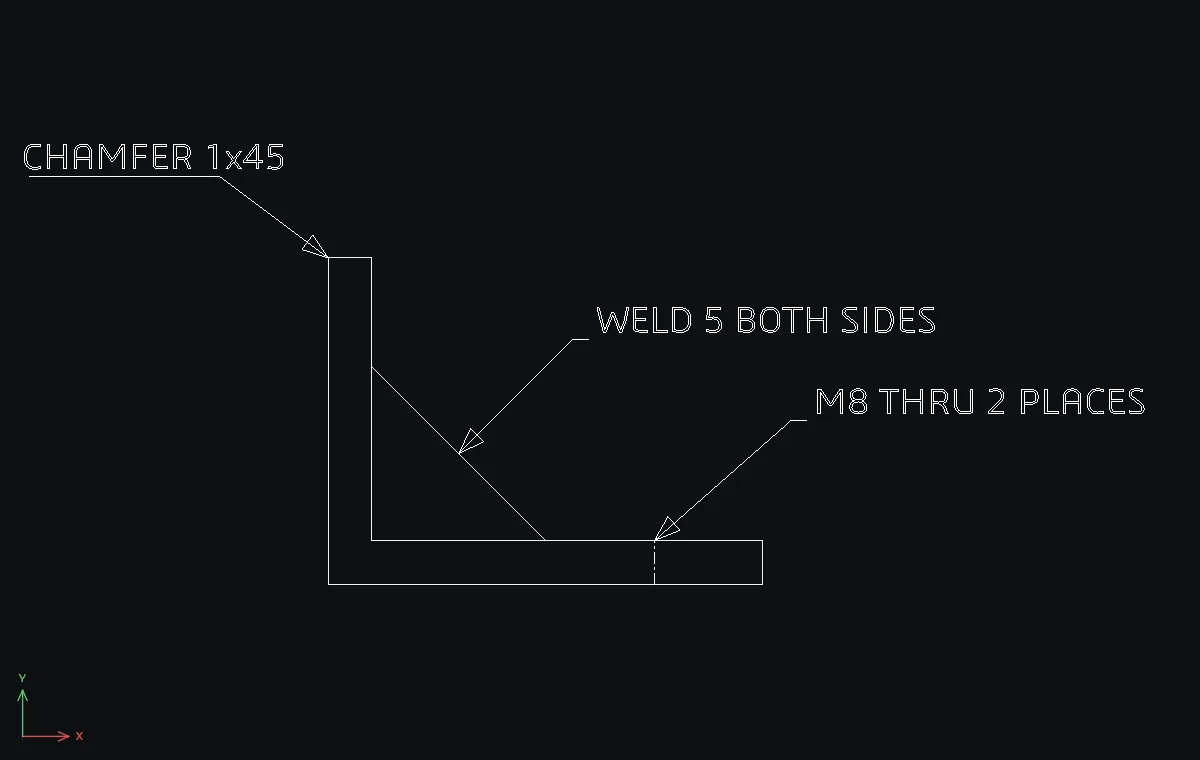
The side view of a welded steel angle bracket with a gusset. Three multileaders tell the workshop where to weld, which edge to chamfer and which holes to drill.
- Angle:
PL0,080,080,88,88,600,600,0, then Enter. - Gusset edge:
L8,40→40,8. Hole centre line:L60,0→60,8. - Type
MLEADER WELD 5 BOTH SIDES. Click the arrow tip on the gusset at24,24, the elbow at45,45and the note at48,45. - Type
MLEADER CHAMFER 1x45. Arrow tip on the top corner0,60, elbow-20,75, note-55,75. - Type
MLEADER M8 THRU 2 PLACES. Arrow tip on the hole line at60,8, elbow85,30, note88,30.
Challenge: Add a fourth note with LE (QLEADER) using three bend points, and type the note in the Leader window instead.