
What it does
PUBLISH plots the Model (scaled to fit A4 paper) and every Layout in the drawing (actual paper size, 1:1, black and white) into one PDF file at 600 dpi.
Where to find it
- Ribbon: Output › Plot & Publish › Publish PDF
- Command line:
PUBLISH(AliasPUB)

Steps
- Set up all your Layouts (paper size, title block, viewports).
- Type
PUBand press Enter. - Choose a file name (default
<drawing name>-published.pdf) and click Save.
Note: To combine several drawing files into one PDF set, use Sheet Set Manager.
Try it: Workbench drawing set in one PDF
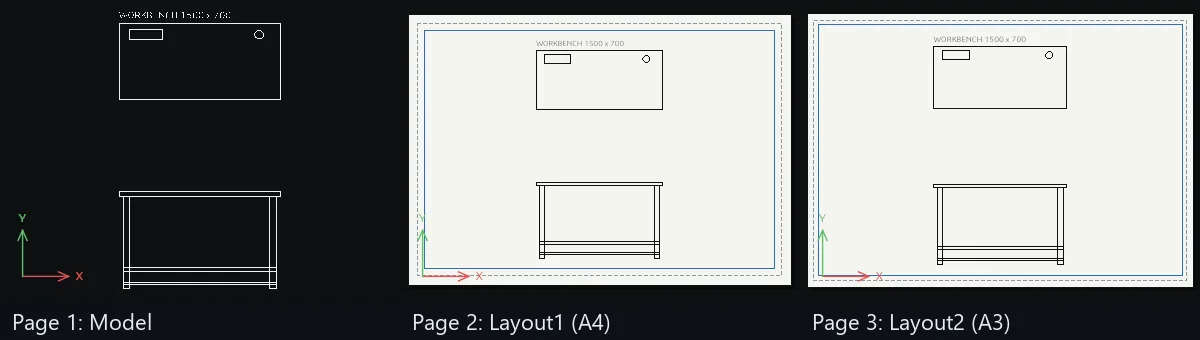
A 1500 x 700 workbench with a top view and a front view. Model space plus two layouts go out as one three-page PDF that the workshop can print in one go.
- Top view:
REC0,900→1500Tab700, vice padREC100,1450→300Tab100, grommet holeC1300,1500radius40. - Front view: worktop
REC0,0→1500Tab40, legsREC40,-860→60Tab860andREC1400,-860→60Tab860, railsREC40,-700→1420Tab40andREC40,-820→1420Tab20. Title:DTheight60,WORKBENCH 1500 x 700at about0,1650. - Click the Layout1 tab (A4). A viewport fitted to the bench appears.
- Type
LAYOUT New Layout2, click the Layout2 tab, typePAGESETUP A3 Landscapeand drag the viewport's corner so it fills the larger sheet. - Type
PUBand saveworkbench-published.pdf. The PDF has three pages: Model fitted to A4, Layout1 on A4 and Layout2 on A3.
Challenge: Put a title block on both layouts before you publish, and fill in a different drawing number on each.