
What it does
| Command | Alias | Format | Meaning |
|---|---|---|---|
| TABLE | TB2 |
TABLE <rows> <columns> [column width] [row height] [text height] / TABLE CSV <file> |
Places a table |
| TABLECELL | TCELL |
TABLECELL <row> <column> <text> |
Writes into a cell (counting starts at 0) |
| TABLEDIT | TED |
TABLEDIT [row column text] |
Edits a cell of the selected table |
| TABLEEXPORT | TBEXP |
TABLEEXPORT <file.csv> |
Exports the table to CSV |
| DATALINK | DL |
DATALINK <file.xlsx|csv> [sheet] / UPDATE / DETACH |
A table that pulls data from Excel/CSV. UPDATE = read again, DETACH = break the link (the existing values stay) |
Where to find it
- Ribbon: Annotate › Text & Tables › Table (opens the settings window)
Steps from the Ribbon
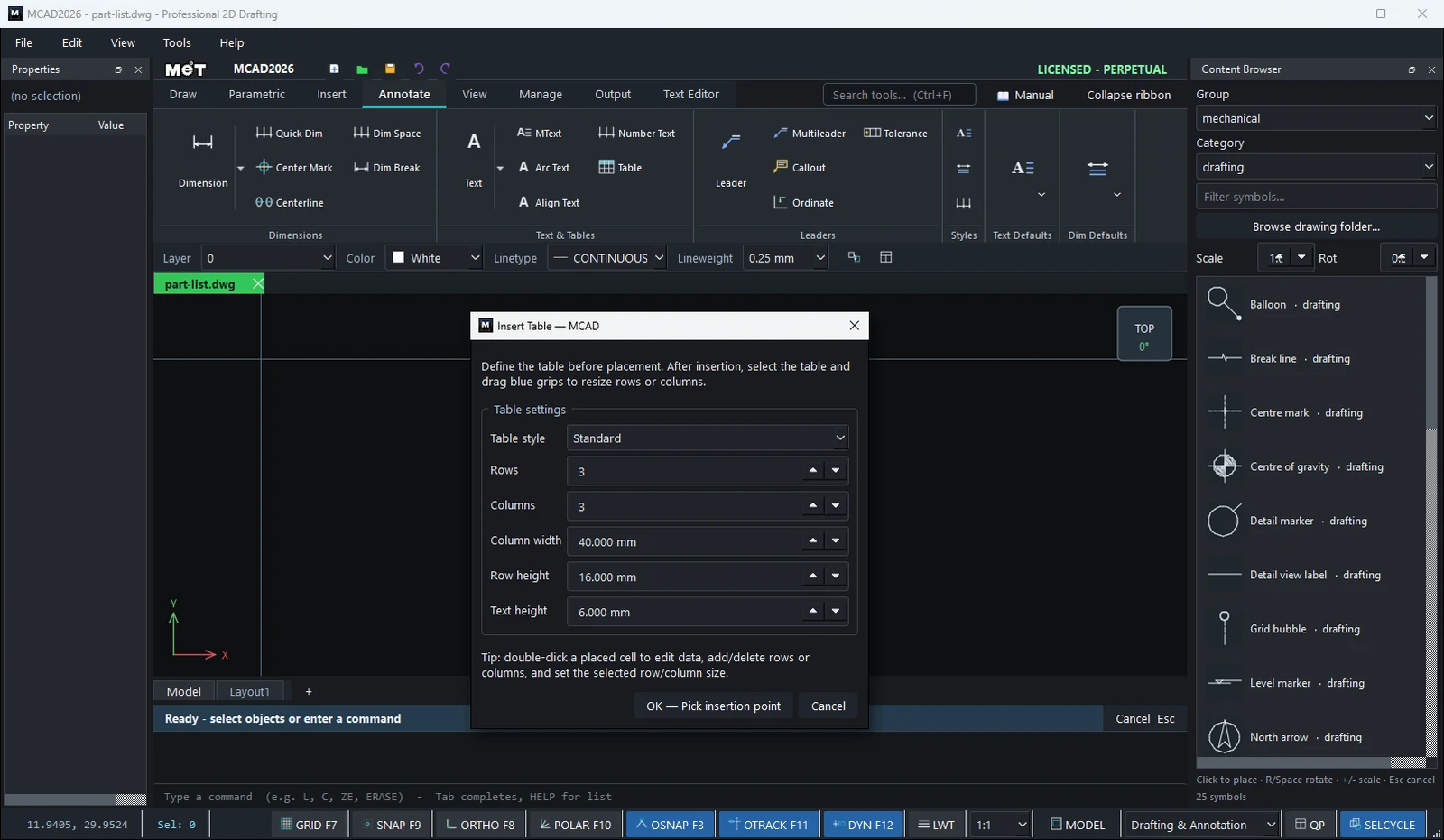
- Click Table. The settings window opens.
- Set the Table style, Rows, Columns, Column width, Row height, and Text height.
- Click OK — Pick insertion point, then click the top-left corner of the table.
- Double-click a cell to type. Drag the blue Grips to resize rows/columns.
Steps from the Command line
- Type
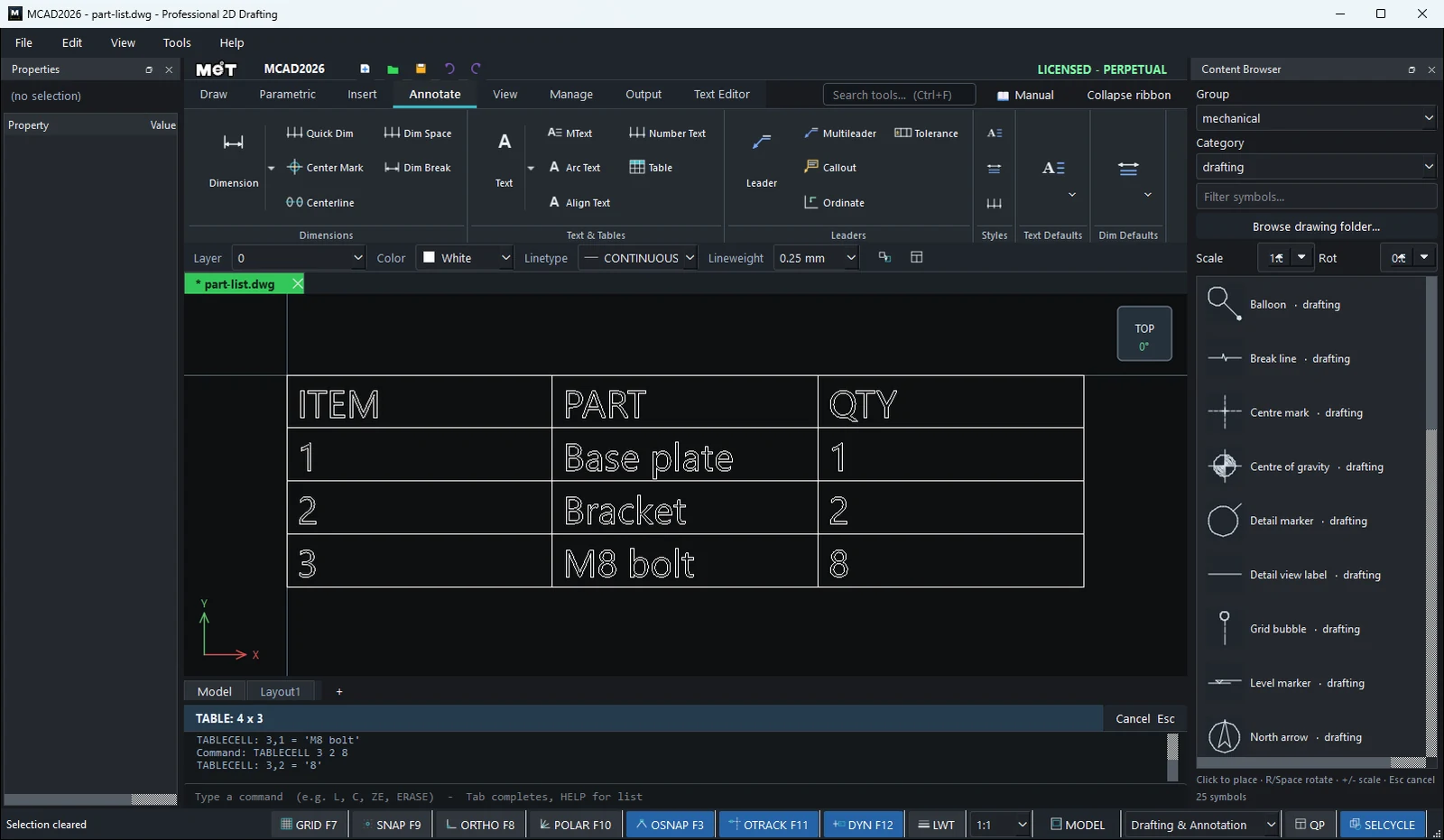
TABLE 4 3 40 8 4(text height 4), then click the top-left corner (the table stays selected). - Fill in each cell:
TABLECELL 0 0 ITEM,TABLECELL 0 1 PART, ...
Note: The table keeps its values inside the drawing, so anyone you send the drawing to can see the data even without the Excel file. When you export to DXF, the table is broken into lines and text.
Try it: Parts list for a motor starter panel
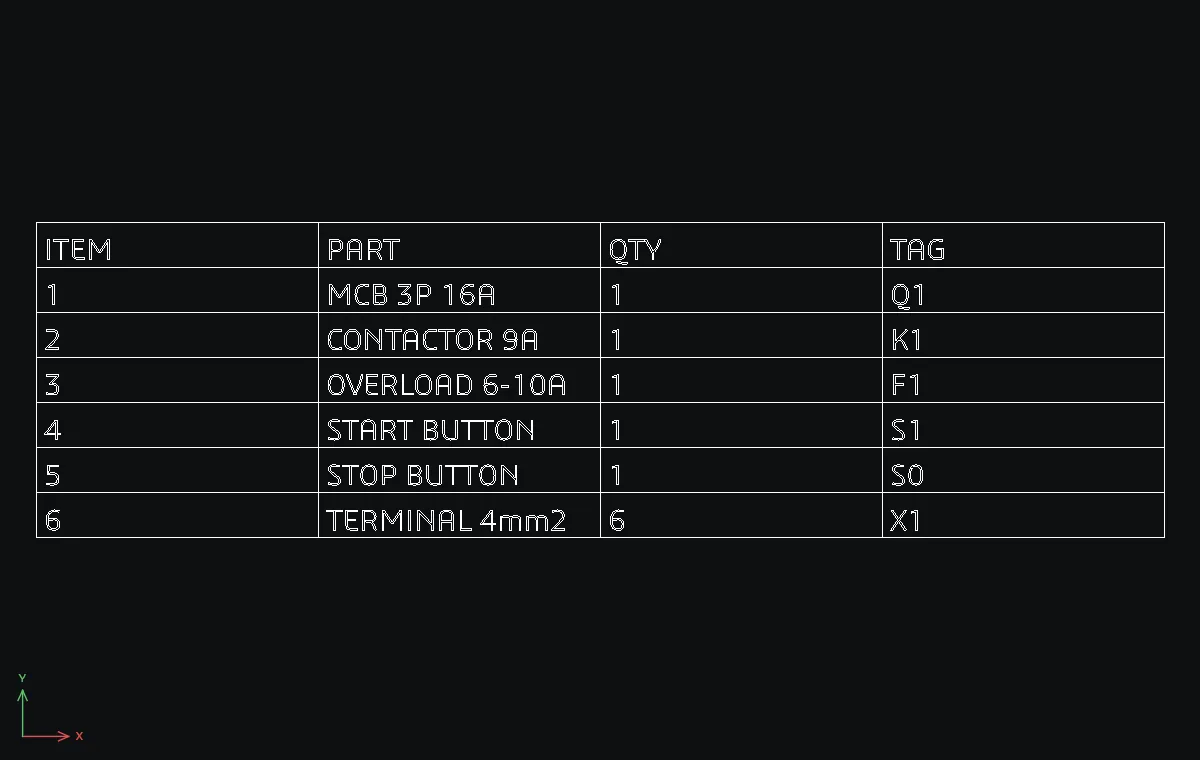
The parts list that goes on the drawing of a small direct-on-line motor starter: breaker, contactor, overload, two push-buttons and the terminals. Built with typed commands, then exported for purchasing.
- Type
TABLE 7 4 50 8 3.5(7 rows, 4 columns, 50 wide, 8 high, text 3.5) and click the top-left corner. The new table stays selected. - Header row:
TABLECELL 0 0 ITEM,TABLECELL 0 1 PART,TABLECELL 0 2 QTY,TABLECELL 0 3 TAG. - Fill rows 1 to 6 the same way (or double-click each cell):
| Row | ITEM | PART | QTY | TAG |
|---|---|---|---|---|
| 1 | 1 | MCB 3P 16A | 1 | Q1 |
| 2 | 2 | CONTACTOR 9A | 1 | K1 |
| 3 | 3 | OVERLOAD 6-10A | 1 | F1 |
| 4 | 4 | START BUTTON | 1 | S1 |
| 5 | 5 | STOP BUTTON | 1 | S0 |
| 6 | 6 | TERMINAL 4mm2 | 6 | X1 |
- With the table still selected, type
TABLEEXPORT starter_parts.csvand send the CSV to purchasing.
Challenge: Keep the list in Excel instead and pull it in with DATALINK starter_parts.xlsx; after a change in Excel, DATALINK UPDATE refreshes the drawing.