
What it does
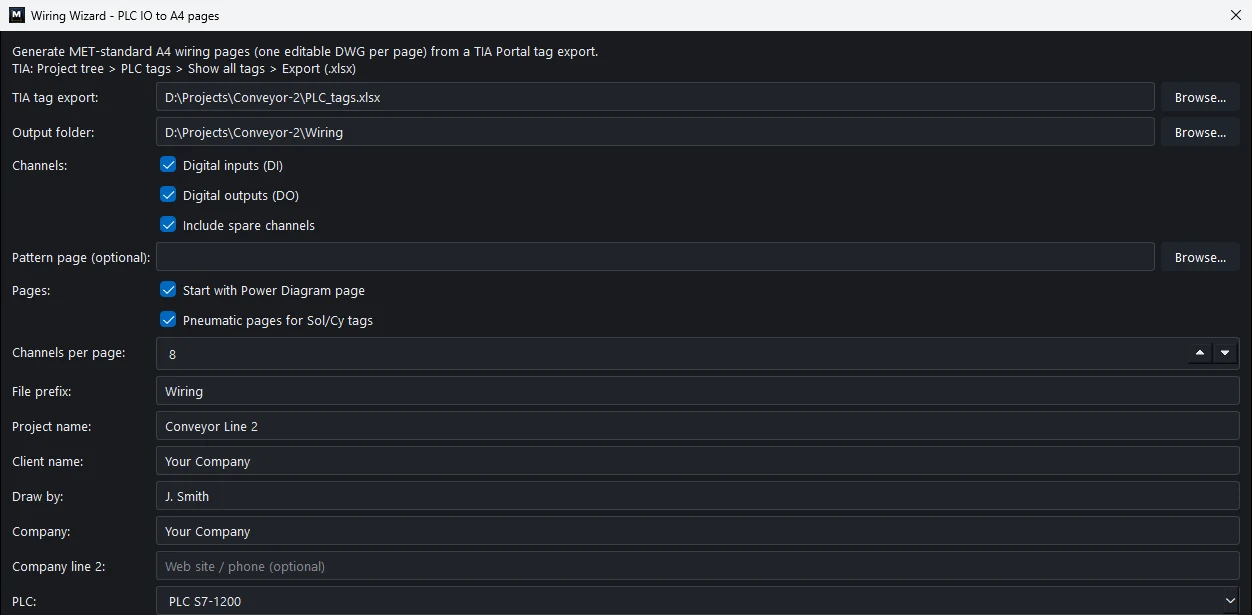
Wiring Wizard reads a tag file exported from Siemens TIA Portal (.xlsx) and creates IO circuit drawings on A4 pages to the MET standard. Each page is an editable DWG file, and a .mprj project file opens all the pages at once.
Where to find it
- Ribbon: Insert › Electrical › Wiring
- Command line:
WIRING(AliasWW)
Prepare the file from TIA Portal
In TIA Portal: Project tree › PLC tags › Show all tags › Export. Save it as .xlsx.
Steps
- Click Insert › Electrical › Wiring.
- TIA tag export: Click Browse... and choose the
.xlsxfile. The summary line below shows the number of tags and the number of DI/DO channels. - Output folder: Choose the folder where the DWG files are saved.
- Choose the channel options and extra pages.
- Fill in File prefix, Project name, Client name, Draw by, Company (and Company line 2 if you want), and PLC (this data goes into the title block).
- (Optional) Tick the MET template pages in the list below, in the order you want. Click a name to preview it.
- Click Generate. Every page opens as a tab. The Status bar shows
Wiring Wizard: N page(s) -> <prefix>.mprj.
Options
| Option | Meaning |
|---|---|
| TIA tag export | The tag .xlsx file from TIA Portal |
| Output folder | Where the output files are saved |
| Digital inputs (DI) / Digital outputs (DO) | The channel types to generate |
| Include spare channels | Include Spare channels |
| Pattern page (optional) | A finished drawing page used as the pattern (the program changes the %I/%Q addresses and wire numbers) |
| Start with Power Diagram page | Start with a Power Diagram page |
| Pneumatic pages for Sol/Cy tags | Generate Pneumatic pages for solenoid/cylinder tags |
| Channels per page | Number of channels per page (4–12, default 8) |
| File prefix | Prefix of the file names (default Wiring) |
| Project name / Client name / Draw by | Title block information |
| Company / Company line 2 | Your company name and a second line (web site or phone) for the title block. The program remembers them for next time |
| PLC | PLC S7-1200, S7-1500, S200, or type your own |
| MET template pages | Template pages (Blower, Ground Wiring, HMI and Network diagram, INPUT & OUTPUT ...). Tick them to use these pages instead of the automatic ones |
Note: If you do not choose a tag file, you must tick at least one template page. Otherwise you see the warning
Select a TIA tag export .xlsx file, or tick template pages to clone.
Try it: IO pages for a box conveyor
Ten PLC tags for a small box conveyor (buttons, E-stop relay, two photo-eyes, overload, motor, lamps and horn) turn into two ready-to-edit A4 IO pages in one click. You do not need TIA Portal for this: a hand-made Excel sheet with the same columns works.
- In Excel, make a sheet with the columns
Name,Path,Data Type,Logical Address,Commentand these rows (PathDefault tag table, Data TypeBool):
| Name | Logical Address | Comment |
|---|---|---|
| Start_PB | %I0.0 | Start push button |
| Stop_PB | %I0.1 | Stop push button |
| EStop_OK | %I0.2 | E-stop relay OK |
| Box_Sensor | %I0.3 | Photo eye end of belt |
| Jam_Sensor | %I0.4 | Jam detect |
| Motor_OL | %I0.5 | Motor overload trip |
| Motor_Run | %Q0.0 | Conveyor motor contactor |
| Lamp_Run | %Q0.1 | Green lamp running |
| Lamp_Fault | %Q0.2 | Red lamp fault |
| Horn | %Q0.3 | Warning horn |
Save it as conveyor_tags.xlsx.
- Insert › Electrical › Wiring, then Browse... for
conveyor_tags.xlsx. - Keep Digital inputs and Digital outputs ticked. Untick Start with Power Diagram page and Pneumatic pages. Channels per page
8. - File prefix
Conveyor, Project nameBox Conveyor, Client nameDemo Client, Draw by your name, CompanyYour Company, PLCPLC S7-1200. Leave the template pages unticked. - Click Generate. Two pages open as tabs, Conveyor_P01 with the six inputs and Conveyor_P02 with the four outputs, plus
Conveyor.mprjthat opens both.
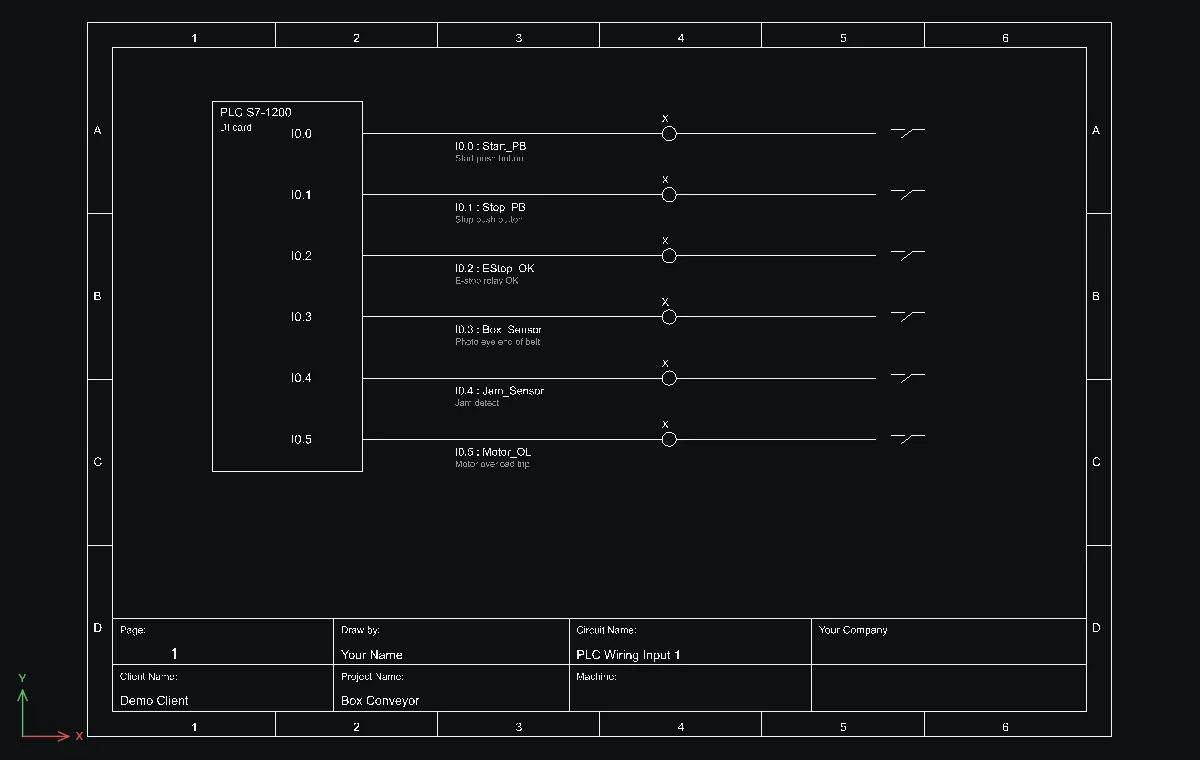
Challenge: Add four more inputs (%I0.6 to %I1.1) to the sheet and generate again: the inputs now fill page 1 and roll on to a second input page.