
What it does
- STRETCH – moves only the vertices inside the Crossing window, so the shape stretches or shrinks. Objects that lie entirely inside the window are moved as a whole.
- LENGTHEN – adds length to the end of a line by a given distance (use a negative value to shorten it).
Where to find it
- Ribbon: Draw › Modify › Trim ▾ › Stretch / Lengthen
- Command line:
STRETCH(AliasS) - Command line:
LENGTHEN(AliasLEN)
STRETCH steps
- Type
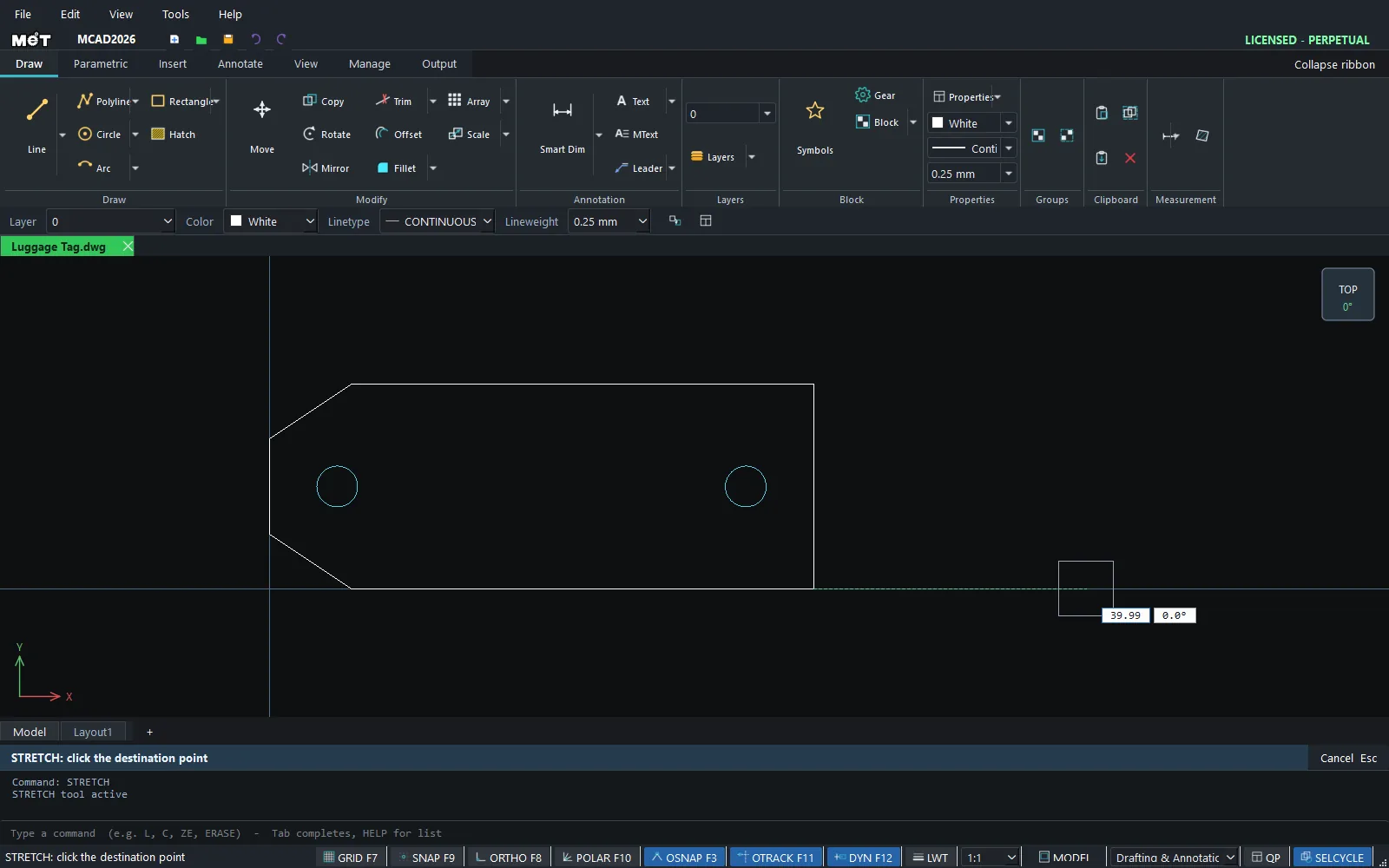
Sand press Enter. - Click 2 corners of a Crossing window so it crosses the side you want to stretch.
STRETCH: click the base pointClick the base point.STRETCH: click the destination pointClick a point or type a distance. The result isStretched 2 object(s).
LENGTHEN steps
- Type
LENand press Enter.Lengthen delta (negative shortens) <10>:Type a distance, for example30. LENGTHEN: click near a line end to extend by +30 (Esc to finish)Click near the end you want to change.- Keep clicking other lines. Press Esc to finish.
Shortcut: LEN 30 or LEN -5 (shortens by 5).
Try it: Luggage tag that fits a longer name
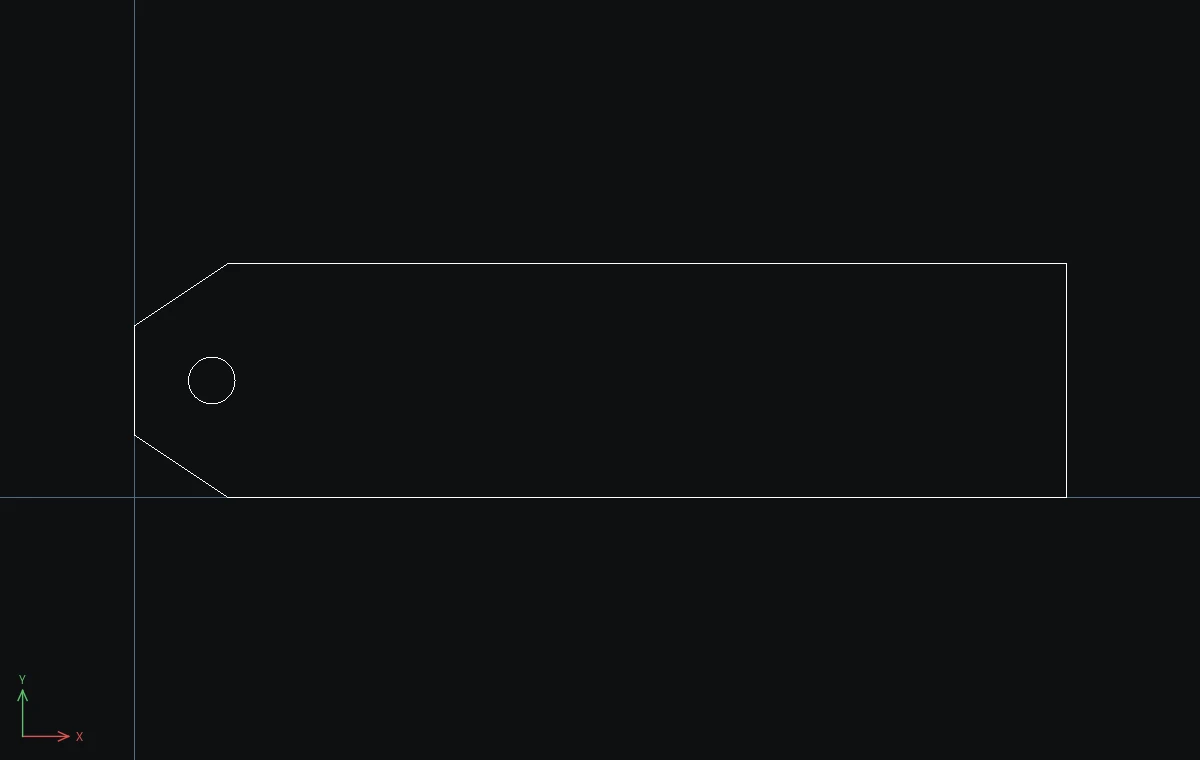
A plywood luggage tag, 80 mm long. When the name does not fit, STRETCH makes the tag longer without moving the strap hole.
- Tag:
PL, then0,8@12,-8@68,0@0,30@-68,0@-12,-80,8, and press Enter. Strap hole:C,10,15,3, Esc. Use PLINE for the outline: a RECTANG rectangle is not stretched, it only moves when it lies completely inside the window. - Type
Sand press Enter. Type the crossing-box corners95,40and60,-5so the box covers only the right end. - Base point
80,0, destination@40,0. The result readsStretched 1 object(s). The tag is now 120 mm long, and the hole has not moved.
Challenge: Add an engraving guideline with L, 20,15, @60,0. Then type LEN 20 and click near its right end. The line grows to 80 mm.