
What it does
| Command | Alias | Shortcut | Meaning |
|---|---|---|---|
| PROPERTIES | CH, MO, PR, DDMODIFY |
Ctrl+1 |
Opens the Properties palette and summarizes the selection |
| MATCHPROP | MA |
– | Click a source object, then click target objects to give them the same properties (Layer, color, Linetype, Lineweight) |
| CHPROP | CHANGE |
– | CHPROP layer=<name> color=<#RRGGBB or ACI number> |
Where to find it
- Ribbon: Draw › Properties › Properties ▾ (Properties Palette, Match Properties)
- Properties bar under the Ribbon: Layer, Color, Linetype, and Lineweight of the selected objects (or of new objects if nothing is selected)
- Right-click an object › Properties
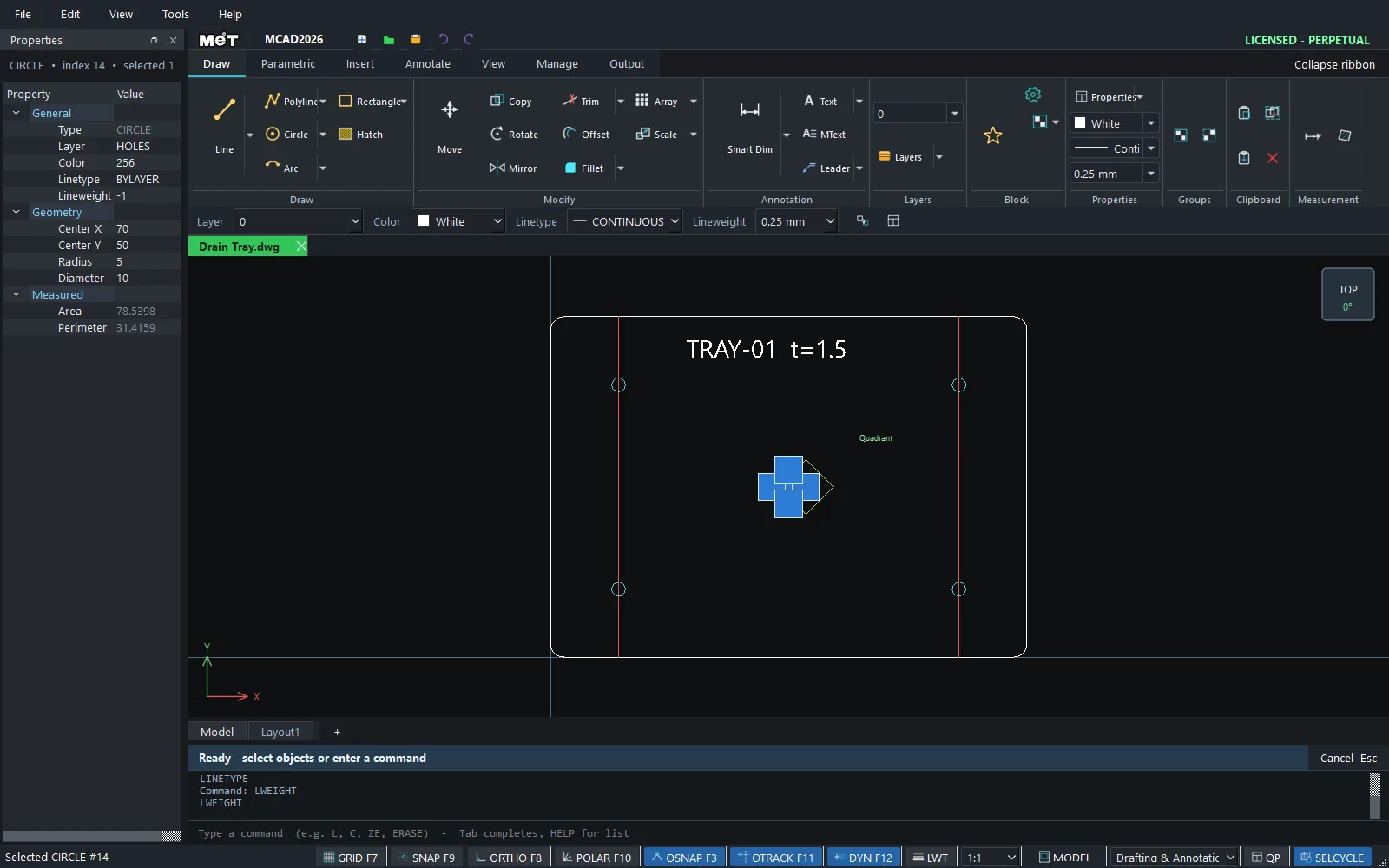
Properties palette
| Section | Information |
|---|---|
| General | Type, Layer, Color, Linetype, Lineweight |
| Geometry | Coordinates and size, such as Center X/Y, Radius, Diameter (editable) |
| Measured | Area and Perimeter of closed objects |
MATCHPROP steps
- Type
MAand press Enter. - Click the source object.
- Click each object you want to change. Press Esc to finish.
CHPROP steps
- Select the objects.
- Type
CHPROP layer=CENTER color=#FF0000and press Enter.
Try it: Leaf earrings, cut and engraved
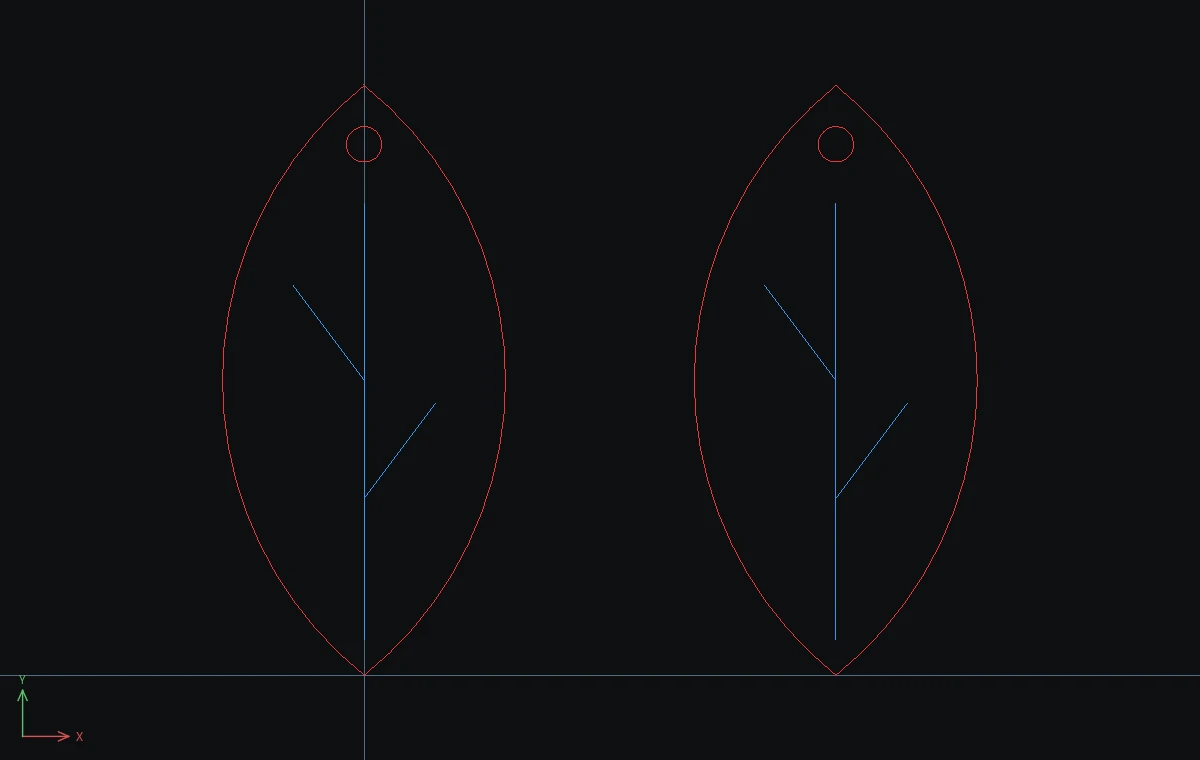
A pair of 50 mm leaf earrings in thin plywood: the outline and hook hole are cut, the veins are engraved. Style one earring, then MATCHPROP copies the look onto the other.
- Leaf outline:
ARC, then0,012,250,50, Esc. ThenARC,0,0-12,250,50, Esc. - Veins:
L0,30,40, Esc.L0,15@6,8, Esc.L0,25@-6,8, Esc. Hook hole:C,0,45,1.5, Esc. - Drag a window around the leaf, type
COand press Enter. Base point0,0, destination@40,0, then press Enter. That is the second earring. - Style the first earring: click one arc,
Ctrl+click the other arc and the hole, and typeCHPROP layer=CUT color=#FF3030. Then select its 3 veins the same way and typeCHPROP layer=ENGRAVE color=#3399FF. - Type
MAand press Enter. Click an outline arc of the first leaf, then click both arcs and the hole of the second leaf. Press Esc. - Type
MAagain. Click a vein of the first leaf, then the 3 veins of the second leaf. Press Esc. - Select a vein of the second leaf and press
Ctrl+1. General shows layer ENGRAVE.
Challenge: Select everything and type CHPROP with nothing after it. It reports which layers the selection is on, which is a quick check before you send the job to the laser.