
What it does
The Content Browser (Symbols palette) holds MET's own library of 547 symbols, drawn by MET to IEC 60617 (electrical), ISO 1219 (pneumatic and hydraulic) and ISO 128 (mechanical drafting). They are sorted into four groups, and each one has a thumbnail. Click a symbol and place it on the drawing right away.
Where to find it
- Content Browser palette on the right side of the screen
- Ribbon: Draw › Block › Symbols, Insert › Blocks & Media › Symbols, Insert › Electrical › Symbols Library
- Menu View › Symbols Palette
- Command line:
INSERT(without a name)
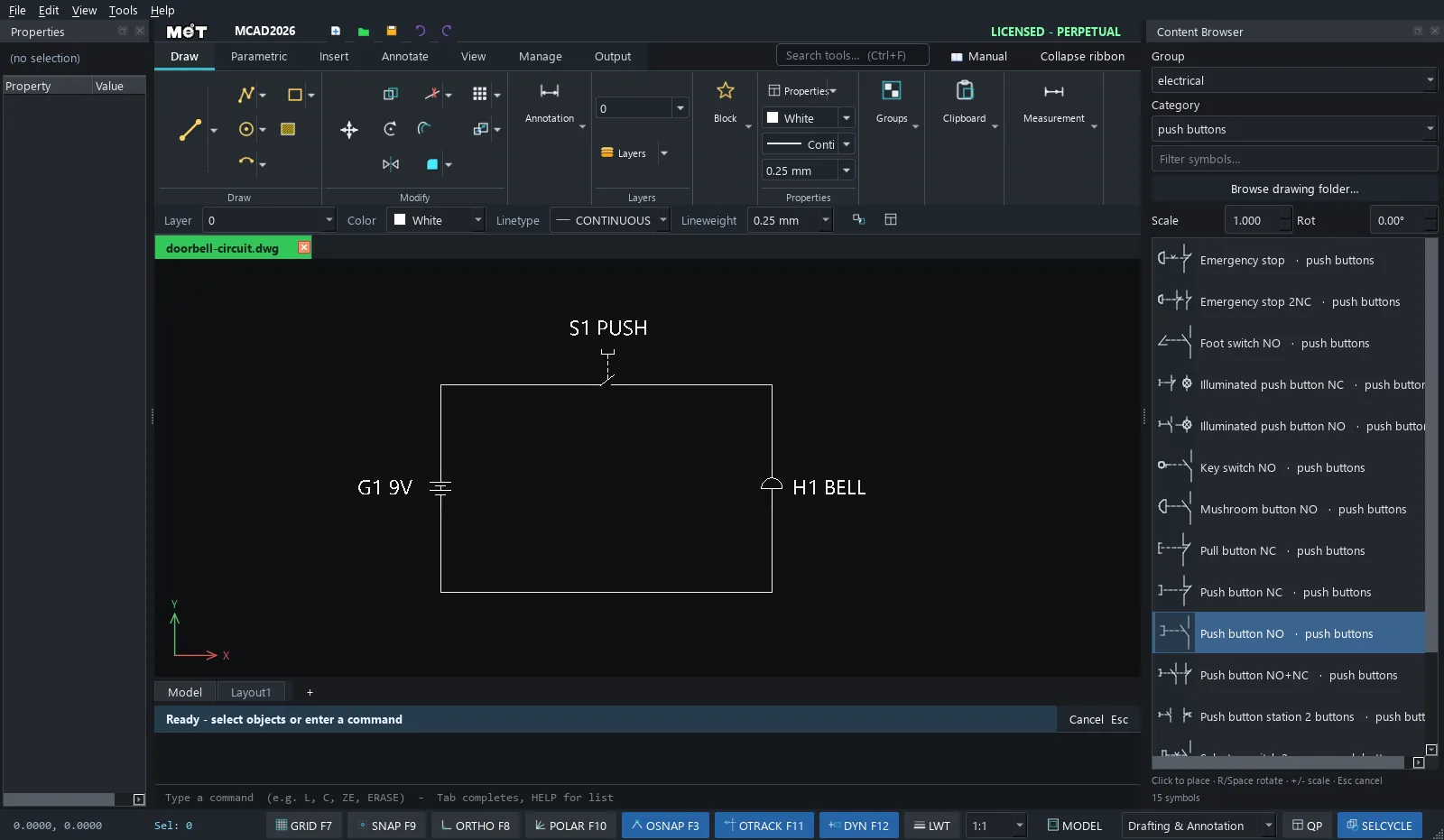
Options
| Option | Meaning |
|---|---|
| Group | electrical (240 symbols), pneumatic (90), mechanical (156) and architecture (61). Also Drawing (the Blocks in the current drawing) and Folder (your own DXF folder) |
| Category | A subcategory of the group, for example push buttons, protection or motors in electrical, valves or cylinders in pneumatic, fasteners or welding in mechanical. Choose (all) to see the whole group |
| Filter symbols... | Search by symbol name or category name |
| Browse drawing folder... | Use the DXF files in your own folder as a library (Folder group) |
| Scale / Rot | Scale and angle when placing |
Steps
- Choose a Group and Category.
- Click a Symbol in the list.
- Click a location on the drawing. While placing:
RorSpace= rotate,+/-= scale,Esc= cancel. - You can place it repeatedly until you press Esc.
Every symbol is drawn in millimetres on a 2.5 mm grid. The insertion point is pin 1 (the top connection of a vertical symbol), so the symbol lands with its pin exactly on the point you click. Electrical and pneumatic symbols are drawn vertically; set Rot 90 or -90 to lay one on a horizontal wire.
Note: The symbols are drawn by MET and licensed with MCAD. You may use them in any drawing you make with MCAD. See
ATTRIBUTION.mdin the program'slibraryfolder for the standards each group follows.
Try it: Doorbell circuit
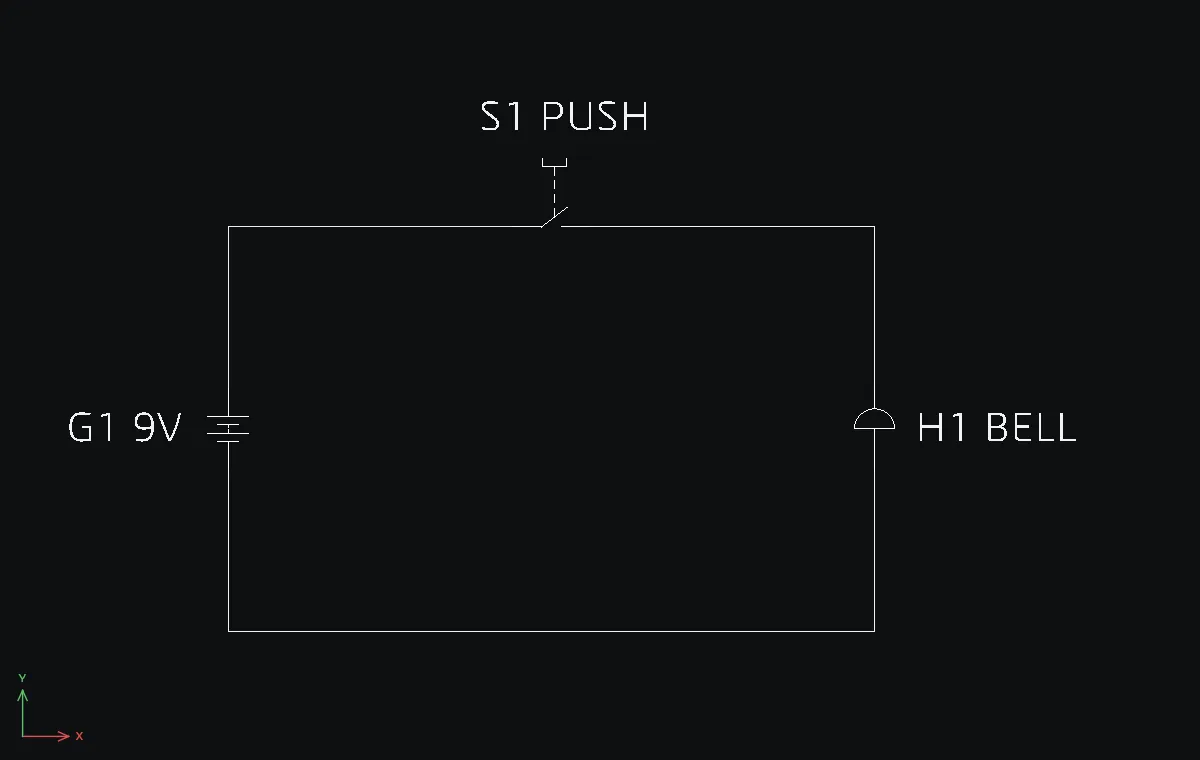
The simplest circuit in the house: a 9 V battery, a push button and a bell. Three symbols from the library and a few wires, done in two minutes.
- Content Browser: Group
electrical, Categorypower supply, click Battery and click at0,30. The battery stands upright with its pins at0,30and0,20. Press Esc. - Category
push buttons, set Rot-90, click Push button NO (a normally open push button) and click at45,50. The button lies on the top wire between35,50and45,50. Press Esc and set Rot back to0. - Category
indication, click Bell and click at80,30. - Wires with
L, snapping to the symbol pins:0,30→0,50→35,50, then45,50→80,50→80,30, then80,20→80,0→0,0→0,20. - Labels with
DT, Text height3.5:G1 9Vat-20,23.5,S1 PUSHat31,62,H1 BELLat85,23.5.
Challenge: Swap the bell for a Buzzer from the same category. Type buzz in the Filter box to find it quickly.