
What it does
These commands report sizes and information without changing the drawing. The results appear in the prompt bar and the command line history.
Where to find it
- Ribbon: Draw › Measurement › Measure ▾ (Distance, Angle, Radius, Area, Coordinates) and Area
- Ribbon: Manage › Drawing Cleanup › Drawing Status
Commands
| Command | Alias | Meaning |
|---|---|---|
| DIST | DI |
Click 2 points to see the distance, angle, dX and dY. |
| AREA | AA |
The area and perimeter of the selected closed objects (you can combine several). |
| ID | – | Click a point to see its X and Y coordinates. |
| MEASUREGEOM | MEA |
MEASUREGEOM <Distance|Angle|Area|Radius> combines the measure modes. Angle = click the vertex, then the two arms. Radius = the radius, diameter and circumference of the selected circle. |
| LIST | LI |
The number and type of the selected objects. |
| DBLIST | – | Counts every object in the drawing by type, and the number of layers. |
| STATUS | – | A summary of the drawing: the number of objects of each type, the number of layers, dimensions and the current layer. |
| TIME | – | The time the drawing has been open, the time used in this session and the number of edits. |
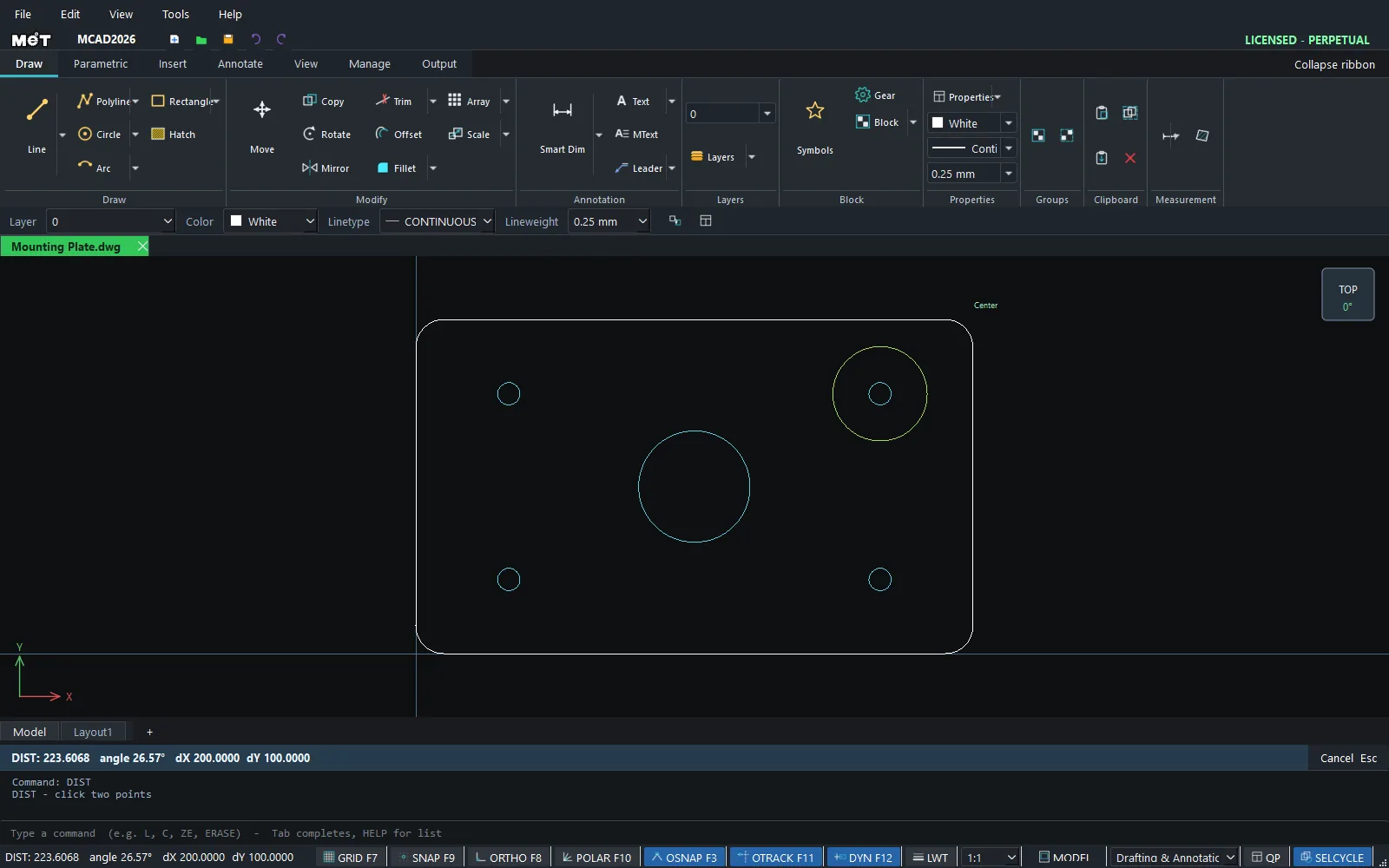
Steps: measure the distance between holes
- Type
DIand press Enter. - Click the centre of the first hole (Object Snap picks the Center).
- Click the centre of the second hole.
- Read the result in the prompt bar, for example
DIST: 223.6068 angle 26.57° dX 200.0000 dY 100.0000.
Steps: find an area
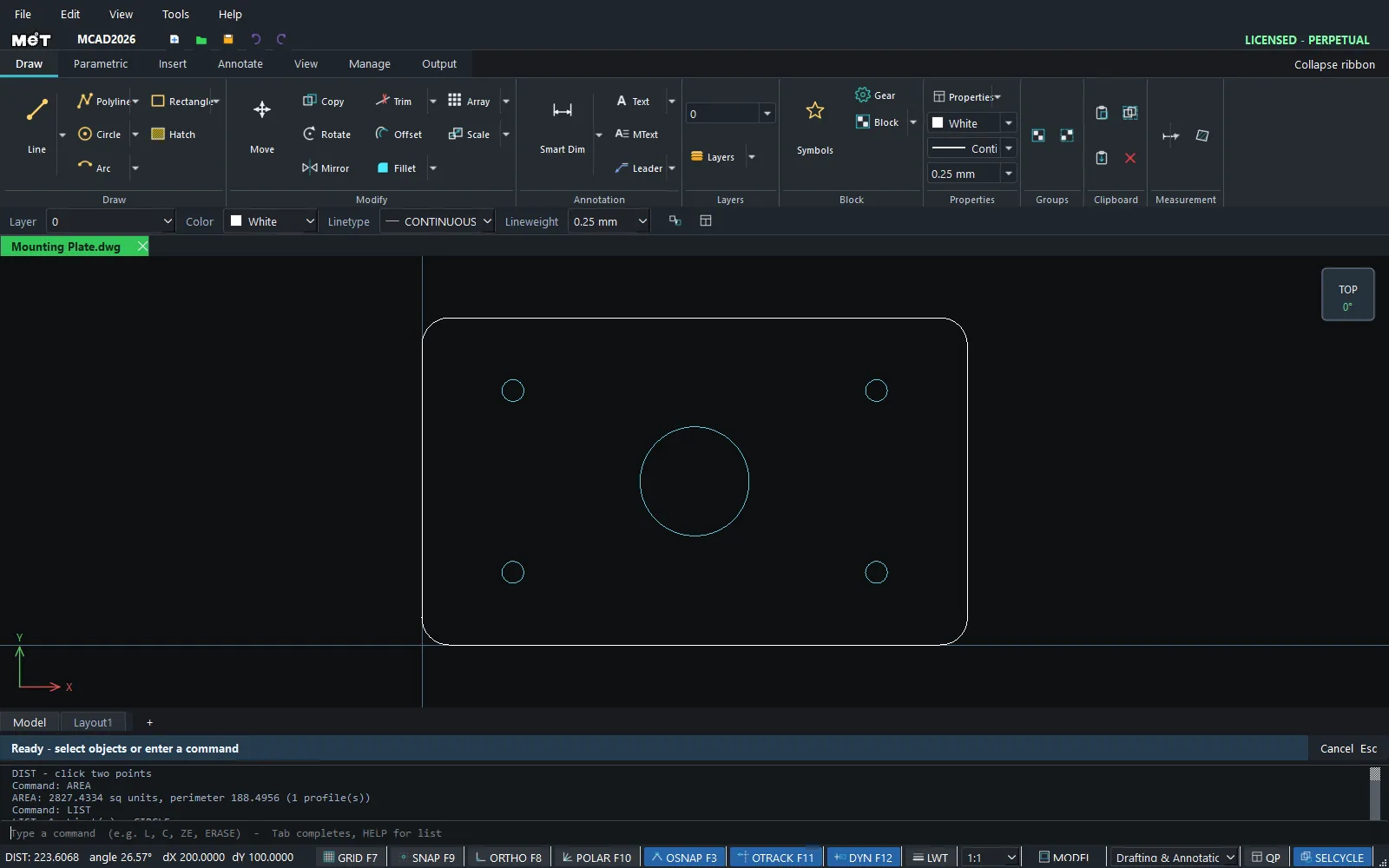
- Select a closed shape (rectangle, circle, closed polyline or region).
- Type
AREAand press Enter. The result reads, for example,AREA: 1963.4954 sq units, perimeter 157.0796 (1 profile(s)).
Note: The Properties palette also shows the Area and Perimeter of the selected closed object, in the Measured section.
Try it: How much flooring for an L-shaped living room?
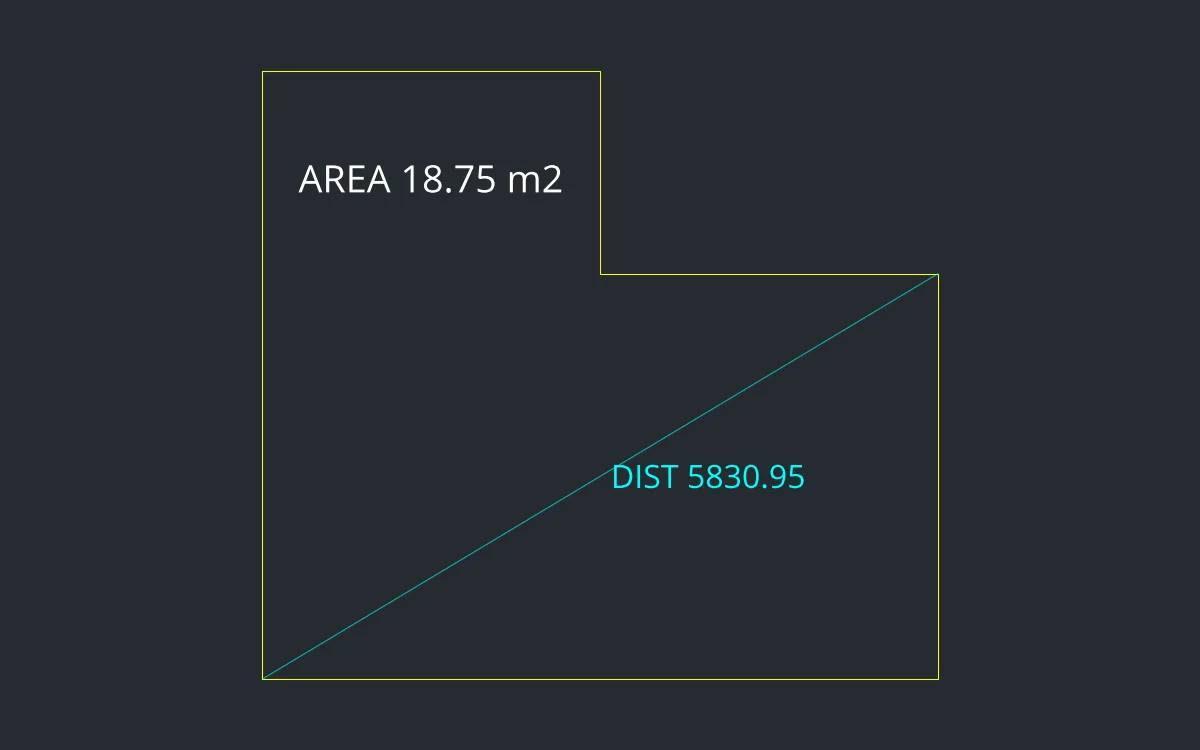
Before you order laminate, you need the floor area and the skirting length. Measure an L-shaped living room with AREA, DIST and CAL.
- Draw the room: choose Polyline - Closed Loop, type
0,05000,05000,30002500,30002500,45000,4500, then press Enter. - Click the outline and type
AREA. It reportsAREA: 18750000.0000 sq units, perimeter 19000.0000 (1 profile(s)), which is 18.75 m² with a 19 m perimeter. - Add 10% for cutting waste: type
CAL 18.75*1.1. The answer is20.625m² to order. - Will a 5.8 m sofa fit diagonally? Type
DI, then0,0Enter and5000,3000Enter. The Prompt bar showsDIST: 5830.9519 angle 30.96°.
Challenge: The real skirting length is the perimeter minus the door. Try CAL 19000-900 for a 900 door.