
What it does
A Workspace is a saved screen layout (which palettes are open, the Ribbon, and so on). You save it under a name so you can switch back to it later.
Where to find it
- Status bar: the Drafting & Annotation ▾ box (choose a Workspace or Save Current As...) and the QP button
- View menu: Properties Palette (
Ctrl+1), Layers Palette, Symbols Palette, Quick Properties (Ctrl+Shift+P), Clean Screen (Ctrl+0)

Commands
| Command | Alias | Format | Meaning |
|---|---|---|---|
| WSCURRENT | WORKSPACE |
WSCURRENT [name] |
Shows the current Workspace, or switches to a named one |
| WSSAVE | – | WSSAVE <name> |
Saves the current screen layout |
| WSDELETE | – | WSDELETE <name> |
Deletes a Workspace |
| QPMODE | QUICKPROPERTIES, QP |
QPMODE <ON|OFF> |
Quick Properties box at the cursor when you select an object |
Steps: save a Workspace
- Show or hide the palettes you want from the View menu.
- Type
WSSAVE Detailingand press Enter. - Later, type
WSCURRENT Detailingor choose it from the box on the Status bar.
Quick Properties
Turn on QPMODE ON and click an object. A small box with the main properties appears at the cursor, and you can edit the values right there.
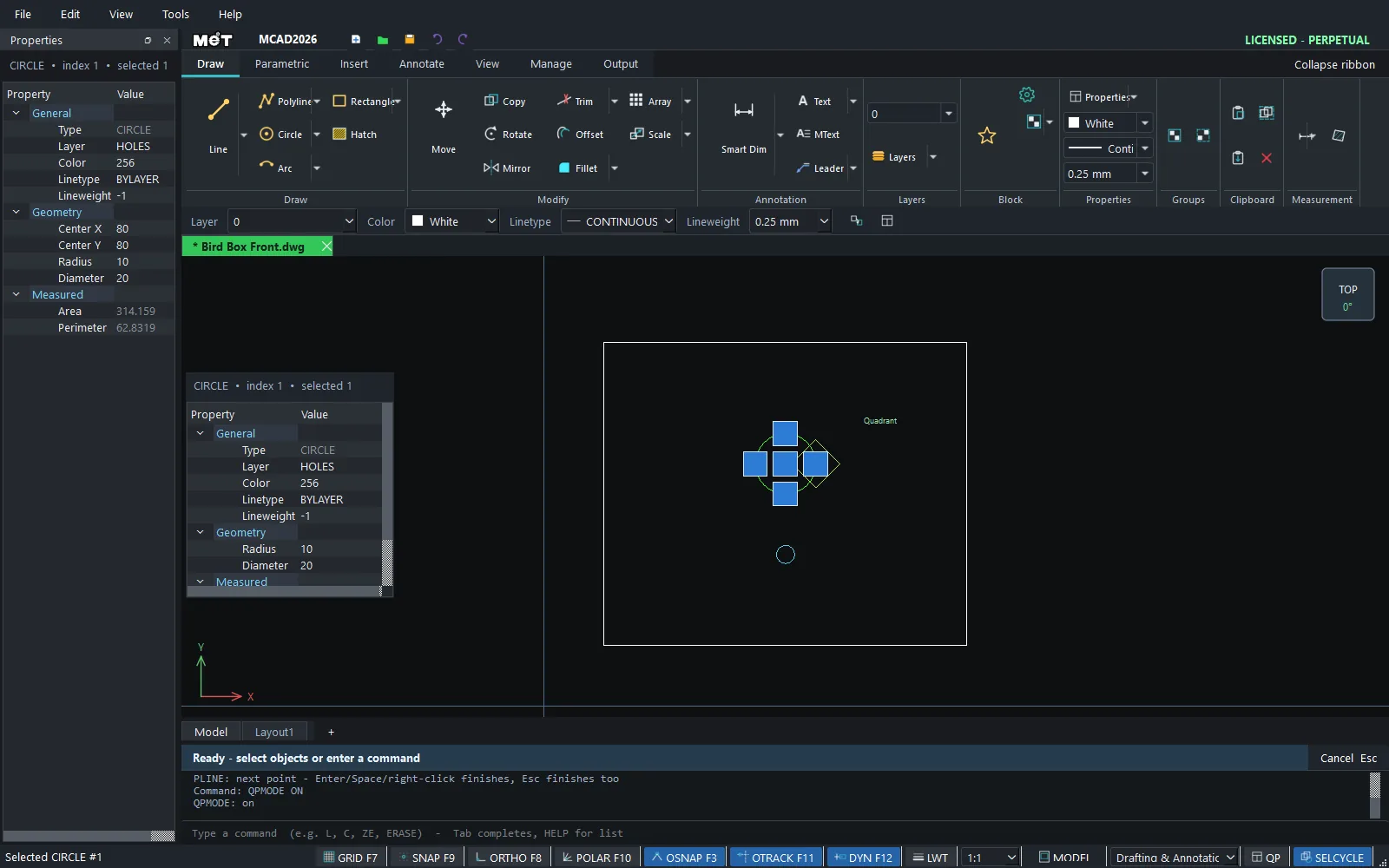
Note: Clean Screen (
Ctrl+0) hides the Ribbon and all palettes so the drawing area fills the screen. Press it again to restore them.
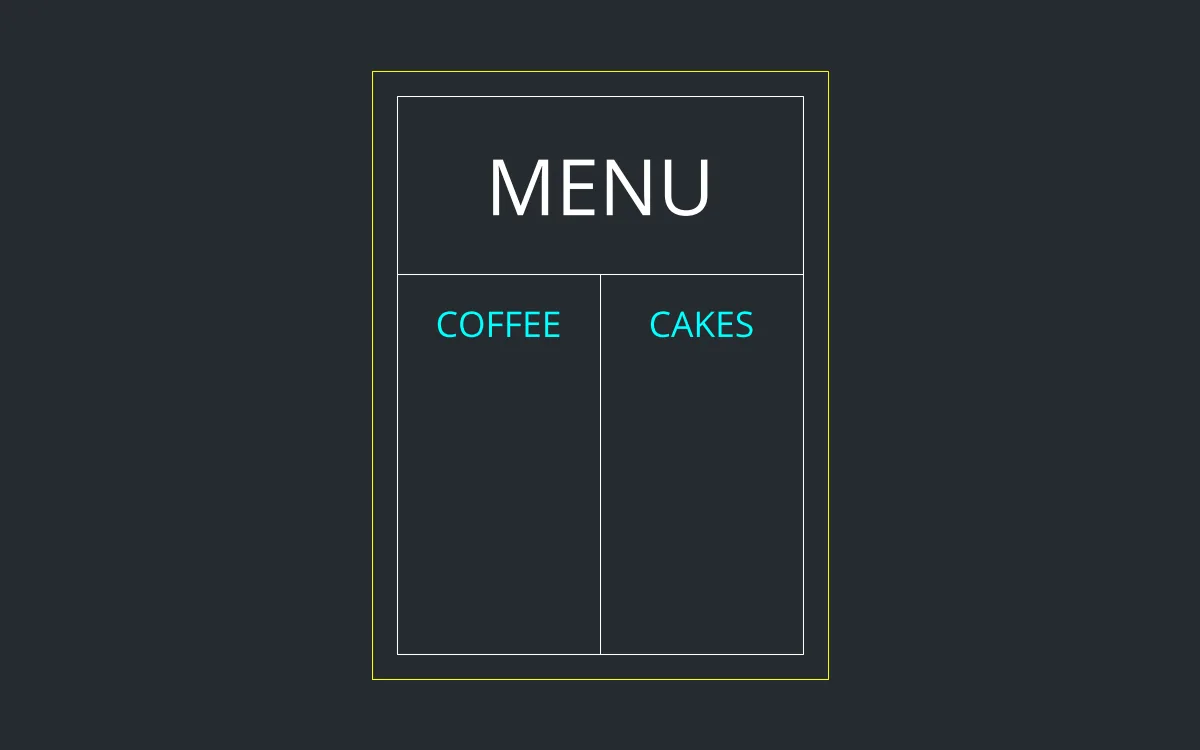
Try it: A "Signage" workspace for a café menu board
Sign work needs a big drawing area and no electrical symbol palette. Make a workspace just for signs and switch to it when you need it.
- In the View menu, hide the Symbols Palette and the Layers Palette, and keep the Properties Palette open (
Ctrl+1). - Type
WSSAVE Signageand press Enter. - Draw the menu board:
REC0,0, then900Tab1200; inner frameREC50,50, then800Tab1100. - Divide it:
L50,800@800,0andL450,50@0,750, then addTEXTMENU,COFFEEandCAKES. - Press
Ctrl+0(Clean Screen) to see the board full screen, and again to come back. Next time, just pick Signage from the Workspace box on the Status bar.
Challenge: Type WSCURRENT to list every workspace you have saved.