
What it does
SCRIPT runs a Python (.py) file inside MCAD. It is comparable to AutoLISP/VBA. Use it to build repeated drawings, number items, or edit many drawings automatically. Every change a macro makes can be undone with Ctrl+Z.
Where to find it
- Ribbon: type the command
- Command line:
SCRIPT(AliasSCR,MACRO)
Steps
- Create a file
grid_holes.pywith Notepad:
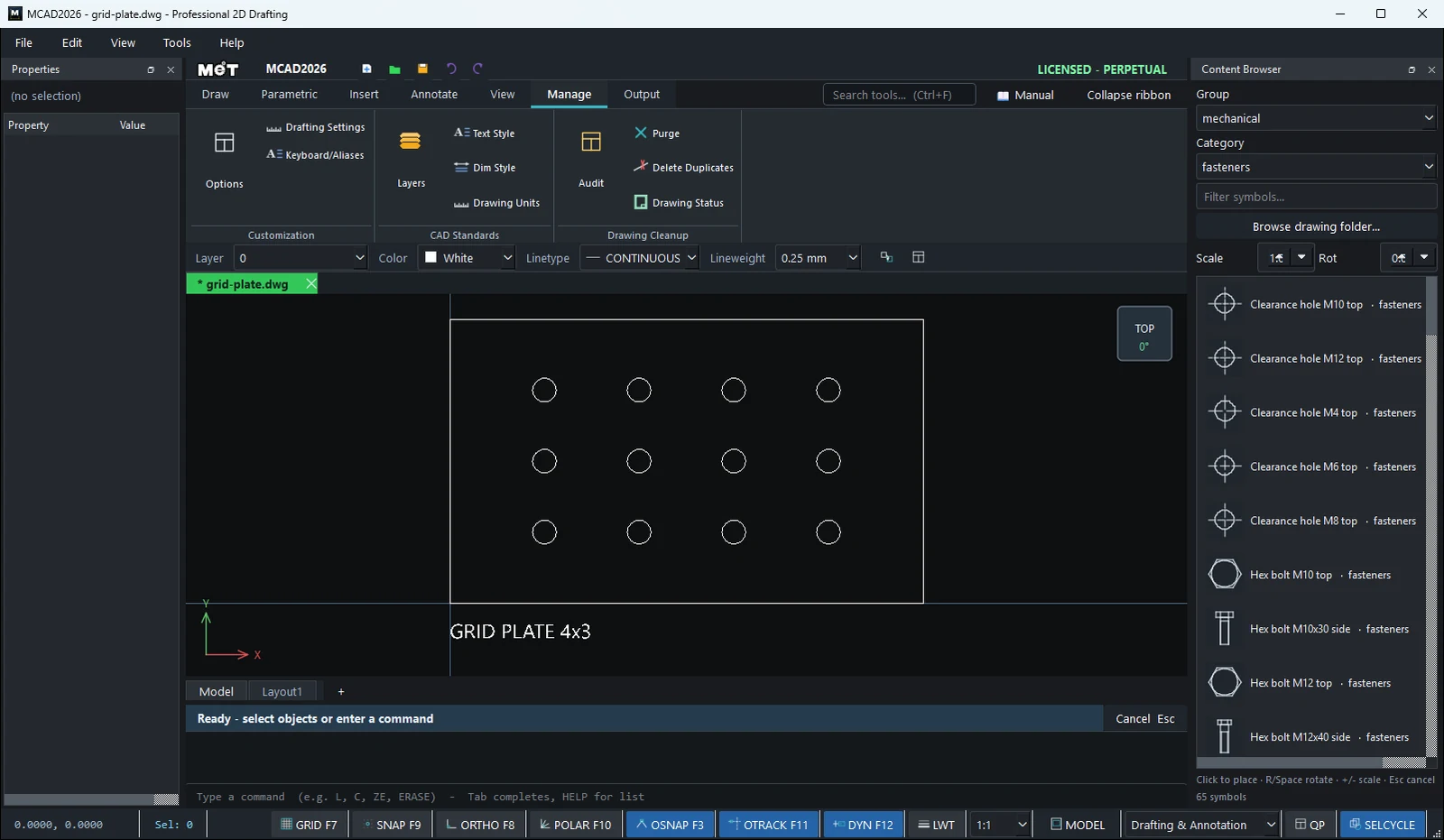
# MCAD macro demo: a plate with a 4 x 3 hole grid
mcad.add_rect(0, 0, 200, 120, layer="OUTLINE")
for i in range(4):
    for j in range(3):
        mcad.add_circle(40 + i * 40, 30 + j * 30, 5, layer="HOLES")
mcad.add_text(0, -15, "GRID PLATE 4x3", height=6)
mcad.zoom_fit()
mcad.log(f"{mcad.entity_count} entities")
- Type
SCRIPTand press Enter, then choose the file (orSCRIPT C:\Macros\grid_holes.py). - The result appears in the drawing, and the Status bar shows
SCRIPT done: grid_holes.py.
API reference
Document
| Command | Meaning |
|---|---|
mcad.entity_count |
Number of objects |
mcad.entities() |
List of objects (dicts) |
mcad.entity(i) |
Object number i |
mcad.open(path) |
Open a DWG/DXF file |
mcad.save() |
Save the current drawing |
Create objects (returns the index of the new object)
| Command | Meaning |
|---|---|
mcad.add_line(x1, y1, x2, y2, **style) |
Line |
mcad.add_circle(cx, cy, r, **style) |
Circle |
mcad.add_arc(cx, cy, r, start_deg, end_deg, **style) |
Arc |
mcad.add_rect(x, y, w, h, **style) |
Rectangle |
mcad.add_polyline([(x, y), ...], closed=False, **style) |
Polyline |
mcad.add_text(x, y, "text", height=2.5, **style) |
Text |
mcad.add_entities([dict, ...]) |
Add several objects in one Undo step (fast for many objects) |
**style: layer="...", color="#RRGGBB" (or an ACI number), linetype="DASHED", lineweight=25 (= 0.25 mm)
Edit and other commands
| Command | Meaning |
|---|---|
mcad.move(indices, dx, dy) |
Move |
mcad.erase(indices) |
Erase |
mcad.select(indices) / mcad.selection() / mcad.clear_selection() |
Manage the selection |
mcad.zoom_fit() / mcad.redraw() |
Zoom to fit / redraw |
mcad.command("ZOOM E") |
Run any Command line command |
mcad.log("msg") |
Show a message on the Status bar |
mcad.math |
Python's math module |
Note: If a macro fails, a window shows the Traceback and the program does not close. Editing an object's dict directly bypasses the Undo system, so use the
mcadcommands instead.
Try it: Vent plate for an enclosure door
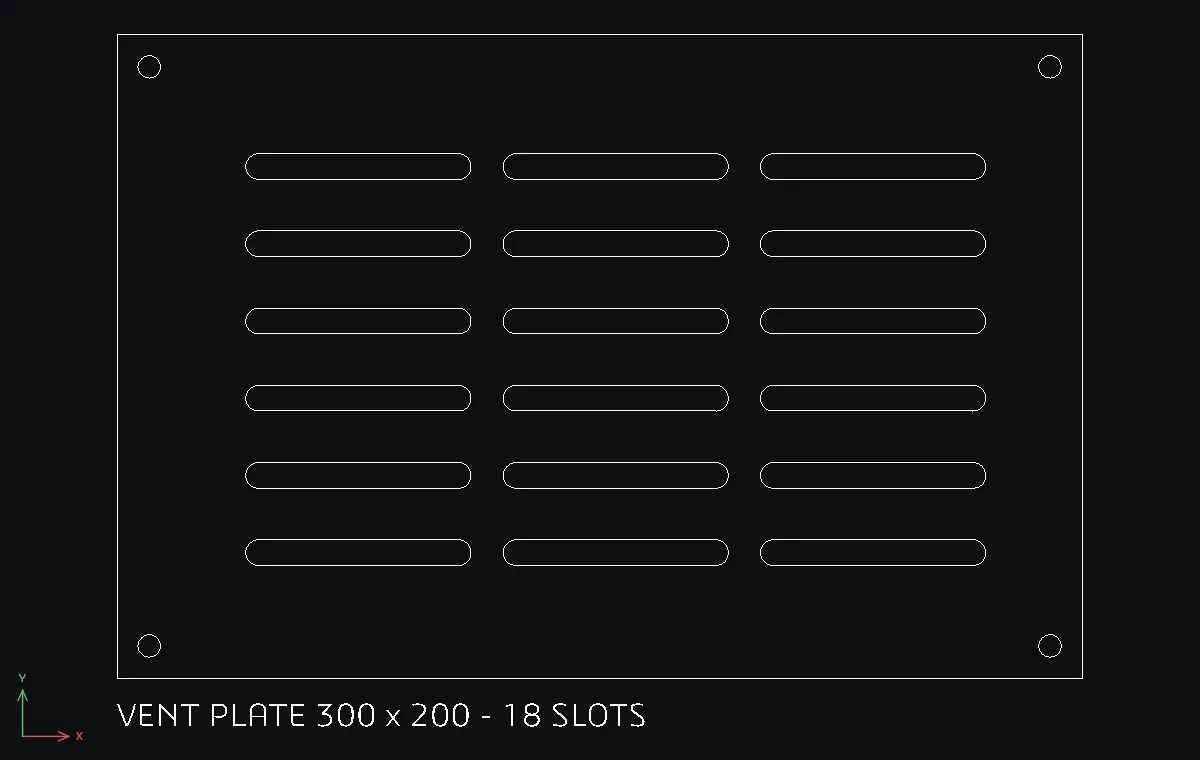
A 300 x 200 louvre plate for a hot control cabinet: 18 rounded slots in three columns plus four fixing holes. Drawing 72 lines and arcs by hand is no fun; a 20-line macro does it in a blink, and changing one number redraws the whole pattern.
- Save this as
vent_plate.py:
# MCAD macro: enclosure door vent plate with 3 x 6 louvre slots
W, H = 300, 200
mcad.add_rect(0, 0, W, H, layer="OUTLINE")
for (x, y) in ((10, 10), (W - 10, 10), (10, H - 10), (W - 10, H - 10)):
    mcad.add_circle(x, y, 3.5, layer="HOLES")
slot_w, slot_h, r = 70, 8, 4
for col in range(3):
    for row in range(6):
        x0 = 40 + col * 80
        y0 = 35 + row * 24
        mcad.add_line(x0 + r, y0, x0 + slot_w - r, y0, layer="SLOTS")
        mcad.add_line(x0 + r, y0 + slot_h, x0 + slot_w - r, y0 + slot_h, layer="SLOTS")
        mcad.add_arc(x0 + r, y0 + r, r, 90, 270, layer="SLOTS")
        mcad.add_arc(x0 + slot_w - r, y0 + r, r, -90, 90, layer="SLOTS")
mcad.add_text(0, -15, "VENT PLATE 300 x 200 - 18 SLOTS", height=7)
mcad.zoom_fit()
mcad.log(f"{mcad.entity_count} entities")
- Type
SCRIPTand choosevent_plate.py. - The plate appears and the Status bar reports the run. The drawing now holds 78 objects: the plate, 4 holes, 72 slot lines and arcs and the title.
Challenge: Change range(6) to range(5) and slot_w to 90, erase the old plate and run the script again.