
What it does
MCAD 2026 must be activated with a License key before you can use it. A TRIAL key (a trial with an expiry date) from a reseller also works.
Where to find it
- The first time you start the program (with no licence yet), the Activate License window opens by itself.
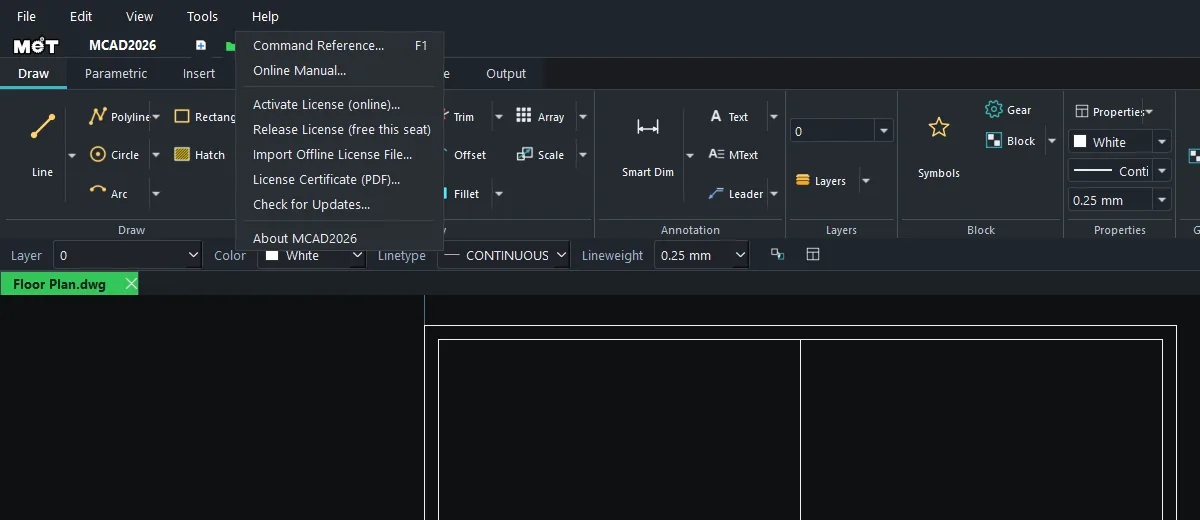
- Menu Help › Activate License (online)...
- The licence status is shown at the top right of the Ribbon (for example
LICENSED - PERPETUAL).
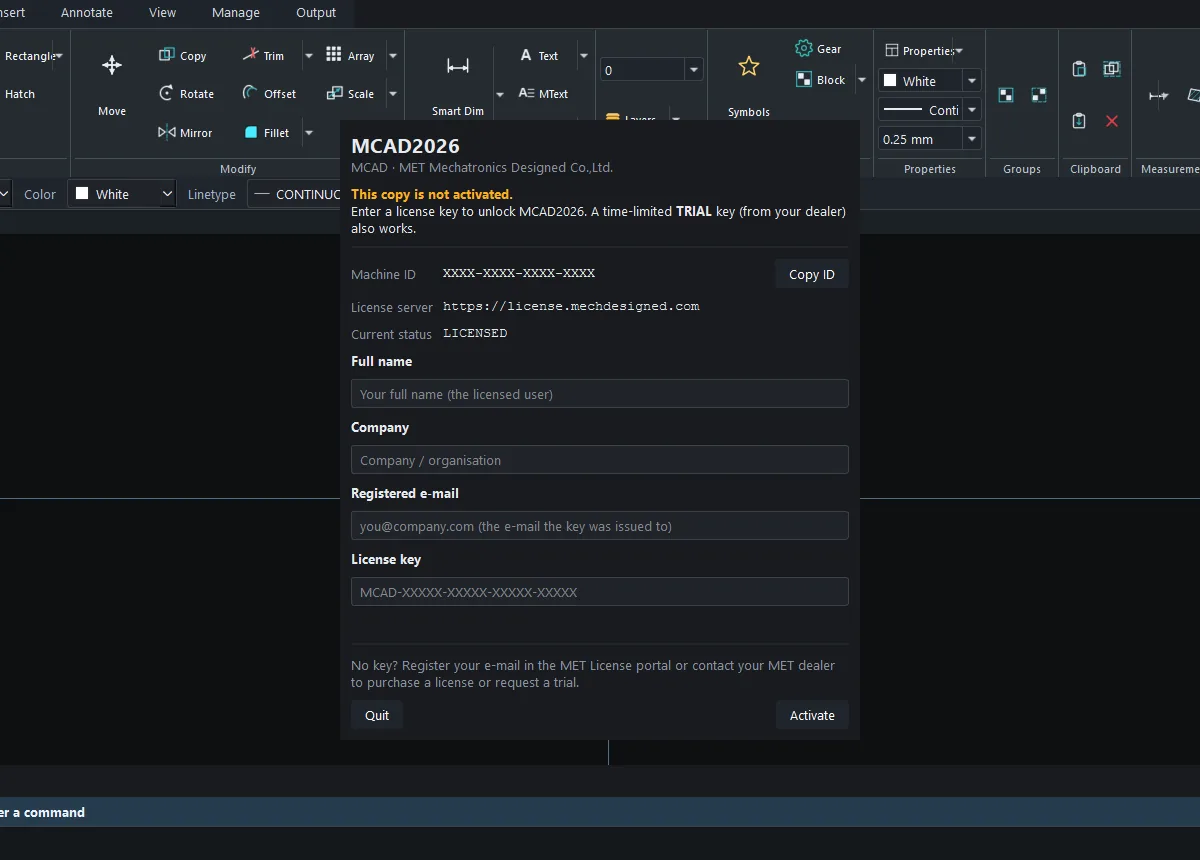
Activation steps
- Connect to the internet.
- Enter your Full name (the name of the authorized user) and Company.
- Enter the Registered e-mail. It must match the e-mail you used to request the key.
- Enter the License key in the format
MCAD-XXXXX-XXXXX-XXXXX-XXXXX. - Click Activate. The program contacts the License server and shows the message License activated, with the Edition and the expiry date (if any).
Options in the window
| Option | Meaning |
|---|---|
| Machine ID | The ID of this computer. Give it to support when needed. Click Copy ID to copy it |
| License server | The MET licence server (https://license.mechdesigned.com) |
| Current status | The current licence status of this computer |
| Full name / Company | The licence holder's name, printed on the licence certificate |
| Registered e-mail | The e-mail registered with the key |
| License key | The key you received from MET or a reseller |
| Quit / Activate | Exit the program / activate |
Other licence commands in the Help menu
| Menu | Meaning |
|---|---|
| Release License (free this seat) | Returns this computer's seat to the server. Use it before you move to a new computer or reinstall Windows |
| Import Offline License File... | Imports a .json licence file signed by MET, for computers without internet access |
| License Certificate (PDF)... | Prints the licence-holder certificate as a PDF |
Note: The program checks your licence with the server periodically (about every 25 minutes while online). If you are briefly offline, you can keep working.
Try it: Move your licence from the office PC to a laptop before a site visit
Scenario: tomorrow you are measuring a shop fit-out on site and want MCAD on your laptop instead of the office PC. Your licence has 1 seat.
- On the office PC: save all your work, then choose Help › Release License (free this seat). The seat goes back to the server.
- On the laptop: if the program is not installed yet, download the installer from license.mechdesigned.com/download/MCAD or get it from the Microsoft Store.
- Start the program, enter the same Full name, Company, Registered e-mail and License key, then click Activate.
- Check that the top right of the Ribbon shows
LICENSED. - If you are told all seats are in use because you forgot to release the old PC, click Copy ID and send the Machine ID to MET so they can free the seat.