
What it does
OFFSET creates a copy of a Line, Arc, Circle, or Polyline at a set distance. Polyline corners keep the same distance all the way around.
Where to find it
- Ribbon: Draw › Modify › Offset
- Command line:
OFFSET(AliasO)
Steps
- Type
Oand press Enter.Offset distance (B <d> = both sides) <5>: - Type a distance, for example
10, and press Enter (orB 10to create both sides). - Click the object.
Offset: click the side to offset toward.Click the side you want (inside or outside).- Keep clicking more objects. Press Esc to finish.
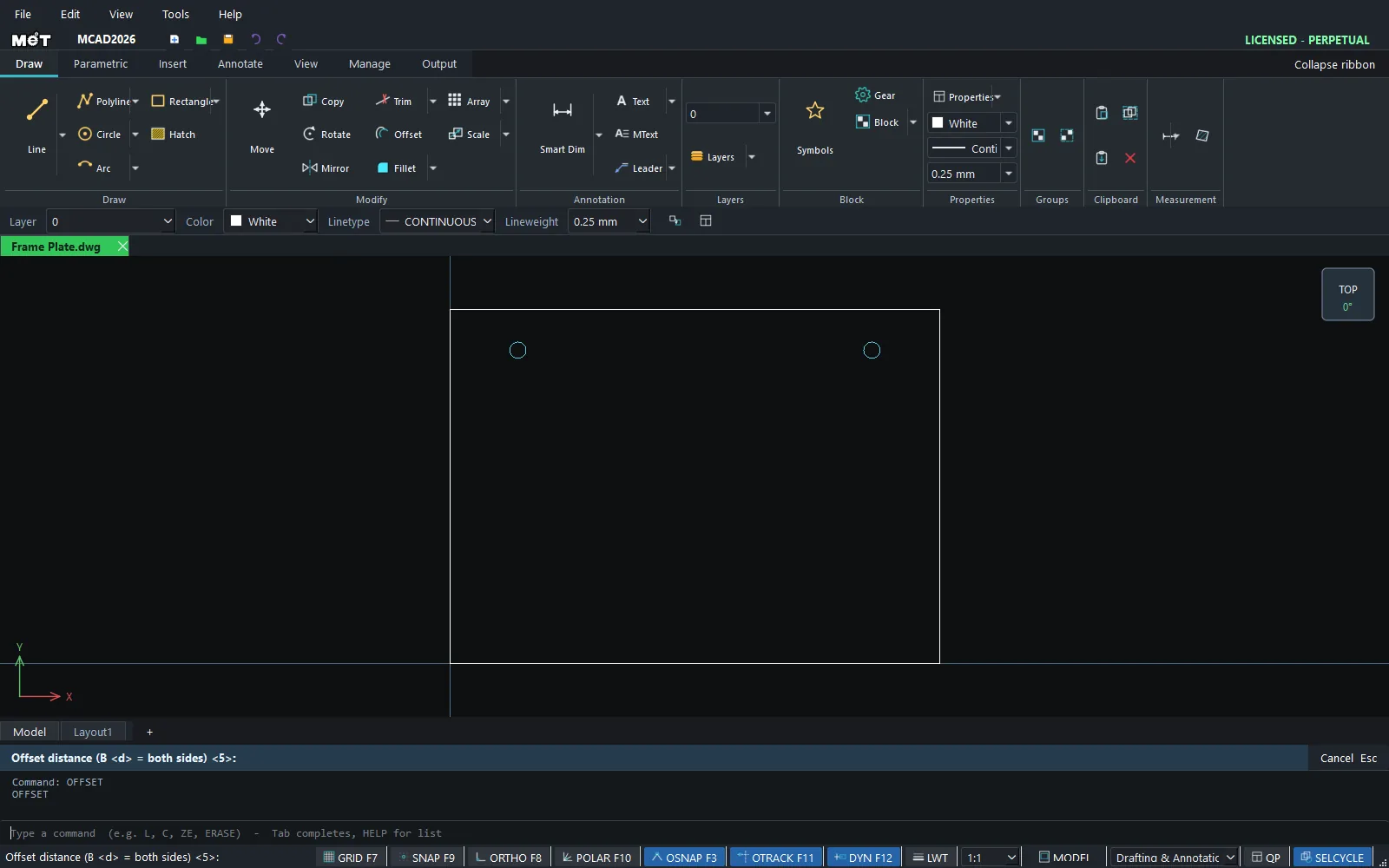
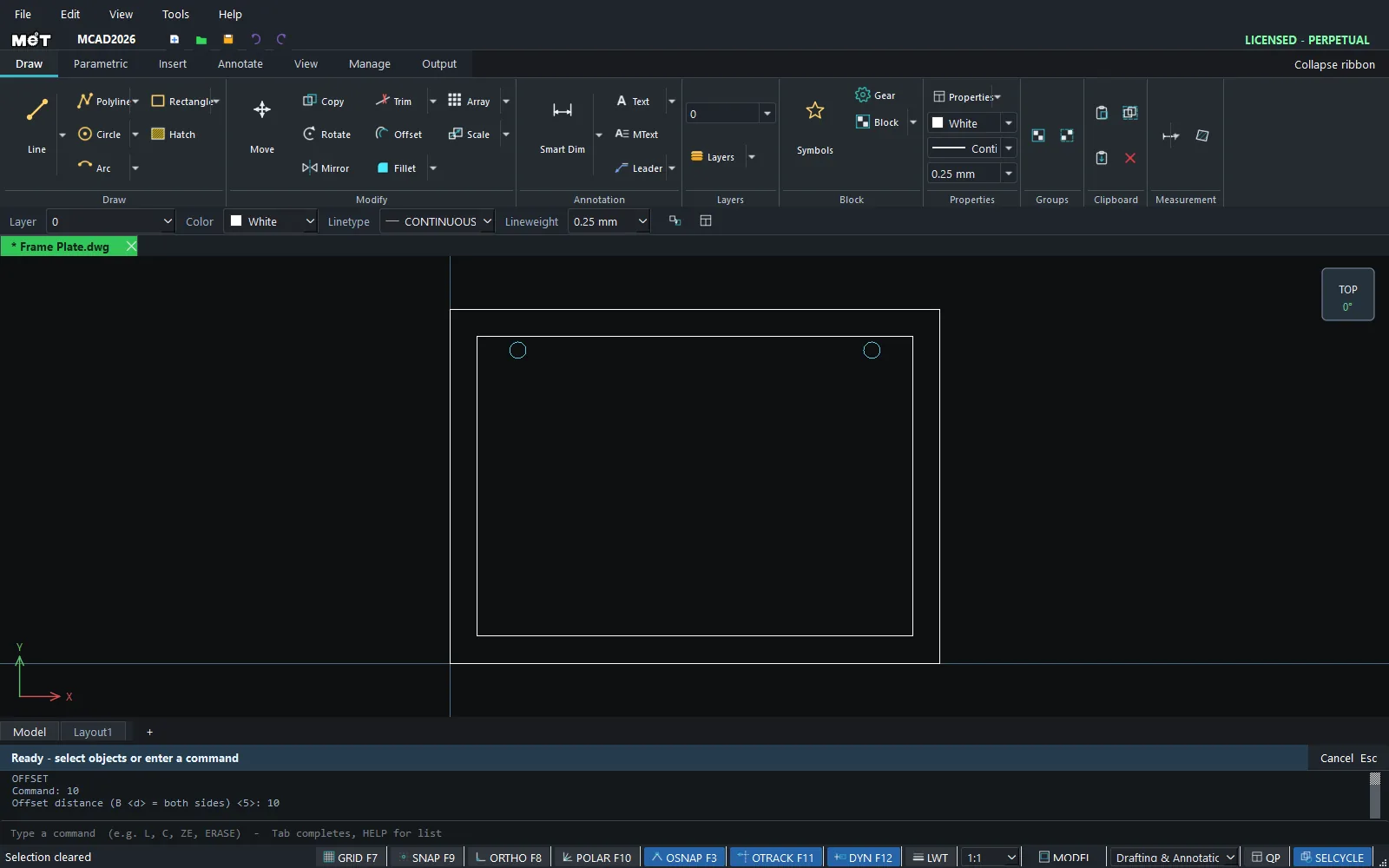
Shortcut: OFFSET 10 enters the distance first. Then select the object, press Enter, and click the side.
| Option | Meaning |
|---|---|
<distance> |
Offset one side, toward the side you click |
B <distance> |
Both sides – creates both copies without clicking a side |
| Empty Enter | Use the previous distance |
Try it: Acrylic photo frame for a 6 x 4 inch print
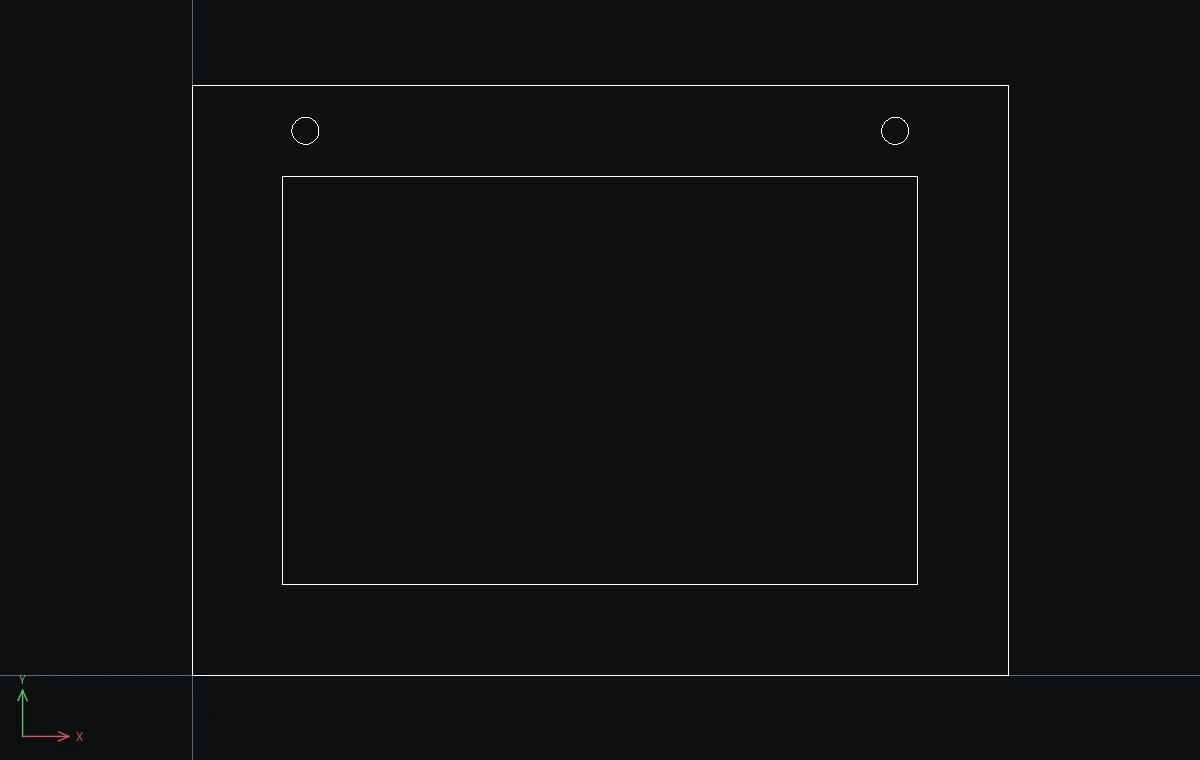
The front plate of a frame for a 152 x 102 mm (6 x 4 inch) photo. One rectangle and one OFFSET give you the window, with a 6 mm lip all round to hold the print.
- Frame plate:
REC,0,0,@180,130, Esc. - Type
Oand press Enter. Type20and press Enter. - Click the rectangle, then click anywhere inside it. A 140 x 90 window appears 20 mm inside. Press Esc.
- Hanging holes:
C,25,120,3, Esc, andC,155,120,3, Esc.
Challenge: Cut a second plate as a mat: offset the window 8 mm inwards for a smaller photo.