
What it does
POLYGON draws a regular polygon, such as a hexagonal nut head.
Where to find it
- Ribbon: there is no Ribbon button. Right-click in the drawing area › Draw › Polygon
- Command line:
POLYGON(AliasPOL)
Note: In this version, POLYGON always draws a 6-sided polygon (a hexagon). There is no command-line option to change the number of sides yet.
Steps
- Type
POLand press Enter.POLYGON: specify the center - Click the center point.
POLYGON: specify a vertexClick a vertex, or type the radius/angle in Smart Input.
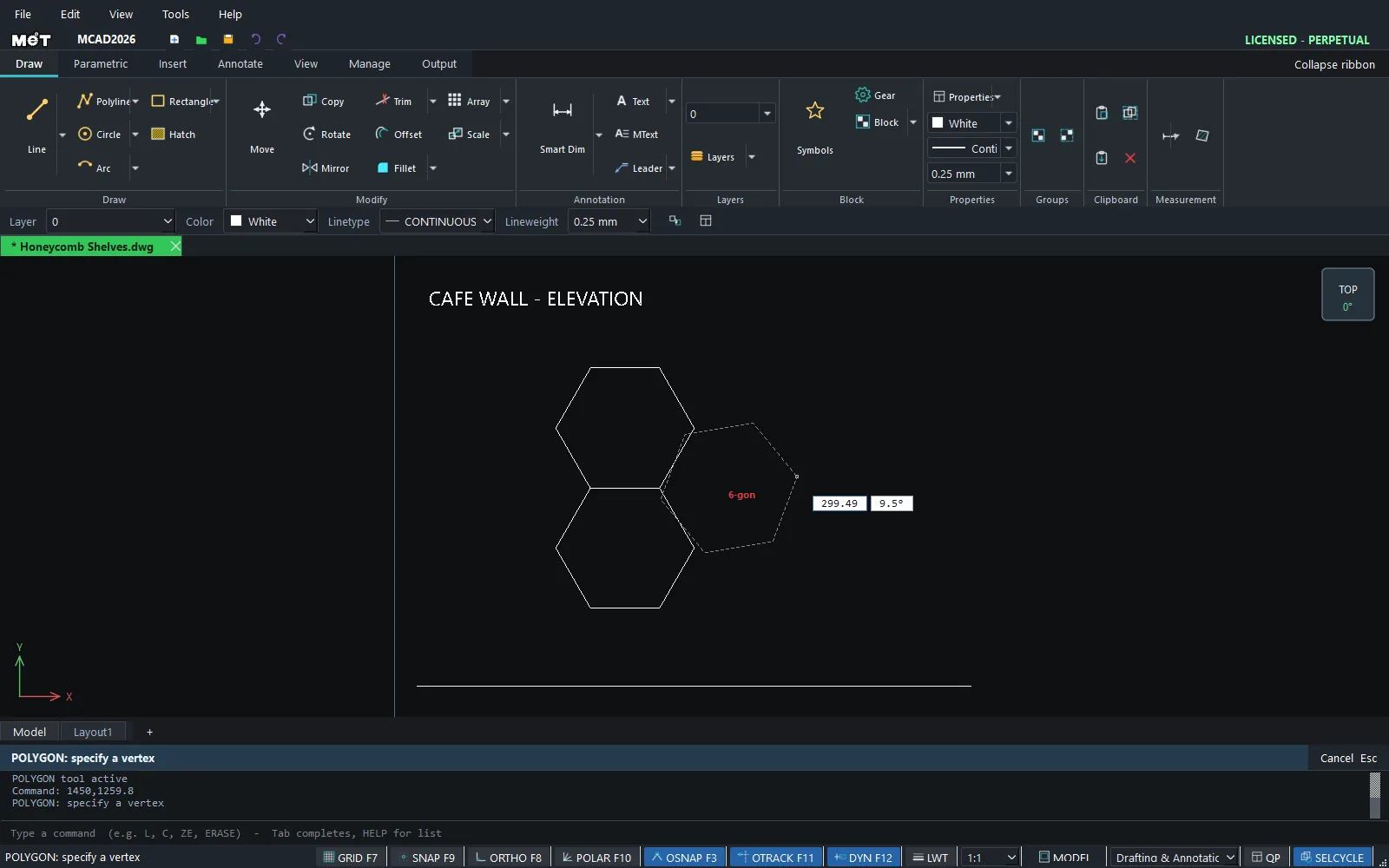
Try it: Honeycomb wall shelves
Three hexagonal shelves nested like a honeycomb, a popular café wall feature. Each one is 600 mm across the corners.
- Type
POL, Enter,0,0, Enter, then@300<0and Enter. That is a hexagon with a 300 radius. - Second shelf:
POL0,519.6, then@300<0(519.6 = 2 x 300 x cos 30°, so the edges touch exactly). - Third shelf:
POL450,259.8, then@300<0. - Board thickness: repeat at the same three centres with
@280<0. The shelf walls are about 17 mm thick.
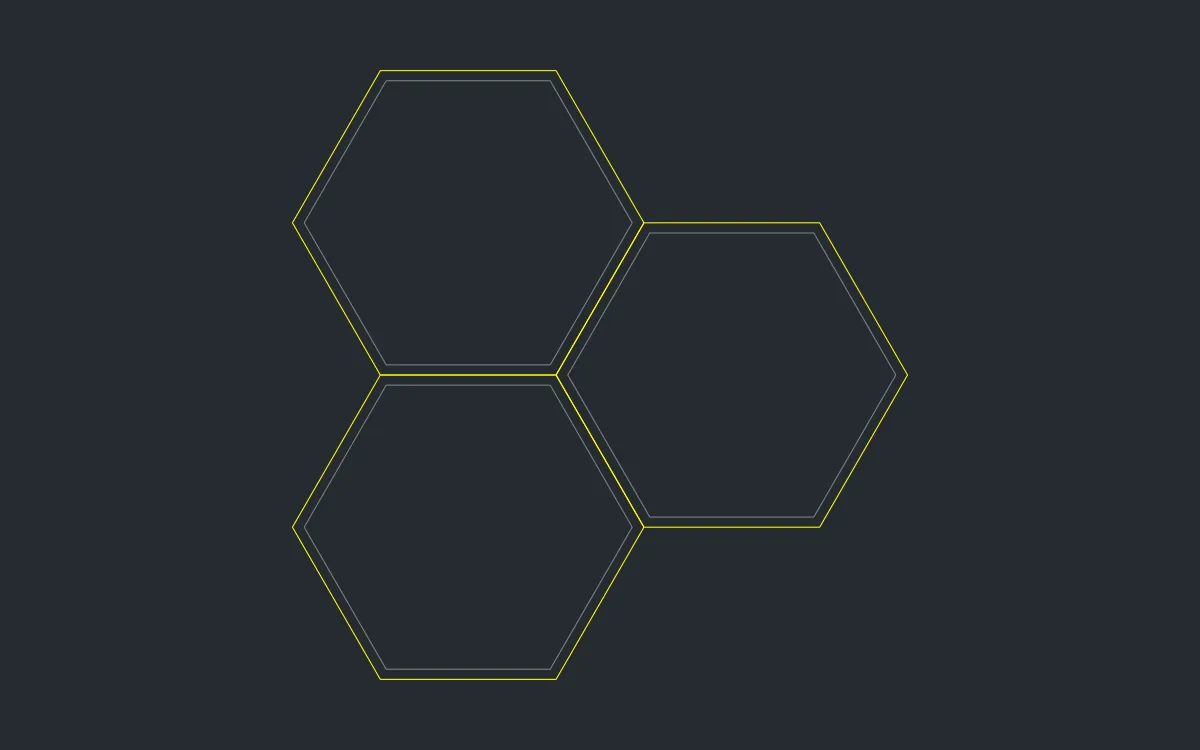
Challenge: Add a fourth shelf at 450,-259.8 and see how the honeycomb keeps tiling.