
What it does
- SOLID – a filled triangle or quadrilateral.
- WIPEOUT – a background-colored area that hides what is underneath (for example, to make room for text).
- REVCLOUD – a revision cloud around the selected objects. Use it to mark changes in a revision.
Where to find it
- Ribbon: Draw › Draw › Rectangle ▾ › 2D Solid - Filled (SOLID) / Wipeout - Mask (WIPEOUT) / Revision Cloud (REVCLOUD)
- Command line:
SOLID(AliasSO) - Command line:
WIPEOUT(WO),REVCLOUD(RC)
SOLID / WIPEOUT steps
- Type
SOLID(orWIPEOUT) and press Enter. - Click corners 1, 2, and 3. A triangle is created as soon as you click corner 3.
- Click corner 4 to make a quadrilateral, or press
Escto keep the triangle.
Note: The corner order follows AutoCAD. Corners 1-2 form one edge, and 3-4 form the opposite edge in the same direction. If you click around the shape in a circle, you get a bow-tie shape (as in the left picture).
REVCLOUD steps
- Select the objects you want to surround with a cloud.
- Type
REVCLOUD 10(arc length 10) and press Enter.
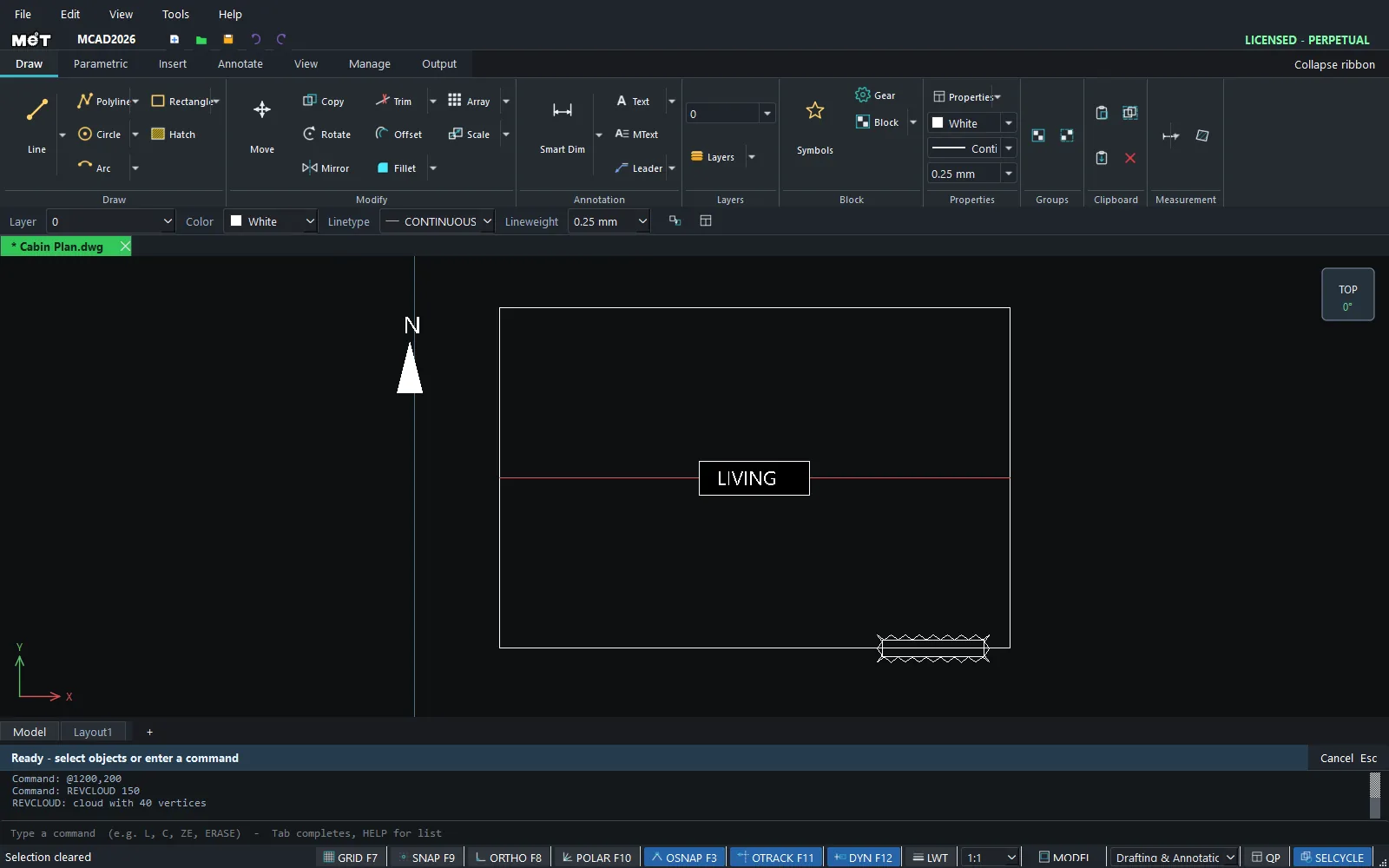
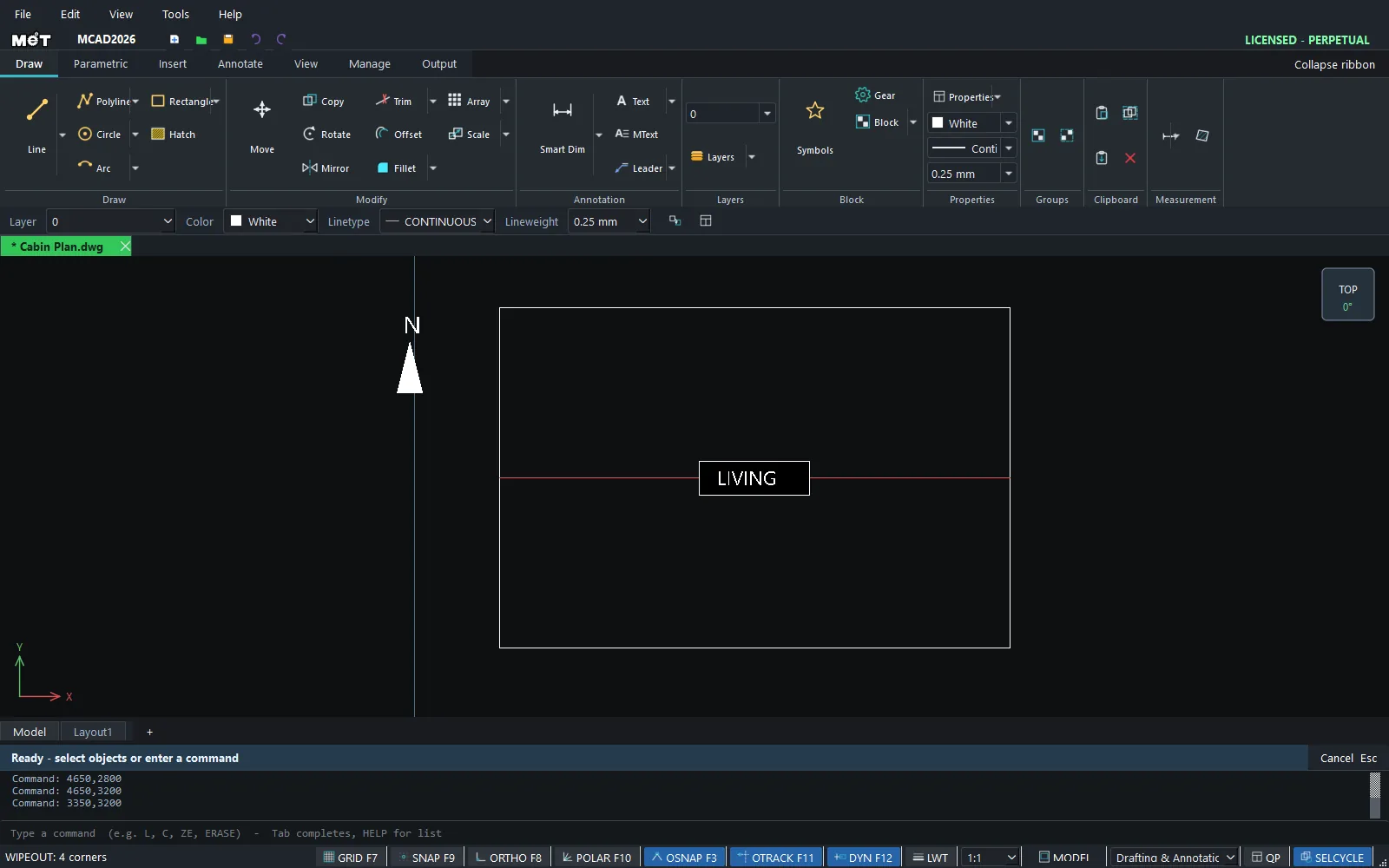
Try it: North arrow, room label and revision cloud on a cabin plan
A small cabin plan with a filled north arrow, a room label that the beam line does not cross, and a revision cloud around a window that just moved. All three commands in one job.
- Plan:
REC0,0, then6000Tab4000Enter. Draw a beam across the room withL0,2000@6000,0(set its Linetype to DASHED). - North arrow: type
SOLID, Enter, then7000,3000,7300,3000,7150,3600(Enter after each), and pressEscto keep the triangle. - Label background: type
WIPEOUT, Enter, then2400,1800,3600,1800,2400,2200,3600,2200(AutoCAD order: edges 1-2 and 3-4 run the same way). The beam line under the label disappears. - Add
TEXTLIVINGin the middle of that area. - New window:
REC4500,-100, then1200Tab200Enter. Select the window, typeREVCLOUD 150and press Enter.
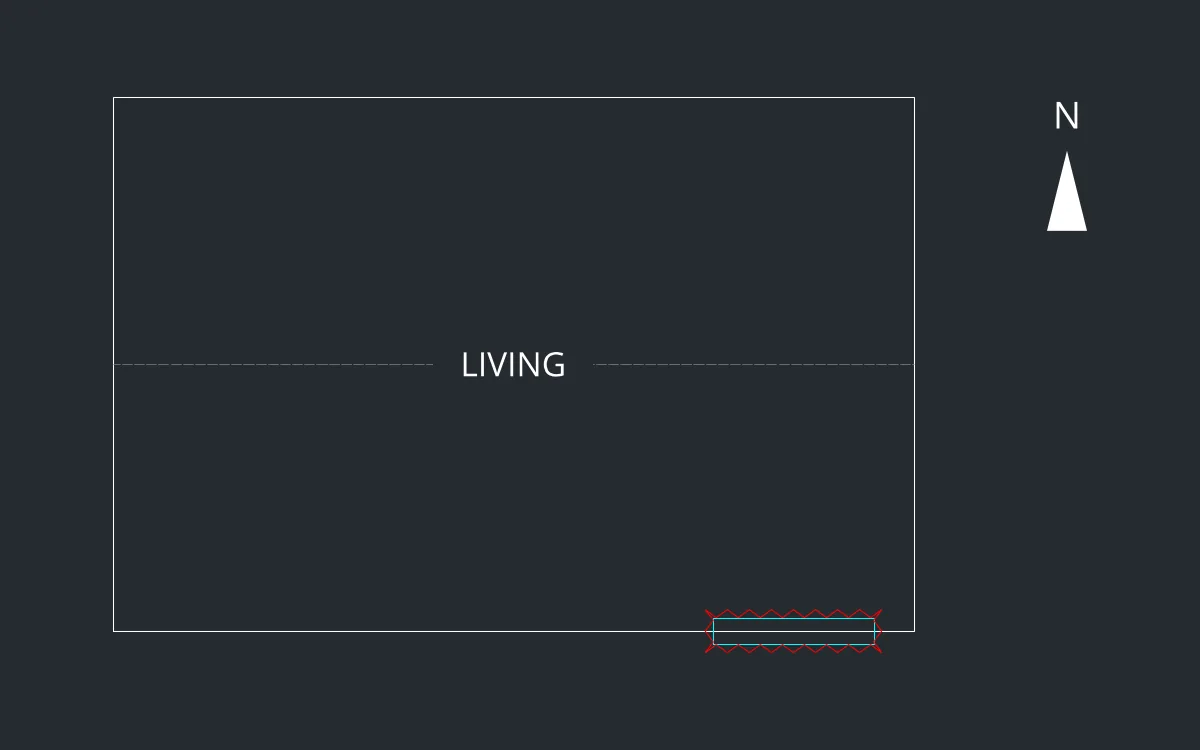
Challenge: Add a TEXT N above the arrow, then ROTATE the arrow to the site's true north.