
What it does
Customize shortcuts and aliases to suit your habits, and move your settings to another computer.
Where to find it
- Ribbon: Manage › Customization › Options or Keyboard/Aliases
- Menu Tools › Options... / Tools › Customize Shortcuts and Aliases...
- Command line:
OPTIONS(OP),CUI,ALIASEDIT
General tab
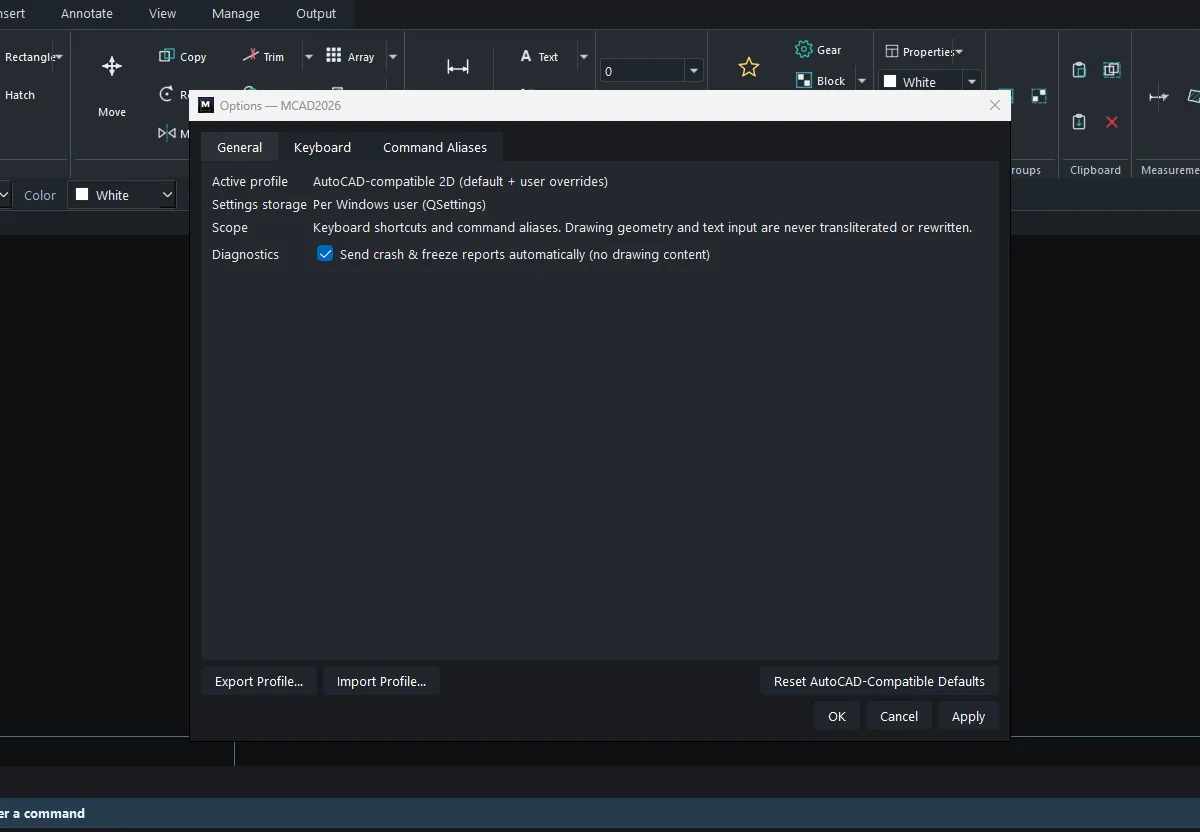
| Option | Meaning |
|---|---|
| Active profile | The AutoCAD-compatible 2D profile plus the user's changes |
| Settings storage | Stored separately for each Windows user |
| Diagnostics | Automatically sends reports when the program hangs or closes unexpectedly (no drawing data is sent) |
Keyboard tab
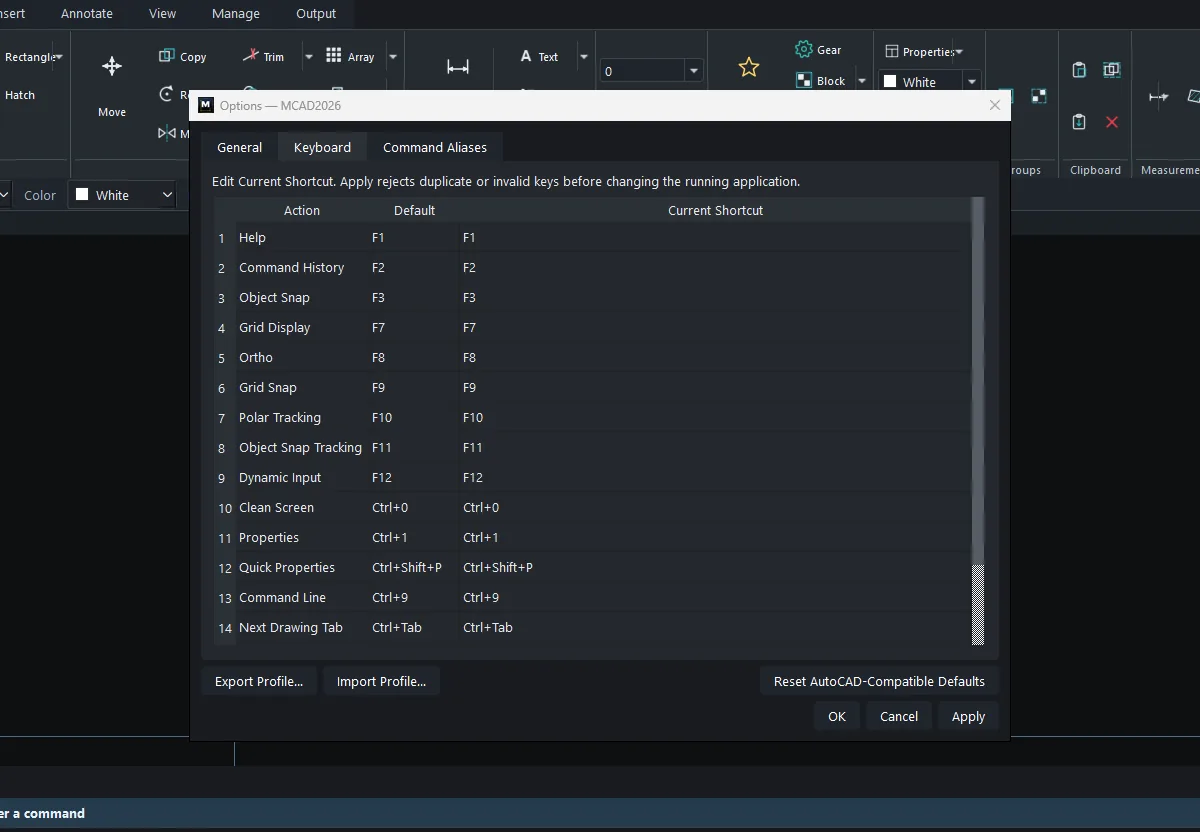
Edit the Current Shortcut box of the command you want, then click Apply. The program rejects keys that are duplicated or invalid.
| Action | Default |
|---|---|
| Help | F1 |
| Command History | F2 |
| Object Snap | F3 |
| Grid Display | F7 |
| Ortho | F8 |
| Grid Snap | F9 |
| Polar Tracking | F10 |
| Object Snap Tracking | F11 |
| Dynamic Input | F12 |
| Clean Screen | Ctrl+0 |
| Properties | Ctrl+1 |
| Quick Properties | Ctrl+Shift+P |
| Command Line | Ctrl+9 |
| Next / Previous Drawing Tab | Ctrl+Tab / Ctrl+Shift+Tab |
| Next / Previous Layout Tab | Ctrl+PgDown / Ctrl+PgUp |
Command Aliases tab
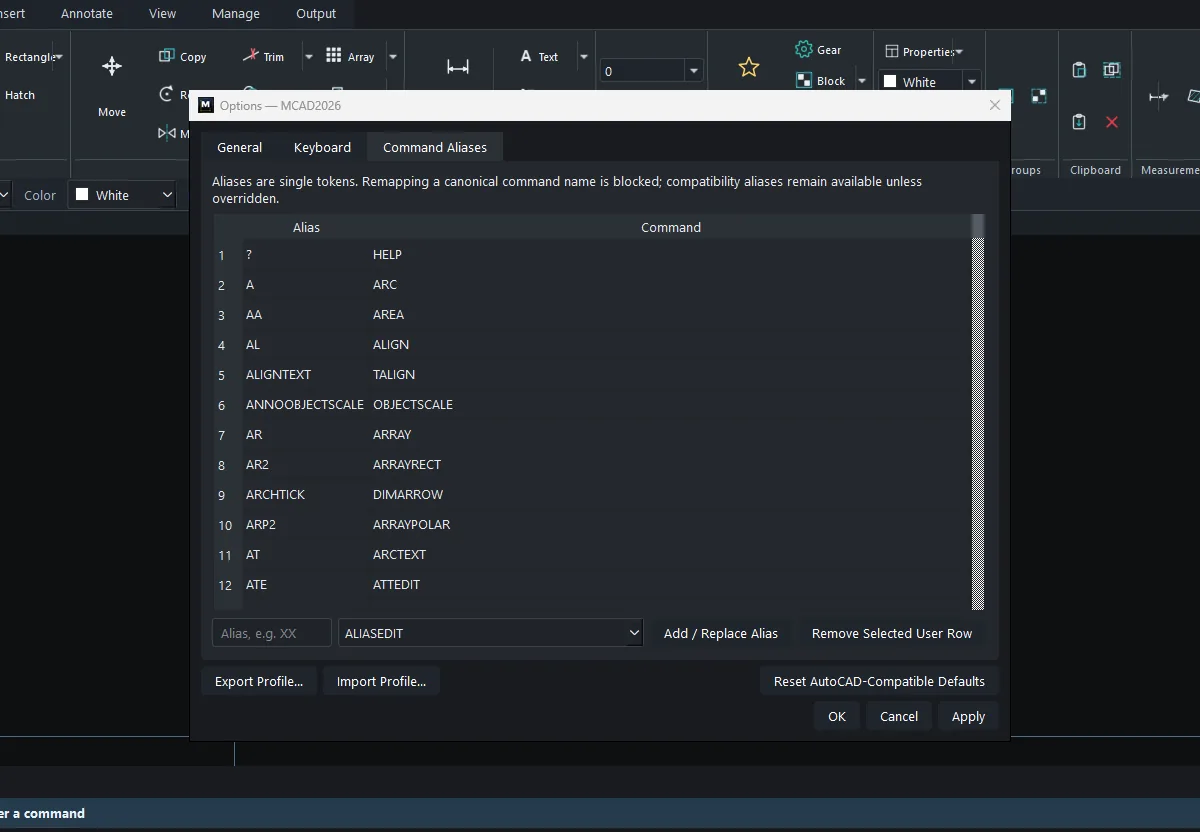
- Type the new alias in the
Alias, e.g. XXbox. - Choose the target command in the box next to it.
- Click Add / Replace Alias, then Apply or OK.
| Button | Meaning |
|---|---|
| Add / Replace Alias | Add or replace an alias |
| Remove Selected User Row | Delete an alias row that the user added |
| Export Profile... / Import Profile... | Save/import the Shortcut + Alias profile as a .json file |
| Reset AutoCAD-Compatible Defaults | Restore all defaults |
Note: An alias must be a single word, and you cannot use the real (canonical) command name as an alias.
Try it: A WL shortcut for partition walls
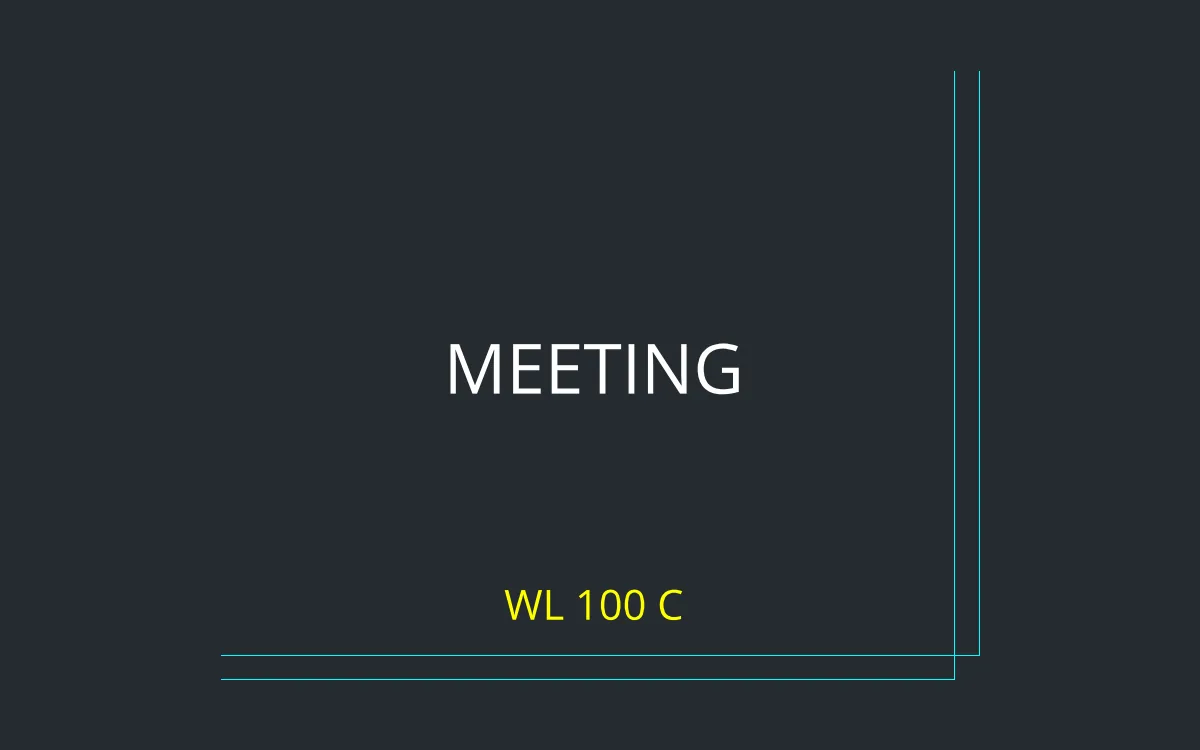
If you draw stud partitions all day, make your own WL alias and a 100 mm wall takes a few keystrokes. Try it on an office meeting room.
- Type
ALIASEDITand press Enter (or Manage › Customization › Keyboard/Aliases), and go to the Command Aliases tab. - Type
WLin the Alias box, choose theDLINEcommand, click Add / Replace Alias, then OK. - Type
WL 100 C, Enter, then0,0Enter and3000,0Enter. You get a 100 thick, 3 m long wall. - Side wall:
WL 100 C, then3000,-50Enter and3000,2400Enter. - Go back to Options and click Export Profile... to keep a
.jsonfile, so you can use the same aliases on another computer.
Challenge: Try to create an alias called LINE. The program refuses, because an alias cannot be a real command name. Make up your own short alias for DIMSTYLE instead.