
What it does
| Command | Alias | Shortcut | Meaning |
|---|---|---|---|
| ERASE | E, DELETE, DEL |
Delete |
Deletes the selected objects. |
| OOPS | – | – | Restores the objects deleted by the last ERASE, without cancelling what you drew afterwards. |
| UNDO | U |
Ctrl+Z |
Undoes edits one step at a time. |
| REDO | – | Ctrl+Y |
Redoes what you undid. |
Where to find it
- Ribbon: Draw › Clipboard › Delete
- Quick Access Toolbar: Undo / Redo
- Menu: Edit › Undo / Redo
Steps for ERASE
- Type
Eand press Enter. The prompt readsERASE: select objects - Enter to continue, Esc to cancel. - Click the objects to delete. Selected objects show blue grips.
- Press Enter.
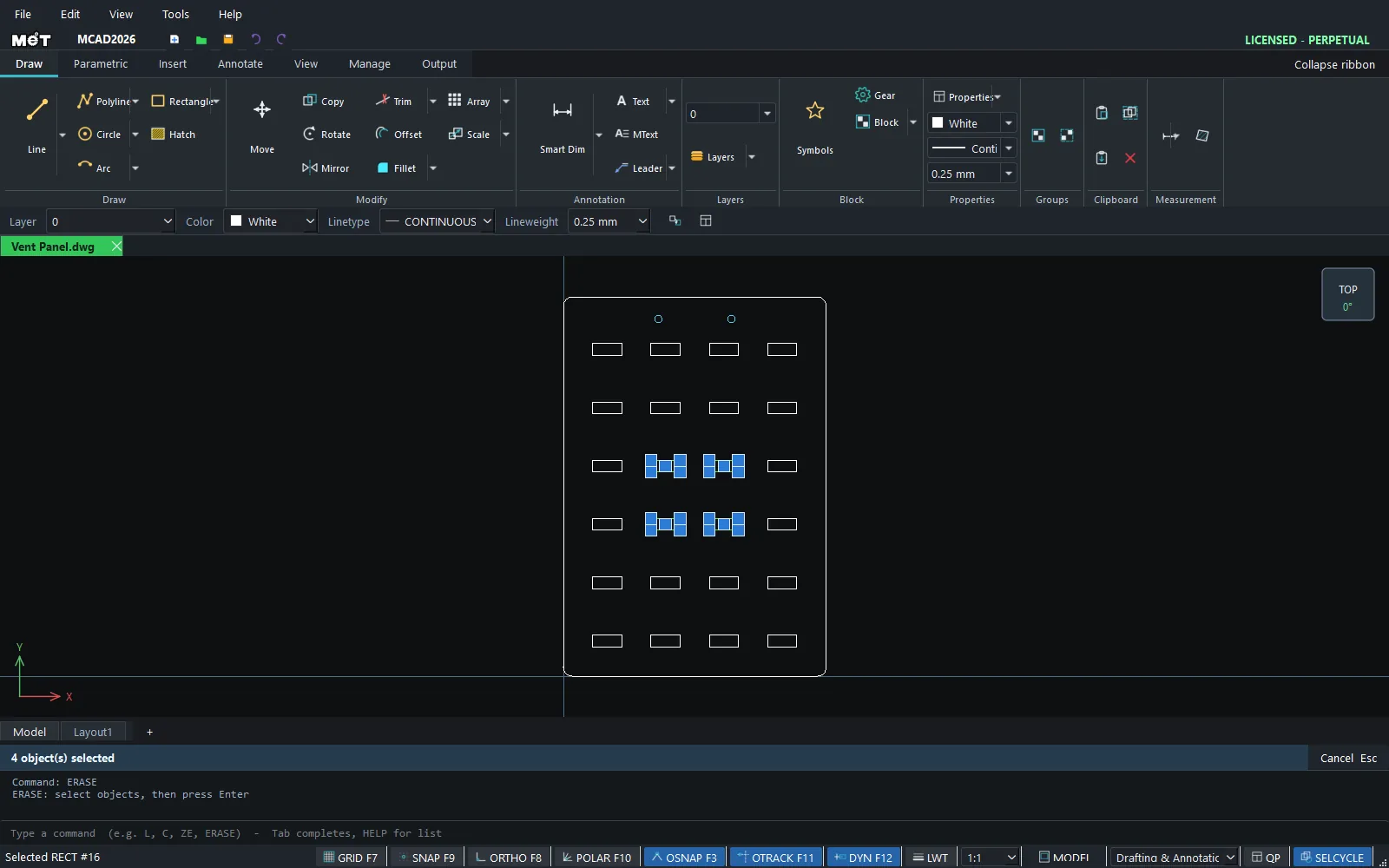
Note: Right-click an object (when nothing is selected) › Delete (object under cursor) to delete that object immediately.
Try it: Garden trellis panel with a name-plate area
A 175 x 255 mm plywood trellis for a climbing plant, with a solid patch in the middle for a plant name plate. Build a full grid of openings, then ERASE the four in the middle.
- Frame:
REC,0,0,@175,255, Esc. First opening:REC,15,15,@30,30, Esc. - Click the opening and type
ARRAYRECT 4 40 0. You get a row of 4. - Drag a window around the 4 openings and type
ARRAYRECT 6 0 40. You now have 24 openings. - Drag a window from about 50,90 to 130,170 so it holds the four middle openings (rows 3 and 4, columns 2 and 3). Type
Eand press Enter. The result readsErased. - Screw holes for the name plate:
C,65,130,2.5, Esc, andC,115,130,2.5, Esc.
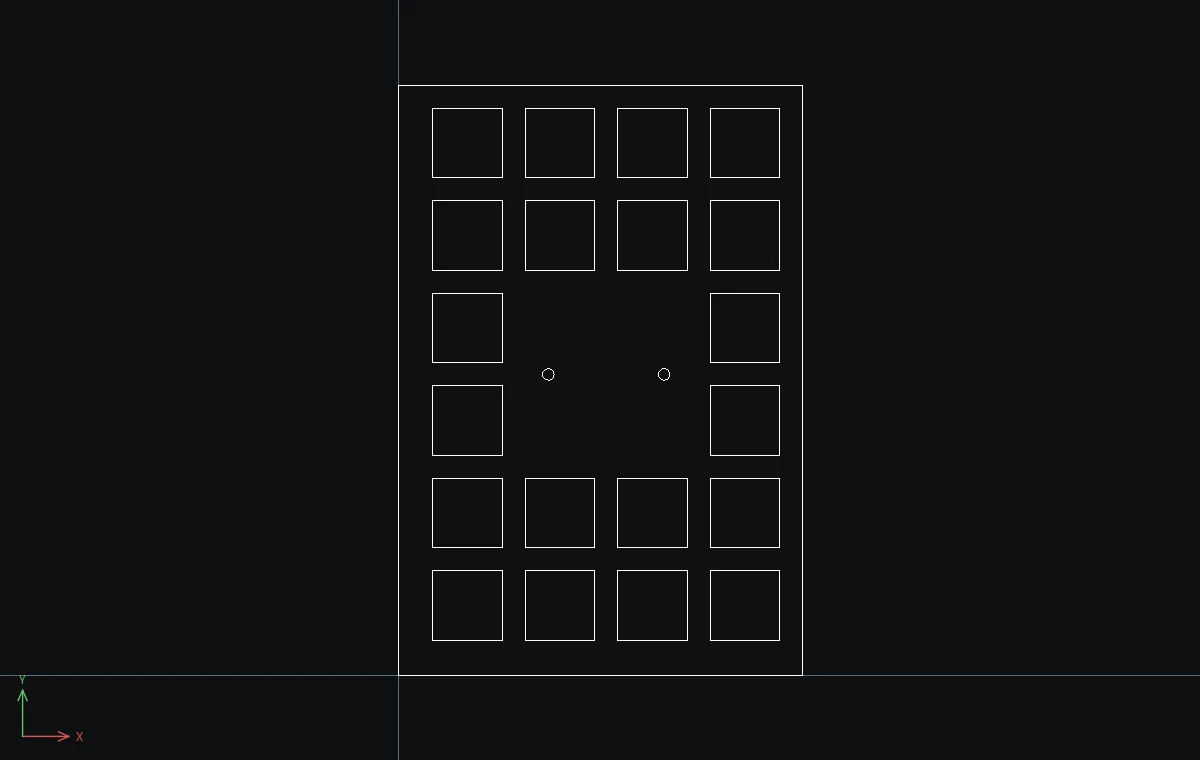
Challenge: Erase one more opening by mistake, then type OOPS. It comes back, and your screw holes stay where they are (UNDO would have removed them first).