
What it does
MCAD 2026 is a 2D CAD program for Windows that reads and saves DWG/DXF files directly. This page explains both ways to install it, how to update it, and how to check the version you are running.
System requirements
| Item | Minimum |
|---|---|
| Operating system | Windows 10 / Windows 11, 64-bit |
| Memory | 8 GB (16 GB recommended for large DWG files) |
| Disk space | About 1 GB |
| Internet | Needed to activate the licence and to verify entitlement periodically |
Option 1: Installer from MET (recommended)
- Download the installer from license.mechdesigned.com/download/MCAD. The file is named
MCAD2026-Setup-<version>.exeand is digitally signed by MET Mechatronics Designed. - Double-click the file and follow the installer steps (the default location is
C:\Program Files\MCAD2026). - The installer includes the DWG reader and MET's symbol library (547 symbols in the electrical, pneumatic, mechanical and architecture groups). You do not need to install a separate converter.
- Open MCAD 2026 from the Desktop icon or the Start menu.
- The first time you open it, a window asks you to activate your licence. See Activate your licence.
Updating the program (MET installer)
- The program checks for a new version by itself shortly after you start it.
- Or run it yourself with Help › Check for Updates....
Option 2: Microsoft Store
You can also install MCAD 2026 from the Microsoft Store. It is the same program with the same licence; the Store copy updates through the Store and may trail the MET installer slightly.
Note: If you already installed MCAD from the Store, it keeps working. The Store version updates only through the Microsoft Store. Help › Check for Updates... does not download an installer for it.
Check the version
Choose Help › About MCAD2026. It shows the version number (Release version) and the licence status.
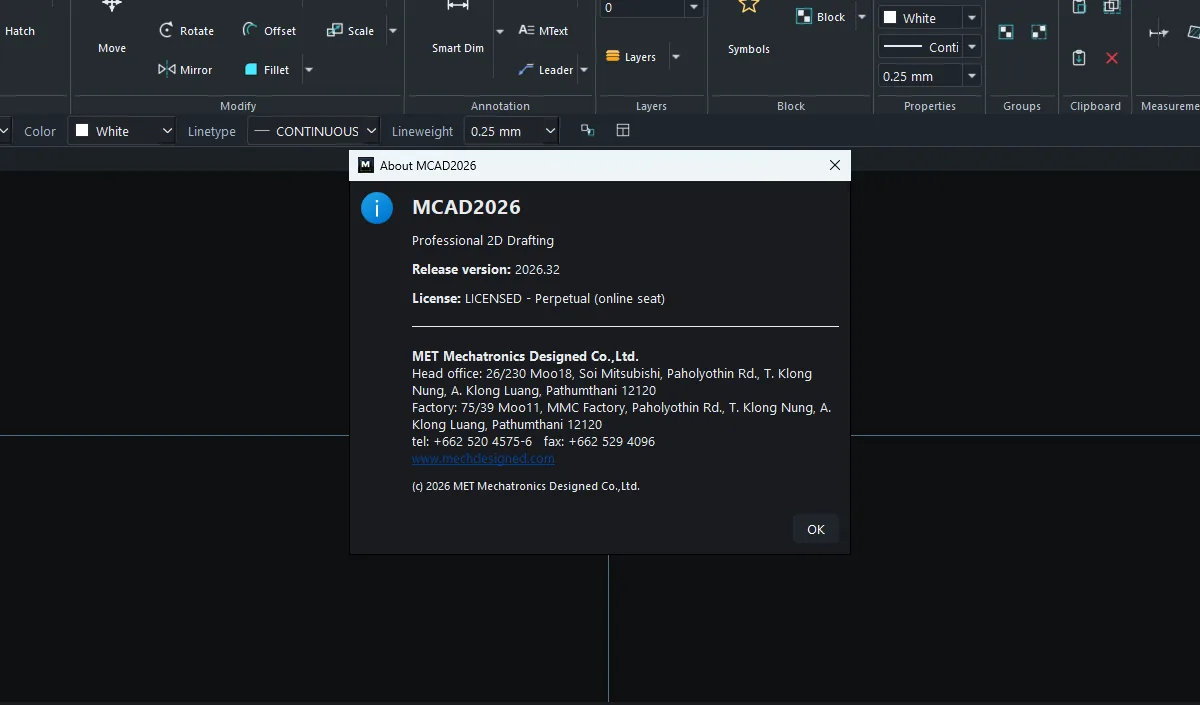
Note: When you report a problem to support, always include the Release version from this window.
Try it: Set up MCAD on an interior designer's new laptop
Scenario: an interior designer has a new laptop and must open a client's condo DWG plan this afternoon.
- Open a browser at license.mechdesigned.com/download/MCAD and download the installer.
- Double-click
MCAD2026-Setup-<version>.exeand click Next until it finishes (it takes a few minutes). - Start MCAD 2026 from the Desktop and fill in the Activate License window as described in Activate your licence.
- Choose Help › About MCAD2026 and note the Release version.
- Press
Ctrl+Oand open the condo DWG straight away. No extra file converter is needed.