
What it does
- MOVE – moves the selected objects.
- COPY – copies objects to several locations in one command.
Where to find it
- Ribbon: Draw › Modify › Move / Copy
- Command line:
MOVE(AliasM) - Command line:
COPY(AliasCO,CP) - Right-click the selected objects › Move / Copy
COPY steps
- Type
COand press Enter.COPY: select objects - Enter to continue, Esc to cancel - Click the objects, then press Enter.
Copy: base point (snap to center/quadrant/end)Click the base point.Copy: destination point (Esc / Enter to finish)Click the destination point, or type a distance in Smart Input.- Keep clicking more locations. Press Enter or Esc to finish.
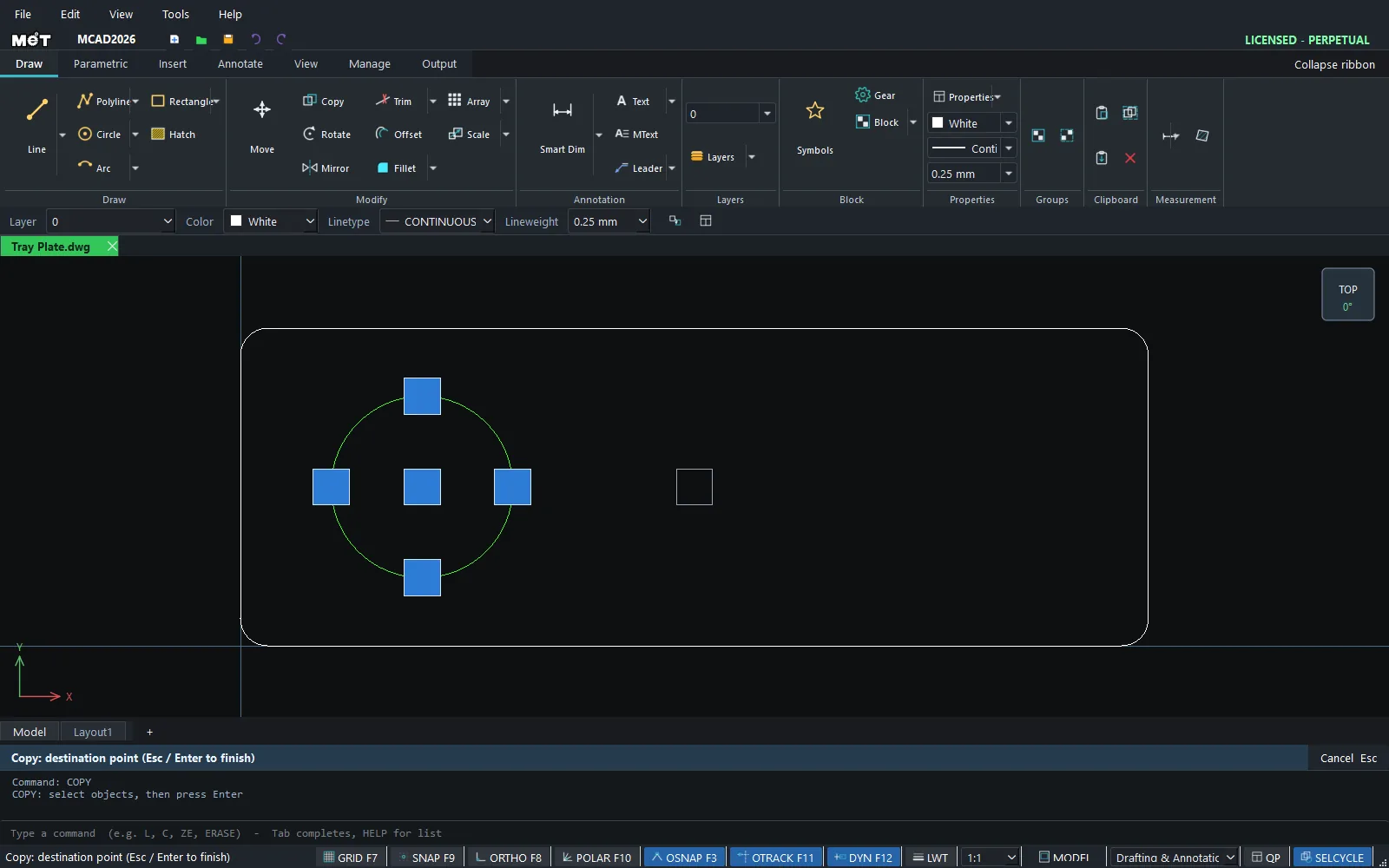
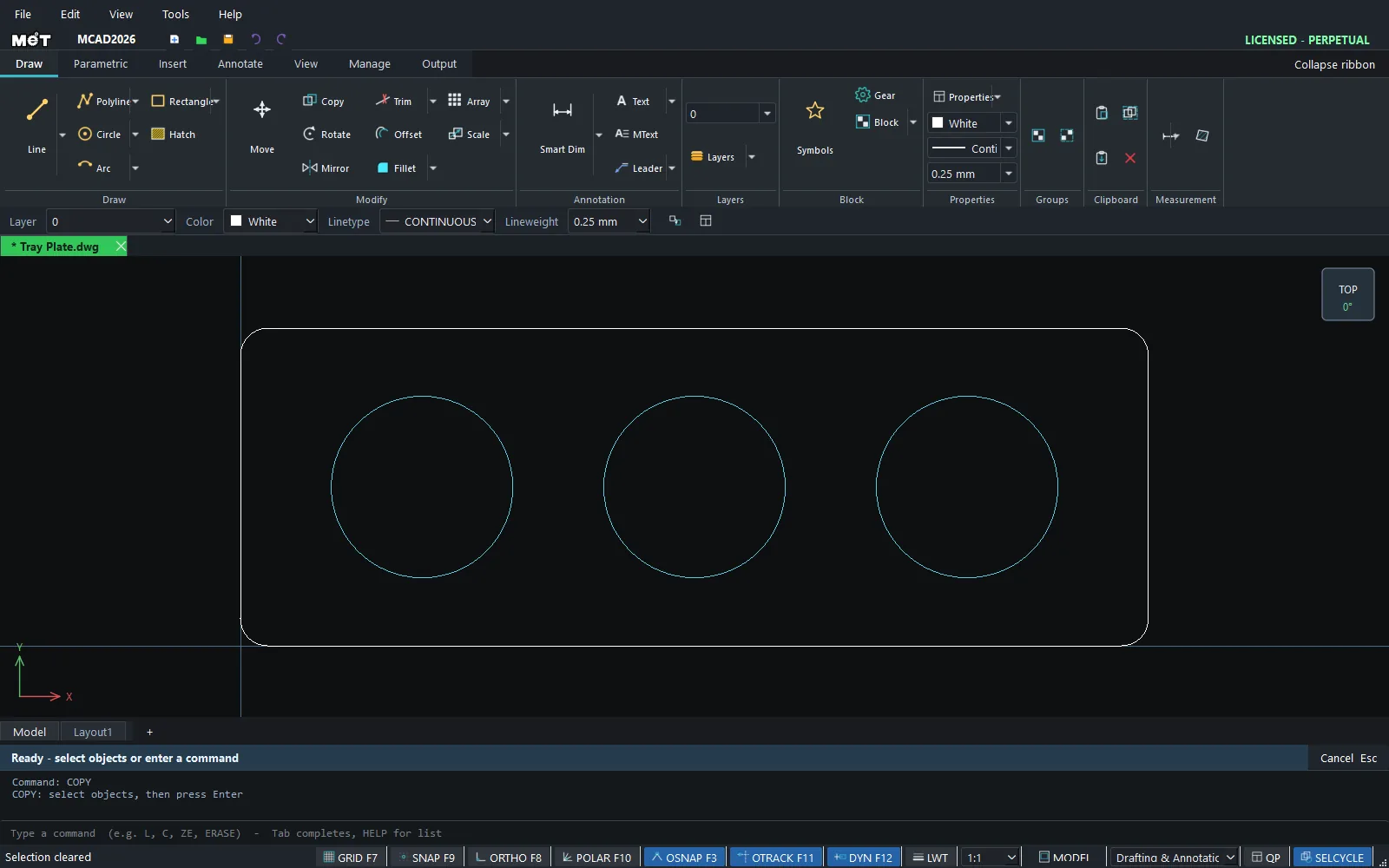
MOVE works the same way, but moves the objects once.
Note: You can also drag already-selected objects with the mouse to move them directly.
Try it: Three-candle tea-light holder
A 200 x 70 mm wooden tray for three tea lights. Draw one Ø40 hole, and COPY places the other two exactly 60 mm apart.
- Tray:
REC,0,0,@200,70, Esc. First hole:C,40,35,20, Esc. - Type
COand press Enter. Click the circle and press Enter. - Base point: type
40,35and press Enter. Destinations:@60,0, Enter, then@120,0, Enter. Press Enter again to finish. Each@distance is measured from the base point, so the holes land at 100 and 160.
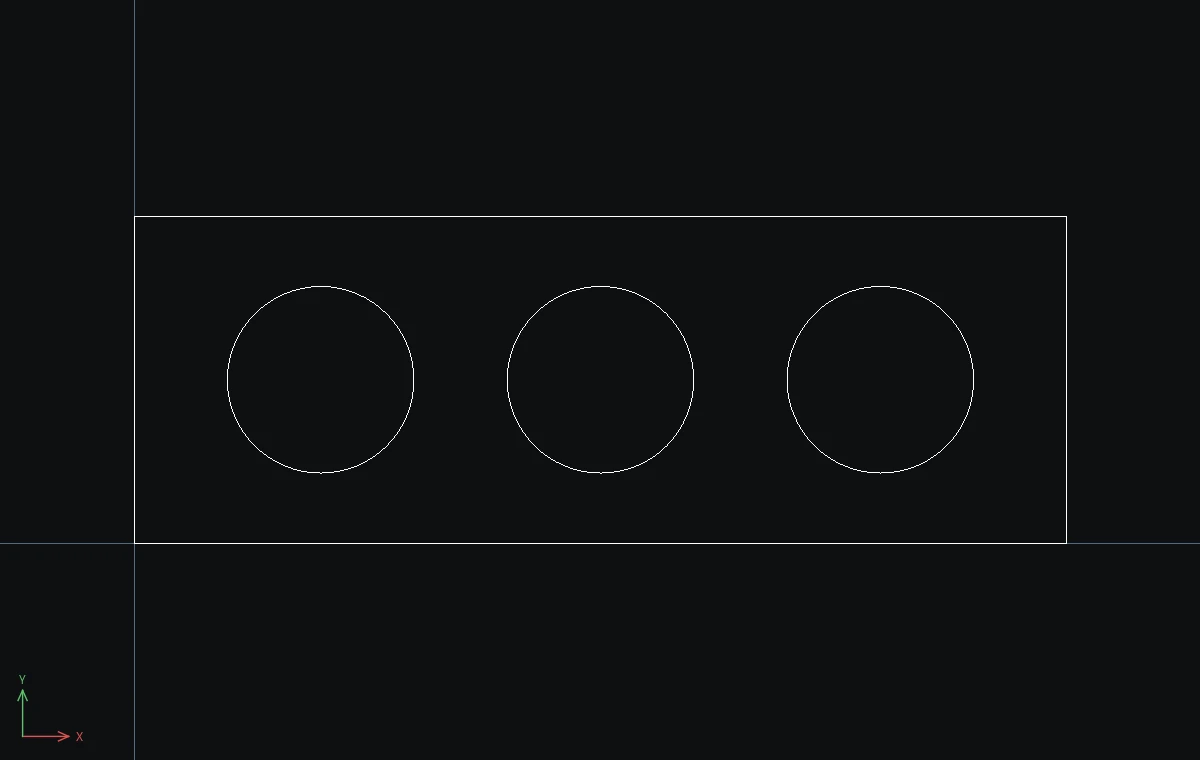
Challenge: Make a five-candle tray: draw the tray as @320,70 and copy to @60,0, @120,0, @180,0 and @240,0.