
What it does
| Command | Alias | Meaning |
|---|---|---|
| TRIM | TR |
Click the segment of a line you want to remove. The program cuts it automatically at the intersections with other lines |
| EXTEND | EX |
Click near the end of a line. The line extends to the nearest edge |
| EXTRIM | – | Trims every line at the edge of a selected closed shape. EXTRIM = trim the inside, EXTRIM Outside = keep the inside and trim the outside |
Where to find it
- Ribbon: Draw › Modify › Trim (submenu: Trim, Extend, Stretch, Trim at a Boundary (EXTRIM), Break, Join, Lengthen, Align, Explode, Bring to Front, Send to Back)
- Command line:
TRIM(AliasTR)
TRIM steps
- Type
TRand press Enter. - Click each segment you want to remove (or hold the mouse button and drag across several segments, like a Fence).
- Press Esc to finish.
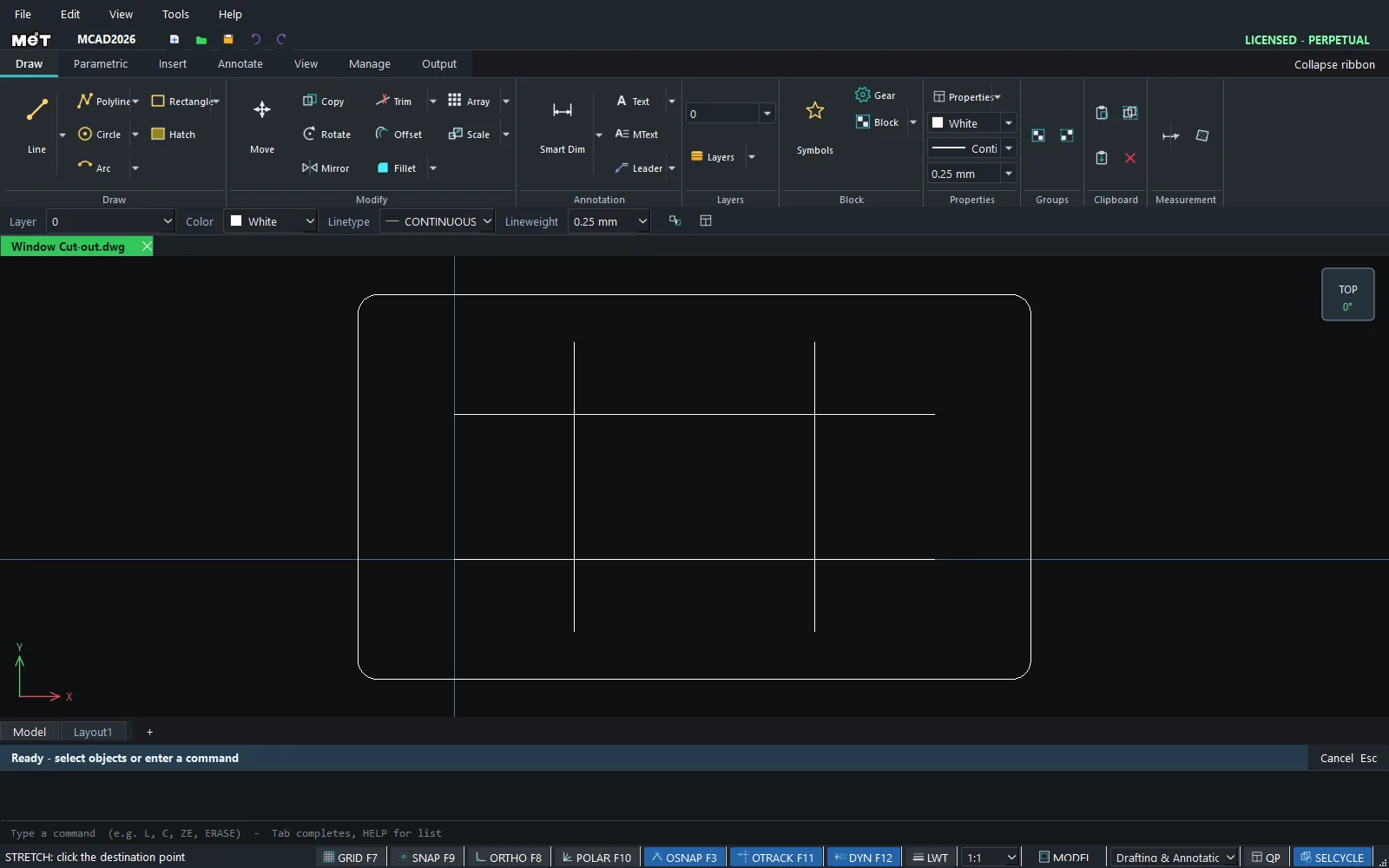
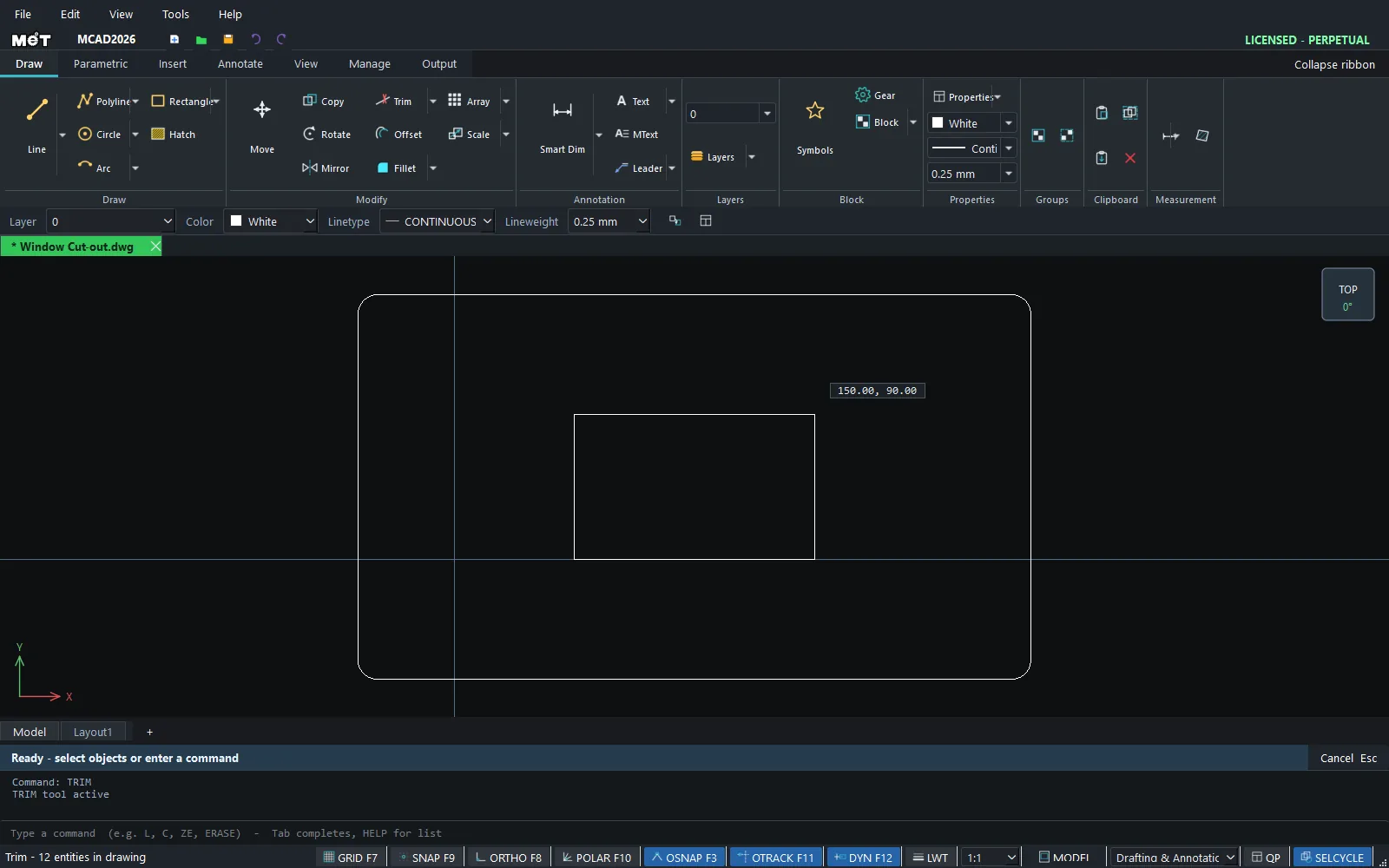
EXTEND steps
- Type
EXand press Enter. - Click near the end of the line you want to extend.
- Press Esc to finish.
EXTRIM steps
- Select the closed shape that acts as the boundary (rectangle, circle, closed Polyline).
- Type
EXTRIM(trim the inside) orEXTRIM O(trim the outside).
Note: EXTRIM cuts Line/Polyline objects at the intersection. Circle, Arc, and Text objects are deleted only if they lie entirely on the side being removed.
Try it: Cloud night-light panel
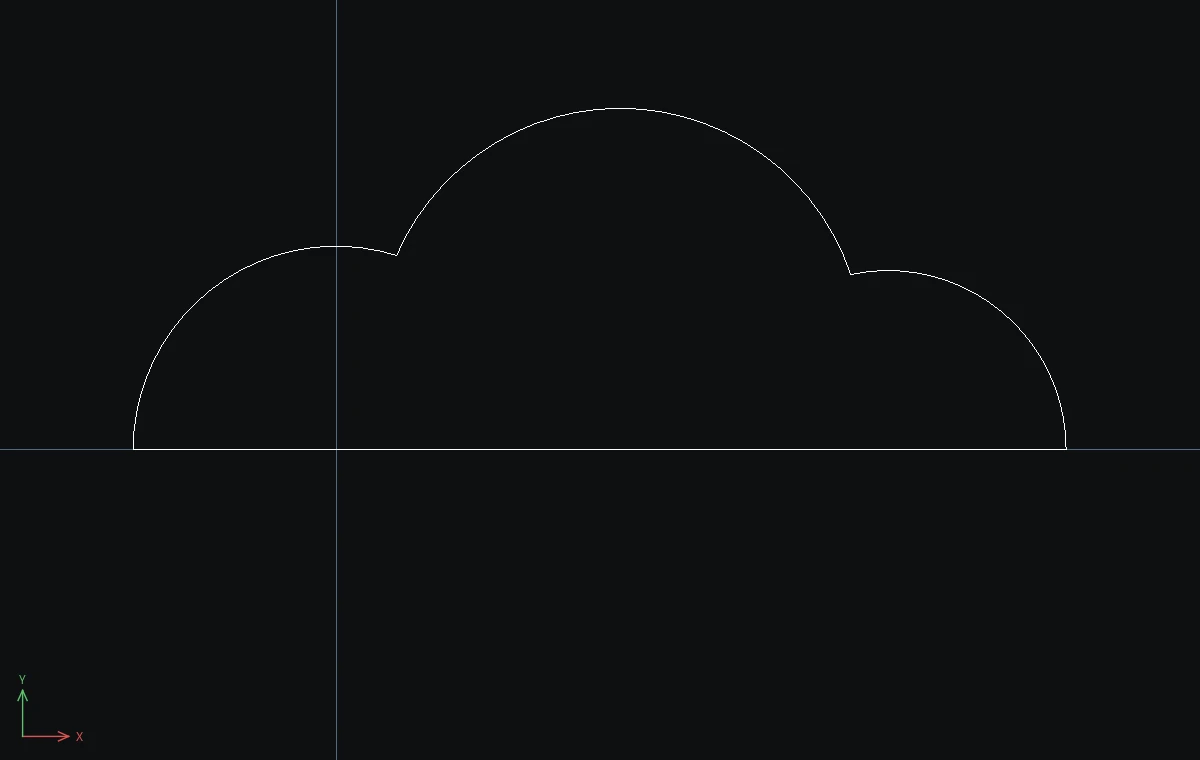
The front panel of a cloud-shaped night light. Three circles and one line become a soft cloud outline with nothing but TRIM clicks.
- Circles:
C0,025,C35,1230,C68,022. Press Esc after each one. - Base line:
L,-25,0,90,0, Esc. - Type
TRand press Enter. Click every arc piece below the base line (7 pieces). You can also hold the mouse button and drag across several pieces to trim them in one stroke. - Click the 4 short arcs inside the cloud, where the circles overlap. Press Esc.
One clean cloud outline remains: three bumps on a flat base.
Challenge: Add a crescent moon cut-out: C 38,22 6 and C 41,24 5. Then use TR to click the part of the big circle inside the small one, and the part of the small circle outside the big one.