
What it does
- SCALE – enlarges or reduces objects about a base point by a scale factor.
- SCALEREF – scales the drawing so a measured distance equals its real distance. Good for drawings imported from PDF or images.
Where to find it
- Ribbon: Draw › Modify › Scale (submenu: Scale, Scale by Reference)
- Command line:
SCALE(AliasSC) - Command line:
SCALEREF(AliasSR)
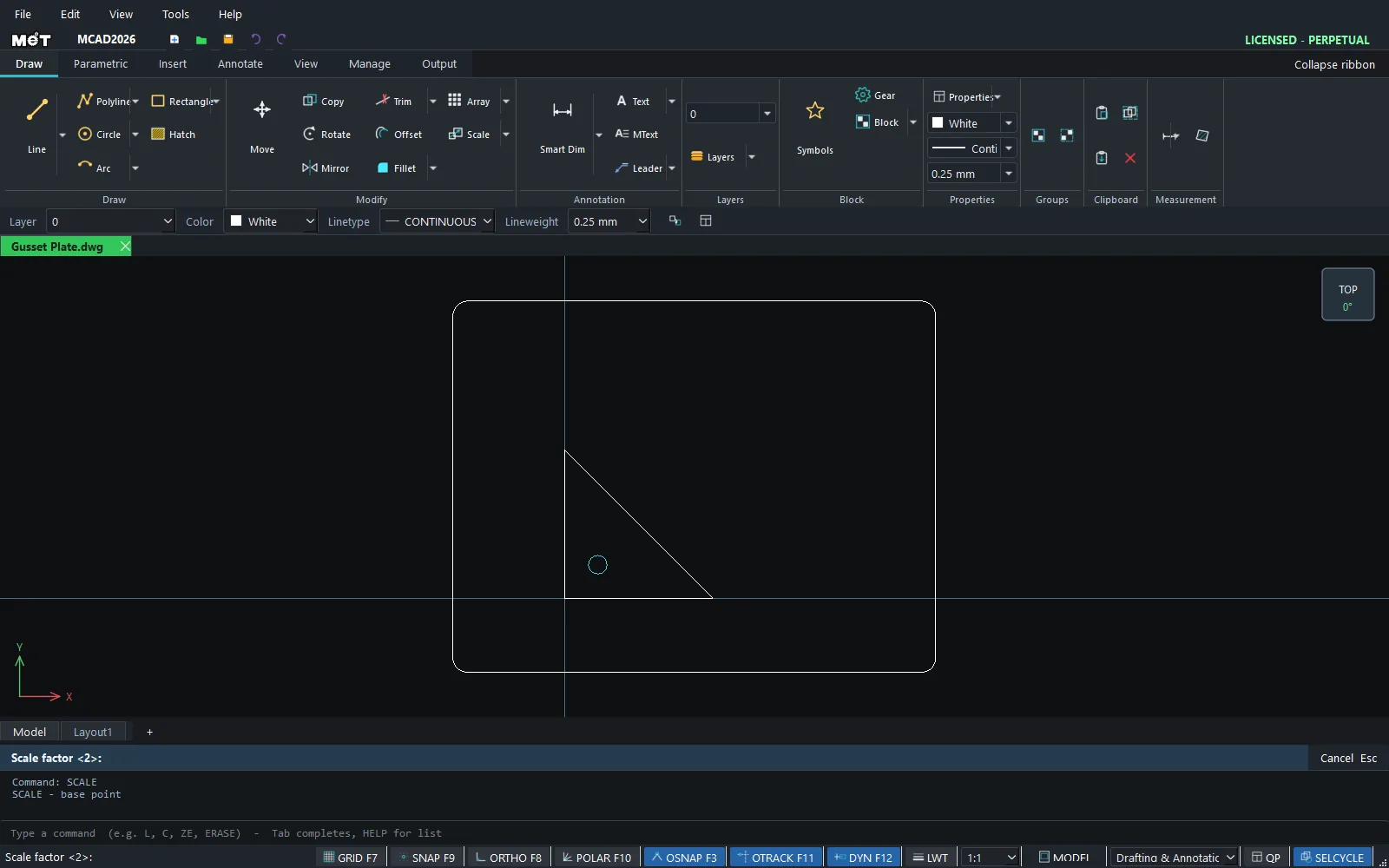
SCALE steps
- Select the objects (or start the command first, then select and press Enter).
- Type
SCand press Enter.Scale: pick base point using object snap. - Click the base point.
Scale factor <2>:Type the factor (for example0.5) and press Enter.
Shortcut: SCALE 2 enters the factor first. Then you only click the base point.
SCALEREF steps
- Select the whole drawing you want to adjust.
- Type
SRand press Enter. - Click the two ends of a distance whose real value you know.
- The Scale by Reference window shows the measured value. Type the real distance and click OK.
Shortcut: SCALEREF 98.4 100 (measured value, real value).
Try it: Christmas tree ornaments in three sizes
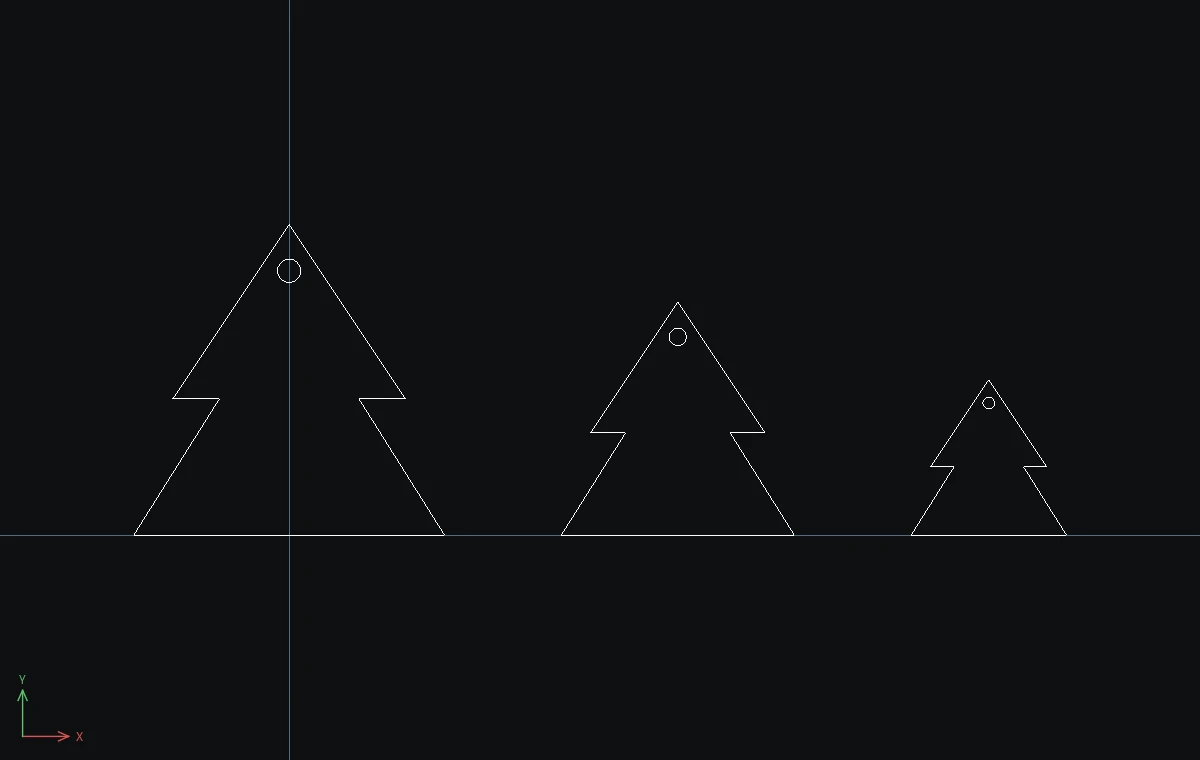
A set of three plywood tree ornaments, 80, 60 and 40 mm wide. Draw the big one, copy it twice, and SCALE the copies down.
- Tree:
PL, then-40,0@80,0@-22,35@12,0@-30,45@-30,-45@12,0-40,0, and press Enter. Hanging hole:C,0,68,3, Esc. - Drag a window around the tree and its hole. Type
COand press Enter. Base point0,0, then destinations@100,0and@180,0. Press Enter. - Drag a window around the middle tree (from 50,-10 to 150,90). Type
SC 0.75and press Enter, then click the midpoint of its bottom edge (Midpoint snap). - Drag a window around the right tree (from 130,-10 to 230,90). Type
SC 0.5and press Enter, then click the midpoint of its bottom edge.
All three trees stand on the same line, because each one was scaled about its own base.
Challenge: Copy the big tree once more and use SC 1.25 for a tree-top ornament.