
What it does
A group lets one click select every object in the group, without creating a block definition.
| Command | Alias | Meaning |
|---|---|---|
| GROUP | G |
Combines the selected objects (at least 2) into a group. |
| UNGROUP | UNG |
Ungroups the selected group. |
| GROUPEDIT | GROUPED |
GROUPEDIT Add adds the selected objects to the group. GROUPEDIT Remove removes the selected objects from it. |
Where to find it
- Ribbon: Draw › Groups › Group / Ungroup
- Right-click the selected objects › Group (Block) / Ungroup (Explode)
Steps
- Type
Gand press Enter. The prompt readsGROUP: window the objects, then press Enter. - Drag a window around the objects, then press Enter.
- Click any one of them. The whole group is selected.
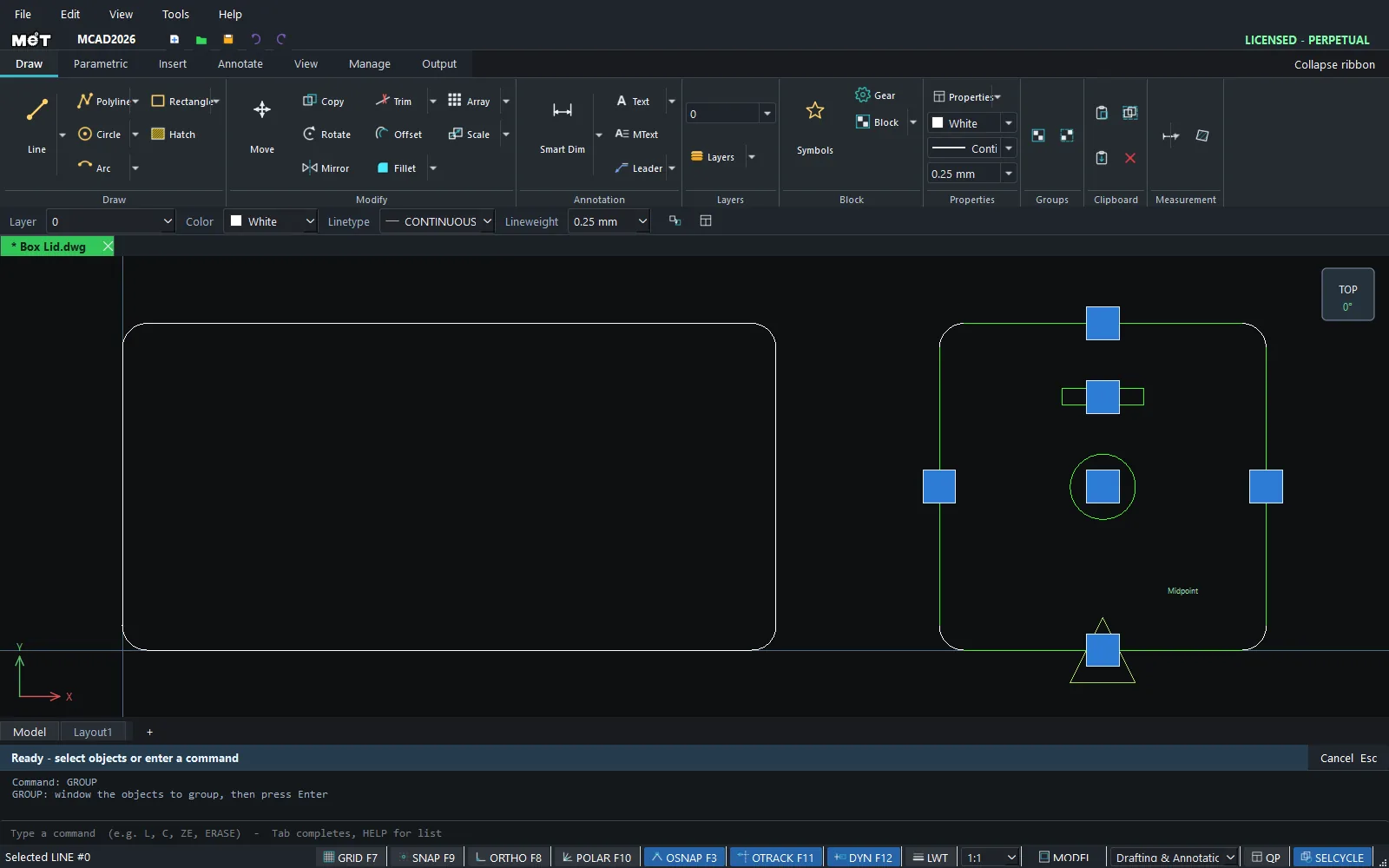
Try it: Wooden puzzle box panels
Three panels for a small puzzle box: the base, an end panel and a lid with a finger hole and a key slot. GROUP keeps the lid's pieces together, so one click moves all of them.
- Base:
REC,0,0,@80,80, Esc. End panel:REC,0,90,@80,50, Esc. Lid:REC,200,0,@80,80, Esc. - Finger hole:
C,240,40,8, Esc. Key slot:REC,230,60,@20,4, Esc. - Type
Gand press Enter. Drag a window around the lid (from 195,-5 to 285,85) and press Enter. - Click the edge of the lid. The outline, the hole and the slot are all selected.
- Type
Mand press Enter. Type the base point200,0, then the destination@-110,0. The whole lid moves next to the base, ready to nest on the sheet.
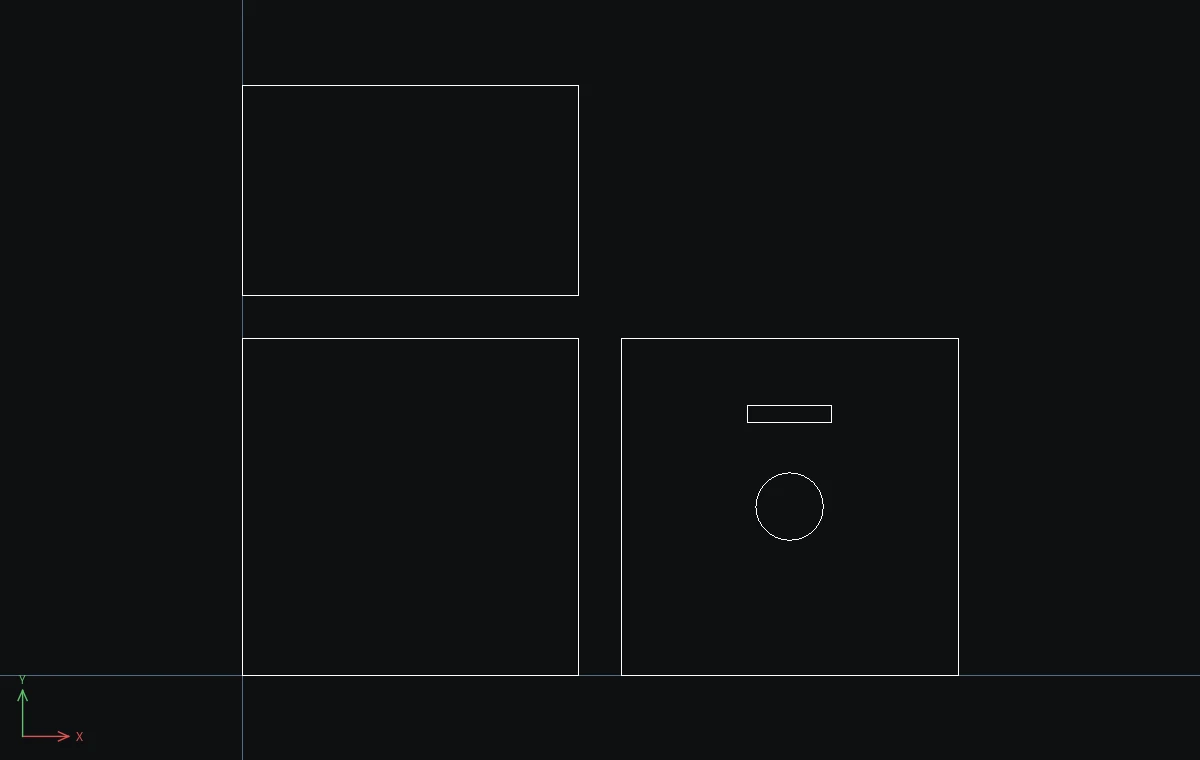
Challenge: Type UNG with the lid selected to ungroup it, then move only the key slot 10 mm higher.