
What it does
Every command in MCAD 2026 can be typed with its full AutoCAD-style name or a short alias (for example L = LINE, C = CIRCLE). You can type in two places:
- Type directly in the drawing area – the command box opens at the cursor position.
- Type in the Command line at the bottom of the window.
Entering a command
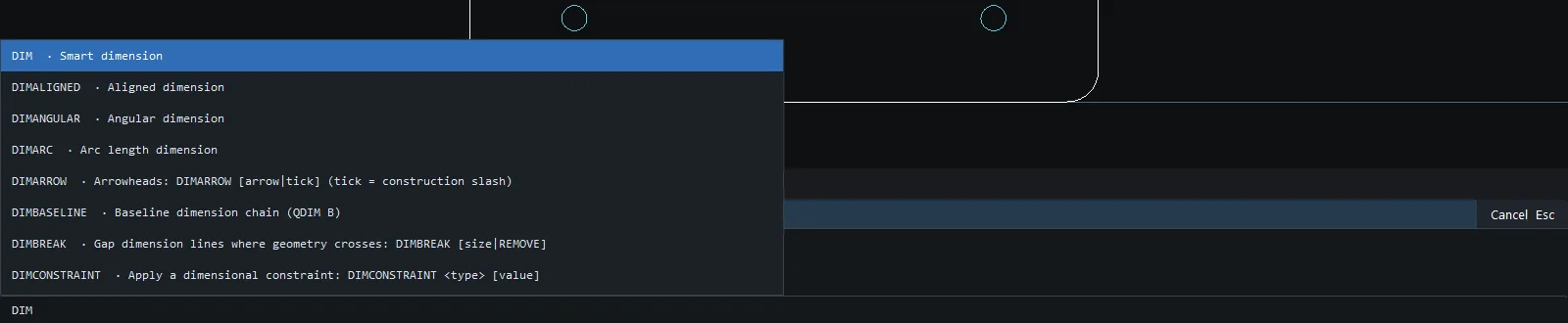
- Type the command name or alias, for example
DIM. - A list of suggestions appears above the Command line. Use the up and down arrows to choose, or press
Tabto complete the name. - Press
EnterorSpaceto run it. PressEscto cancel. - Press
EnterorSpacewhen no command is active to repeat the last command. - Press the up and down arrows when no suggestions are shown to recall commands you typed before.
Most commands accept values after the name on the same line, for example OFFSET 10, FILLET 5, ARRAYPOLAR 8 or HATCH ANSI31 2 45. If you leave them out, the program asks in the prompt bar and shows the previous value in angle brackets <...>. Press Enter to use that value.
Transparent commands
Type ' before a command to run it in the middle of another command without cancelling it. The transparent commands are 'ZOOM, 'PAN, 'VIEWLOCK and 'M2P. Starting any other command ends the command that is waiting (as in AutoCAD).
Smart Input (Dynamic Input)
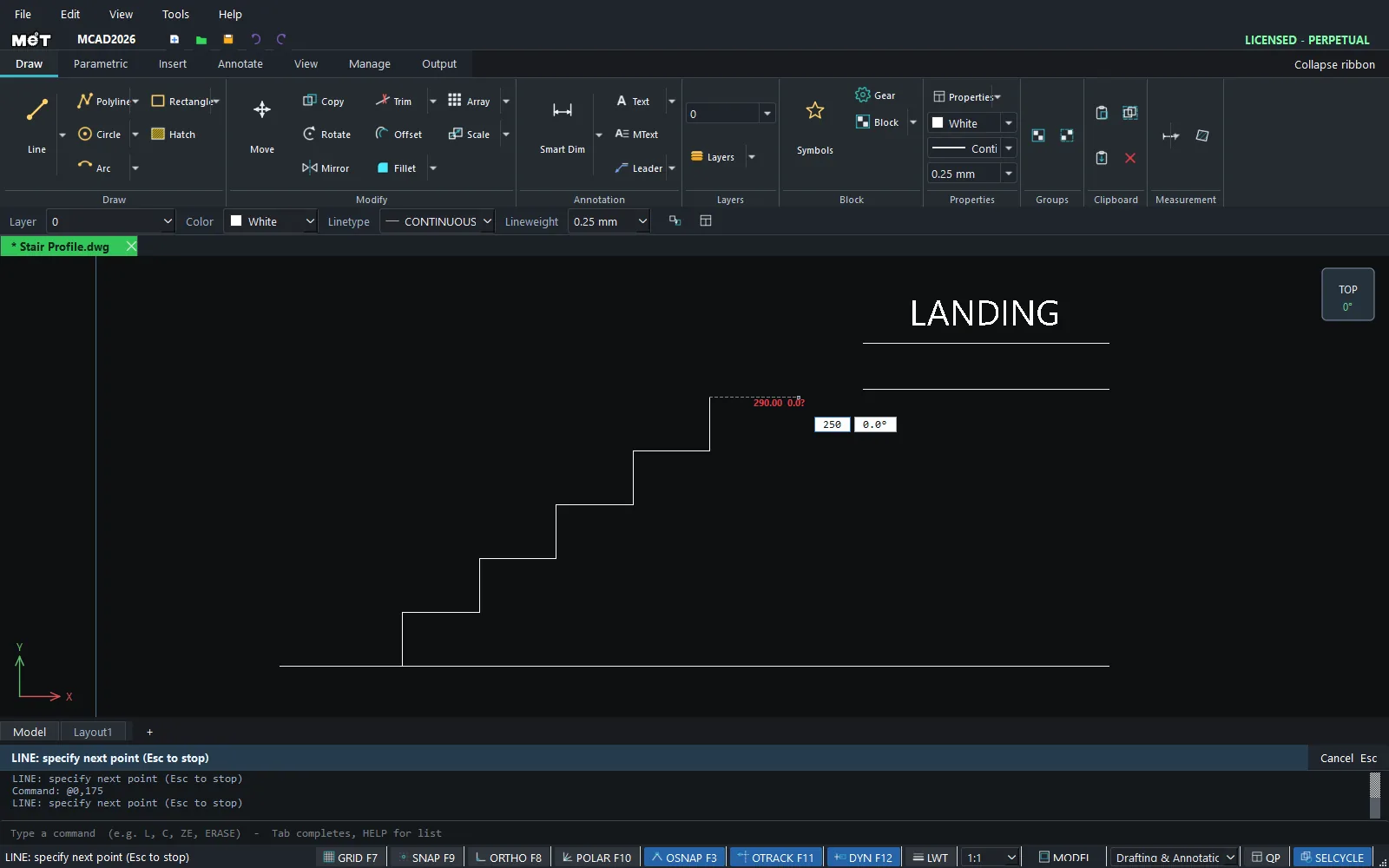
While a drawing command is waiting for a point, two number boxes appear at the cursor.
- Type a length → press
Tabto go to the angle box → type an angle → pressEnter. - RECTANG shows W / H boxes, and CIRCLE shows the radius.
- Turn it on or off with
F12(DYN on the Status bar).
Typing coordinates when the program asks for a point
When the prompt bar asks for a point (for example in ID, DIST, POINT or MOVE), you can type one of the following and press Enter.
| Format | Meaning |
|---|---|
x,y |
An absolute coordinate, for example 100,50. |
@dx,dy |
A relative distance from the previous point, for example @40,0. |
d<a |
A distance and angle, for example 50<30. |
CAL - Calculator
CAL <expression> calculates numbers on the command line. It supports + - * / % **, sqrt, sin, cos, tan (in degrees), atan, abs, round, min, max, pi and e.
Examples: CAL 25.4*3 → 76.2, CAL sqrt(2), CAL sin(30)
M2P - Midpoint between two points
During a command that asks for a point, type 'M2P (or MTP) and click two points. The midpoint between them is passed to the command.
Command output
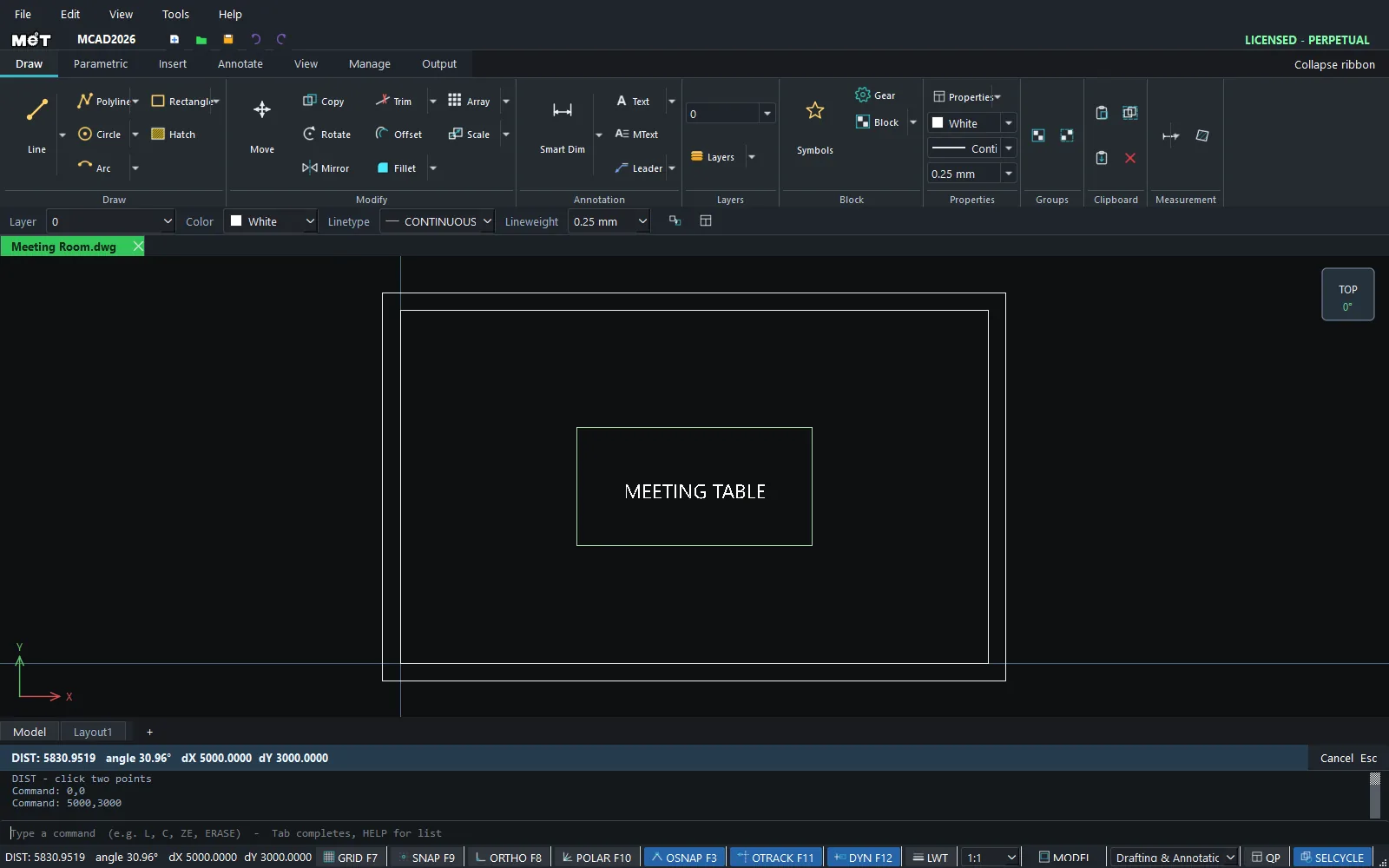
Inquiry commands such as DIST show their result in the prompt bar and in the Command line history. Press F2 to open the full command history. Press Ctrl+9 to hide or show the Command line.
Try it: Storefront fascia with evenly spaced lamps
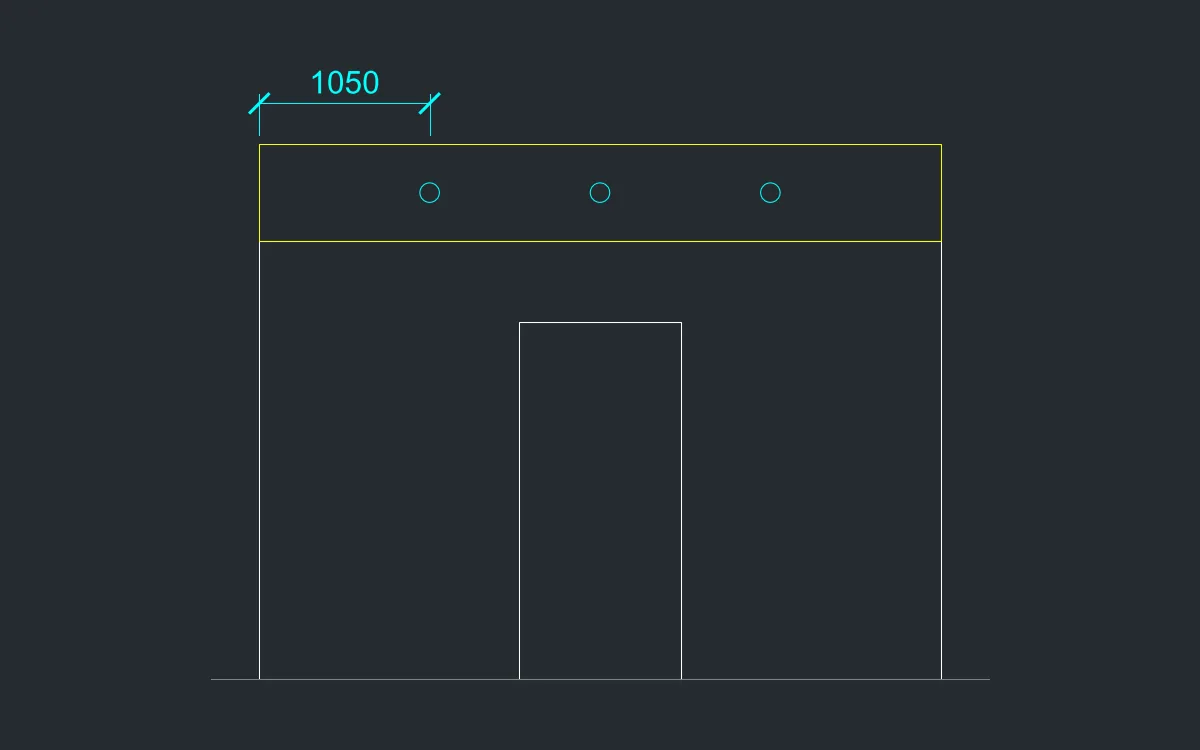
A 4.2 m shopfront with a 600 mm fascia and three sign lamps that must be exactly evenly spaced. You use CAL to do the maths on the command line and type coordinates instead of clicking.
- Type
CAL 4200/4and press Enter. The answer1050is the spacing for 3 lamps (4 gaps). - Shop opening:
REC0,0, then4200Tab2700Enter. - Fascia:
REC0,2700, then4200Tab600Enter. - Lamps:
C1050,3000radius60, then repeat at2100,3000and3150,3000(press Enter on an empty line to repeat CIRCLE). - 1000 wide door:
L1600,0, then@0,2200@1000,0@0,-2200(Enter after each), andEsc.
Challenge: While LINE is asking for a point, type 'M2P and click the two bottom corners of the shopfront. The line starts exactly in the middle.