
What it does
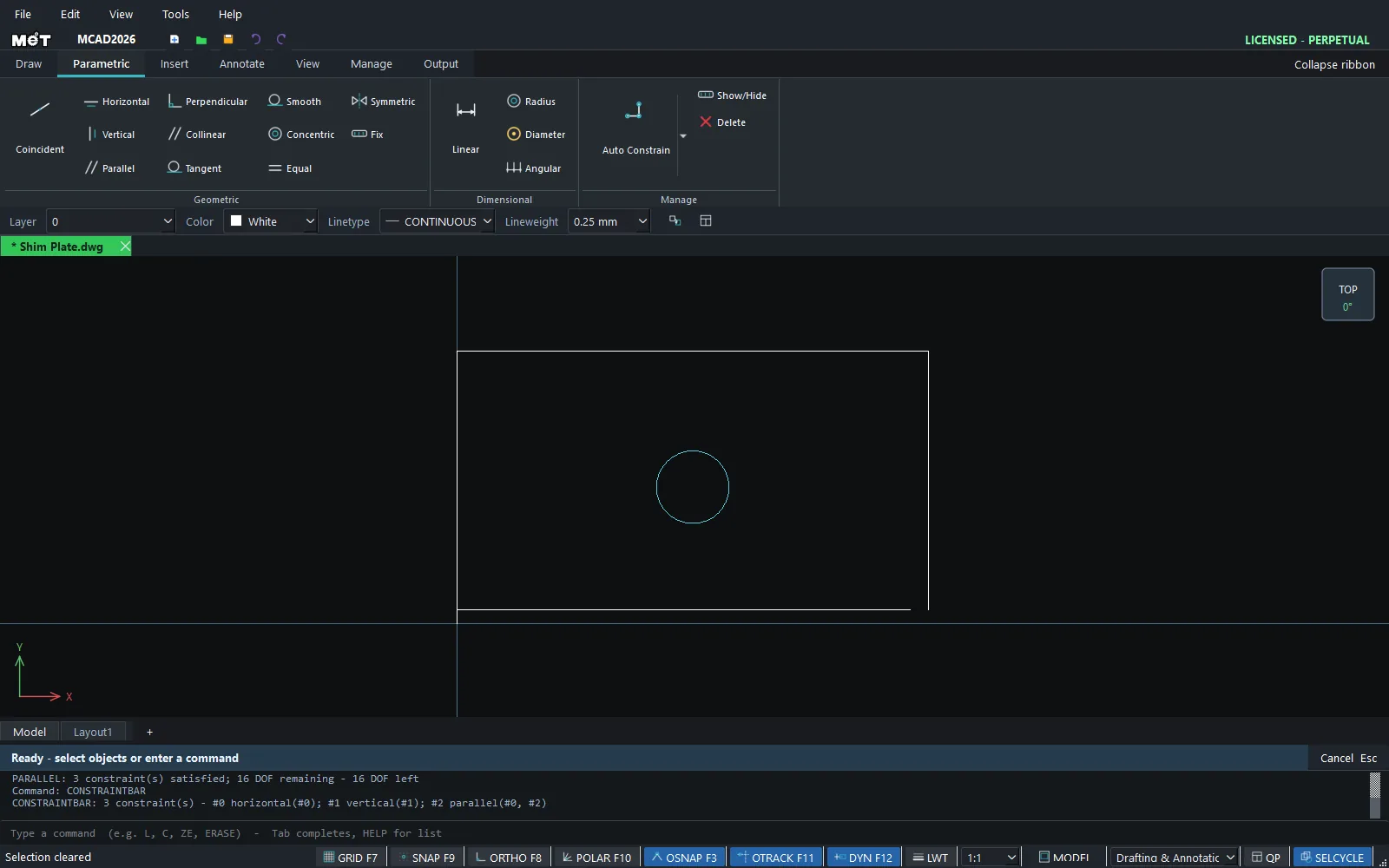
A constraint forces a geometric relationship between objects. When you edit the drawing, the solver keeps that relationship. The result reports the remaining DOF (degrees of freedom), or fully constrained.
Where to find it
- Ribbon: Parametric › Geometric and Parametric › Manage
Commands
| Command | Alias | Button | Meaning |
|---|---|---|---|
| GCHORIZONTAL | GCH |
Horizontal | The selected line is horizontal. |
| GCVERTICAL | GCV |
Vertical | The selected line is vertical. |
| GCPARALLEL | GCPA |
Parallel | Two lines are parallel. |
| GCPERPENDICULAR | GCPE |
Perpendicular | Two lines are perpendicular. |
| GCCOLLINEAR | GCCOL |
Collinear | Two lines lie on the same line. |
| GCEQUAL | GCE |
Equal | Equal length (lines) or equal radius (circles). |
| GCCOINCIDENT | GCC |
Coincident | The start points of two objects coincide. |
| GCCONCENTRIC | GCCO |
Concentric | Two circles share the same centre. |
| GCTANGENT | GCT |
Tangent | Two objects are tangent. |
| GCSMOOTH | GCSM |
Smooth | A smooth continuation between line and circle, or circle and circle. |
| GCSYMMETRIC | GCSYM |
Symmetric | Two objects are symmetric about the selected axis line. |
| GCFIX | GCF, FIXCONSTRAINT |
Fix | Fixes a line or circle in place. |
| GEOMCONSTRAINT | GEOMCON |
– | GEOMCONSTRAINT <type> applies any of the types above. |
| AUTOCONSTRAIN | AUTOC |
Auto Constrain | Automatically applies the constraints that are already true. |
| CONSTRAINTBAR | CBAR |
Show/Hide | Lists all constraints with their numbers (#0, #1, ...). |
| DELCONSTRAINT | DELC |
Delete | DELCONSTRAINT [n|all] deletes number n, all of them, or the latest one. |
| CONSTRAINTSETTINGS | CSETTINGS |
Auto Constrain ▾ › Inference ON/OFF | CONSTRAINTSETTINGS INFER ON|OFF |
Steps
- Select the objects (1 or 2, depending on the constraint type).
- Click the button on the Parametric tab, or type the command, for example
GCH. - The result reads, for example,
HORIZONTAL: 1 constraint(s) satisfied; 15 DOF remaining. - If a constraint conflicts with an existing one, the program does not keep it (
constraint not kept).
Try it: Big wooden coat button
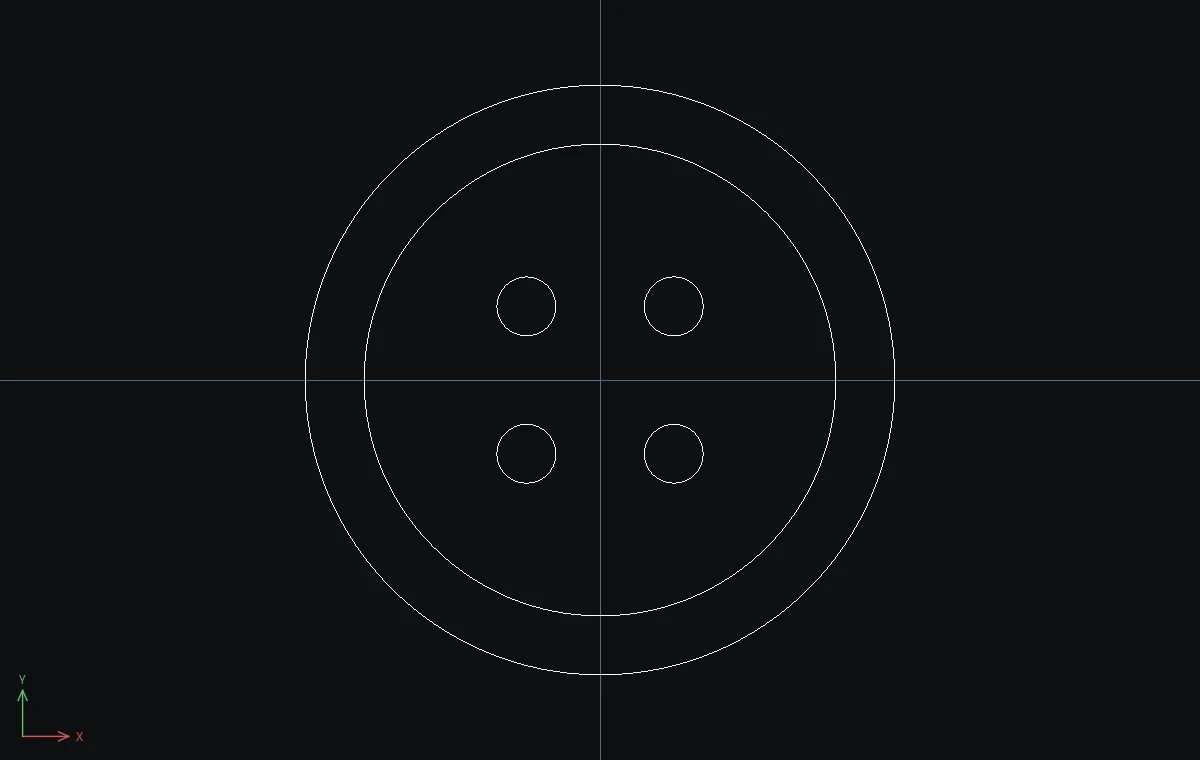
A 40 mm plywood button for a chunky knitted coat. Draw it sloppily on purpose, then let the constraints line everything up.
- Rim:
C,0,0,20, Esc. Engraved ring, slightly off-centre:C,1,0.5,16, Esc. - Four holes in slightly different sizes:
C-5,52,C5,52.6,C-5,-51.8,C5,-52.3. Press Esc after each one. - Click the rim and type
GCF. The rim is fixed in place. - Click the rim,
Ctrl+click the ring (click on the circle line, away from the blue grips), and typeGCCONCENTRIC. The ring jumps to the centre. - Click the top-left hole,
Ctrl+click the top-right hole, and typeGCE. Repeat for the top-left hole with the bottom-left hole, and the top-left hole with the bottom-right hole. All four holes now have the same size. - Type
CBAR. The list shows 5 constraints: fixed, concentric and three equal.
Challenge: Click any hole and type DCRADIUS 2. All four holes follow, because they are constrained equal.