
What it does
MIRROR creates a mirrored copy of the selected objects, using an existing line as the mirror axis. The original objects stay in place.
Where to find it
- Ribbon: Draw › Modify › Mirror
- Command line:
MIRROR(AliasMI) - Right-click the selected objects › Mirror
Steps
- Draw the line to use as the mirror axis (if you do not have one yet).
- Select the objects to mirror.
- Type
MIand press Enter. - Click the mirror axis line.
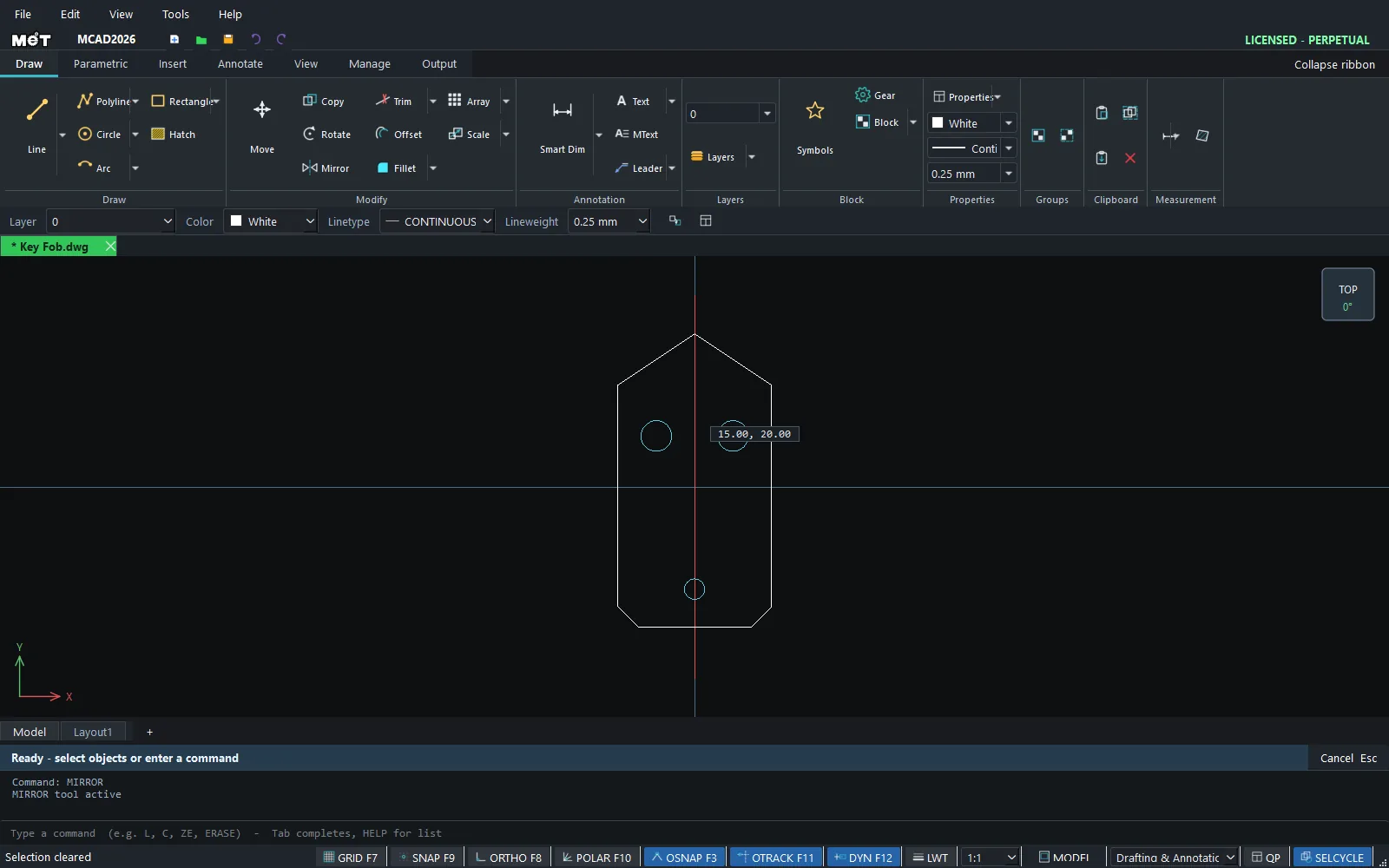
Try it: Bottle-opener keychain
A 2 mm steel keychain bottle opener. Draw only the right half, and MIRROR makes the other half, perfectly symmetric.
- Mirror axis:
L,0,-60,0,70, Esc. - Right half of the outline:
PL, then0,-50@12,0@0,45@14,15@0,32@-12,16@-14,0, and press Enter. - Right half of the cap opening:
PL, then0,18@14,0@0,18@-6,6@-8,0, and press Enter. - Key-ring hole on the axis:
C,0,-40,4, Esc. - Drag a window from -1,-56 to 30,62. It takes the two half shapes but not the axis line or the hole.
- Type
MI, press Enter, and click the axis line. The left half appears. - Click the axis line and press Delete. It was only a helper.
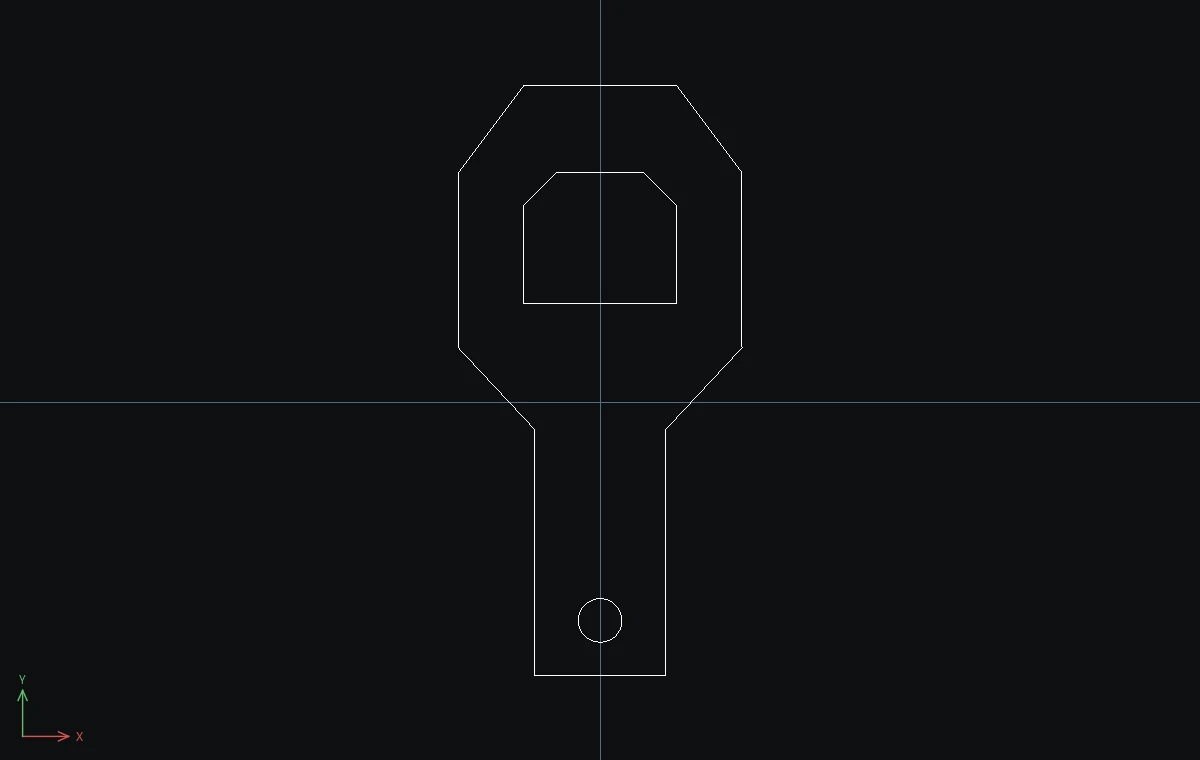
Challenge: Change @14,15 in step 2 to @18,15 for a wider head and mirror again. The two sides always match.