
What it does
A dimensional constraint forces a size to a value you set. When you change the value, the shape changes with it.
Where to find it
- Ribbon: Parametric › Dimensional (Linear, Radius, Diameter, Angular) and Auto Constrain ▾ › Convert dimensions (DCCONVERT)
Commands
| Command | Alias | Meaning |
|---|---|---|
| DCLINEAR | DCL |
The distance between the start points of two lines. Select exactly 2 lines; it does not set the length of a single line. |
| DCRADIUS | DCR |
The radius of a circle. |
| DCDIAMETER | DCD |
The diameter of a circle. |
| DCANGULAR | DCA |
The angle between two lines. |
| DIMCONSTRAINT | DIMCON |
DIMCONSTRAINT <distance|radius|diameter|angle> [value] |
| DCCONVERT | – | Converts dimensions that are attached to objects into constraints. Free dimensions placed by clicking points cannot be converted. |
Steps
- Select the objects.
- Type
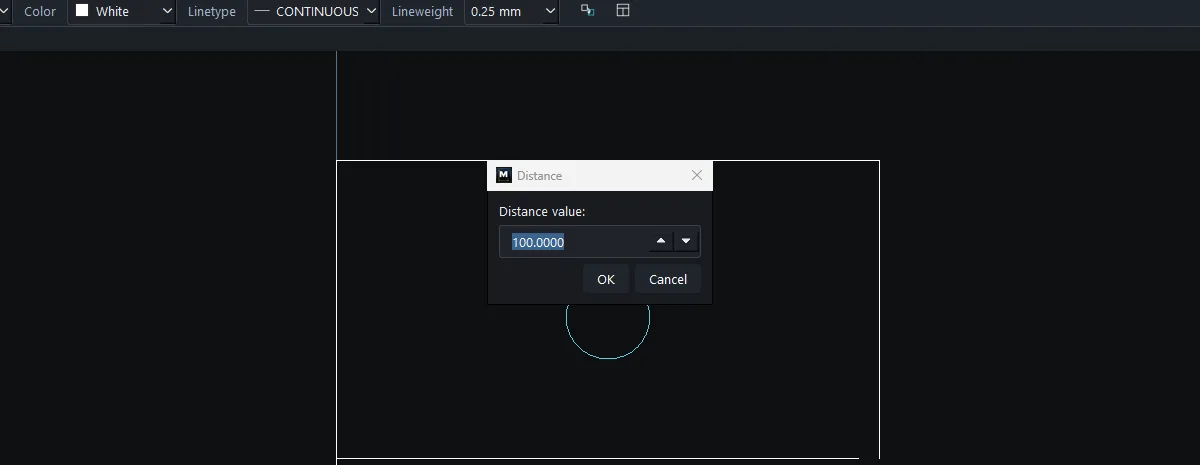
DCRADIUS 25and press Enter (give the value after the command), or click the button on the Ribbon and enter the value in the dialog that opens. - The solver adjusts the shape and reports the remaining DOF.
Try it: Desk cable grommet ring
An acrylic ring that dresses up the cable hole in a desk: 60 mm outside, with an inner hole sized to your cables. Sketch two circles at any size, then let the constraints set the exact numbers, and change them later.
- Draw two circles that are deliberately a bit off:
C,0,0,27, Esc. ThenC,4,3,17, Esc. - Click the outer circle and type
DCDIAMETER 60. The result readsDIAMETER: 1 constraint(s) satisfied; 5 DOF remaining. - Click the inner circle and type
DCDIAMETER 40. - Click the outer circle,
Ctrl+click the inner circle, and typeGCCONCENTRIC. Both circles now share one centre. - The power plug needs a bigger hole: type
CBARto see the list (#0 diameter(#0) = 60; #1 diameter(#1) = 40; #2 concentric(#0, #1)), thenDELCONSTRAINT 1. Click the inner circle and typeDCDIAMETER 44. The ring updates and stays centred.
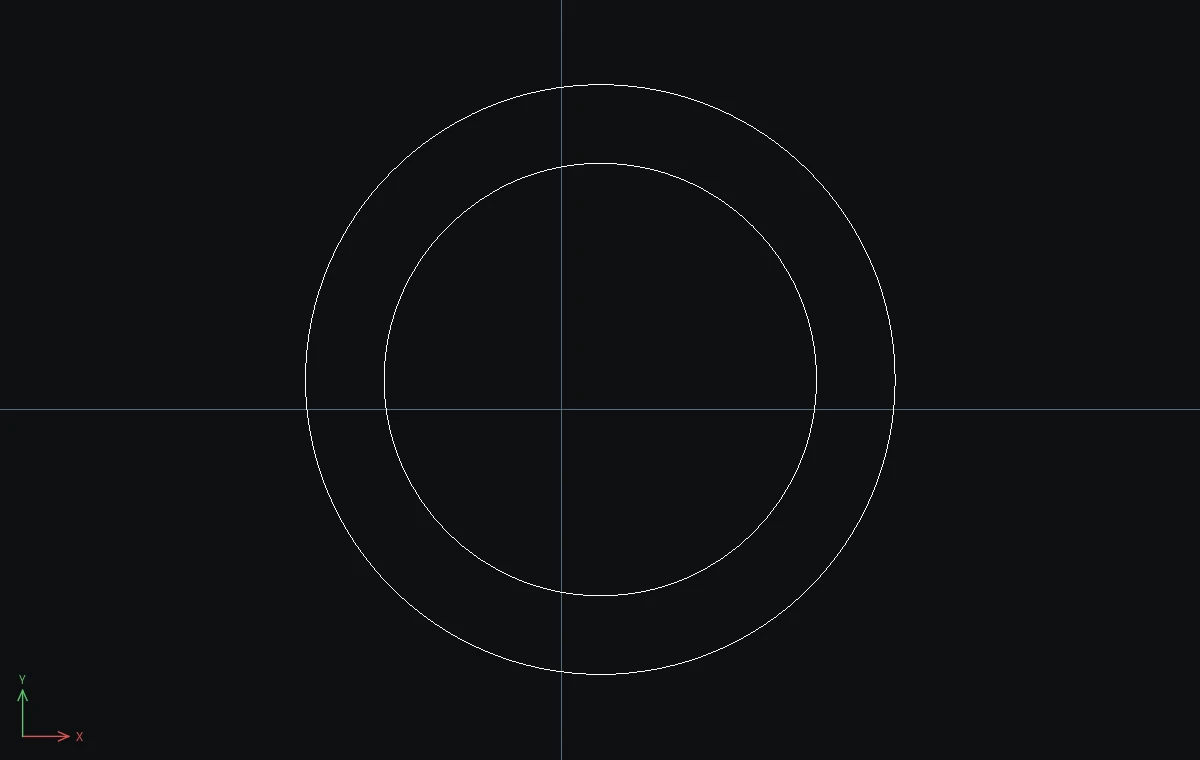
Challenge: Make the ring 70 mm outside the same way: CBAR to find the number, DELCONSTRAINT it, then DCDIAMETER 70 on the outer circle.