
What it does
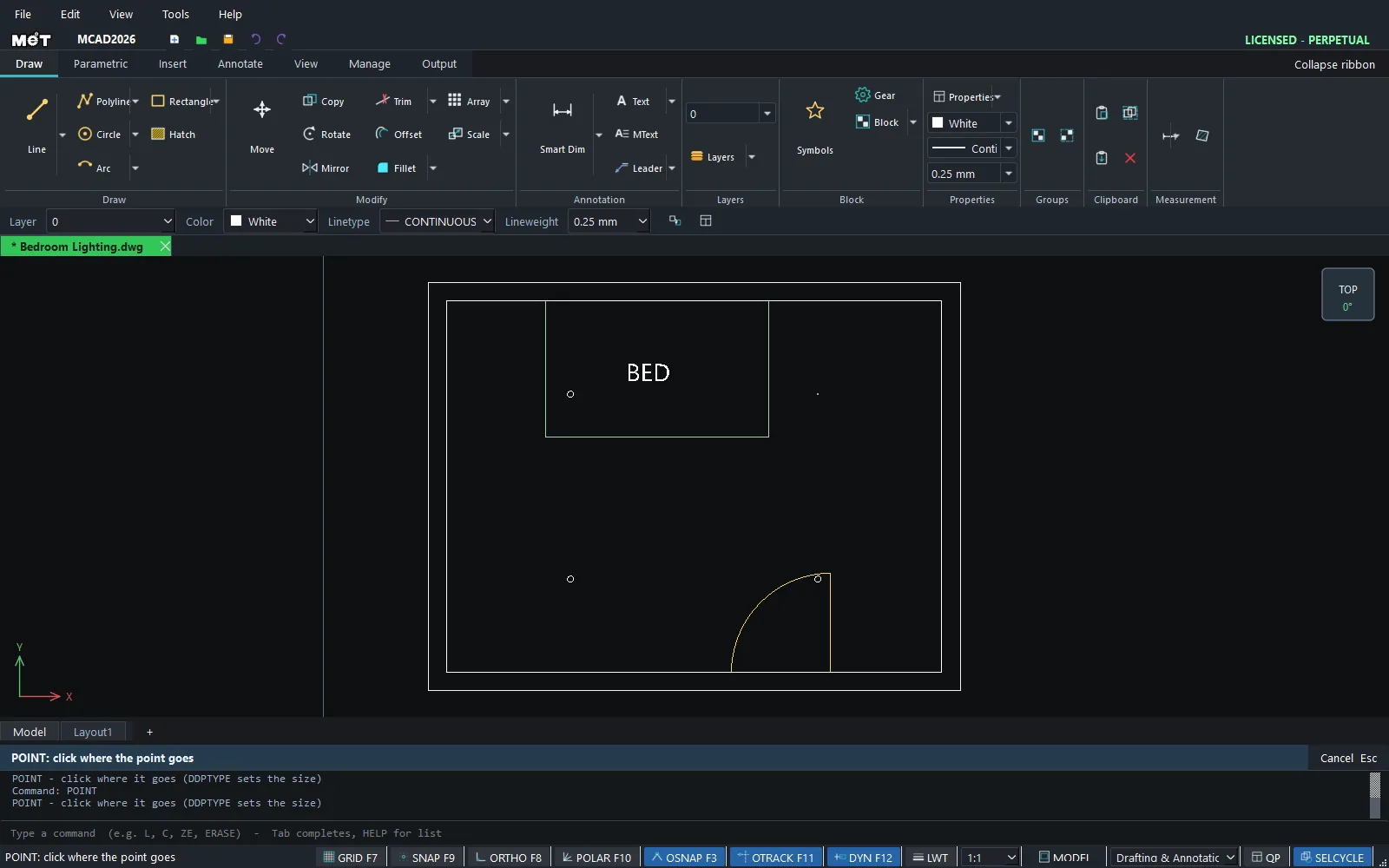
POINT places a reference point (for example, a drilling position). Object Snap can snap to it.
Where to find it
- Ribbon: Draw › Draw › Circle ▾ › Point (POINT)
- Command line:
POINT(AliasPO) - Display size:
DDPTYPE <size>(AliasPTYPE)
Steps
- Type
DDPTYPE 4to set the point size to 4 pixels (you only do this once). - Type
POand press Enter.POINT: click where the point goes - Click a location (or type
x,y). The Prompt bar shows the coordinates of the point you placed. - Press Enter to place the next point with the same command.
Try it: Downlight layout for a bedroom
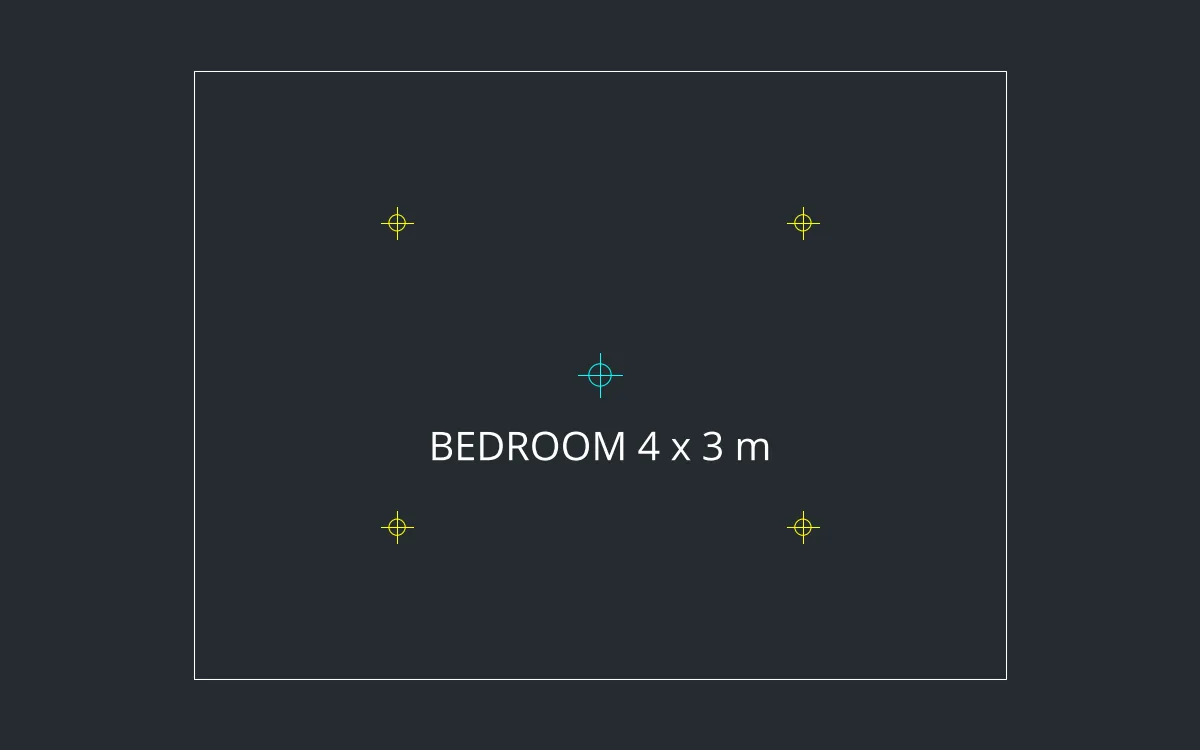
Place four downlights and a central pendant in a 4 x 3 m bedroom, so the electrician can cut the ceiling in exactly the right spots.
- Room:
REC0,0, then4000Tab3000Enter. - Type
DDPTYPE 6and press Enter so the points are easy to see. - Type
PO, press Enter, then type1000,750and press Enter. - Press Enter to repeat POINT and type
3000,750. Do the same for1000,2250and3000,2250. - Pendant: a POINT at
2000,1500. The Prompt bar shows the coordinates of every point you place, so you can check each one at once.
Challenge: Use DIST on two downlights to check they are 2000 mm apart.