
What it does
ROTATE rotates the selected objects about a base point.
Where to find it
- Ribbon: Draw › Modify › Rotate
- Command line:
ROTATE(AliasRO) - Right-click the selected objects › Rotate
Steps
- Select the objects.
- Type
ROand press Enter (ROTATE - base point). - Click the base point.
- Drag the mouse to rotate (the preview shows the angle) and click, or type the angle in the Smart Input box and press Enter.
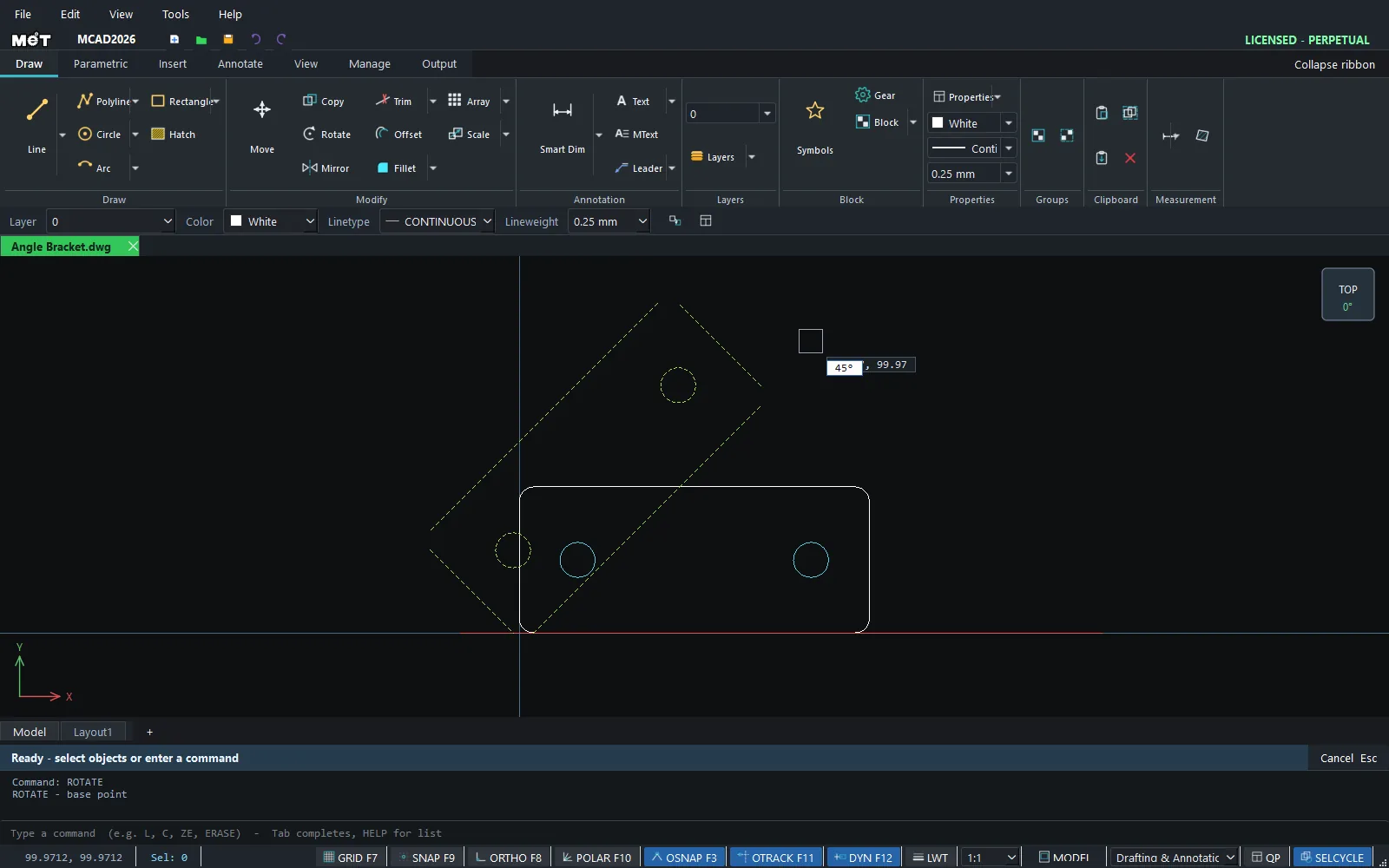
Note: A positive angle rotates counterclockwise.
Try it: Weather vane arrow
A garden weather vane arrow in 3 mm aluminium. Draw it pointing east, then ROTATE it 45° about the pivot hole to see it swing into a north-east wind.
- Arrow:
PL, then-60,-15@-15,0@10,15@-10,15@15,0@15,-10@75,0@0,8@28,-13@-28,-13@0,8@-75,0-60,-15, and press Enter. - Pivot hole:
C,0,0,2.5, Esc. - Click the arrow, type
ROand press Enter. - Click the centre of the pivot hole (the Center snap marker appears).
- Type
45and press Enter. The arrow now points north-east.
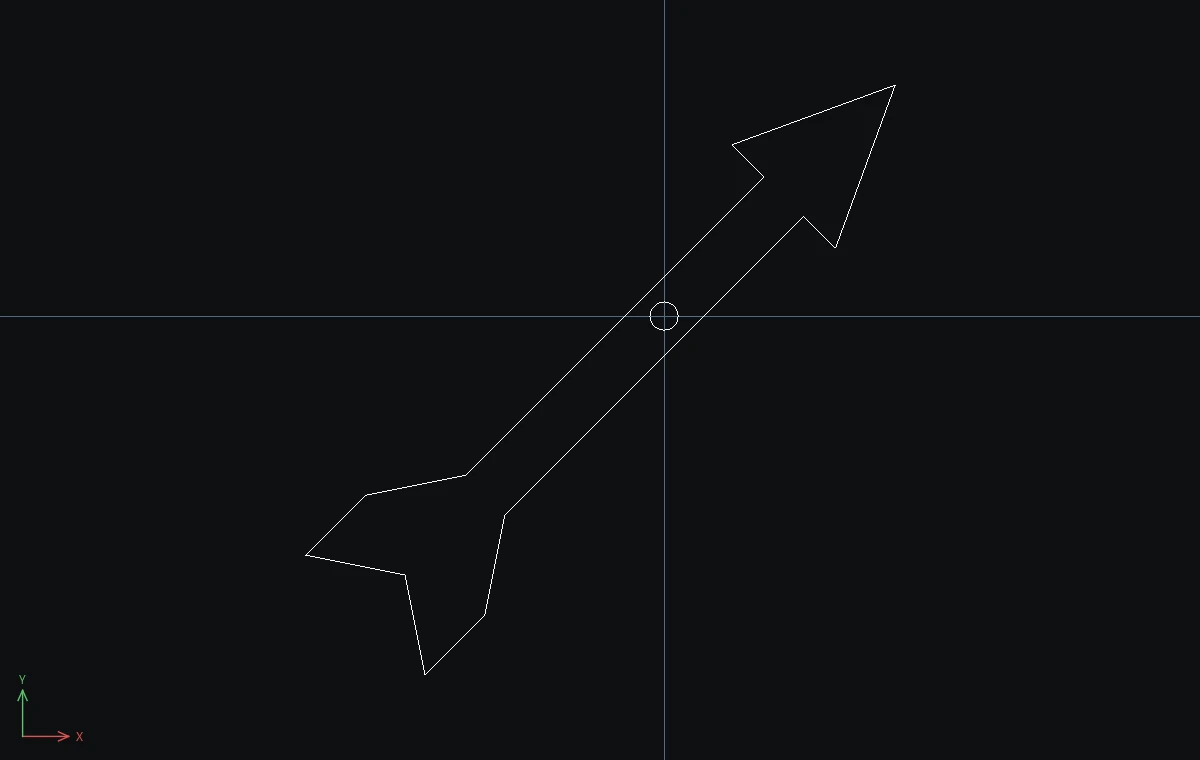
Challenge: Run RO again on the arrow, pick the same pivot and type -90. Now it points south-east.