
What it does
| Command | Alias | Syntax | Meaning |
|---|---|---|---|
| AUDIT | – | AUDIT [FIX] |
Reports objects that cannot be drawn (for example a zero radius or missing points). AUDIT FIX deletes the unusable objects. |
| RECOVER | – | RECOVER [file] |
Opens a damaged DXF file with a repairing reader. It reports how many objects were repaired and how many could not be recovered. |
| PURGE | PU |
– | Removes layers that contain no objects and text styles that are not used. |
Where to find it
- Ribbon: Manage › Drawing Cleanup › Audit / Purge / Delete Duplicates / Drawing Status
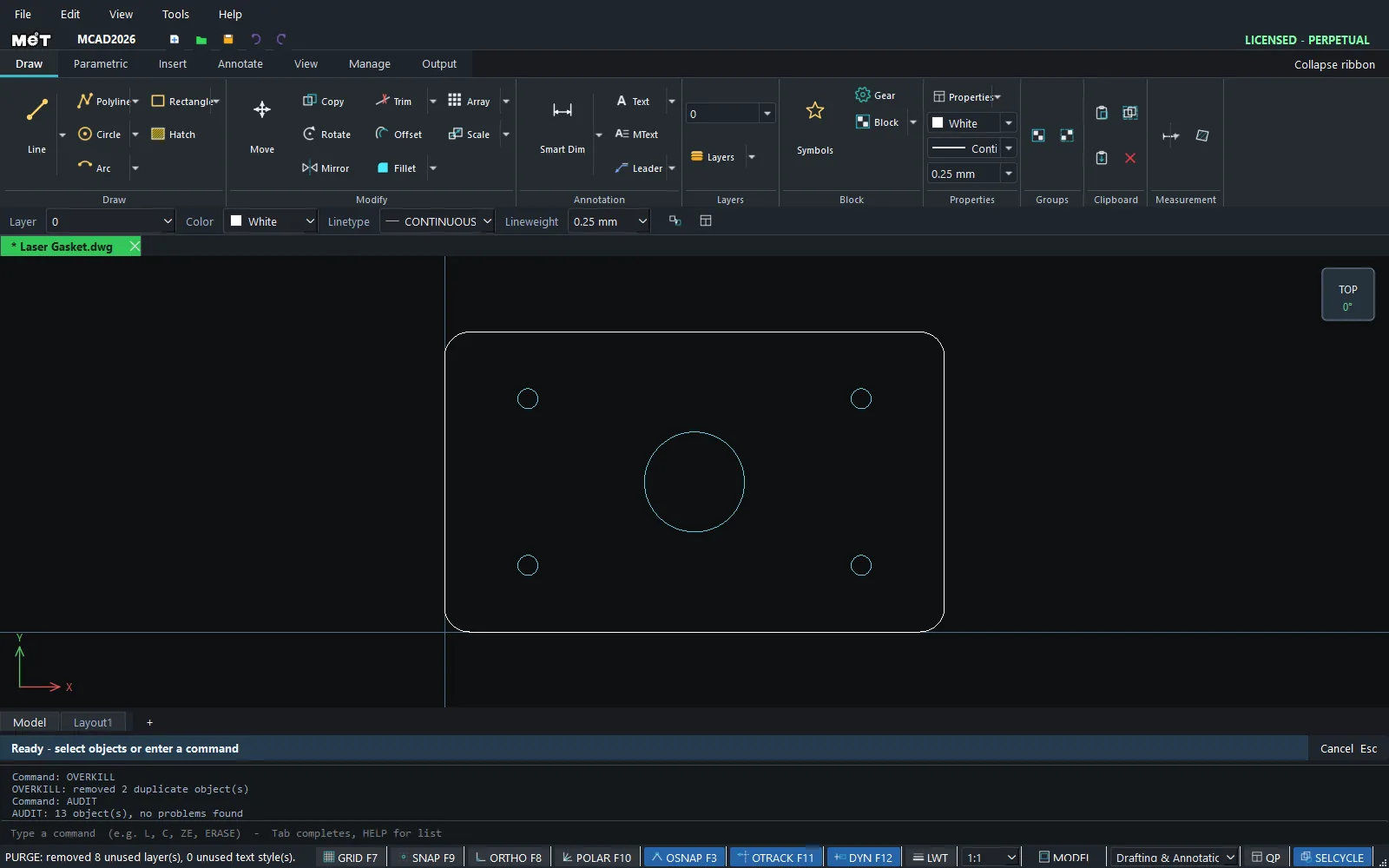
Steps to clean a drawing before you send it
- Run
AUDIT. If it finds problems, runAUDIT FIX. - Run
OVERKILLto remove duplicate lines. - Run
PURGEto remove unused layers and styles. The Status bar showsPURGE: removed N unused layer(s), N unused text style(s). - Run
SAVE.
Steps for RECOVER
- Type
RECOVERand press Enter, then select the DXF file. - The result reads
RECOVER: <file> - N object(s), N repair(s), N unrecoverable (run AUDIT next). - Run
AUDITnext, then save the drawing under a new name.
Note: The program keeps backup files. If the program closes unexpectedly, open Start Center › Drawing Recovery to open the backup file.
Try it: Clean a mall wayfinding sign drawing before it goes to the printer
Scenario: a mall wayfinding sign drawing has been revised many times. It has duplicate lines, empty layers and some odd objects. Clean it in this order before you send it to the sign maker.
- Type
AUDITand read how many objects cannot be drawn (for example a zero-radius circle from a bad copy). - If there are any, type
AUDIT FIXto delete the unusable objects. - Type
OVERKILLto remove duplicate lines, or the cutter will cut the same line twice. - Type
PURGE. The Status bar shows how many unused layers and text styles were removed. SAVEASunder a new name such asmall-signage-clean.dwg, and keep the original in case you need to go back.