
What it does
Activates this computer with a licence key issued by MET (for example MECHCAD-XXXXX-XXXXX-XXXXX-XXXXX). The licence determines which Edition you can use. You can change Edition later without changing the key.
Where to find it
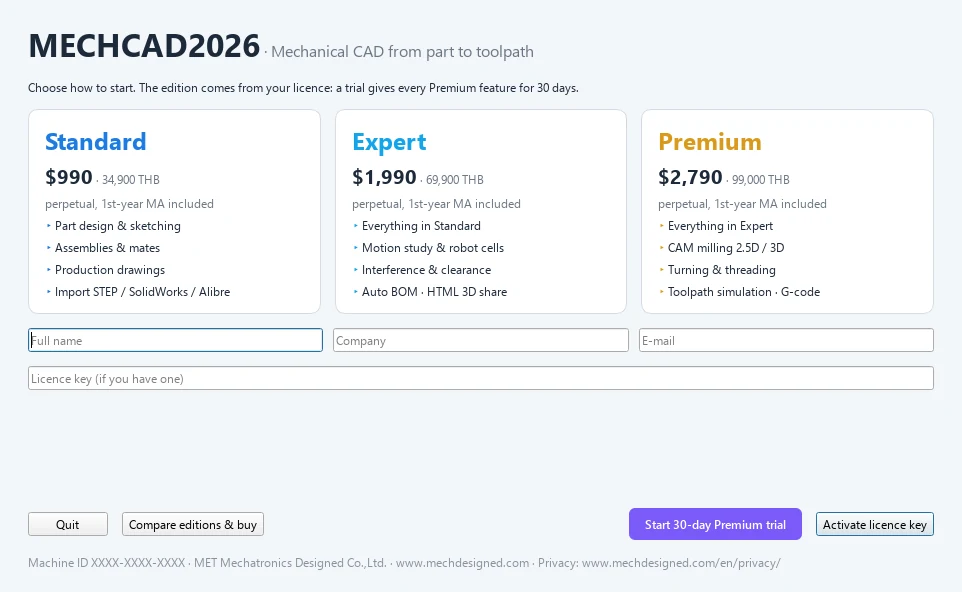
- The Welcome window (opens automatically when there is no licence yet)
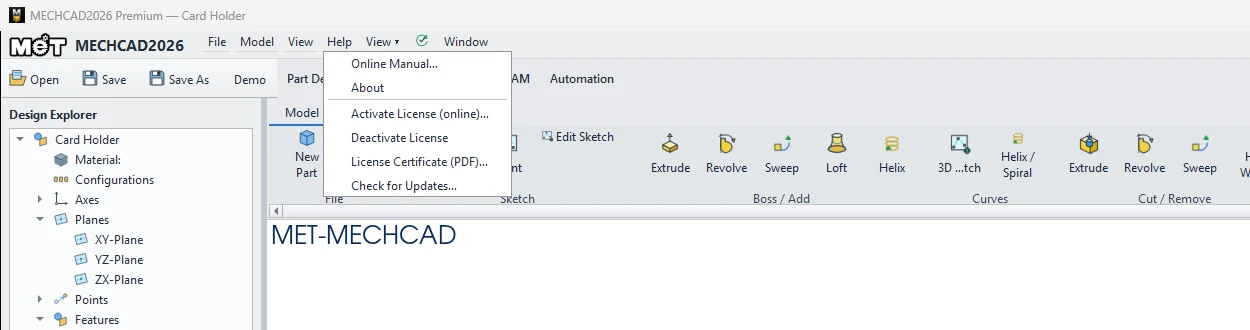
- Help › Activate License (online)…
- Click the Edition badge at the top right of the window (for example ● MECHCAD Premium · Perpetual)
Steps
- Open the Welcome window.
- Enter Full name, Company and E-mail. The e-mail must match the one MET used to issue the key.
- Enter the key in the Licence key (if you have one) field.
- Click Activate licence key (or press Enter in the key field).
- When activation succeeds, the window closes and the badge at the top right shows your Edition.
Messages you may see
| Message | Cause / fix |
|---|---|
| Enter full name, company and the e-mail the key was issued to. | Required fields are incomplete. |
| This license key has expired. | The key has expired. Contact MET. |
| All N seats are in use. Release one from another PC first. | All seats are in use. Use Deactivate License on a previous computer first. |
| Offline grace elapsed — reconnect to the license server. | The computer has been offline for more than 7 days. Connect to the internet and restart the program. |
Note: The program checks the licence with the server every 5 minutes in the background. If there is no internet connection, you can keep working during the 7-day grace period.
Try it: Activate a new office laptop in two minutes
Scenario: you received the key MECHCAD-XXXXX-XXXXX-XXXXX-XXXXX by e-mail at you@company.com and want to start designing a desk nameplate today.
- Start MECHCAD. The Welcome window opens because the laptop has no licence yet.
- Type your Full name, Company, and you@company.com, the e-mail the key was sent to. Another address does not work.
- Paste the key into Licence key (if you have one) and press Enter.
- The window closes. The badge at the top right now shows your edition, for example ● MECHCAD Standard · Perpetual.
- To check it works, sketch a 150 × 40 rectangle, Extrude it 8 mm and save it as
nameplate.metprt.
Challenge: Choose Help › License Certificate (PDF)… and keep the certificate with your purchase records.