
What it does
Sets how a part is displayed and which material is used for mass calculations.
Where to find it
- View › Appearance › Part Color / Material / Opacity
- Double-click the Material: node in the Design Explorer
- Right-click a face › Edit Face Color / Edit Solid Color; right-click a feature › Set Feature Color… / Set Feature Transparency…
Material
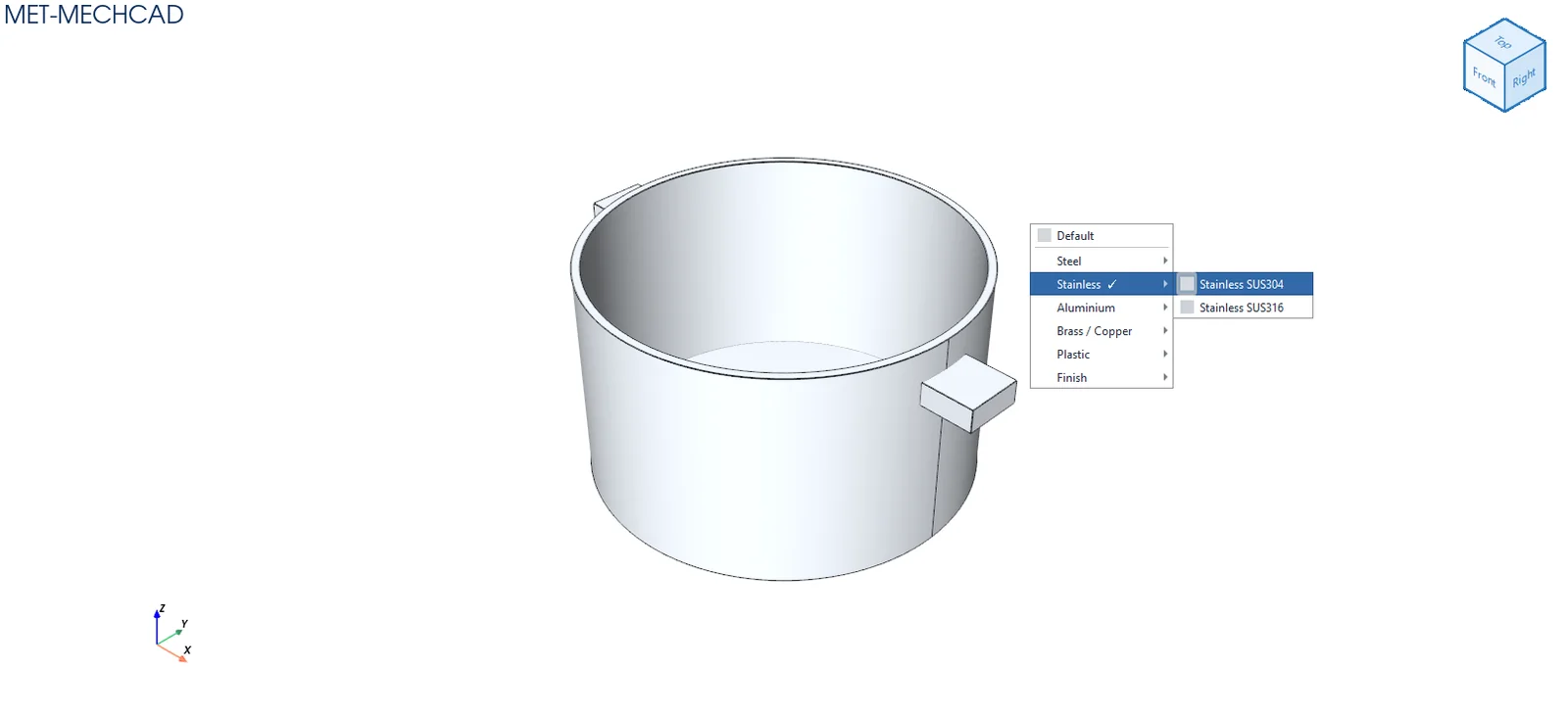
| Group | Materials |
|---|---|
| Steel | Steel SS400, Carbon Steel S45C |
| Stainless | SUS304, SUS316 |
| Aluminium | AL6061, AL5083, Black Anodized |
| Brass / Copper | Brass C3604, Copper C1100 |
| Plastic | POM White/Black, MC Nylon Blue, ABS Black, PVC Grey, Matte Plastic, Clear Acrylic (PMMA) |
| Finish | Painted |
Choosing a material sets the colour, transparency and density (used for mass). It also writes the material grade into the Material field of Part Properties, unless you have already typed one. Choose Default to clear it.
Opacity
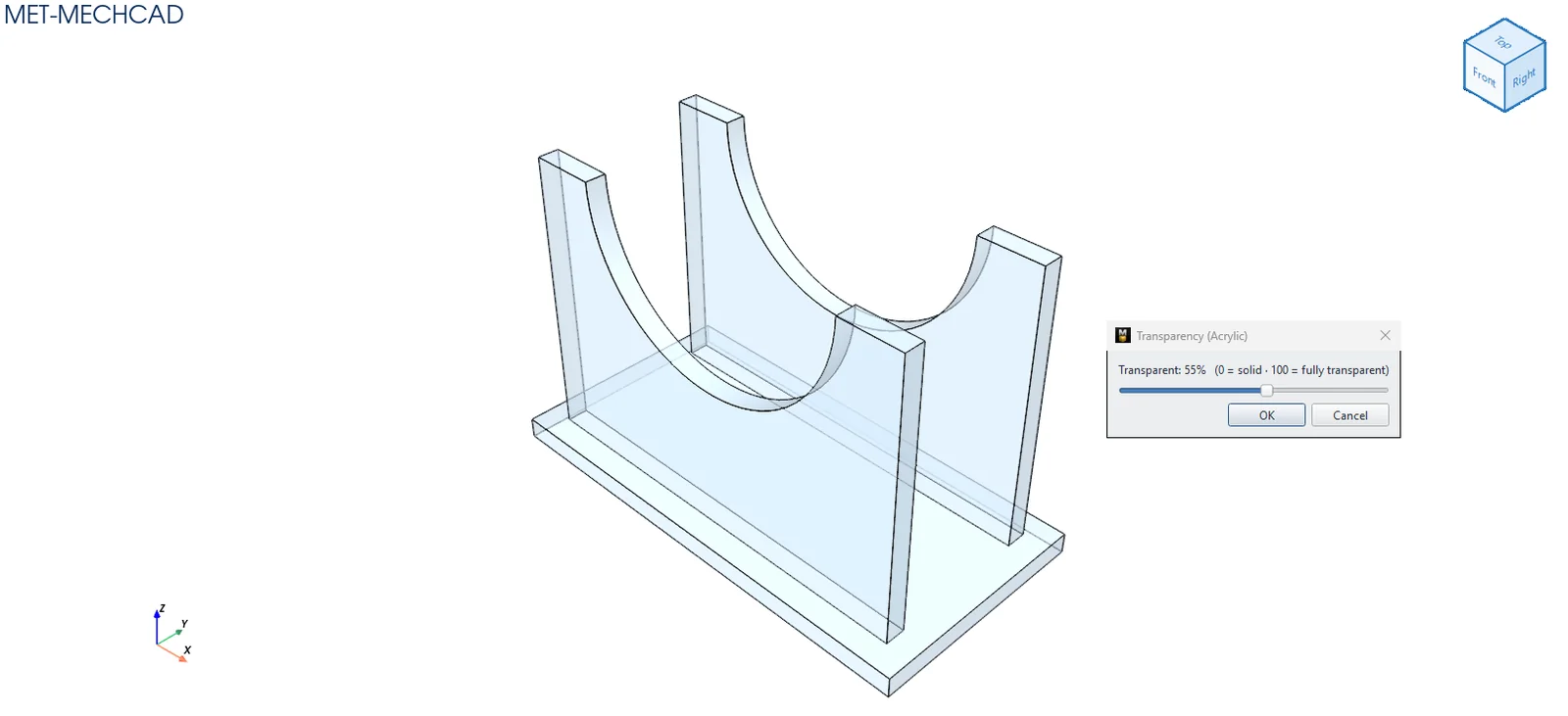
Drag the slider Transparent: N% (0 = solid · 100 = fully transparent). The result updates live. Click OK to confirm.
Part Color
Opens the Edit Solid Color colour picker. The chosen colour applies to the whole part.