
Symptoms and fixes
| Symptom | Fix |
|---|---|
| Native CAD Reader Required | Export from the source program as STEP (AP214/AP242), then import the STEP file. |
| The imported part has no feature history | This is normal for STEP/IGES. Use Recognize Features or Move Face. |
| Gaps/leaks in the surfaces after import | Use Simplify (Heal) in Direct Edit. |
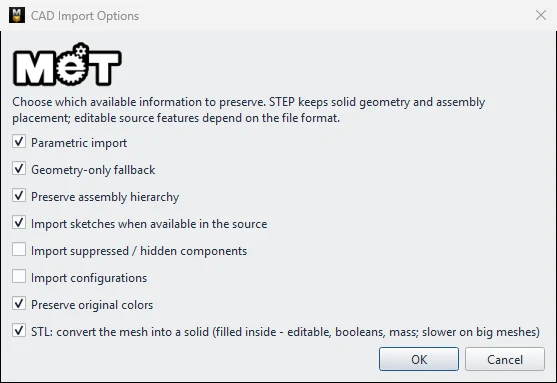
| STL takes very long to convert to a solid | Turn off STL: convert the mesh into a solid in CAD Import Options. |
| Components are tilted after importing an assembly | Right-click › Auto Align (square to axes) or Align Face to Plane… |
| A large assembly opens slowly | Import as a Single Part if you do not need joints, and see Large assemblies. |
| Colors are missing | Turn on Preserve original colors. |
| Components hidden in the source are not visible | Turn on Import suppressed / hidden components. |
Try it: Fix a tilted USB desk fan and a slow STL
Scenario: you download a USB desk fan as STEP from the manufacturer and a pencil sharpener as STL from a 3D-print site.
- Import the fan with File › Import CAD / STEP Assembly.... It comes in without colours: import it again with Preserve original colors on.
- The fan arrives tilted. In the Assembly tab, right-click it › Auto Align (square to axes).
- You only need the fan as a reference, not its moving blade: import it as a Single Part. It is lighter and easier to mate.
- The sharpener STL takes a long time: in CAD Import Options, turn off STL: convert the mesh into a solid. You can still see it and place it.
- You need to edit a hole in the fan's mount: use Move Face on the imported solid.
Challenge: Try Recognize Features on the fan's mount to turn it into editable features.