
What it does
Picture (Insert Picture on Face) places an image on a flat or cylindrical face, such as a product label or a machine nameplate. It is for display and rendering only and does not change the shape.
Where to find it
- Part Design: Direct Edit › Create › Picture
- Assembly: Share › Picture (see 3D Notes and Pictures)
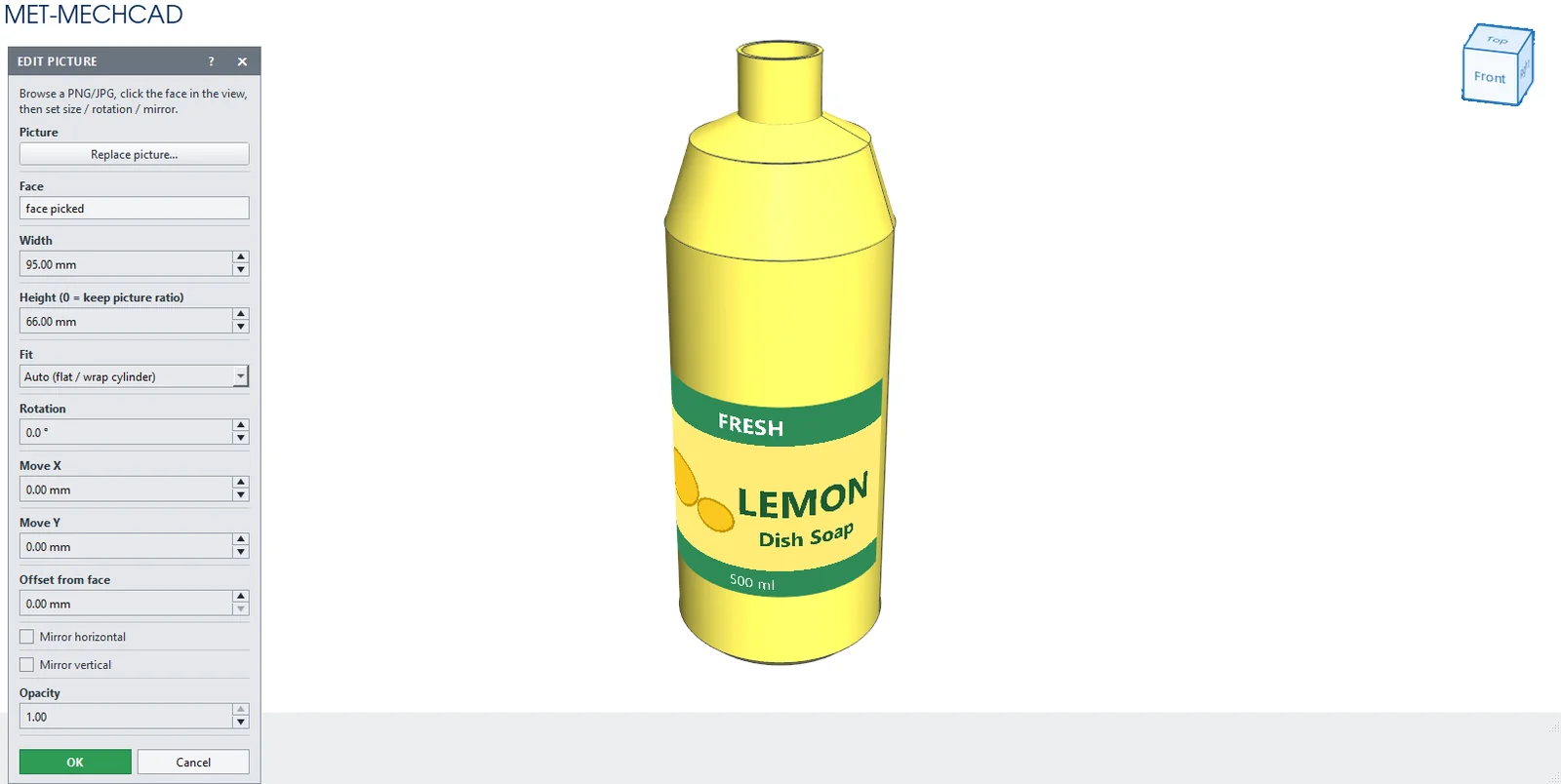
Steps
- Click Picture, then click Browse picture… (png, jpg, jpeg, bmp, gif, webp).
- Click the face to place the picture on.
- Adjust the size, rotation and position, check the live preview, then click OK.
| Option | Meaning |
|---|---|
| Browse picture… / Replace picture… | Choose the image file |
| Face | The face the picture is placed on |
| Width / Height (0 = keep picture ratio) | Size (Height 0 = keep the proportions) |
| Fit | Auto (flat / wrap cylinder) / Stretch fit onto curved face |
| Rotation | Rotate ±360° |
| Move X / Move Y | Shift the position |
| Offset from face | Distance above the surface (default 0.2) |
| Mirror horizontal / Mirror vertical | Flip the image |
| Opacity | 0.05–1 |