
What it does
Keeps the key values of a part as names, such as width = 50 and wall = 3, and lets you write other values as equations, such as len = 2*width + wall. When you change one value, every value that refers to it is recalculated at once, and features bound to a parameter change size after the rebuild.
Where to find it
Model › References › Parameters in Part Design. A part must be open or created first; otherwise the message Open or create a part first. appears.
The Parameters panel opens docked on the right of the window, so you can keep working on the part while it is open. Click the button again to bring the panel back after you switch to another part.
Steps
- Click Parameters in the References group.
- Click Add. A new row named
param1with the value0appears. - Double-click the Name cell to rename it, for example
width. - Double-click the Expression cell and type a number (
50) or an equation (2*width + wall), then press Enter. - Check the Value column. If the equation is valid, the part rebuilds at once.
- Select a row and click Delete to remove that parameter.
| Column | Editable | Meaning |
|---|---|---|
| Name | Yes | The parameter name. Use English letters, digits and _; it cannot start with a digit. |
| Expression | Yes | A number, or an equation that refers to other parameters |
| Value | No | The calculated result. Shows error when it cannot be calculated. |
| Comment | Yes | A note, such as wall thickness (editing it does not rebuild the part) |
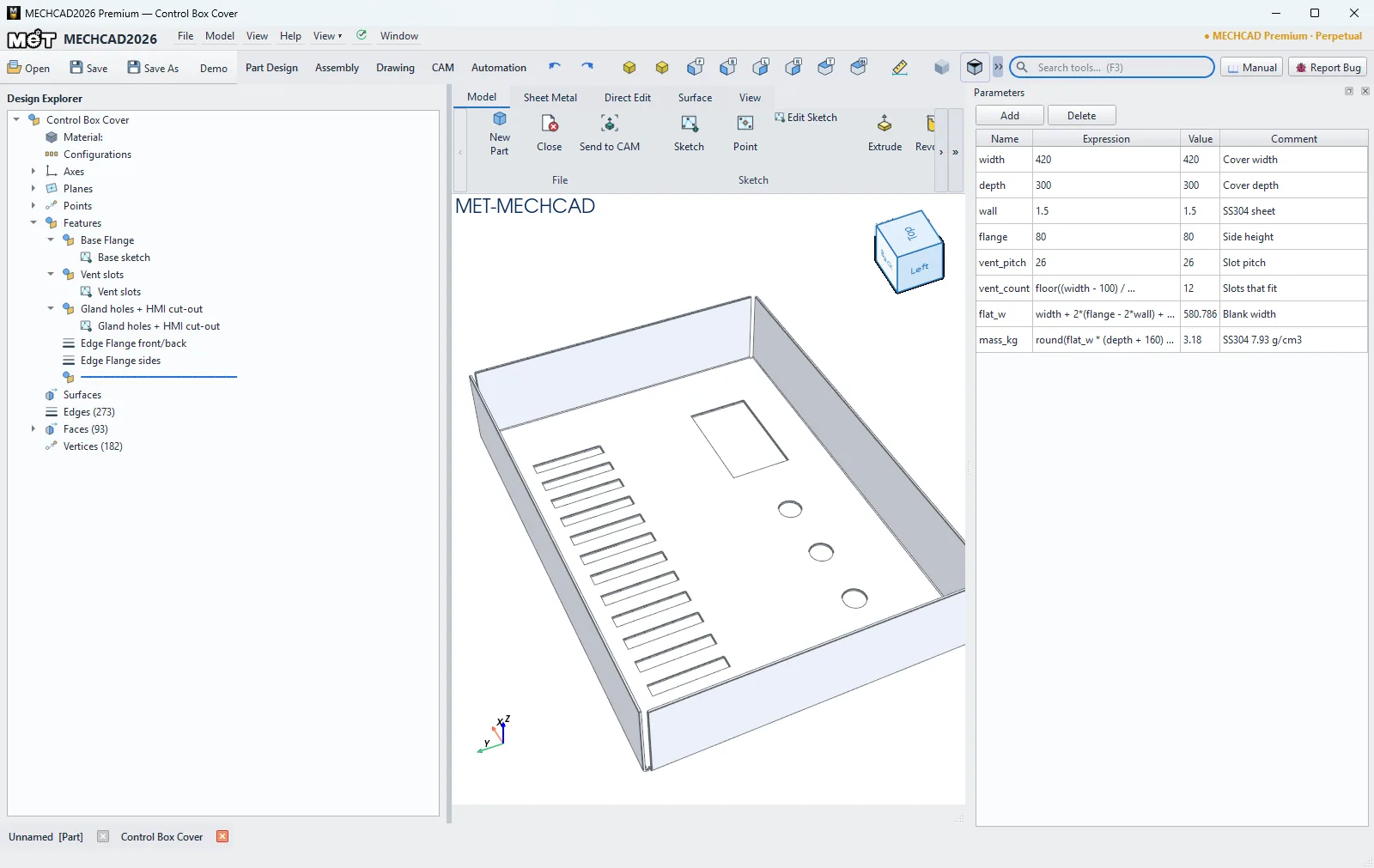
Writing equations
| Allowed | Example |
|---|---|
+ - * / and parentheses |
(width - 2*wall) / 2 |
Power **, floor division //, remainder % |
side**2, len // 25 |
Constants pi, e, tau |
pi * dia |
Functions sqrt, abs, min, max, floor, ceil, round |
max(wall, 2), round(len / 3, 1) |
Trigonometry sin, cos, tan, asin, acos, atan, atan2 |
h * tan(rad(30)) |
Angle conversion rad(degrees) and deg(radians) |
deg(atan2(h, w)) |
- The trigonometric functions work in radians. Wrap an angle in degrees with
rad(), for examplesin(rad(30))= 0.5. - Names are not case-sensitive:
Widthandwidthare the same name. A name cannot be the same as a function or constant (pi,sin,max…). - When you rename a parameter, every equation that uses the old name is updated to the new name automatically.
- If an equation is wrong, uses a name that does not exist, or refers back to itself in a loop (for example
a = b + 1andb = a), its row turns red and a message appears below the table. The part does not rebuild until you fix it.
Parameters and features
- Parameters, and the features bound to them, are saved in the Part file.
- When you open an Alibre .AD_PRT file as editable features, its Alibre parameters come into this table (Comment Alibre, lengths converted to mm) and stay bound to the values they drive, such as Extrude depth and draft angle, Revolve angle, Fillet / Chamfer size, Shell thickness and Pattern count. Change a value in the table and the part follows.
- A field bound to a parameter takes its value from the table at every rebuild. Change that size in the Parameters panel, not in the feature box.
Note: In this version there is no command yet to bind a feature field or a sketch dimension to a parameter yourself. Bindings come from opening Alibre files as described above. Parameters you create yourself can still hold values and calculate equations in full.