
What it does
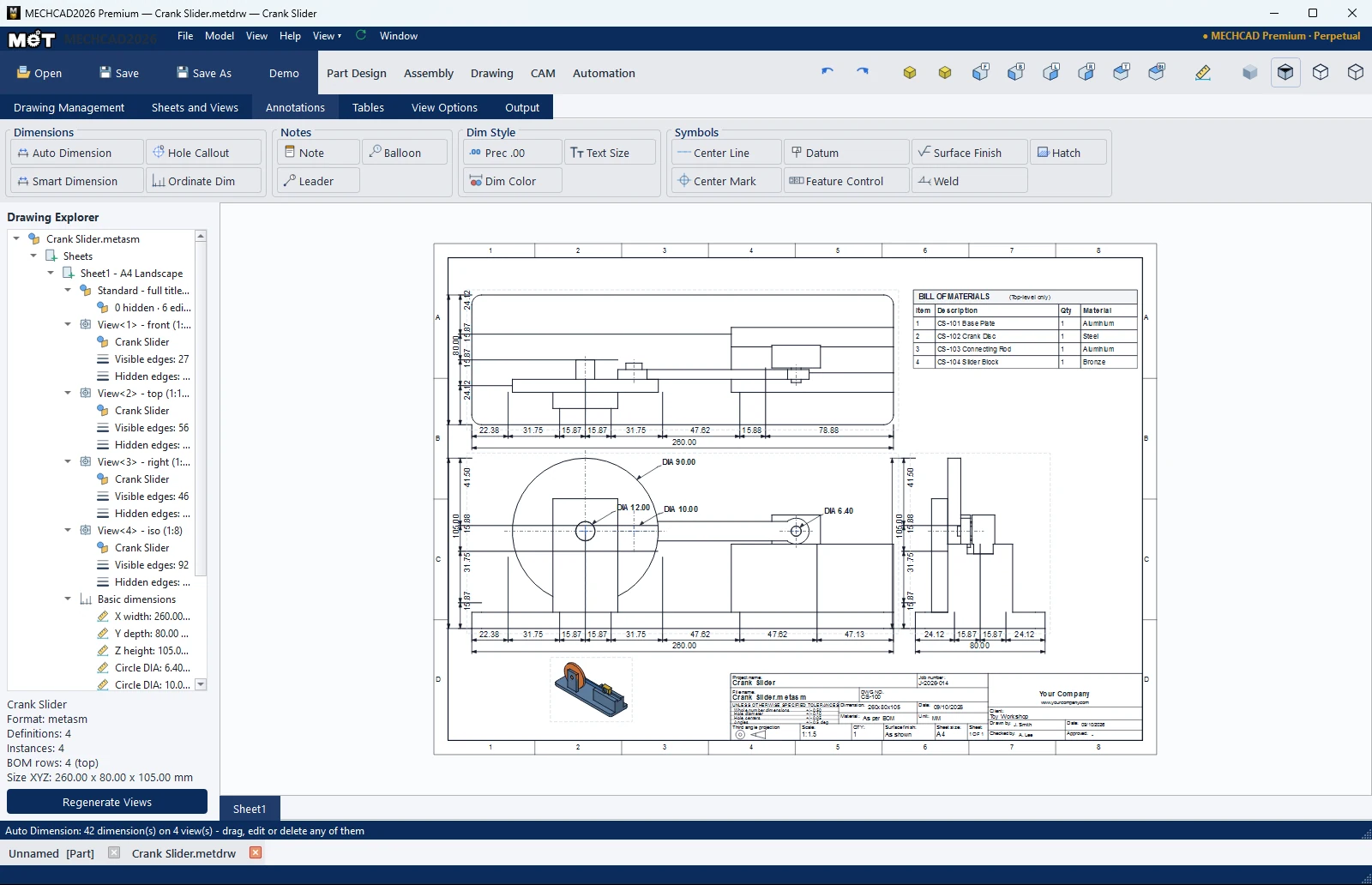
Adds dimensions to a 2D drawing.
Where to find it
Annotations › Dimensions and Dim Style

| Command | How to use it |
|---|---|
| Auto Dimension | Adds chain and overall dimensions in both directions, plus Ø, on every orthographic view (skips Section/Detail/Break views). Click again to replace the previous set. |
| Smart Dimension | Click a circle = Ø, an arc = R, two points = distance (horizontal/vertical/aligned), a point + an edge = perpendicular distance, an edge = length, two parallel edges = distance, two non-parallel edges = angle. Then click to place. |
| Hole Callout | Automatic hole text such as 4X Ø6.60 THRU, depth ↧, counterbore ⌴, countersink ⌵ (on the selected view, or the view that shows the most holes). |
| Ordinate Dim | Click the base point, then the feature points. Shows X … / Y …. |
| Reposition Dims (View Style) | Arranges dimensions in rows outside the view so they do not overlap. |
| Dim Style | Description |
|---|---|
| Prec .00 | Decimal places, 0–4 |
| Dim Color | Colour of new dimensions |
| Text Size | Text size, 6–16 pt |
Right-click menu on a dimension
Edit Text…, Text Position (Left / Center / Right), Delete Dimension
Note: Holes smaller than 6 units on the sheet are skipped by Hole Callout. Use a Detail View to enlarge them first.