
What it does
Right-click while sketching to call tools quickly without going to the ribbon. Every menu starts with ⊥ Plane View (look at the sketch).
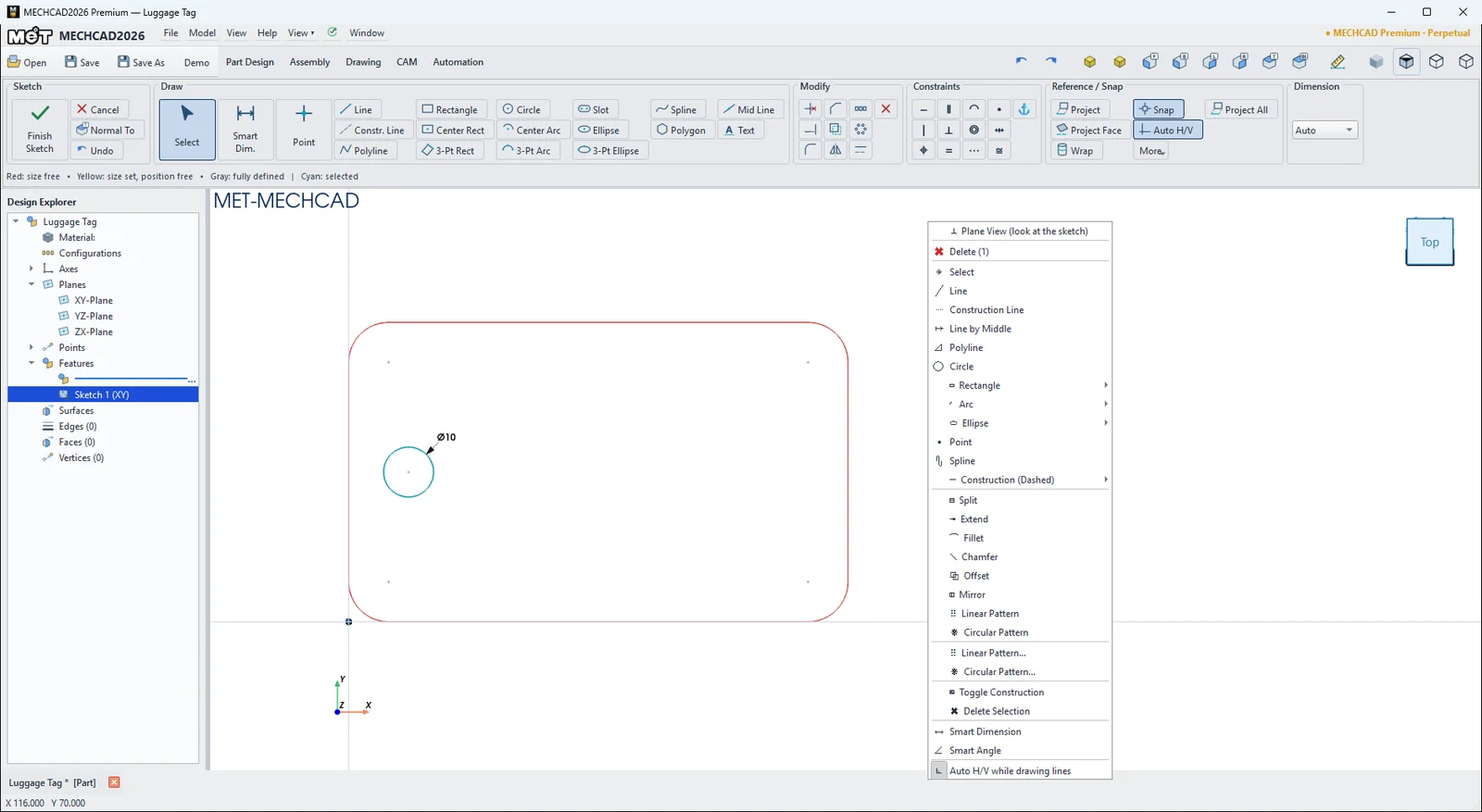
| Right-click on | Commands |
|---|---|
| Empty space | Delete (N), Select, Line, Construction Line, Line by Middle, Polyline, Circle, Rectangle ›, Arc ›, Ellipse ›, Point, Spline, Construction (Dashed) ›, Split, Extend, Fillet, Chamfer, Offset, Mirror, Linear/Circular Pattern, Toggle Construction, Delete Selection, Smart Dimension, Smart Angle, Auto H/V while drawing lines |
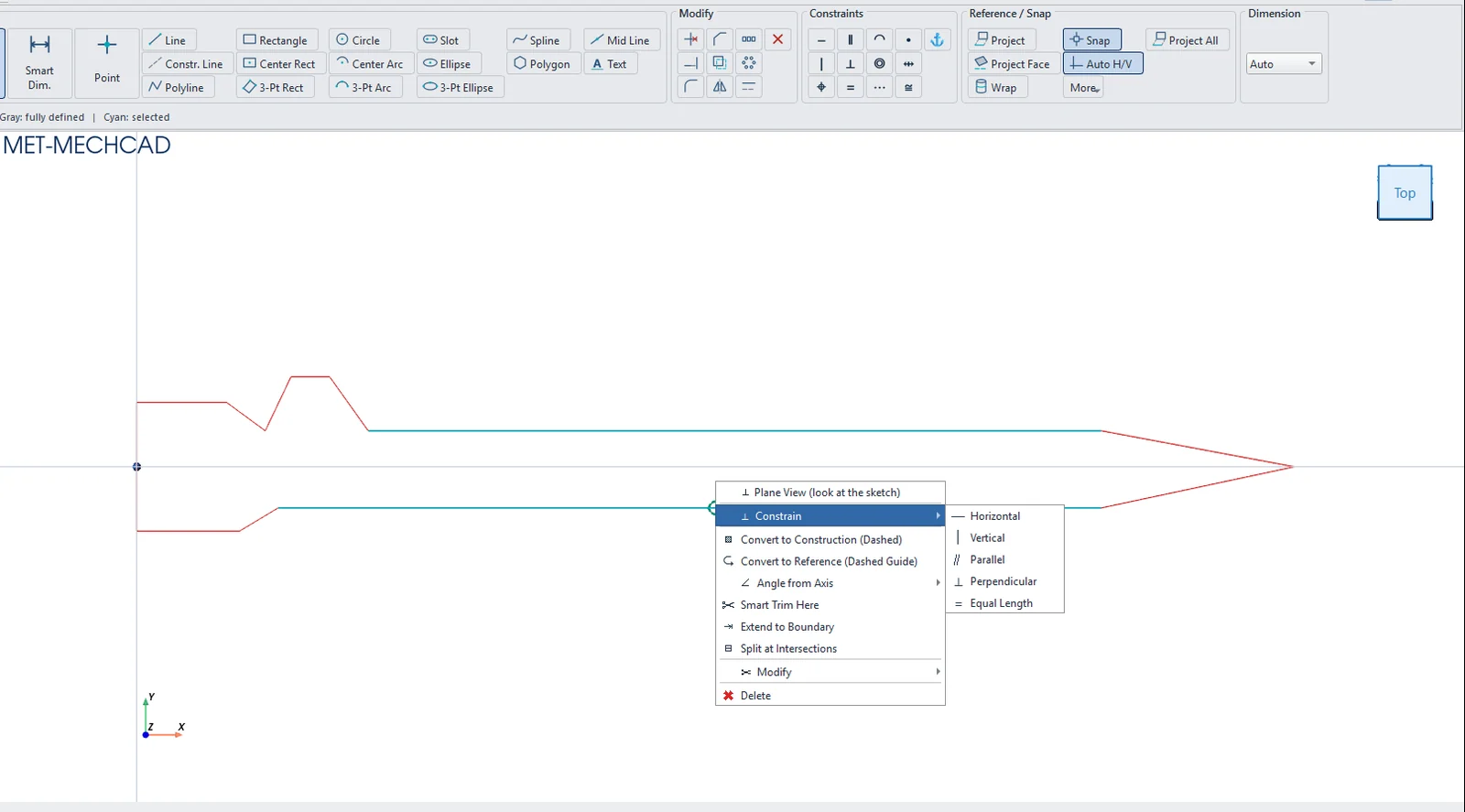
| Line | Constrain ›, Convert to Construction (Dashed), Convert to Reference (Dashed Guide), Angle from Axis ›, Smart Trim Here, Extend to Boundary, Split at Intersections, Modify ›, Delete |
| Point | Modify ›, Fix Point / Unfix Point, Coincident (when 2 points are selected) |
| Dimension | Edit Dimension, Flip Angle (acute/obtuse), Show as Diameter (Ø width) / Show as Radius (R), Delete |
| An item in a pattern | Explode Pattern, Delete Whole Pattern |
Try it: Luggage tag
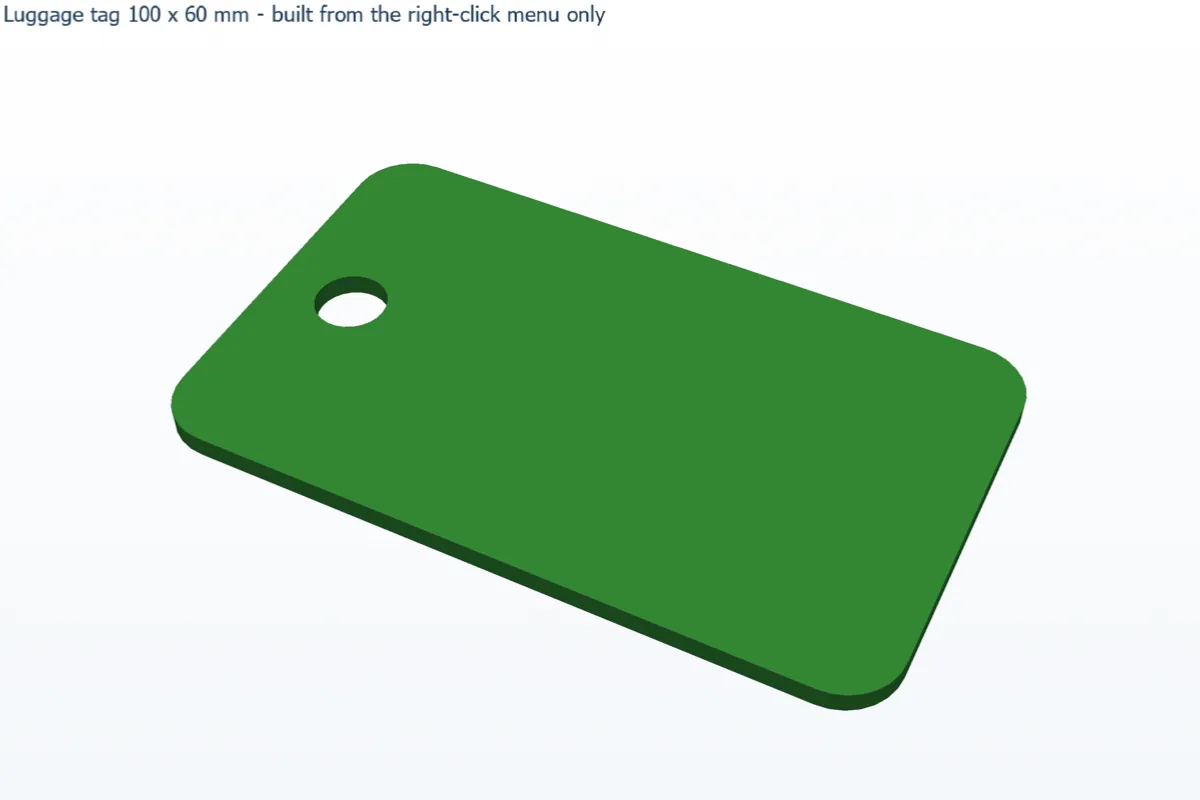
Make a luggage tag without touching the ribbon once. Every command comes from the right-click menu, which is the fastest way to sketch.
- Click Sketch and press Enter (XY-Plane).
- Right-click empty space › Rectangle › by corners. Click the origin, type 100, press Tab, type 60 and press Enter.
- Right-click › Fillet. Click two lines that meet at a corner and enter Radius 8. Repeat for all four corners.
- Right-click › Circle. Click near (12, 30), type 10 and press Enter. This is the strap hole.
- Right-click › Smart Dimension. Dimension the circle centre 12 mm from the left edge and 30 mm from the bottom edge.
- Right-click › ⊥ Plane View to look straight at the sketch and check it. Then click Finish Sketch and Extrude 3 mm.
Challenge: In a new sketch on the front face, right-click › Rectangle for a 60 x 30 mm name window and Extrude Cut it 1 mm deep.