
What it does
Repeats the selected feature (Extrude, Revolve, Loft, Sweep, Helix). Linear Pattern arranges copies along one or two directions. Circular Pattern arranges copies around an axis.
Where to find it
Model › Features › Linear Pattern / Circular Pattern
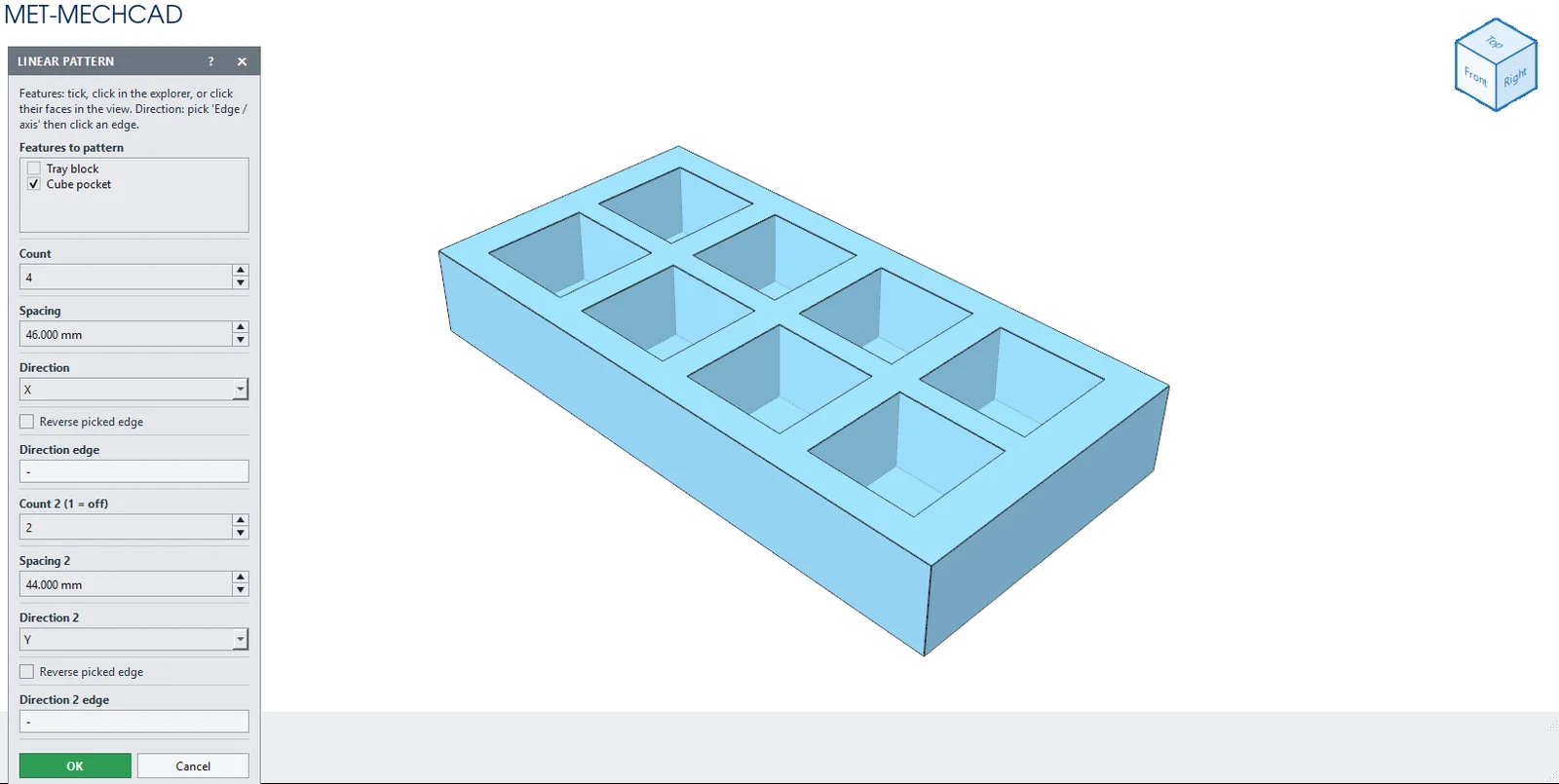
Steps
- Click Linear Pattern (or Circular Pattern).
- Tick features in the Features to pattern list, or click a feature in Design Explorer, or click one of its faces in the view. The latest feature is ticked for you.
- Set the direction: choose X/Y/Z, or choose Edge / axis and click an edge (a straight edge = the edge direction, a circular edge = its axis, two clicked vertices = the direction between them).
- Enter the count and spacing, then click OK.
Linear Pattern
| Option | Default | Meaning |
|---|---|---|
| Features to pattern | Latest feature | The features to repeat |
| Count | 4 | Number of instances (2–9999) |
| Spacing | 30 mm | Distance between instances |
| Direction | X | X, Y, Z, -X, -Y, -Z, a reference axis, or a clicked edge |
| Reverse picked edge | Off | Reverses the edge direction |
| Count 2 (1 = off) / Spacing 2 / Direction 2 | 1 / 30 / Y | The second direction |
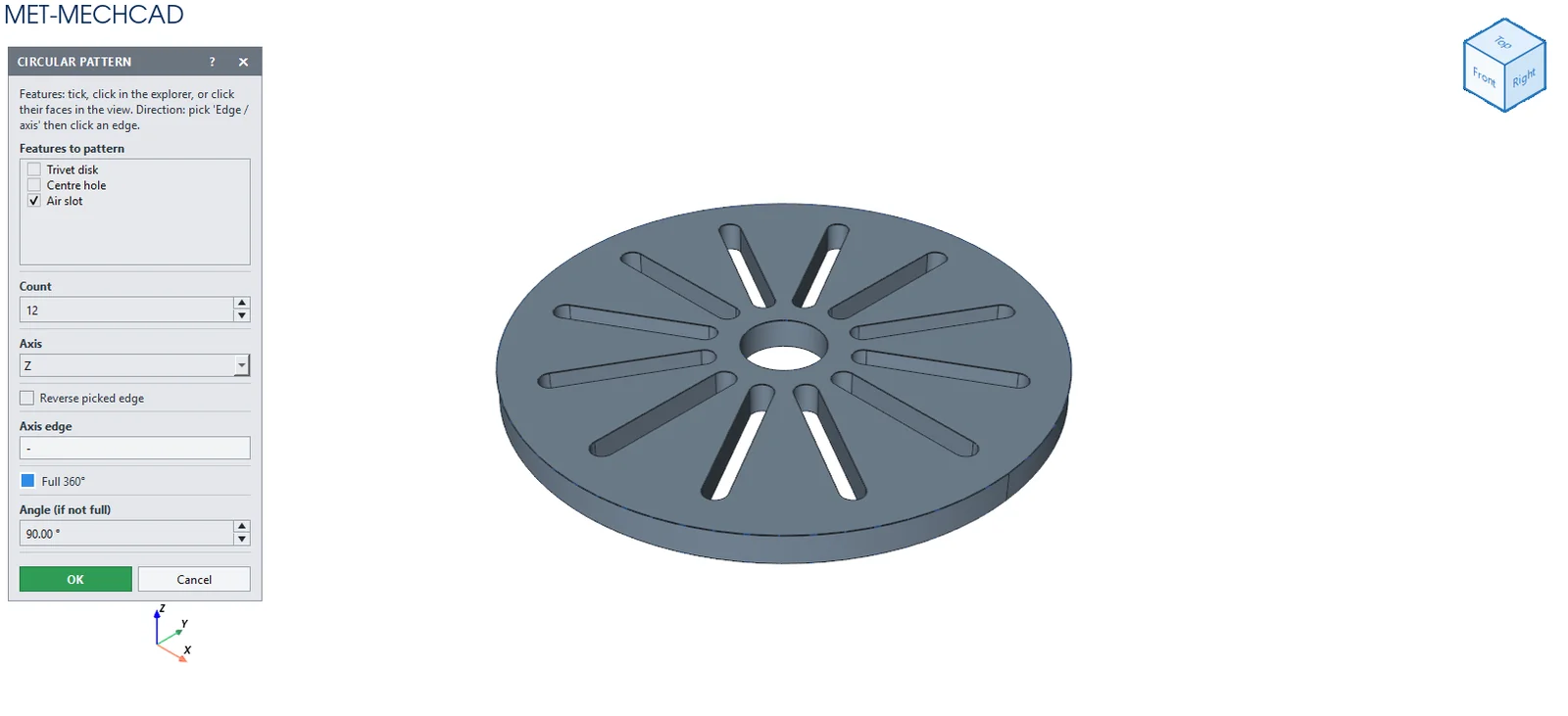
Circular Pattern
| Option | Default | Meaning |
|---|---|---|
| Count | 6 | Number of instances |
| Axis | Z | Rotation axis, or a clicked edge/axis |
| Full 360° | On | Spreads the instances evenly around the circle |
| Angle (if not full) | 90° | Total angle when not 360° |
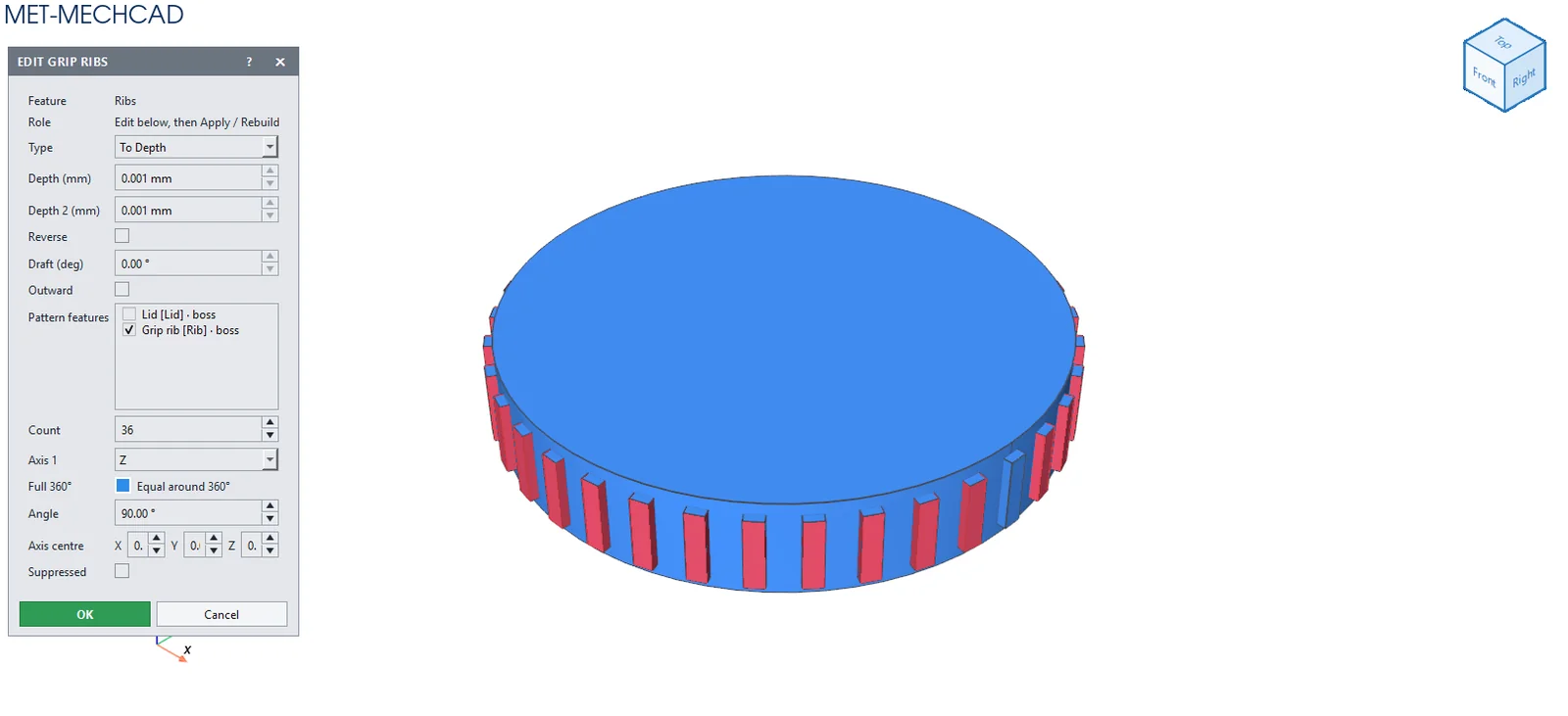
Note: The command box is floating (it does not lock the screen). Drag its title bar to move it. The preview updates immediately when you change a value. OK saves one Undo step. Cancel, ✕ or Esc cancels. If the conditions are not complete, the OK button is grey and an orange message tells you what to select.