
What it does
MECHCAD 2026 is a 3D CAD/CAM program for Windows. The program is the same however you install it. The edition (Standard / Expert / Premium) depends on the activated licence, not on how you installed.
| Channel | Best for | Updates |
|---|---|---|
| Direct download (recommended): https://license.mechdesigned.com/download/MECHCAD | Everyone: new users start a free 30-day Premium trial from the Welcome screen, MA customers activate their key | Help › Check for Updates… for MA customers, or download the latest installer from the same link |
| Microsoft Store | MECHCAD 2026 on the Microsoft Store | Updated through the Microsoft Store |
Install with the direct installer
- Download the installer from https://license.mechdesigned.com/download/MECHCAD (MA customers can also use the
MECHCAD2026-Setup-V<version>.exefile they received from MET). - Double-click the file and answer Yes when Windows asks for administrator permission. The installer needs admin rights to register file types and Explorer thumbnails.
- Choose the additional options (table below), then click Install.
- When it finishes, tick Launch MECHCAD and click Finish.
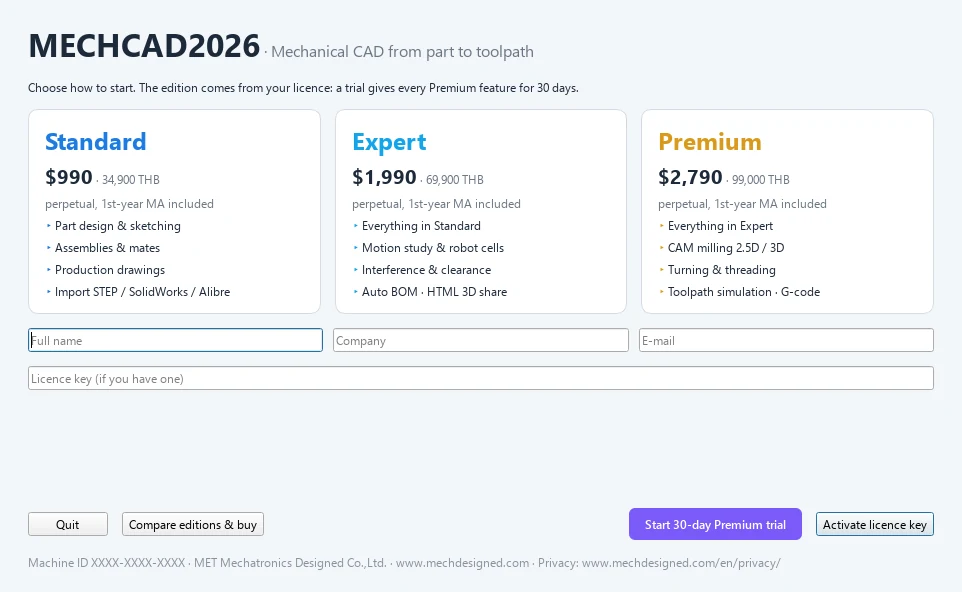
- The first time, the Welcome window appears. Click Start 30-day Premium trial, or enter your licence key. See Welcome window and 30-day trial.
| Installer option | Meaning |
|---|---|
| Create a desktop shortcut | Creates an icon on the desktop. |
| Prefer high-performance graphics for MECHCAD | Makes Windows use the discrete GPU for MECHCAD on laptops with two GPUs. We recommend turning it on. |
The program is installed in %LOCALAPPDATA%\Programs\MECHCAD2026. It registers these file types so you can open them by double-clicking: .metprt (Part), .metasm (Assembly), .metdrw (Drawing), .metcam (CAM), .metauto (Automation) and .metpkg (Pack and Go). It also registers file thumbnails in Windows Explorer.
Microsoft Store
You can also install MECHCAD 2026 from the Microsoft Store. It is the same program with the same licence, and “Start 30-day Premium trial” works the same. The Store copy updates through the Store and may trail the direct installer slightly.
System requirements
| Item | Recommended |
|---|---|
| Operating system | Windows 10 / 11, 64-bit |
| Graphics card | OpenGL 3.2 or later (a discrete GPU makes large parts rotate more smoothly) |
| Memory | 16 GB or more for large assemblies |
| Internet | Needed to activate the licence and for periodic checks (works offline within a 7-day grace period) |
Note: DWG open and save work right after installation: the DWG converter ships with the program, so you do not need to install the ODA File Converter (if ODA is installed, it is only used as a fallback). PDF and DXF also work immediately.
Try it: Set up a home-office laptop from scratch
Scenario: you want MECHCAD on your personal laptop tonight and to design a vertical laptop dock at the weekend.
- Open https://license.mechdesigned.com/download/MECHCAD and save the installer.
- Run it, answer Yes to the admin prompt, and tick Prefer high-performance graphics for MECHCAD (your laptop has two GPUs).
- Click Install, then Launch MECHCAD › Finish.
- In the Welcome window, enter your name, company and e-mail and click Start 30-day Premium trial.
- Click Demo and open MET Camera to check that rotation is smooth. If it is not, see Display troubleshooting.
Challenge: Double-click any .metprt file in Explorer: it opens straight in MECHCAD with its thumbnail.