
What it does
Summarises the file types that MECHCAD saves, opens, imports and exports.
Native files
| Extension | Type | Opens in tab |
|---|---|---|
.metprt (and legacy .mcd_prt) |
MECHCAD Part | Part Design |
.metasm (and legacy .mcd_assm) |
MECHCAD Assembly | Assembly |
.metdrw |
MECHCAD Drawing | Drawing |
.metcam |
MECHCAD CAM | CAM |
.metauto |
MECHCAD Automation Cell | Automation |
.metpkg |
MECHCAD Package (Pack and Go) | Unpacks, then opens the assembly |
Every file type has a preview image in Windows Explorer and opens with a double-click (direct installer). If the file is already open, MECHCAD switches to its tab.
Files you can open/import (File › Open…)
| Format | Extension | Result |
|---|---|---|
| STEP | .step .stp |
Part or Assembly (structure and positions are kept) |
| IGES | .iges .igs |
Part |
| Mesh | .stl |
Part (can be converted to a solid) |
| BREP | .brep |
Part |
| SolidWorks | .sldprt .sldasm |
Part as editable sketches + feature tree / Assembly converted to MECHCAD files, without SolidWorks |
| Alibre | .ad_prt .ad_asm |
Part as editable sketches + features / Assembly converted to MECHCAD files (for sharing work with Alibre users) |
| Siemens NX | .prt |
Part (solid) |
| Parasolid | .x_t .x_b |
Part |
| MET feature JSON | .mfj |
Part |
Export
| From | Format | Command |
|---|---|---|
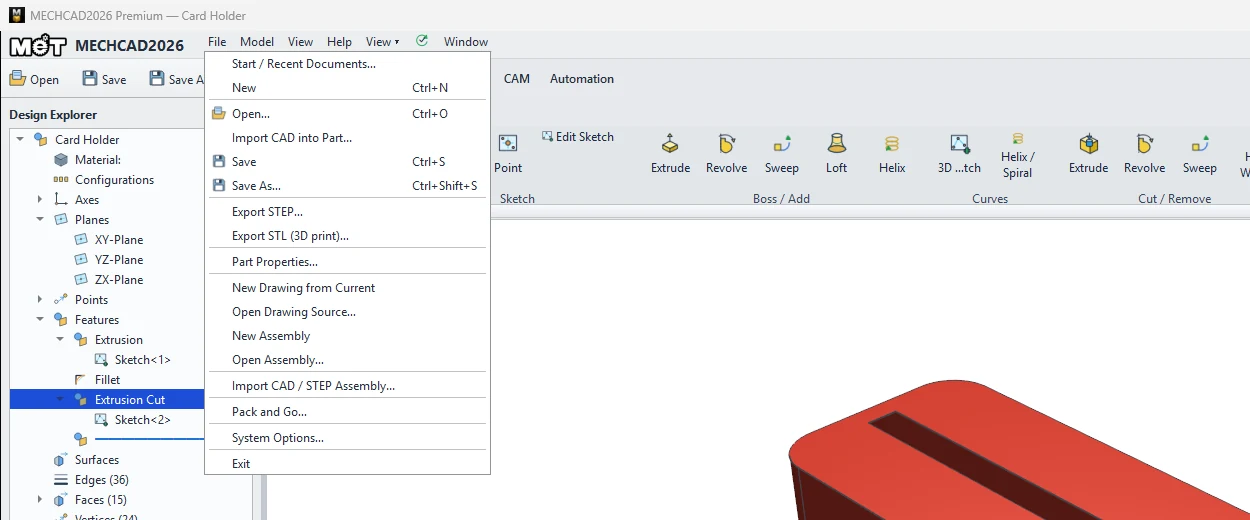
| Part | STEP, STL | File › Export STEP… / Export STL (3D print)… |
| Assembly | STL, HTML 3D | Share › Export STL / Export HTML |
| Drawing | PDF, DXF, DWG | Output › Export PDF / DXF / DWG |
| CAM | G-code (.nc), PDF setup sheet |
Output › G-code / Shop PDF |
| Motion | MP4, GIF | ⏺ Record, Export Video…, Record GIF… |
Note: MECHCAD does not open DWG files directly (DWG is available only as an export from Drawing). Files from other CAD systems not listed here must be exported to STEP first.
Try it: Follow a drawer-knob project through its files
Scenario: you design a drawer knob, put it on a drawer front, make a drawing and send everything to a workshop. Watch which file each step creates.
- Model the knob in Part Design and save it:
drawer-knob.metprt. - In Assembly, insert the knob and a drawer-front panel and save:
drawer-front.metasm. - File › New Drawing from Current and save the drawing:
drawer-front.metdrw. - Pack and Go the assembly into one file,
drawer-front.metpkg, and e-mail it. The workshop double-clicks it and MECHCAD unpacks and opens the assembly. - The workshop wants a 3D file for their own CAD: File › Export STEP… from the knob part.
Challenge: Look at the folder in Windows Explorer with large icons: every MECHCAD file shows its own preview.