
What it does
Smart Dimension chooses the dimension type automatically from the object you click (length, horizontal, vertical, Ø, R, distance). Smart Angle measures the angle between two lines. The dimensions you add are driving dimensions: change the value and the sketch changes with it.
Where to find it
- Sketch ribbon › Draw › Smart Dim. (shortcut D)
- Right-click on empty space › Smart Dimension / Smart Angle
- Reference / Snap › More › Dimensions: Dim Aligned, Horizontal, Vertical, Radius, Diameter, Angle, Point-Line, Ellipse Major, Ellipse Minor
- The Dimension box at the right of the ribbon: Auto / Size / Between / Between X / Between Y
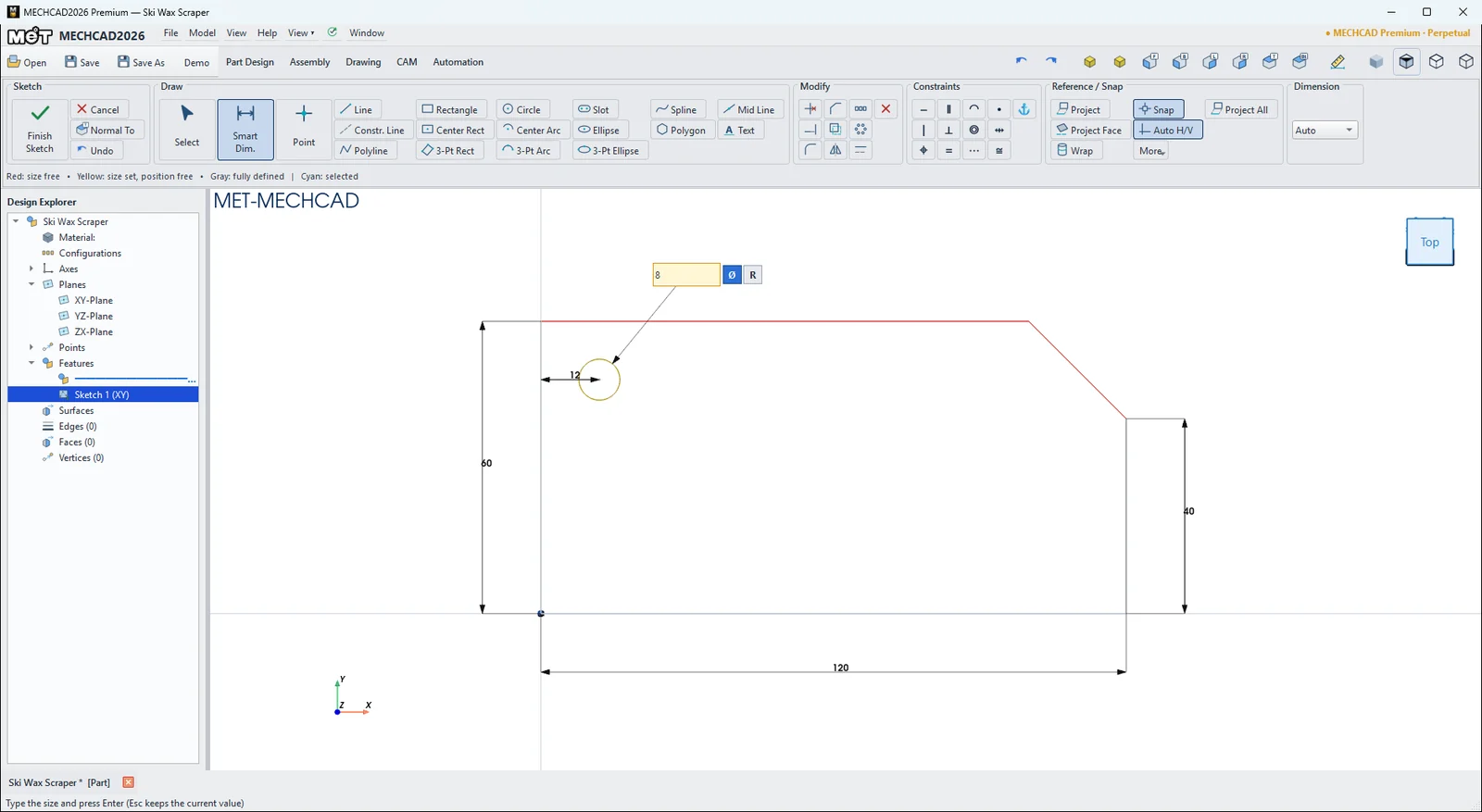
Steps
- Click Smart Dim. (or press D).
- Click an object: a line (length), a circle (Ø), an arc (R) or a point. You can click a second object to measure the distance between them (circles and ellipses are measured from the center).
- Move the mouse to choose the dimension direction (for a single line: parallel to the line, horizontal or vertical, depending on the cursor position), then click in empty space to place it.
- The value box opens. Type the value and press Enter (Esc = use the current value). Type R or Ø/D before the number to switch between radius and diameter.
| Action | Result |
|---|---|
| Double-click a dimension (Select mode) | Edit the dimension value |
| Right-click a dimension › Edit Dimension | Edit the dimension value |
| Right-click a dimension › Show as Diameter / Show as Radius | Switch the style |
| Right-click an angle dimension › Flip Angle (acute/obtuse) | Switch between the acute and obtuse angle |
| Delete | Delete the dimension |
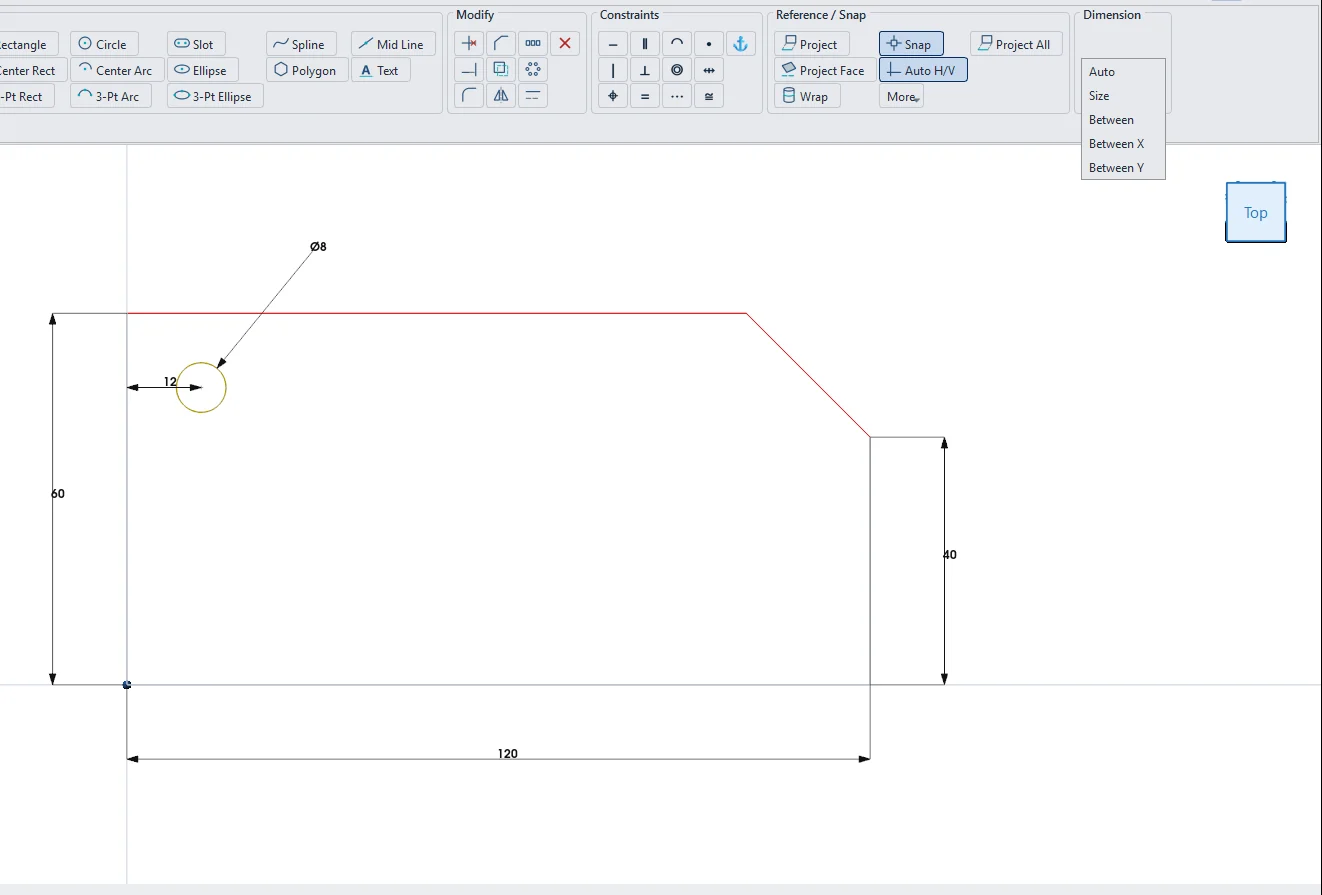
Note: If that size is already defined, the new dimension is a Reference (driven) dimension that only shows the value. If the value you enter makes the sketch conflict, you see Cannot make it X: the sketch would conflict.
Try it: Ski wax scraper
A wax scraper is a simple plate, but the 45° corner is what gets wax out of the ski's edge groove. Draw the rough outline, then let Smart Dimension make it exact.
- Click Sketch and press Enter (XY-Plane). With Line, draw a five-sided outline near (0, 0) → (120, 0) → (120, 40) → (100, 60) → (0, 60) and back to the start.
- Press D (Smart Dim.): click the bottom edge and type 120; click the left edge and type 60; click the right edge and type 40.
- Right-click › Smart Angle, click the slanted edge and the right edge, then type 135. If the angle shows the acute side, right-click the dimension › Flip Angle (acute/obtuse) first.
- Draw a Circle, click it with Smart Dim. and type 8 (Ø). Then click the circle and the left edge and type 12, and click the circle and the top edge and type 12.
- Check that the sketch turns grey (Fully defined), click Finish Sketch and Extrude 4 mm.
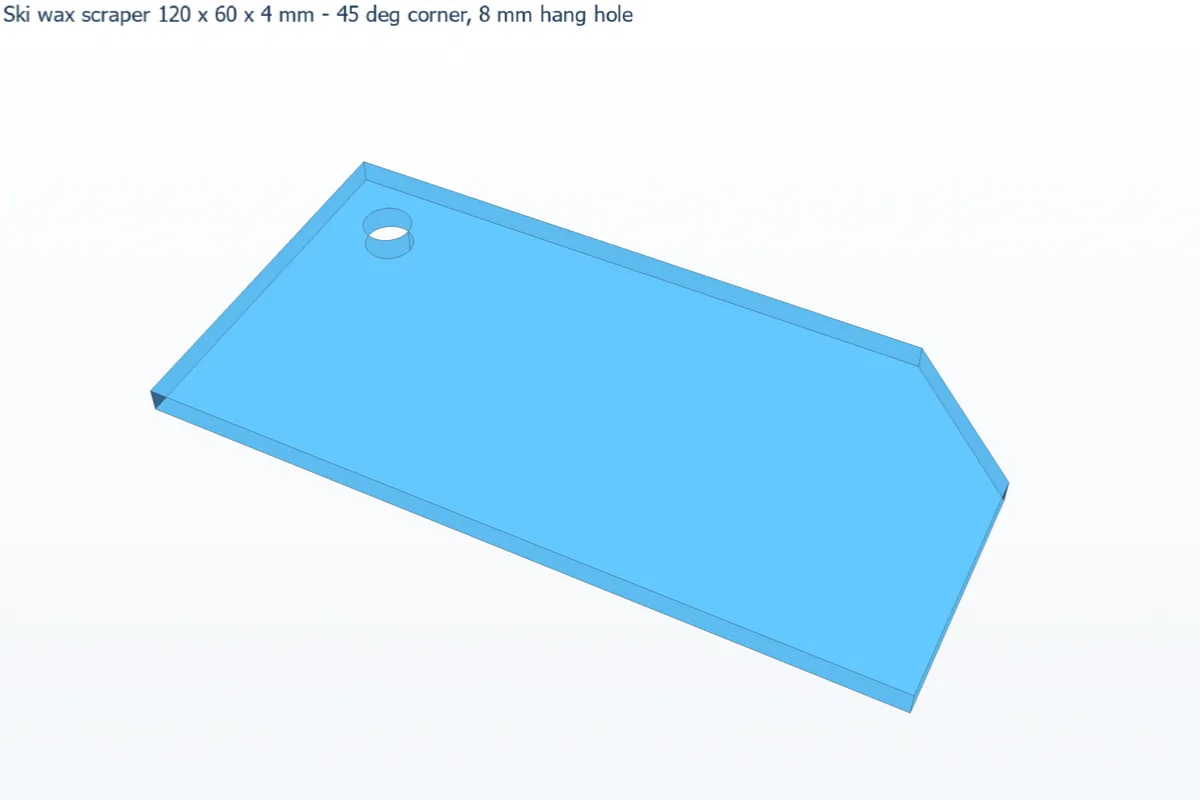
Challenge: Double-click the 40 dimension and change it to 30. The 135° corner stays and the slanted edge gets longer.