
What it does
The MECHCAD2026 — Welcome window opens by itself when the computer has no licence (a new install, or an expired trial). You can open it at any time from the Edition badge at the top right, or from Help › Activate License (online)…. It has three ways in:
- Start 30-day Premium trial — try every Premium feature for 30 days
- Activate licence key — enter a license key you have bought. See Activate with a license key.
- Compare editions & buy — opens mechdesigned.com to compare and order
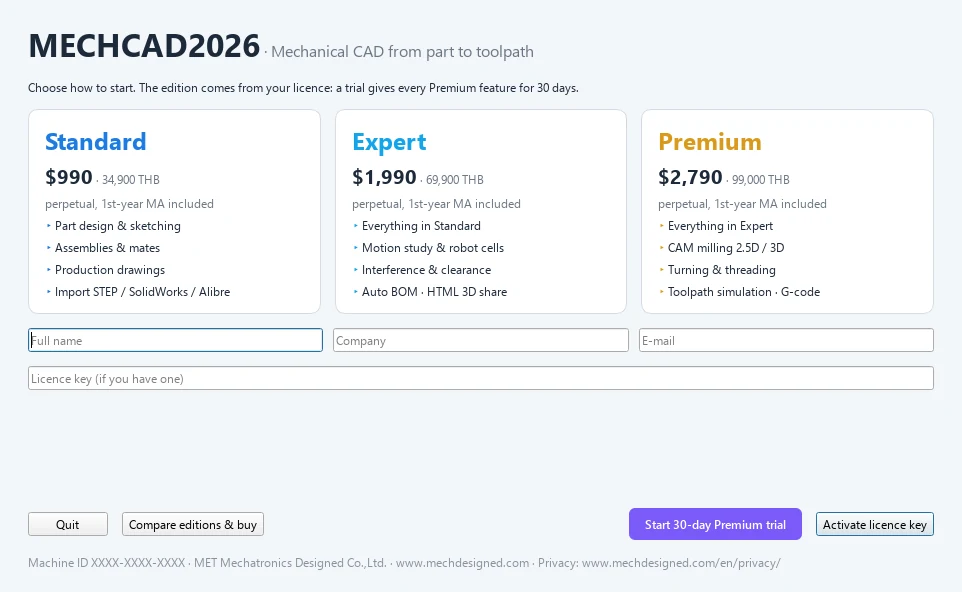
Start the 30-day trial
- Open MECHCAD for the first time. The Welcome window appears.
- Enter your Full name, Company and E-mail.
- Click Start 30-day Premium trial (the purple button).
- Wait for the message Requesting your 30-day trial from the MET licence server…. When it succeeds, the program opens with the MECHCAD Trial · N days left badge at the top right.
| Field / button | Meaning |
|---|---|
| Full name | User name (required for the trial) |
| Company | Company name |
| The e-mail used to request the trial (required) | |
| Licence key (if you have one) | Enter it only if you already have a license key |
| Quit | Exits the program (on first start) / Close when opened from the menu |
| Compare editions & buy | Opens the website for prices and ordering |
| Start 30-day Premium trial | Requests a 30-day trial licence from the MET server |
| Activate licence key | Activates with a license key |
Note: The trial is available once per computer and per e-mail. If you have used it already, you see A free trial was already used on this computer or with this e-mail. Contact MET to buy a licence or ask for an extension.
Note: During the trial, the badge at the top right counts the days left and turns orange when 7 days or fewer remain. When the trial expires, the next time you start the program it returns to the Welcome window so you can enter a license key.
Try it: A weekend trial with a real project
Scenario: you want to know if MECHCAD suits you, and you have a bookend design in mind.
- Start MECHCAD for the first time. The Welcome window opens.
- Enter Full name, Company (your own name is fine for a freelancer) and E-mail.
- Click Start 30-day Premium trial and wait for the message from the licence server.
- The badge now reads MECHCAD Trial · N days left. Every feature is open, including Simulation and CAM.
- Try the bookend: an L shape 120 × 100 mm, 4 mm thick, Extrude 100 mm wide. Then try Drawing and CAM on the same part to see what each edition gives.
Challenge: Click the badge at any time to open the Welcome window again and compare the editions.