
Symptoms and fixes
| Symptom / message | Cause | Fix |
|---|---|---|
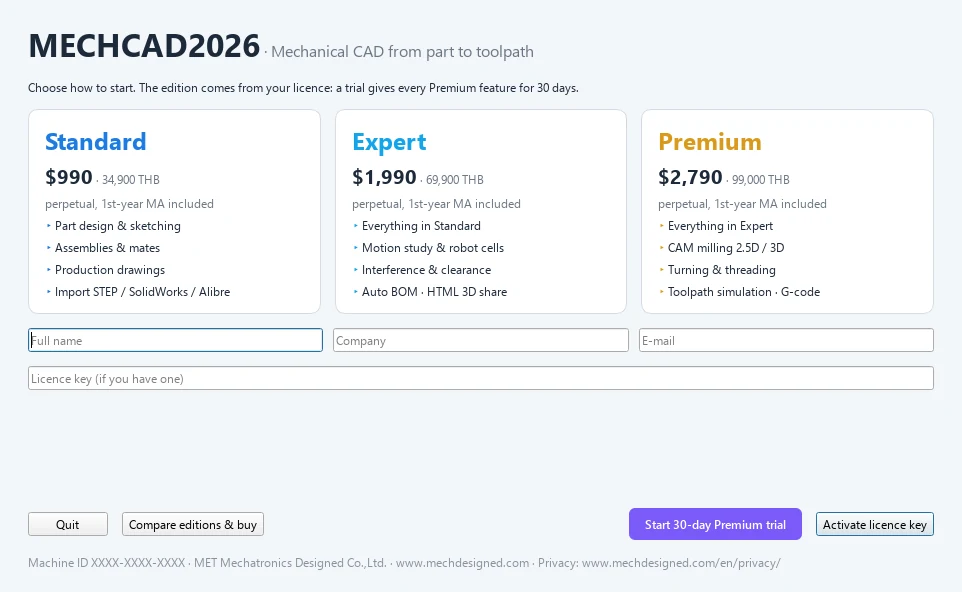
| The Welcome window appears every time you start | There is no licence, or it has expired | Enter a license key or start a trial. See Activate. |
| A free trial was already used on this computer or with this e-mail. | The trial has already been used | Contact MET to buy or extend. |
| This license key has expired. | The key has expired | Renew with MET. |
| All N seats are in use. | All seats are in use | Run Help › Deactivate License on another computer first. |
| Offline grace elapsed — reconnect to the license server. | Offline for more than 7 days | Connect to the internet and restart the program. |
| The badge shows ● UNLICENSED | The licence check failed | Click the badge to open Welcome, then activate again. |
| A button/tab says … is part of MECHCAD Expert and Premium | Your edition does not include it | See Editions. You can upgrade with the same key. |
Information to have ready when you contact MET
- The Machine ID (at the bottom of the Welcome window, or hover over the Edition badge)
- The program version from Help › About
- The e-mail used to activate
Note: The activation data is stored in
%APPDATA%\MET-MECHCAD. Do not delete this folder unless necessary.
Try it: "All seats are in use" on a new home-office laptop
Scenario: you install MECHCAD on a new laptop to finish a desk-clock design at home, and activation says All N seats are in use.
- On the old office PC, choose Help › Deactivate License › Yes. Wait for Seat released.
- On the laptop, click the badge to open the Welcome window and enter the same key and e-mail again.
- If the old PC is broken, write down the laptop's Machine ID (at the bottom of the Welcome window) and the version from Help › About, and send both to MET with the e-mail you used to activate.
- When you work offline (on a trip, for example), you have 7 days before Offline grace elapsed. Connect and restart MECHCAD before that.
Challenge: Hover over the badge and find the expiry date and the server name.