
Symptoms and fixes
| Symptom | Fix |
|---|---|
| The 3D view is blank, or the program closes at startup | Update the graphics card driver. On a laptop with two GPUs, use the discrete GPU (the direct installer has the option Prefer high-performance graphics for MECHCAD, or set it in Windows › Settings › Display › Graphics). |
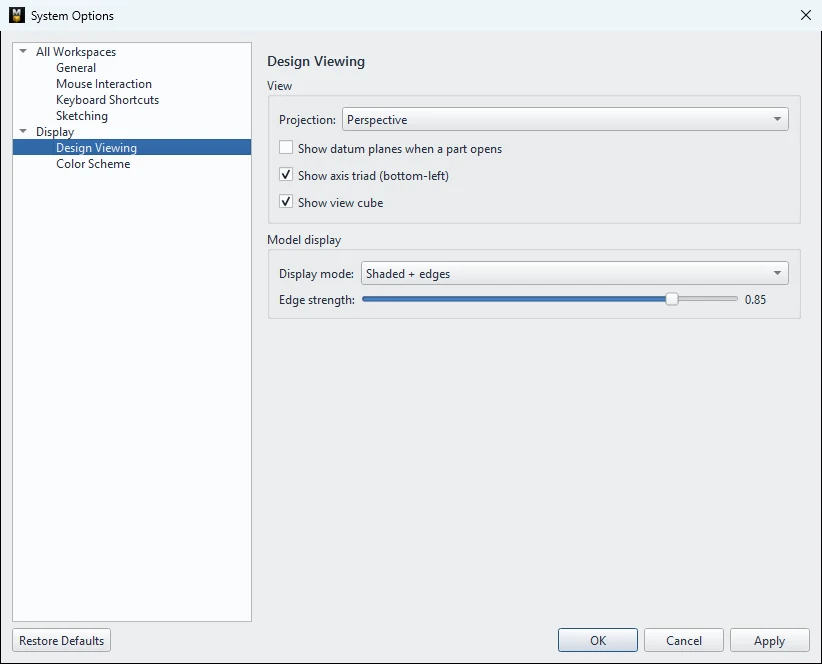
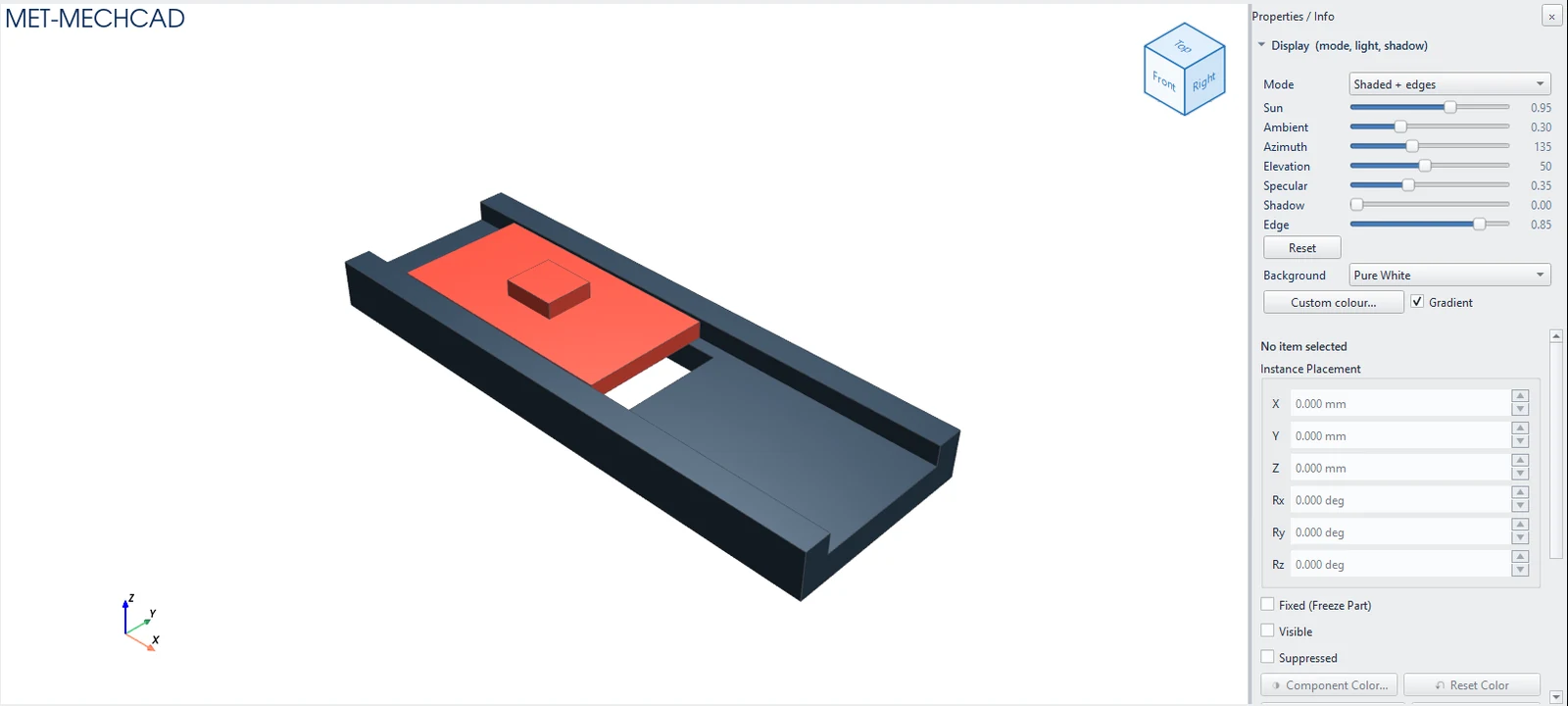
| Rotating a large part is choppy | Switch to Shaded mode (no edges). Turn off Shadows / Ambient Occl. / Realistic Render. See Large assemblies. |
| Overlapping surfaces flicker | Switch between Orthographic / Perspective, or Zoom to fit. |
| Clicks pick the wrong object on a 150% screen | Use the latest version (fixed in 2026.x) and Check for Updates. |
| The mouse rotates/pans awkwardly | Set the preset in System Options › Mouse Interaction. See Mouse use. |
| The background is too dark/bright | System Options › Color Scheme, or the Display › Background panel. |
Note: If the program freezes or closes by itself, its logs are in
%LOCALAPPDATA%\MECHCAD\logs(fault.log, freeze.log) and%LOCALAPPDATA%\MECHCAD\mechcad_crash.log. Attach these files when you report the problem to MET.
Try it: A choppy standing-desk frame on a laptop
Scenario: you open a standing-desk frame assembly on a laptop with two GPUs, and rotating it is jerky.
- Check that Windows uses the discrete GPU for MECHCAD (Windows › Settings › Display › Graphics, or the installer option Prefer high-performance graphics for MECHCAD). Restart MECHCAD.
- Click the Shaded display button (no edges).
- Turn off Shadows, Ambient Occl. and Realistic Render if they are on.
- Rotate again. If the frame is still slow, follow Large assemblies.
- If MECHCAD closes by itself, send MET the files from
%LOCALAPPDATA%\MECHCAD\logsandmechcad_crash.log.
Challenge: Compare the rotation speed in Shaded + Edges and Shaded on the same model.