
What it does
After you click the first point of a Line, Rectangle, Center Rect or Circle, input boxes follow the cursor. Type a value and press Enter to get a shape of exactly that size, with driving dimensions, so you do not need to add a Smart Dimension afterward.
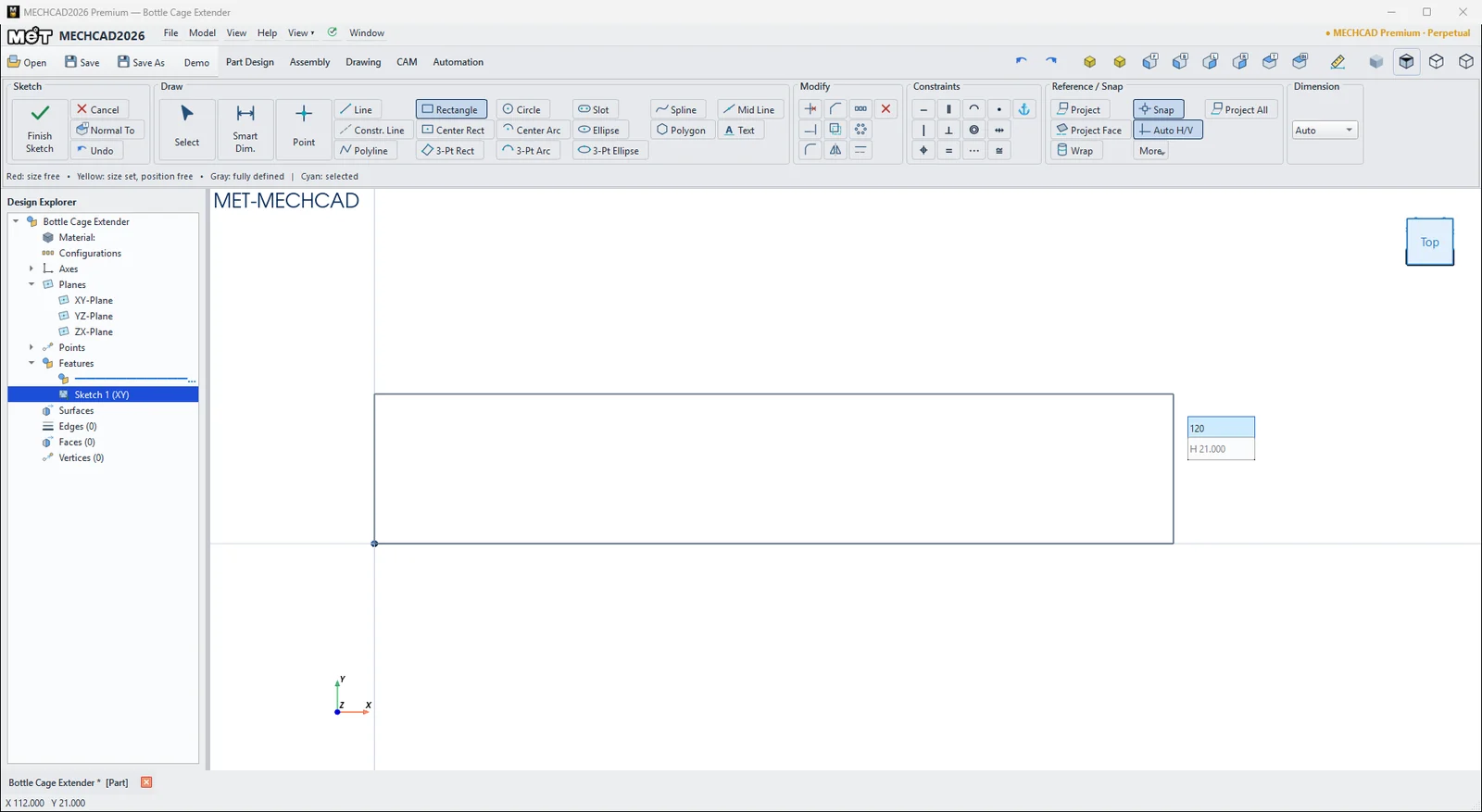
| Tool | Input boxes |
|---|---|
| Line, Constr. Line | L length, ∠ angle |
| Rectangle, Center Rect | W width, H height |
| Circle | Ø diameter |
| Dragging a line end point | L / ∠ |
| Dragging a single point | X / Y |
Steps
- Choose a tool (for example Rectangle) and click the first point.
- Type a number. The value goes into the first box and that box is locked (blue).
- Press Tab / Shift+Tab to go to the next box, then type a value.
- Press Enter to create the shape. The tool stays active.
- Press Esc to cancel.
Note: Typed values take priority over snaps. The result always matches the numbers.
Try it: Bottle-cage extender
Want your water bottle 30 mm higher on the frame? This extender plate bolts onto the standard bottle bosses, which are 64 mm apart, and holds the cage higher up. Every size is typed while you draw, so you never need to add a dimension afterward.
- Click Sketch and press Enter (XY-Plane). Press R (Rectangle) and click the origin. Move the mouse up and to the right, type 120, press Tab, type 24 and press Enter. Press Esc.
- Press C (Circle). Click inside the plate, type 5.5 and press Enter. Do this again for a second 5.5 mm circle. Then make two circles of 4.2 mm (tap size for M5).
- Press Esc to go back to Select. Drag the centre of the first 5.5 mm circle. When the X / Y boxes appear, type 13, press Tab, type 12 and press Enter. Move the other centres the same way: second 5.5 mm circle to 77 / 12, and the 4.2 mm circles to 43 / 12 and 107 / 12.
- Click Finish Sketch and Extrude 5 mm.
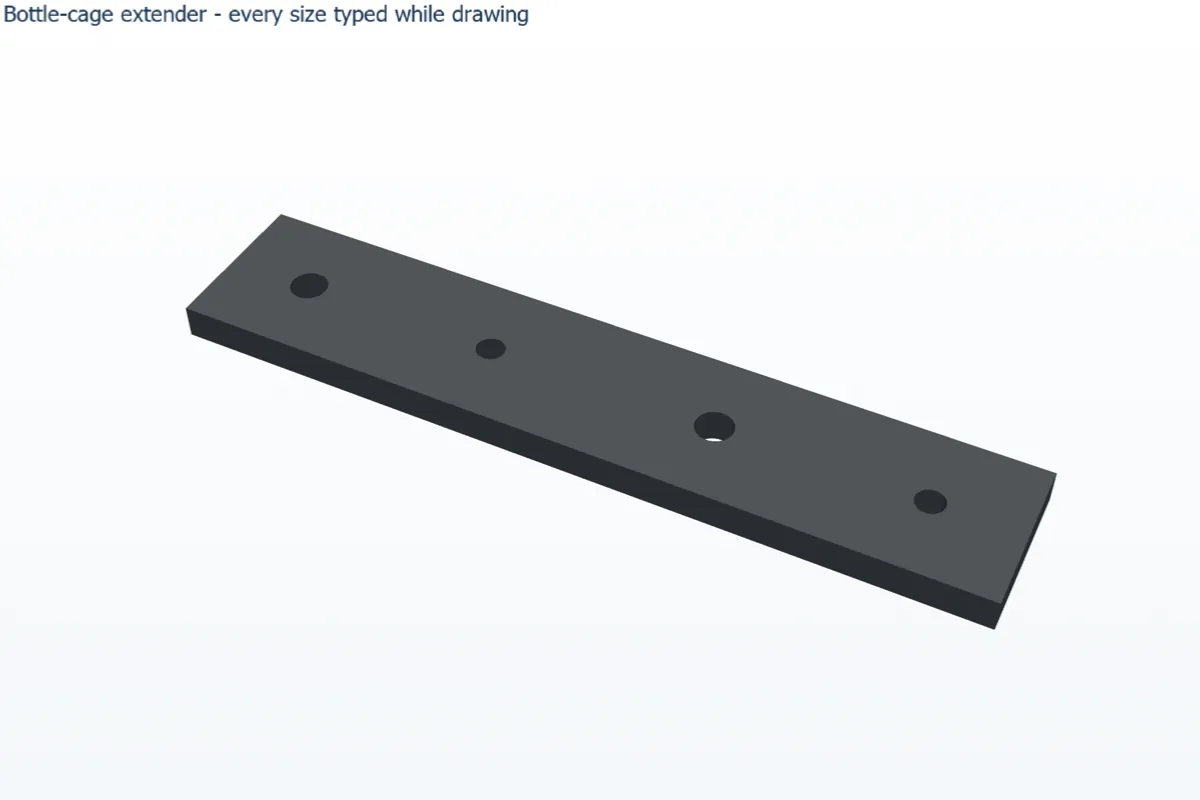
Challenge: Make a 50 mm extender. Move the cage holes to X 63 and 127 and the rectangle to 140 long.