
What it does
Places a closed sketch on a face, then makes it raised (Emboss) or recessed (Deboss). Wrap mode rolls the sketch around a cylinder and keeps its length. Project projects it straight onto the face, for example a logo on a bottle.
Where to find it
- Model › Features › Wrap / Project
- While sketching: Reference / Snap › Wrap (finishes the sketch and opens this command right away)
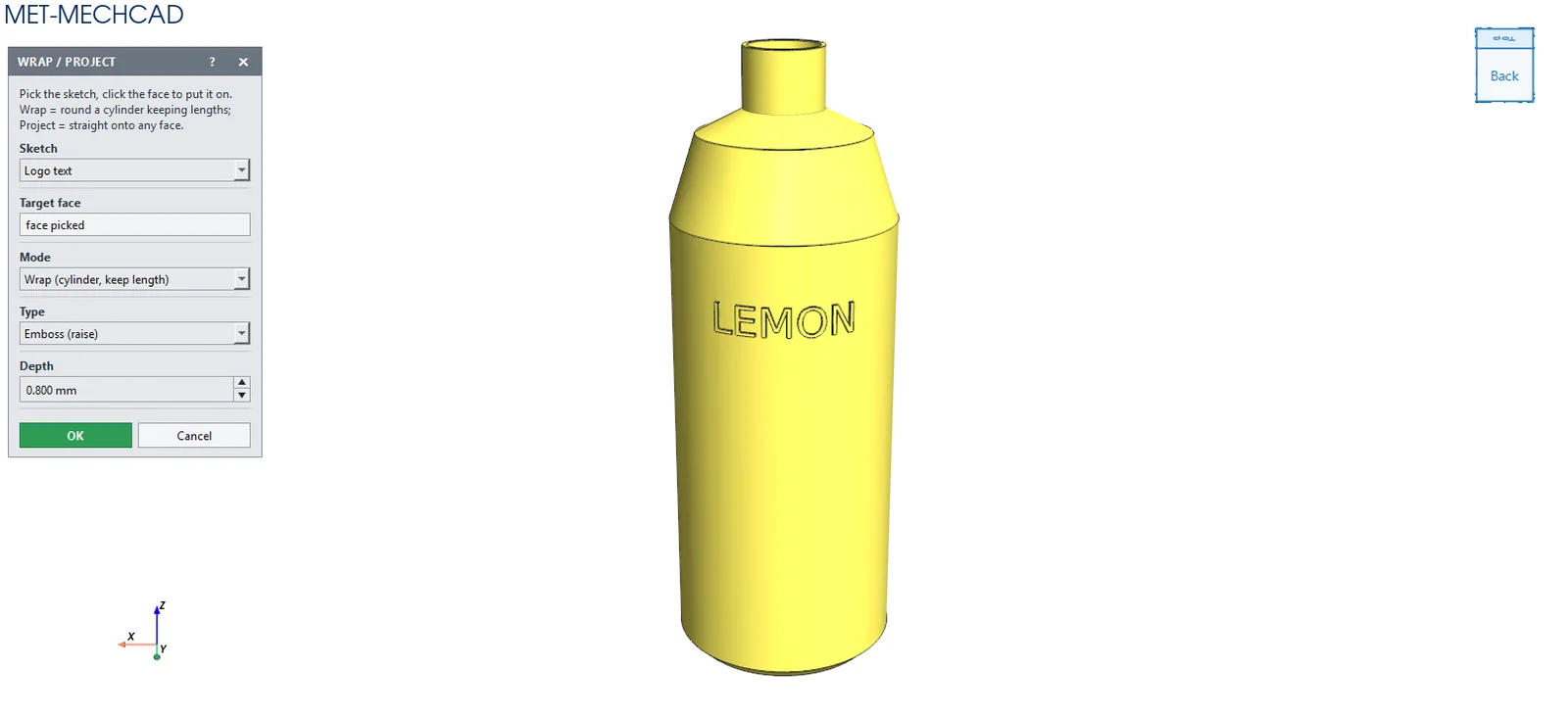
Steps
- Draw a closed sketch (for example text or a logo).
- Click Wrap / Project and choose the Sketch.
- Click the Target face (clicking a cylindrical face switches to Wrap mode automatically).
- Choose the Mode, Type and Depth, then click OK.
| Option | Default | Meaning |
|---|---|---|
| Sketch | – | The closed sketch to place |
| Target face | – | The target face |
| Mode | Wrap | Wrap (cylinder, keep length) / Project (along sketch normal) |
| Type | Emboss | Emboss (raise) raised / Deboss (recess) recessed |
| Depth | 1 mm | Height/depth (0.01–1000) |
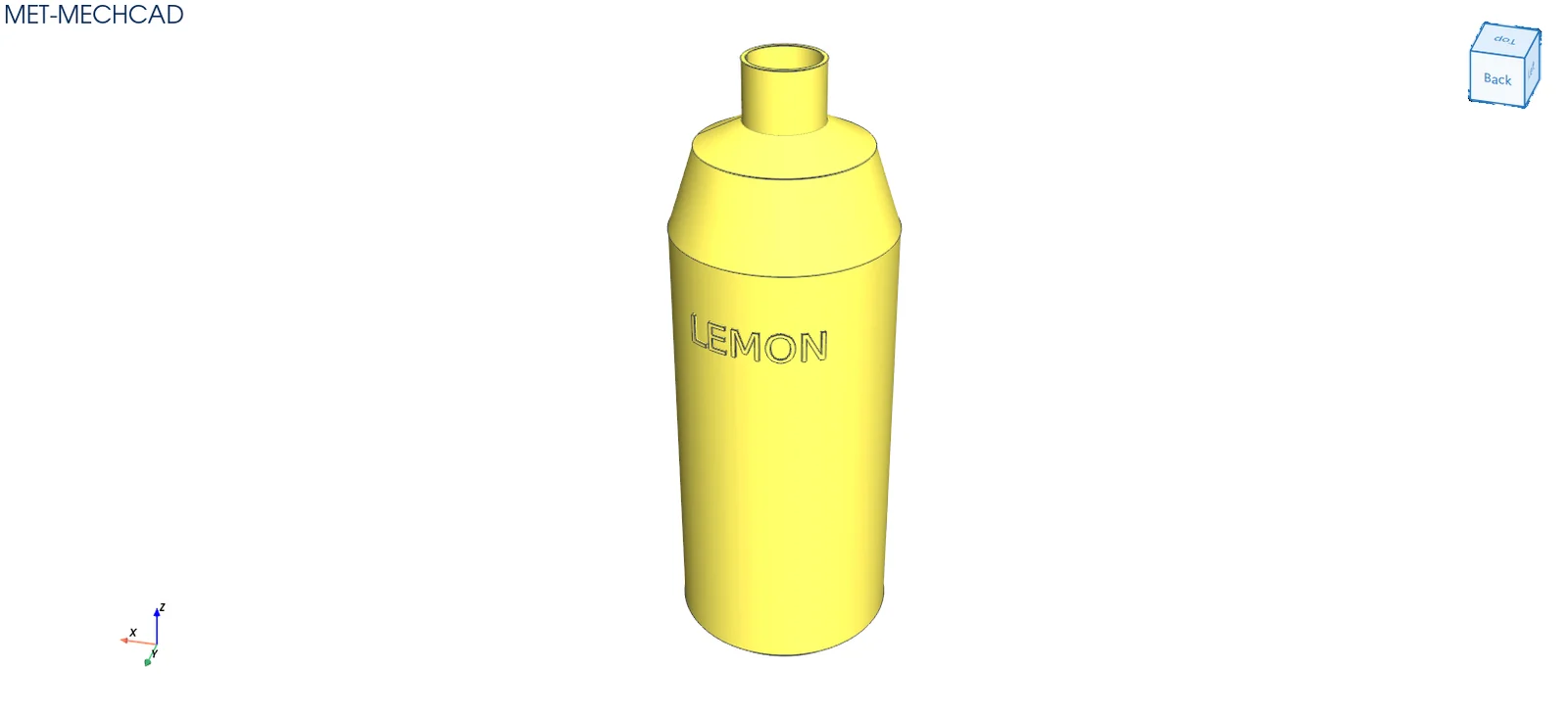
Note: The command box is floating (it does not lock the screen). Drag its title bar to move it. The preview updates immediately when you change a value. OK saves one Undo step. Cancel, ✕ or Esc cancels. If the conditions are not complete, the OK button is grey and an orange message tells you what to select.