
What it does
Shows and manages the licence on this computer.
Edition badge (top right)
Shows the edition and its term, for example ● MECHCAD Premium · Perpetual, ● MECHCAD Trial · 12 days left, ● MECHCAD Expert · until 2027-01-31 or ● UNLICENSED (red). The badge turns orange when 7 days or fewer remain. Hover over it to see the details (Product, Edition, Server, Machine, Expiry). Click it to open the Welcome window.
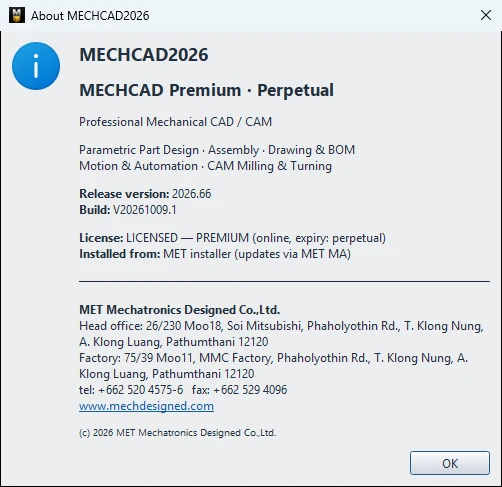
Help menu
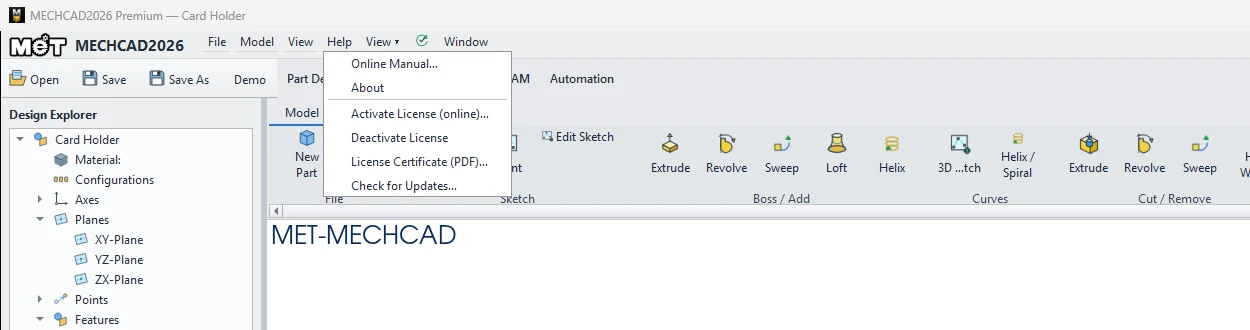
| Command | Meaning |
|---|---|
| About | Version (Release version / Build), edition, licence status and install channel. |
| Activate License (online)… | Opens the Welcome window to enter a key or change the edition. |
| Deactivate License | Releases the seat on this computer (Release this machine's seat on the license server?). Use it before you move to a new computer. |
| License Certificate (PDF)… | Creates a PDF licence certificate (asks for the licence holder and company name if they are not set yet). |
| Check for Updates… | See Updates. |
Move the licence to a new computer
- On the old computer: Help › Deactivate License › Yes (Seat released.).
- On the new computer: install the program, then enter the same key in the Welcome window.
Note: If the old computer is offline, you see Server unreachable. Activation kept; retry to release the seat. Connect to the internet and try again, or contact MET.
Try it: Move your licence from the office PC to a home laptop
Scenario: you will work from home this month on a cable-management box, so the licence has to move to your laptop.
- On the office PC, hover over the badge and note the edition and expiry.
- Choose Help › Deactivate License › Yes and wait for Seat released.
- On the laptop, install MECHCAD and enter the same key and e-mail in the Welcome window.
- Check the badge: same edition, same expiry.
- Choose Help › License Certificate (PDF)… and save the certificate for your IT records.
Challenge: If you forgot step 2 and the office PC is offline, connect it to the internet and try Deactivate License again.