
What it does
The MECHCAD2026 Start window shows the documents you opened recently (Part, Assembly, Drawing, Automation and CAM) with thumbnails, so you can get back to work quickly. Opening a file from the list does not overwrite the original file.
Where to find it
- Opens by itself when the program starts (turn it off with Show at startup)
- File › Start / Recent Documents…
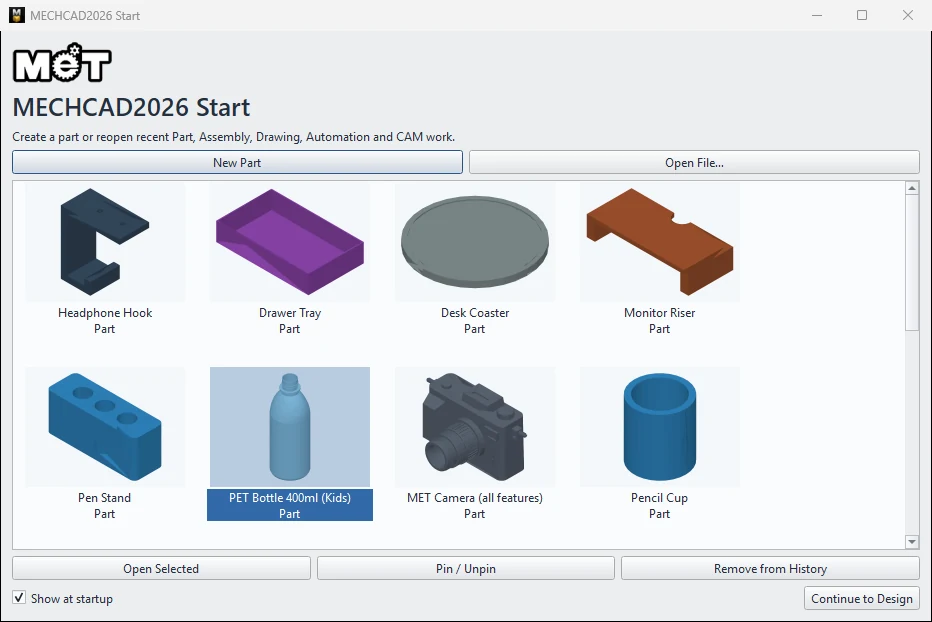
Steps
- Double-click the document thumbnail you want, or select it and click Open Selected.
- To start new work, click New Part, or click Open File… to choose another file.
- Click Continue to Design to minimize this window and go back to the main window.
| Button / option | Meaning |
|---|---|
| New Part | Starts a new part |
| Open File… | Opens any MECHCAD file type (.metprt .metasm .metdrw .metcam .metauto .metpkg) |
| Open Selected | Opens the selected document |
| Pin / Unpin | Pins a document (marked with ★ and always at the top) |
| Remove from History | Removes it from the list (the actual file is not deleted) |
| Show at startup | Shows this window every time the program starts |
| Continue to Design | Returns to the main window |
Note: The list keeps the 40 most recent documents plus any pinned ones. If a file has been moved, it shows File is unavailable at its saved location.
Try it: Keep your desk-calendar stand one click away
Scenario: you work on a desk-calendar stand all week and want it at the top of the list every morning.
- Make a quick part: sketch a rectangle 120 × 60, Extrude 10 mm and save it as
desk-calendar-stand.metprt. Close it. - Choose File › Start / Recent Documents…. The stand is in the list with its thumbnail.
- Select it and click Pin. It gets a ★ and stays at the top.
- Select an old test file you no longer need and click Remove from History (the file itself is not deleted).
- Make sure Show at startup is ticked. Close MECHCAD and start it again: the pinned stand is the first thing you see. Double-click it.
Challenge: Move the .metprt to another folder and open the Start window again: you see File is unavailable at its saved location.